


Administrators, Amelia Managers, and employees with back end access can create new appointments directly from the Bookings page. This is useful when handling phone bookings, walk-ins, or scheduling on behalf of customers. The booking interface follows the same availability rules as the front end, unless specific administrator permissions override them.
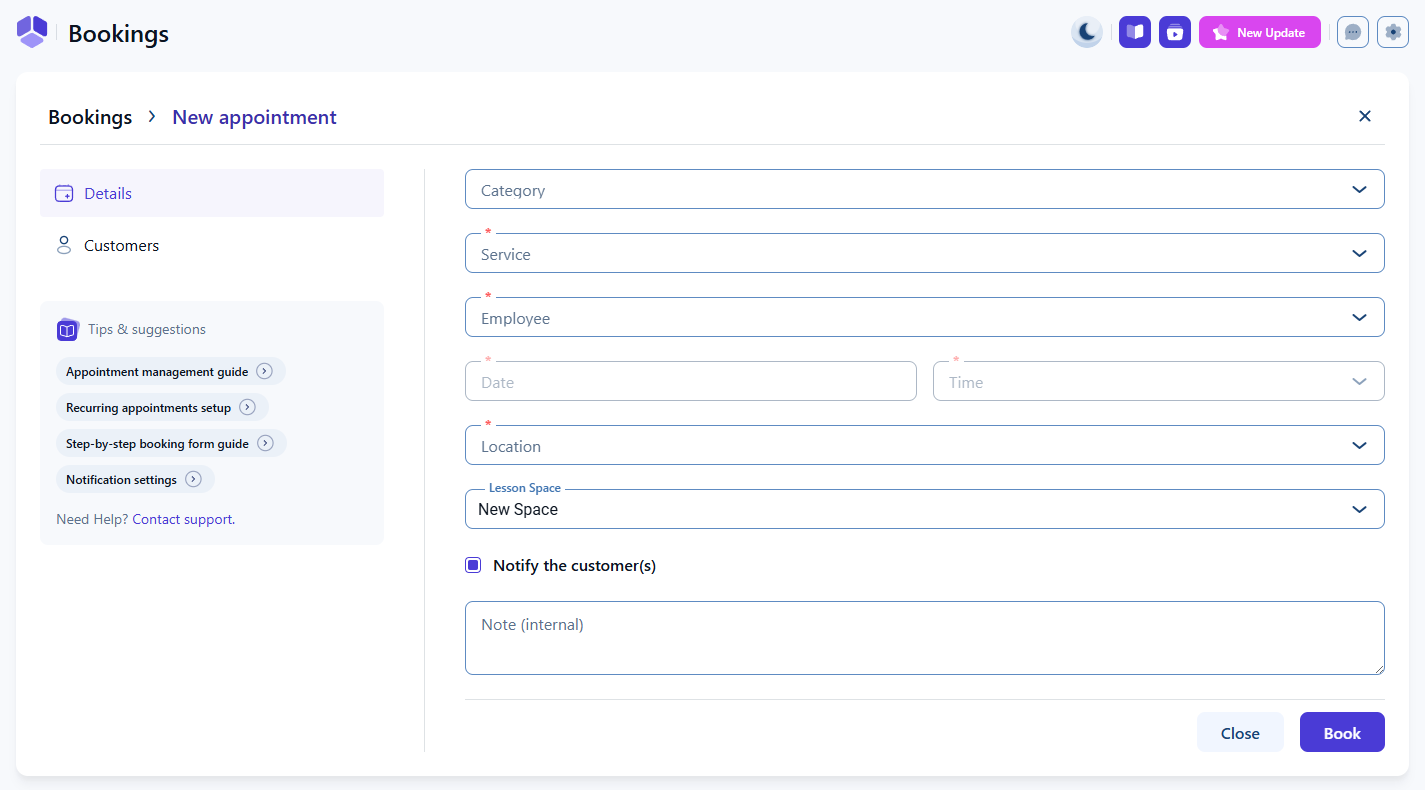
Open Amelia → Bookings and stay on the Appointments tab. Click the + Book appointment button in the top right corner to open the appointment creation screen. You will land on the Details tab, where you select the service, employee, date, and time.
A Customers tab is also available, since at least one customer must be added before saving the appointment.
The category dropdown at the top is optional and serves as a filter for narrowing down services. The service dropdown is required. If you pick a service first, the category is automatically selected above it.
The employee field is also required. If you pick an employee first, the service dropdown filters to only those services assigned to that employee.
Date and time remain disabled until both the service and employee fields are selected. Once selected, the date and time pickers display availability based on employee working hours, special days, and days off, matching what customers see on the front end.
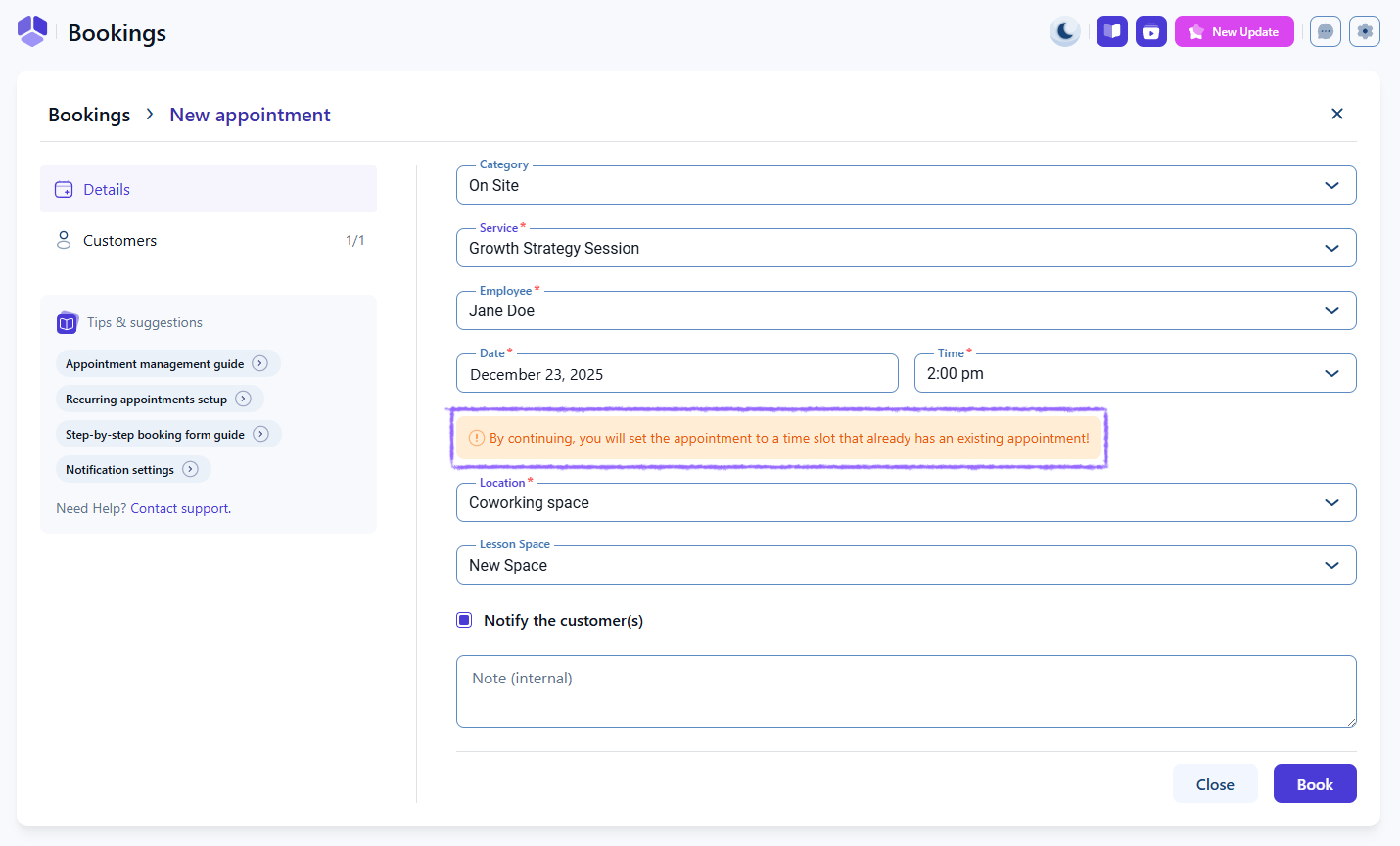
Administrators have additional flexibility based on settings in Admin permissions. If Allow admin to book appointment at any time is enabled, administrators can select any time slot from midnight to midnight regardless of employee availability.
If Allow admin to book over an existing appointment is enabled, administrators can book over booked time slots, creating overbooked appointments.
These options should be used with caution.
If you have at least one location created, the location dropdown becomes mandatory when booking appointments. Location filters availability based on the selected employee’s working hours and special days for that location.
Changing the location may change available appointment times depending on the employee’s schedule.
Notify the customer(s) is enabled by default and sends all enabled appointment notifications to the customer and employee when the appointment is created. You can disable it for silent updates when needed.
The internal note field allows you to store private comments about the appointment. Internal notes are visible only in the back end and do not appear in notifications or the customer panel.
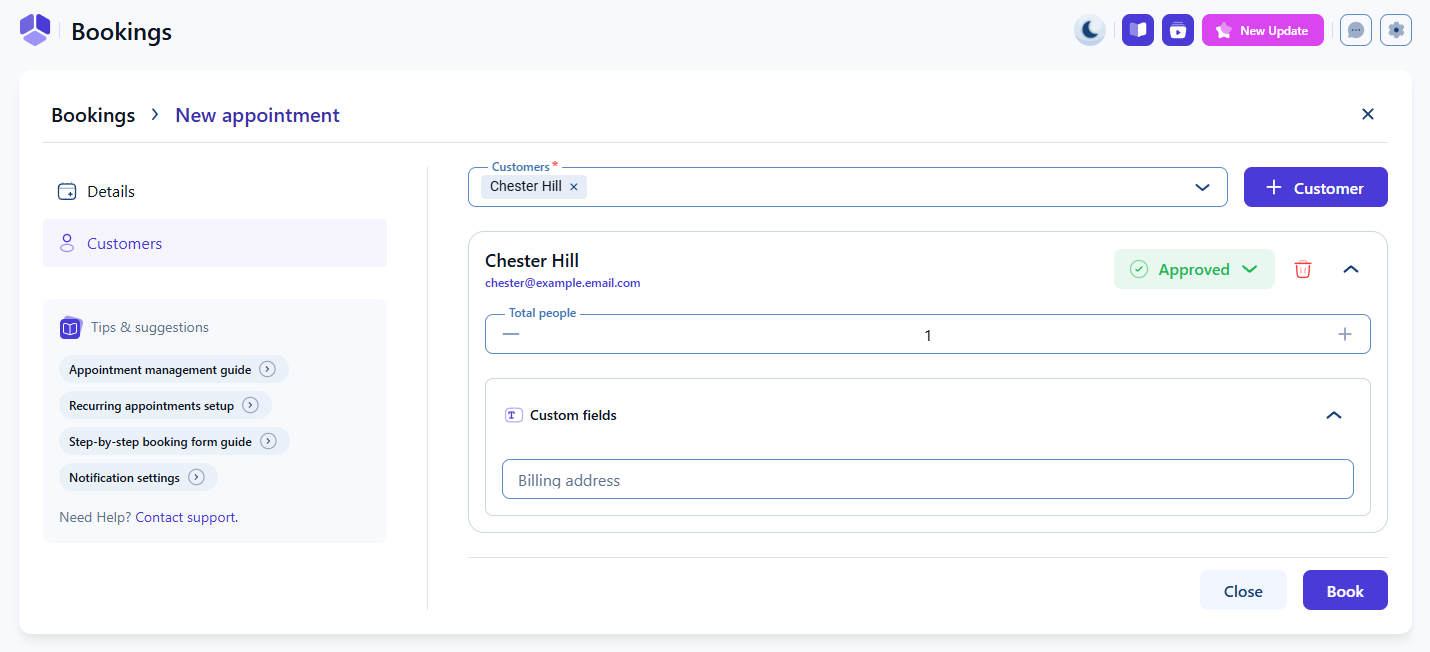
Click Book in the Details tab to switch to the Customers tab or manually switch to it. At least one customer must be added before the appointment can be saved. You can also add multiple customers if the service supports group bookings.
For each added customer, you can set the appointment status, define the number of people they are bringing, apply an existing coupon created through the Coupons feature, and complete any booking-related custom fields you have configured in Booking custom fields.
Once service, employee, time, location, and customer information are added, click Book to create the appointment. The new booking will appear in the Appointments list in Amelia → Bookings.
You can edit it at any time by clicking the appointment card → Edit appointment or through the three-dots menu on the right side → Edit.