
Grow Your Business This Fall
Up to 40%Off

How does the events waiting list feature work in Amelia?

The waiting list feature allows customers to join a queue when an event reaches full capacity. Once enabled, customers can join the waiting list from the front end and administrators can manually approve them from the back end. This helps you avoid losing potential attendees and gives you more control over capacity.

Info Note

The events waiting list is available in Pro and Elite license plans.
How do I enable the Waiting List feature?

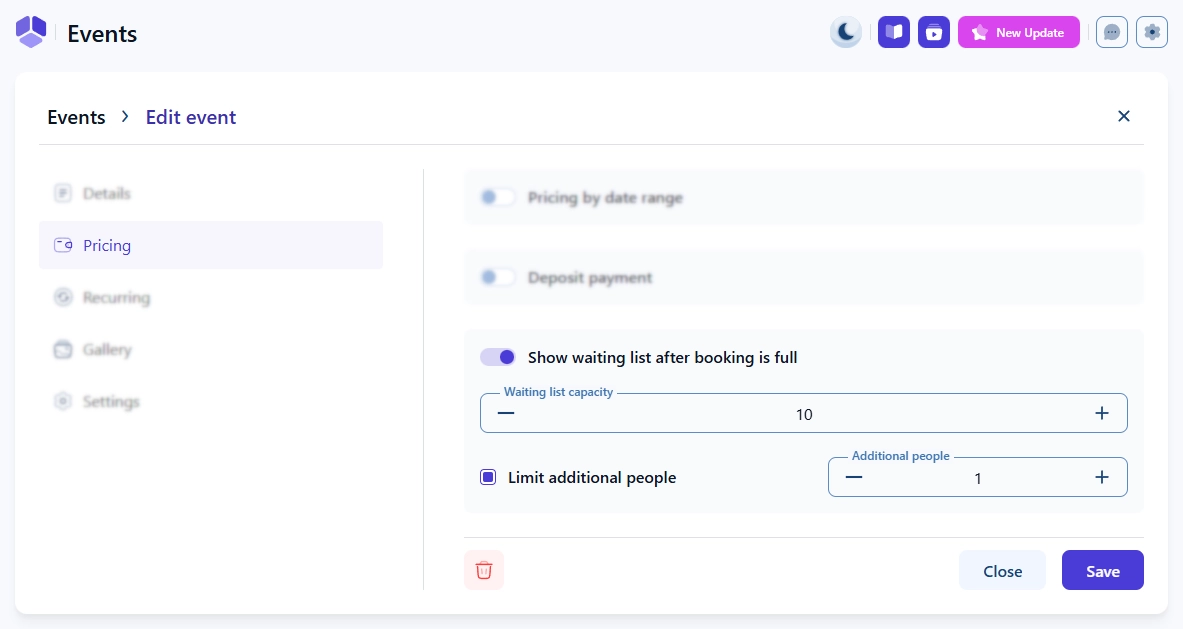
You can enable the Waiting List feature in Features & Integrations under the Features tab. Once enabled, this option appears in each event’s Pricing tab. There is no setup screen for this feature, so it becomes active immediately after enabling.

How does the Waiting List capacity work?

The waiting list has its own capacity, separate from the event capacity. For example, an event may allow 30 attendees, while its waiting list may allow 10 additional people. This lets you manage how many people can join the queue even when the event is full.

Events waiting list toggle, capacity and additional people settings in Amelia

How does the Waiting List appear on the front end?

The Waiting List feature does not change or load additional elements into the Event List or Event Calendar forms. These forms behave normally until the event reaches full capacity or at least one attendee joins the waiting list, at which point:

  • List view: clearly shows Full and the Join waiting list button
  • Calendar view: shows a smaller Join waiting list note due to layout constraints

Regardless of the form used, the same modal steps appear.

Event modal showing Join waiting list button and ticket selection for joining the waiting list in Amelia

Why does my event still show as full when places are available?

An event keeps showing as Full for as long as at least one attendee holds the Waiting list status, even when the event still has free places. This is deliberate; it stops new customers from booking ahead of people who are already queuing.

On the Event List and Event Calendar forms, customers continue to see Full and the Join waiting list button, so anyone booking during this time joins the queue instead of taking an open place. Because event waiting lists are handled manually, the event stays in this state until an administrator clears the queue in Bookings → Events by approving the waiting list attendees or removing them.

Once no attendee holds the Waiting list status, the booking forms accept new bookings normally again.

Event showing Full on the booking form while places remain available in Amelia
Alert Please note

A single attendee saved with the Waiting list status is enough to show the event as Full to every other customer. If you add attendees from the back end, check the Status field before saving, and review the waiting list first if customers report that an event with free places appears full.
What happens after a customer joins the waiting list?

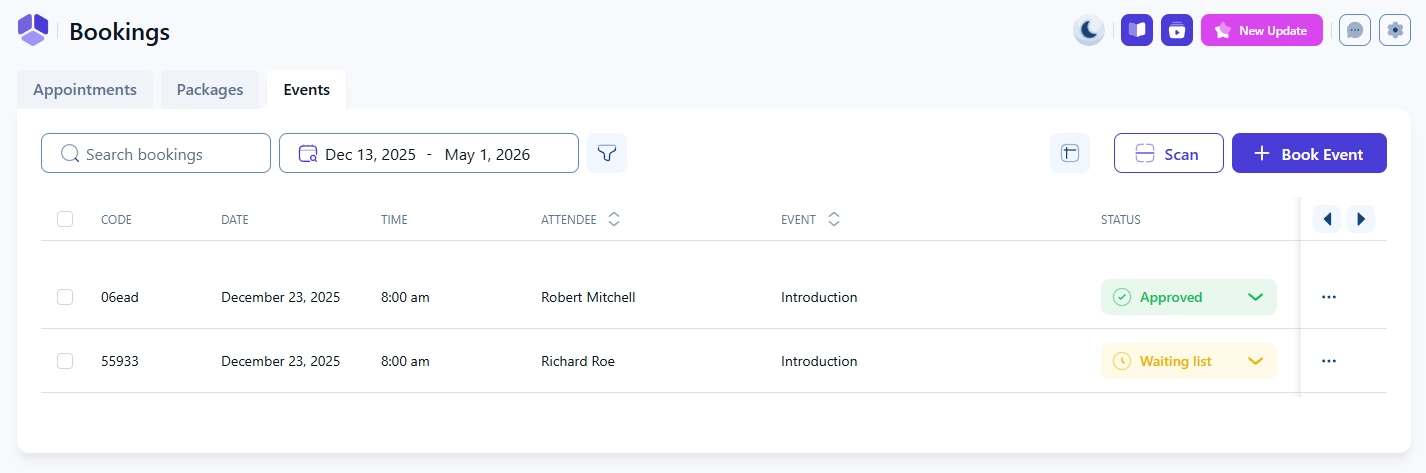
Once a customer joins the waiting list, their booking is stored with the Waiting list status in Bookings under the Events section. Administrators can manually approve any attendee regardless of their position in the queue. Approving a waiting list attendee can exceed the event’s defined capacity because admins have the ability to overbook events.

Event bookings in Amelia showing customers with the Waiting list status

What do customers see after joining the waiting list?

Instead of a booking confirmation, customers see a message confirming they have joined the waiting list and showing their position.

This position is informational only. You can approve anyone at any time, regardless of their position in the queue.

How do I manually add or manage waiting list attendees?

When adding an attendee via Bookings → Events → + Book event, you must manually choose Waiting list from the Status dropdown.

If you select Approved instead, Amelia will:

  • Overbook the event
  • Send the attendee a confirmation email
  • Mark them as a confirmed attendee

This can cause confusion, so double-check the status before saving.

Alert Please note

Admins can add attendees to a full event, potentially creating an overbooking for the event. Always double check if you want to save an attendee as Approved or if they should be on the Waiting list.

Saving an attendee as Waiting list by mistake has the opposite effect: the event shows as Full to all other customers until you correct the status.

What notifications are sent to waiting list customers?

Amelia includes a default Waiting list confirmation email notification template. You can customize this message in the Notifications section. The confirmation message shown on the front end also includes the customer’s position on the waiting list, although this number is only informational and does not affect approval order.

Alert Please note

For events waiting list, Amelia does not automatically notify customers when a spot becomes available, and customers cannot move themselves from the waiting list to the approved status. Event attendees must be approved manually by an administrator.

What should I keep in mind when using the waiting list?

    • Waiting list has its own capacity, independent from event capacity
    • Feature must be enabled per event
    • Process is manual (not automated)
    • Customers do not see other attendees or their positions
    • Confirmation email template for waiting list exists and can be customized
    • An event shows as Full while anyone holds the Waiting list status, even if places are free