
Our Biggest Sale Is Here
Up to 70% Off

How to accept in-person card payments with Square POS in Amelia

A customer books a massage online, chooses to pay on site, and arrives at your front desk. Instead of ringing up the amount on a separate card machine and then marking the appointment as paid by hand, you open the booking in Amelia and click Charge on Terminal. The amount appears on your Square Terminal, the customer taps or inserts their card, and Amelia updates the payment on its own.

Square POS connects Amelia with your Square Terminal devices, so you can take card payments on the spot for any booking that still has an amount due and keep the payment status in Amelia in sync without any manual work.

Info Note

Square POS is available in the Starter, Standard, Pro, and Elite license plans. You'll also need a Square Terminal device and a Square account connected to Amelia; if you haven't connected Square yet, follow the steps in the Square documentation first.
How do I pair a Square Terminal with Amelia?

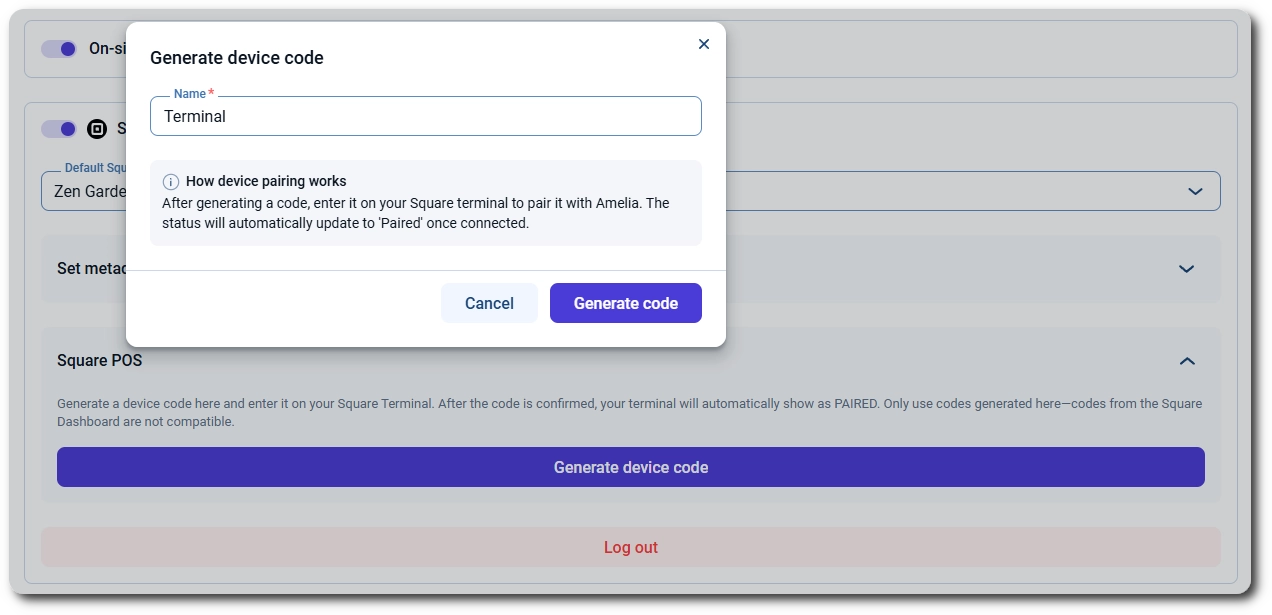
You pair a terminal by generating a device code in Amelia and entering it on the terminal. Go to Amelia → Settings → Payments, expand the Square section, and open Square POS. Click Generate device code, enter a Name for the terminal, and click Generate code. The name is only for your own reference, so pick something that tells your team which device it is, such as Front desk or Reception.

Generate device code window for naming a Square Terminal in Amelia

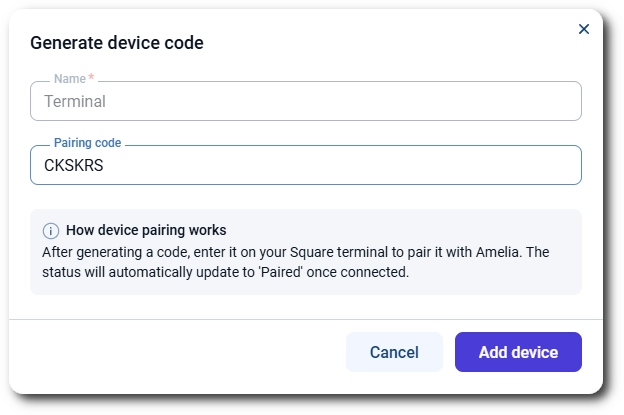
Amelia shows the new code in the Pairing code field. Enter it on your Square Terminal, then click Add device. The terminal appears in the Generated Device Codes list with the Pairing… status, and once the terminal confirms the code, the status changes to Paired on its own; Amelia listens for updates from Square, so you don’t need to refresh the page.

Pairing code generated in Amelia for a Square Terminal
Alert Please note

A device code is valid for 5 minutes. If it isn't entered on the terminal in that time, it's marked as Expired and can't be used again, so generate a new code. Only codes generated in Amelia work; codes created in the Square Dashboard aren't compatible.

You can pair as many terminals as you need, for example one at the front desk and one at reception, and each of them shows up in the list with its own status. If Amelia shows Unable to connect to Square while you’re generating a code, log out of Square in the same section and log in again.

Three paired Square Terminals in the Amelia Square POS settings

How do I remove a terminal?

Click the trash icon next to the terminal in the Generated Device Codes list and confirm. This removes the terminal from Amelia only; Amelia can’t sign a device out of Square, so if you want to stop using a terminal completely, remove the connection on the terminal itself as well.

Which bookings can be charged on the terminal?

You can charge any appointment, event, or package booking that still has an amount due. That includes bookings made with the On-site payment method, bookings where the customer paid a deposit online and the remainder is due at your location, and bookings created from the back end or the Employee panel.

Only admins and Amelia Managers can charge payments on a terminal; employees can’t use Square POS.

How do I charge a customer on the terminal?

Go to Amelia → Bookings and click the booking to open its details drawer. In the Payments section, click Charge on Terminal.

If you have one paired terminal, the payment request goes straight to it. If you have more than one, the Select terminal window opens: pick the terminal from the dropdown and click the Charge button, which shows the amount to be paid. The gray line under each terminal name in the dropdown is the device ID, which is the terminal’s serial number, so you can tell devices apart even if they have similar names. If there’s no paired terminal, Amelia asks you to pair one in the Square POS settings first.

Select terminal window for choosing a Square Terminal in Amelia

What happens while the customer is paying?

As soon as the request reaches the terminal, the booking’s payment status changes to Processing, the payment method changes to Square POS, and the drawer shows Processing payment on terminal…. The terminal displays the amount, and the customer inserts, taps, or swipes their card. Amelia keeps checking the payment in the background, so the result shows up in the drawer without a page refresh.

Square POS payment processing on the terminal in the Amelia appointment drawer

What if the customer cancels the payment on the terminal?

If the customer cancels on the terminal, the drawer shows Payment canceled with Payment canceled on terminal. underneath, and the booking stays unpaid. Click Charge on Terminal to send a new payment request whenever the customer is ready.

Payment canceled on terminal message in the Amelia appointment drawer

Can I cancel the payment from Amelia?

Yes. While the payment is processing, click Cancel terminal payment in the drawer. The request is removed from the terminal, the drawer shows Payment canceled from Amelia., and the booking goes back to the Pending status with the On-site payment method, ready to be charged again.

Payment canceled from Amelia message in the appointment details drawer

What if the payment times out or fails?

Amelia waits about 2 minutes for the customer to complete the payment. If nothing happens in that time, the drawer shows Payment timed out, the booking goes back to the Pending status with the On-site payment method, and you need to click Charge on Terminal again to start over. This can also happen if the terminal is offline or busy.

If the terminal declines the payment, Amelia shows Payment failed, and you can simply try again. If Amelia shows Payment status unknown, it couldn’t confirm the result with Square, so check the payment in your Square Dashboard before charging the customer again; this way you avoid charging them twice.

What happens if the price changes?

If someone edits the booking while the payment is processing, for example by adding a paid extra, the amount on the terminal no longer matches the booking, and the drawer shows Terminal amount is out of date. The request isn’t canceled automatically, so cancel it yourself, either with Cancel terminal payment in Amelia or with the X on the terminal, and then click Charge on Terminal again to send the correct amount.

Terminal amount is out of date warning in the Amelia appointment drawer

If the price changes after the customer has already paid, Charge on Terminal appears again in the drawer, and only the remaining amount is charged.

How do I know the payment went through?

When the customer completes the payment, the drawer shows Payment completed successfully along with the amount charged via the Square POS terminal. The payment status changes to Paid and the payment method shows Square POS, so you can see at a glance how the booking was paid.

Payment completed successfully via Square POS in the Amelia appointment drawer

How do I refund a Square POS payment?

Square POS payments are refunded the same way as any other Square payment: open the Finance page, select the payment, and click Refund in its transaction details. Amelia sends the refund to Square, and refunds made directly in Square are synced back to Amelia as well. For details, refer to the Square documentation.