


How do I use Amelia with Divi 5
Amelia integrates directly with Divi 5, allowing you to add booking forms, event forms, and the Customer and Employee Panels when building your pages.
You can use Amelia modules when building a page from scratch or when editing a Divi template. Add the Amelia module you want to use to a row, and configure the available options directly through the module settings.
Where can I find Amelia modules in Divi 5?
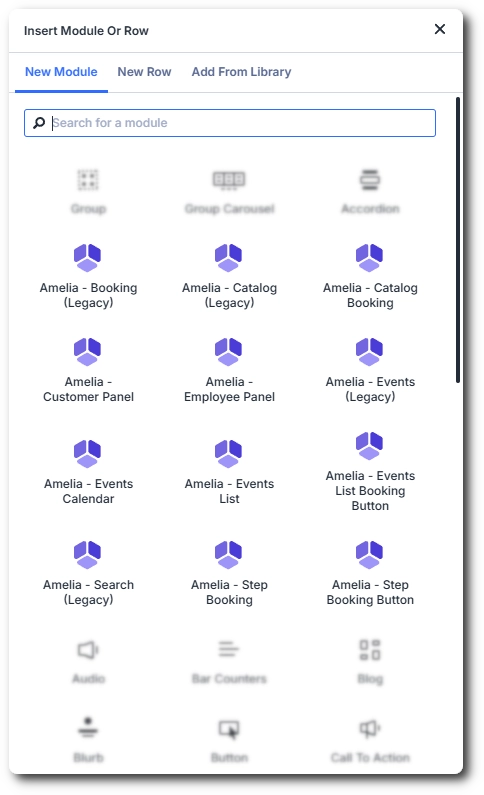
When building or editing a page with Divi 5, add a module to a row and search for Amelia. Select the Amelia module you want to add to the page.
The available modules include booking forms, event views, booking buttons, and the Customer and Employee Panels.
Modules marked as Legacy are kept for compatibility with existing Divi pages that use older Amelia shortcodes. If you add a Legacy module to a new page, it is converted to the corresponding current Amelia module. For example, Amelia - Booking (Legacy) is converted to Amelia - Step Booking.
How do I configure an Amelia booking form in Divi 5?
After adding an Amelia module to a row, select it to open the module settings. Amelia’s configuration options are available under the Content tab.
Depending on the selected module, you can preselect booking parameters, choose what the form displays, select the layout version, or configure the form to load manually.
The layout displayed on the front end is determined by the layout selected in the Divi module settings. The Customize section is used only to customize the appearance of that layout; it does not determine which layout is displayed on the page.
How do I use Preselect Booking Parameters?
Enable Preselect Booking Parameters to control which booking options are available when the form is loaded.
Depending on the selected form, you can preselect categories, services, employees, locations, packages, or events. This allows you to create dedicated booking pages for specific services, employees, locations, or events without creating a shortcode manually.
For the Step Booking and Catalog Booking modules, the Show All option lets you choose whether the booking form displays both services and packages, services only, or packages only:
- Show All – displays both services and packages.
- Services – displays services only.
- Packages – displays packages only.
The Choose Layout Version option determines which version of the booking form is displayed on the front end. If you want to change the colors, fonts, labels, or other visual elements of the selected layout, configure them in Amelia → Customize.
How do I configure event modules?
For event modules, Preselect Booking Parameters allows you to control which events are displayed on the front end.
The available options depend on the selected event module and allow you to narrow down the events displayed to customers without creating a shortcode manually.
How do I load a booking form manually?
The Load Booking Form Manually option allows you to load the booking form when a visitor interacts with another element on the page, such as a button or link.
Enter the ID or class of the element that should load the booking form and select the corresponding Trigger Type.
Enable Show In Amelia Popup if you want the booking form to open in an Amelia popup instead of loading directly on the page.
Can I add an IvyForms form before the booking form?
Yes. If you’re also using IvyForms, Amelia’s IvyForms integration allows you to display a form before customers proceed to the booking form. This is useful when you want to collect additional information from customers before they start the booking process.
Use the Pre-booking Intake Form (IvyForms) dropdown to select one of the IvyForms forms you’ve already created.
The Pre-booking Intake Form (IvyForms) option is available only if IvyForms is installed and the Load Booking Form Manually field is empty.
For more information about setting it up, see our IvyForms integration documentation.
Can I use Amelia shortcodes with Divi 5?
Yes. Amelia modules allow you to configure the available booking options directly through the Divi module settings, so you don’t need to create a shortcode manually for these configurations.
The Amelia shortcode displayed in the Divi Builder represents the configuration of the module. The booking form itself is displayed on the front end.
If you want to add a shortcode manually or configure shortcode parameters yourself, see the Amelia shortcodes documentation for a complete list of available shortcodes and parameters.
What happens if my setup is incomplete?
If a selected service, category, employee, location, package, or event is unavailable or the selected parameters don’t match your Amelia configuration, the booking form may not be able to load correctly.
If a parameter combination doesn't exist, for example, if an employee is not assigned to a selected service, Amelia can indicate that the configuration is incomplete but may not identify the exact element causing the issue.
If the form doesn’t load as expected, review the selected booking parameters and make sure the required services, employees, locations, packages, or events are properly configured and connected in Amelia.