


Grow Your Business This Fall
Up to 40%Off

How to activate Amelia

You’ve just bought an Amelia plan and installed the plugin on your website, but the features and integrations you paid for aren’t showing up yet. That’s because Amelia only runs with its free features until you activate your purchase code in Settings → Activation. Once the code is activated, every feature and integration included in your plan is enabled automatically, and your plugin starts receiving updates.

What happens if Amelia is not activated?

If you don’t activate your purchase code, you can only use Amelia’s free features, the same ones available in Amelia Lite. Your website keeps working and customers can still book, but the premium features and integrations included in your plan stay unavailable until the code is activated.

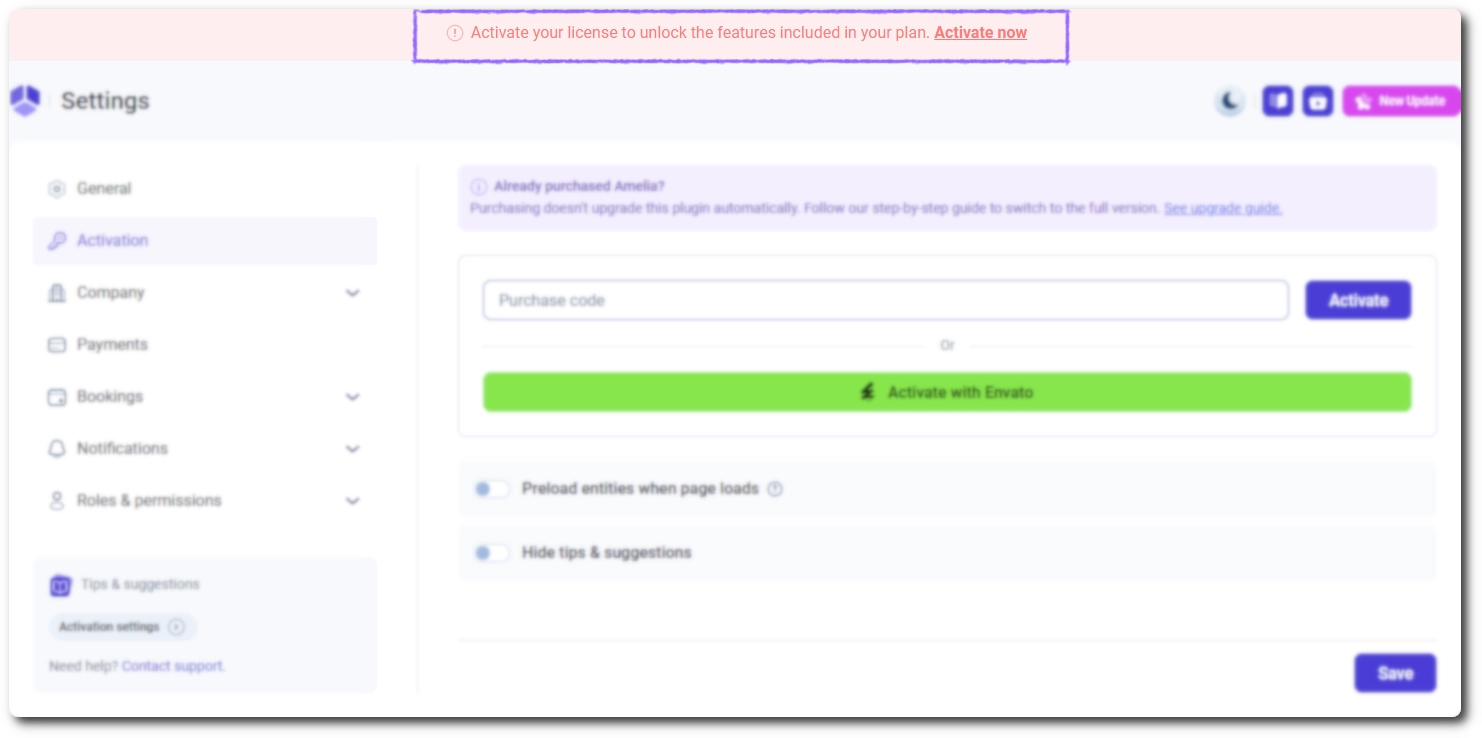
While your license isn’t activated, a banner at the top of every Amelia page reminds you to Activate your license to unlock the features included in your plan. Clicking Activate now in the banner takes you straight to the activation settings. The same banner also appears if a purchase code that was already active gets deactivated, for example when its domain is removed from your license in the Store.

Banner at the top of Amelia pages asking you to activate your license

How do I activate my Amelia license?

You activate your Amelia license in Settings → Activation, and the method depends on where you bought it.

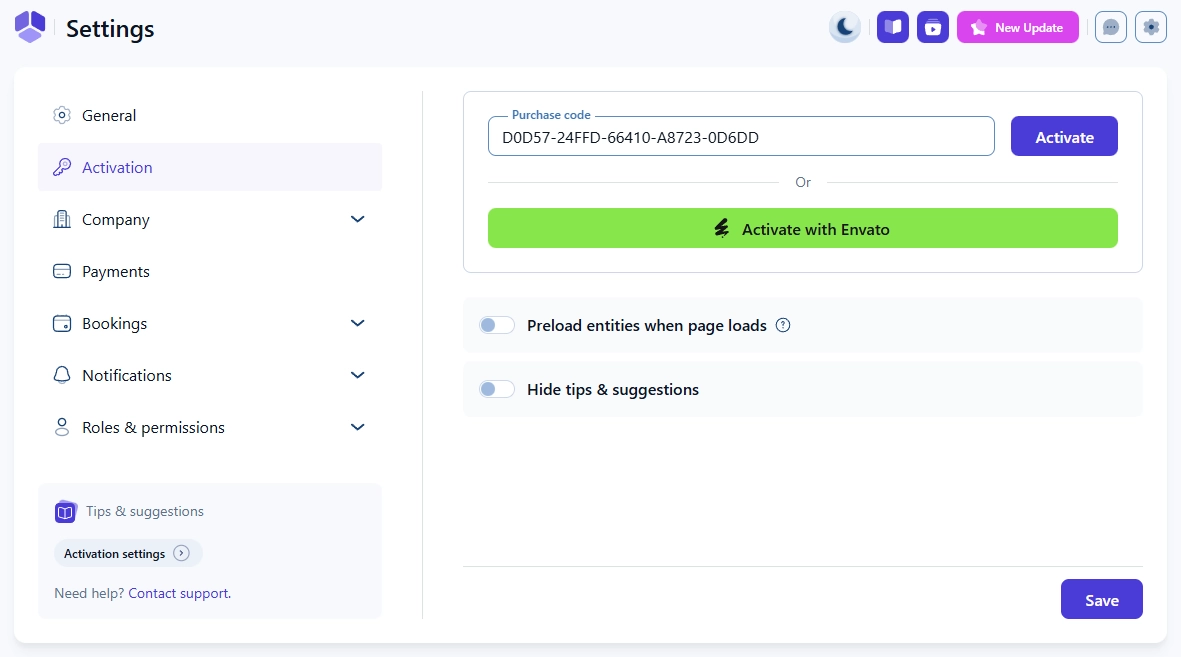
If you purchased Amelia on our website, enter your code in the Purchase code field and click Activate. If you purchased it on CodeCanyon/Envato, you don’t need a purchase code; click the green Activate with Envato button instead, then sign in to Envato and confirm the activation.

Once the activation is complete, click Save in the bottom-right corner to apply the changes.

Activation page in Amelia showing the purchase code field, Activate with Envato button, and Save button

After you save, the activation banner disappears and all features included in your plan become available right away.

What do the other settings on the Activation page mean?

Below the activation section you’ll find two toggles that control how Amelia loads and what it shows in the back end:

  • Preload entities when page loads makes Amelia load all entities (services, employees, locations, packages, and tags) as soon as the page loads, instead of fetching them through AJAX calls, which can slightly improve performance on smaller websites.
  • Hide tips & suggestions hides the Tips & suggestions panel shown in the settings sidebar, keeping the interface cleaner.

After changing either toggle, click Save.

Where can I find my purchase code?

If you bought Amelia on our website, you’ll find your purchase code in your confirmation email and in your Store account.

After checkout, you receive two emails:

  • one from Melograno with your purchase code, the Store URL, the email you registered with, and the download link;
  • one from our reseller Paddle with your invoice.
Email from Melograno showing the Amelia purchase confirmation with the purchase code and store login credentials highlighted.
Info Please note

Some email providers flag these emails as spam. If you can't find them in your inbox, check your Spam or Junk folder.

To find your code in the Store, log in to your Store account, where you’ll see all the Licenses you own. Click the down arrow on the far right of the license card to expand it and reveal your purchase code.

If this is your first time accessing the Store, you’ll be asked to set your password before you log in.

Melograno store account showing the Amelia license card with visible purchase code and options to manage license

If you didn’t receive the confirmation email, the email address was most likely mistyped during checkout. In that case, go to the Store login page, expand the Amelia menu at the top, and select Contact Support so we can locate your account and update your email.

How do I manage the domains on my license?

Each Amelia plan can be activated on a set number of domains, and you can see every domain your purchase code is used on in your Store account.

You add a new domain by activating Amelia on that website with the same purchase code; the site is then registered against your license automatically. If your plan covers multiple domains (Pro 5, Elite 20, or Elite unlimited), repeat the steps from How do I activate my Amelia license? on every website where Amelia is installed.

Info Please note

Domains can't be added or edited from your Store account. The only way to register a new domain is to activate the purchase code on that website.

How do I remove a domain from my license?

You can remove a domain remotely from your Store account, which frees up a slot for another website. Open your Amelia license, click the Manage Domains card, and click Remove domain next to the domain you no longer need.

The purchase code is then deactivated on that website, Amelia switches back to its free features there, and the activation banner appears on its Amelia pages.

Manage Domains page in the Melograno Store with Remove domain buttons

To use that slot again, activate the purchase code on the new website as described above.

Why did my Amelia activation fail?

If activation fails, you’ll see the message The purchase code is invalid or it has expired under the Purchase code field. This usually means the code was mistyped, the license has expired, or the code was removed or cleared. The same message also appears when your license has already reached its maximum number of domains.

Invalid or expired purchase code error in Amelia activation settings

To fix it, copy the purchase code directly from your Store account instead of typing it, and check there that your license is still active. If you’ve reached your domain limit, remove a domain you no longer use and try activating again.

Remember, premium features are only available after you activate your purchase code. Until then, Amelia runs with the free features of Amelia Lite, and the premium features and integrations included in your plan stay locked. Activate your code in Settings → Activation as soon as you install the plugin, and every feature in your plan is enabled automatically.