


How customer permissions are managed in Amelia
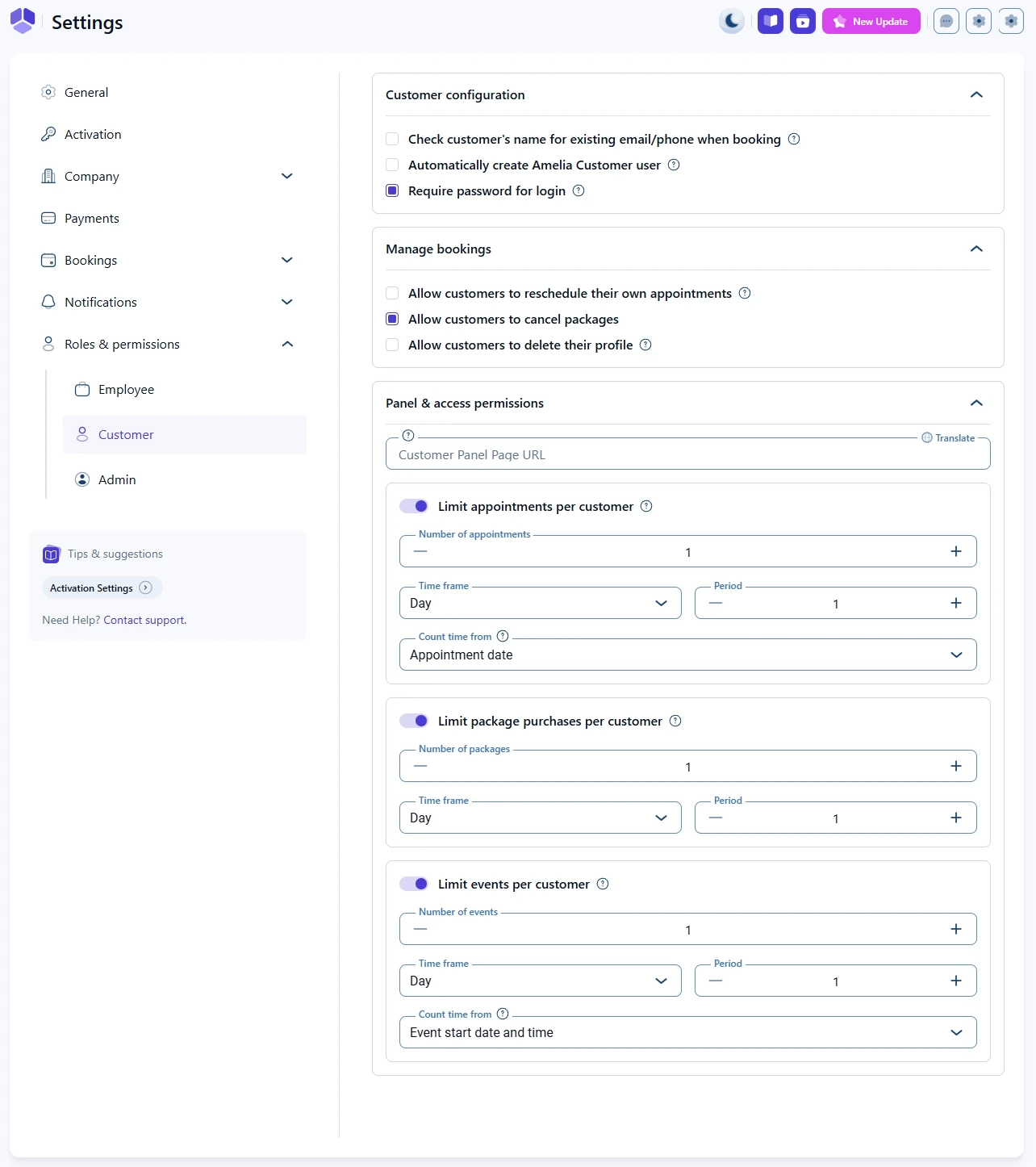
Customer permissions define how much control your clients have over their own bookings and profiles. Here you can decide whether customers can reschedule appointments, cancel packages, and delete their profile, as well as how they access the Customer Panel.
To open these settings, go to Amelia → Settings → Roles & permissions → Customer.
How does customer configuration work?
The Customer configuration section controls how Amelia identifies returning customers and whether new customers get a WordPress user account when they book.
You’ll find three options here:
- Check customer’s name for existing email/phone when booking → when enabled, Amelia checks whether the email or phone number entered at checkout already belongs to an existing customer. If it finds a match, the booking is registered under that customer’s original name, even if a different name was typed into the form. This keeps one customer from ending up with several name variations tied to the same contact info.
- Automatically create Amelia Customer user → when enabled, every customer who books an appointment is automatically assigned the Amelia Customer WordPress user role and receives an email with their login details.
- Require password for login → when disabled, customers can access the Customer Panel using a link sent to their email, without entering a password.
The login email triggered when Automatically create Amelia Customer user is enabled comes from WordPress itself, not Amelia, so there's no native setting to disable it. To turn off this default WordPress notification, use a third-party plugin like Manage Notification Emails.
If Require password for login is disabled, treat the login link as sensitive info; anyone with access to the customer's email inbox can open the Customer Panel through it.
What can customers manage by themselves?
The Manage bookings section lets you decide what customers can do without contacting you.
You will see these options:
- Allow customers to reschedule their own appointments – when enabled, customers can move their existing appointments to a different available time slot through the Customer Panel or the booking form, depending on your setup.
- Allow customers to cancel packages – when enabled, customers can cancel their active packages on their own, if the package and your policies allow it.
- Allow customers to delete their profile – when enabled, customers can permanently delete their profile and related data from Amelia. This is often required for privacy and data protection compliance.
If you allow profile deletion, explain clearly to your customers what data will be removed and whether any information must be kept for legal or accounting reasons.
How do panel and access permissions work for customers?
In the Panel and access permissions section you control the Customer Panel URL and several booking limits.
- Customer Panel page URL – paste the URL of the page where you added the Customer Panel shortcode. Customers use this page to view and manage their appointments, events, and packages.
- Translate – opens translation options so you can provide localized versions of the Customer Panel URL if your site is multilingual.
Below the panel URL you will find several limit options:
- Limit appointments per customer – when enabled, you can define how many appointments a single customer can book within a specific time frame.
- Limit package purchases per customer – when enabled, you can restrict how many packages a customer can purchase in a time frame.
- Limit events per customer – when enabled, you can limit how many events a customer can book within a time frame.
How do booking limits per customer work?
Each limit has similar fields:
- Number of appointments / packages / events – defines the maximum number of bookings allowed for one customer.
- Time frame – selects how the period is measured, for example per day, week, month, or year.
- Period – sets the number of time frame units. For example, a period of 1 with time frame Month means “per one month”.
- Count time from – defines how the limit window is calculated. For appointments and events you can usually choose between the booking date and the appointment or event date.
When a customer reaches the configured limit, Amelia will block new bookings in that category until the time frame passes or some existing bookings are cancelled.
Limits are especially useful for free trials, intro offers, or membership models where you want to cap how many sessions each customer can use in a period.
What should I check if customers cannot book anymore?
If a customer reports that they cannot make a new booking, check the Customer permissions page and confirm:
- Whether any of the Limit options are enabled.
- That the Number, Time frame, and Period values match your intended policy.
- That Count time from is set to the correct reference point for your use case.
If needed, you can temporarily increase or disable the limits, then ask the customer to try booking again.