


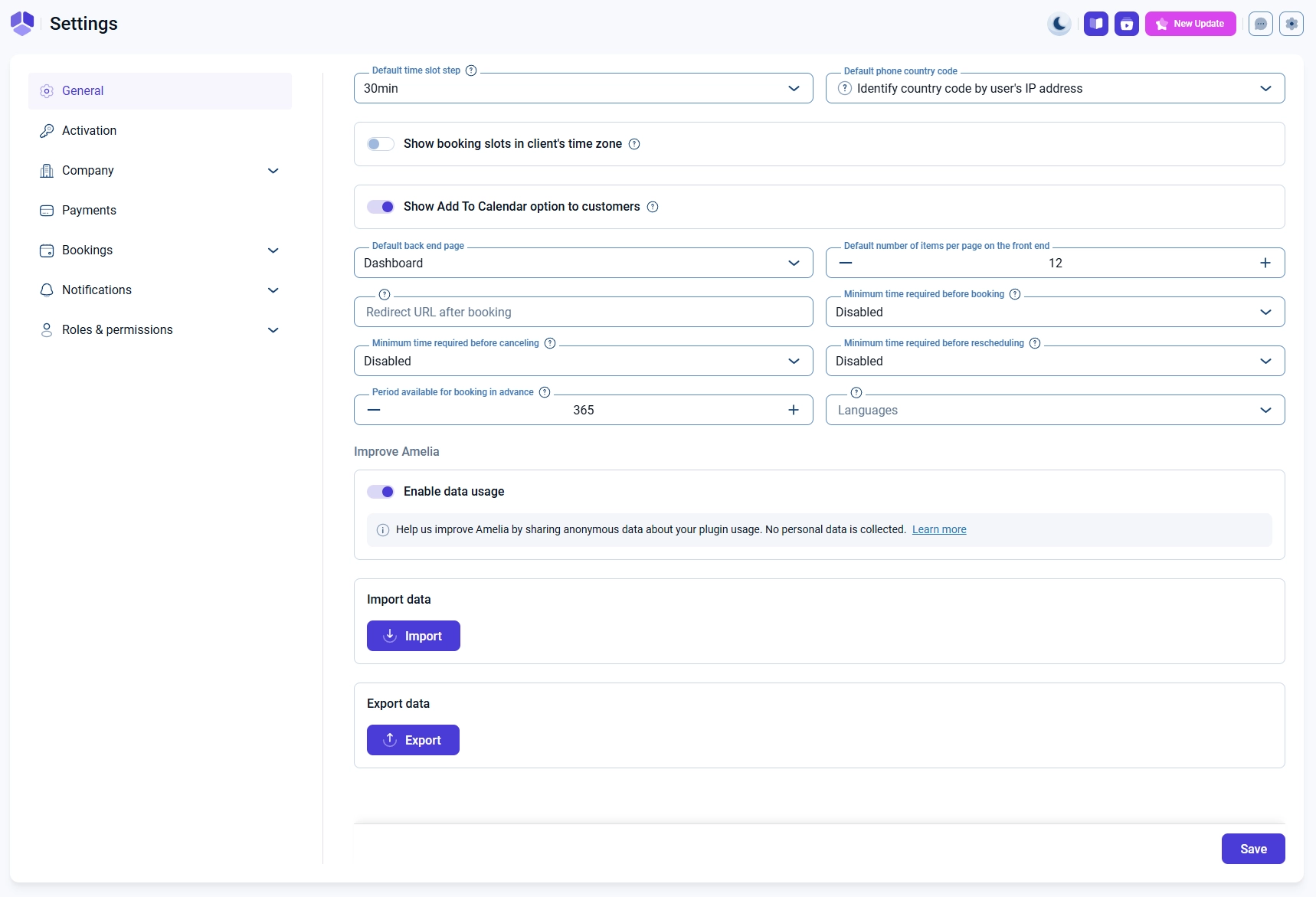
What can I configure in General settings in Amelia
The General settings in Amelia let you define the core rules for how time slots, time zones, booking behavior, and languages work across your entire plugin setup. These settings apply globally unless a feature or employee overrides them.
What is the default time slot step in Amelia?
The default time slot step defines the smallest time unit that Amelia will use when creating services, employee working hours, extras, buffer times, and other duration settings.
All durations in Amelia must be divisible by this number.
- If the step is 30 minutes, all durations will be in increments of 30 minutes, 60 minutes, 90 minutes, and so on.
- If the step is 5 minutes, you will be able to create durations like 5 minutes, 10 minutes, 15 minutes, 20 minutes, etc.
How does the default phone country code work?
This setting controls the country code that appears in phone fields on booking forms.
By default, Amelia identifies the visitor’s country code based on their IP address. You can also select a specific country from the dropdown if your business serves a particular region.
Customers can always adjust the country code on the front end if needed.
How does the time zone setting for clients work?
The option called Show booking slots in client’s time zone determines whether Amelia will adapt appointment times on the front end based on the customer’s detected location.
When this setting is enabled, Amelia detects the customer’s physical location instead of relying on their IP address, so VPNs do not change the displayed time.
The site’s main time zone is still taken from WordPress General Settings. If you need detailed behavior described across employees, customers, and the WordPress time zone, you can find it in the dedicated Time zones article.
What is the default back end page in Amelia?
The Default back end page defines which page opens first when you click on Amelia in the WordPress menu.
The default page is Dashboard, but you can choose Calendar, Bookings, or Events if you prefer starting there.
How does the default number of items per page on the front end work?
This setting determines how many items appear on the front end lists.
Currently, it applies to the event list and controls how many events are shown on each page in the event list.
How does the redirect URL after booking work?
You can set a custom URL that customers are redirected to after successfully booking an appointment.
This can be a thank you page, a confirmation page, or any custom route you prefer.
How do the minimum time rules for booking, canceling, and rescheduling work?
These settings control how close to an appointment customers are allowed to take action.
Minimum time required before booking
This rule prevents customers from booking appointments too close to the current time.
For example, if it is set to 1 day, customers will only see slots available at least 24 hours from now.
Minimum time required before canceling
This rule blocks last-minute cancellations.
If set to 3 hours, customers cannot cancel an appointment that starts in less than 3 hours.
Minimum time required before rescheduling
This works the same way, but applies to rescheduling instead of canceling.
How far in advance can customers book?
The Period available for booking in advance setting defines how far into the future customers can schedule.
The default is 365 days, meaning one year of availability is visible on the booking form.
How does the manage languages setting work in Amelia?
This option lets you select additional languages that you want to use on a multilingual site. You should only select languages that are different from the one defined in WordPress General Settings. For example, if WordPress is set to English US, you should only choose additional languages such as German, Italian or Spanish.
Amelia supports a wide range of multilingual plugins, and the language shown to the user depends on the locale defined by the third party plugin. This means that the multilingual setup is not configured inside Amelia but in the multilingual plugin you are using.
Amelia detects the locale based on the multilingual plugin you use on the front end, so make sure the plugin is configured correctly before enabling additional languages in Amelia.
What does the "Enable data usage" setting do?
The Enable data usage toggle, found under Improve Amelia, lets you share anonymous usage data to help improve the plugin. No personal data is collected. For details on what’s gathered and how it’s used, see the usage data privacy page.
How do I export Amelia's data?
Go to Settings → General and find the Export data card near the bottom of the page. Clicking Export opens a confirmation window listing what’s included, bookings, customers, settings, notification logs, and SMS history, among other things. Site-specific data such as URLs, images, and purchase codes is excluded and needs to be set up manually on the destination site. Clicking Export data downloads a single .AMELIAFILE, named with a timestamp, for example amelia-export-20260714-162157.
Inside, the file is organized into folders by section, such as bookings, catalog, events, finance, notifications, settings, and users, each containing the relevant JSON files, plus a metadata.json file at the root.
How do I import Amelia's data?
From the same Settings → General page, use the Import data card and click Import. In the window that opens, drop your .AMELIAFILE or click to upload it, then tick the checkbox confirming you understand the import will replace all current data permanently. The Import data button only becomes clickable once both a file is selected and the checkbox is ticked.
Once started, a progress screen shows the import working through each section, with counts of inserted and skipped records. The close (X) button is removed for the duration of the import on purpose, don’t refresh the page or close the tab while it’s running, doing so will break the import. When it finishes, click Close and the settings page refreshes, now reflecting the imported data.
Importing replaces all existing data permanently and can't be undone from within Amelia. Back up your site before importing if you want a way back.
What do I need to know before importing or exporting data?
This feature works well for moving a full setup between environments, for example migrating from a development site to production once testing is done, or cloning a live site into a staging environment to safely test changes before rolling them out.
Both sites need to run the same Amelia version (for example, 9.7 on both) and hold the same license type (for example, Amelia Pro 1 on both). There’s currently no way to export or import selectively, it’s always the full dataset, not individual sections like just notification templates or just services.
All website-specific data is reset on export, so nothing tied to the original domain carries over. For example, a Google Calendar redirect URI always points to whichever site the data is imported into, never the domain it was exported from.