What can I configure in payment settings
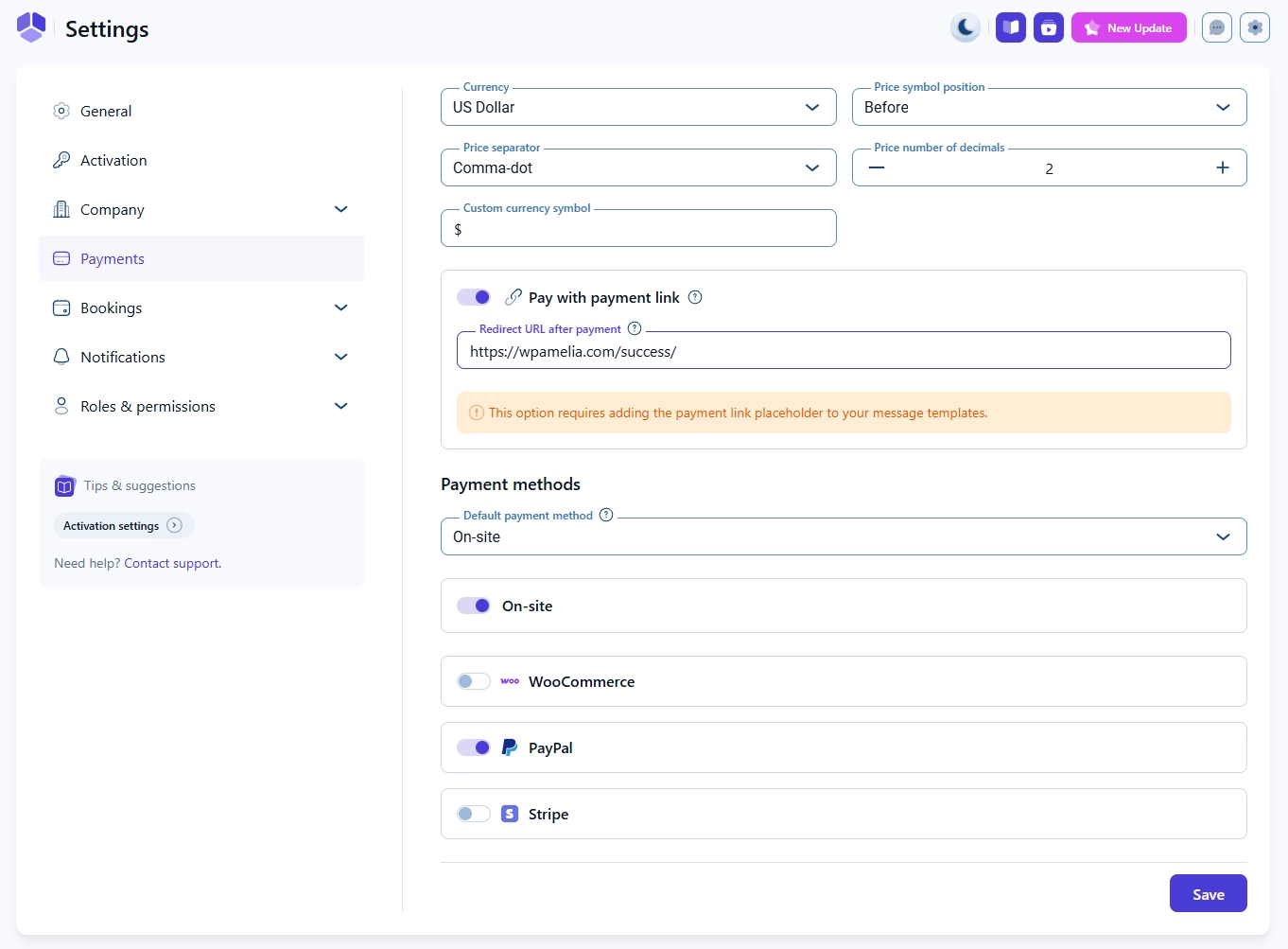
The Payment settings page controls your currency, price formatting, payment link behavior, and which payment methods are available for customers when booking through Amelia.
How do I choose the currency and price format in Amelia?
You can select your currency, price symbol position, price separator, and the number of decimals shown in prices.
Amelia supports zero to five decimal places.
You can also enter a custom currency symbol if the provided symbol does not match what you need. This field accepts text only.
How does the “Pay with payment link” option work?
The Pay with payment link slider becomes available only when at least one online payment method is enabled in Features and Integrations.
When enabled, Amelia generates a unique payment link that customers receive through notifications.
If you want customers to land on a custom confirmation page after paying, enter your Redirect URL after payment.
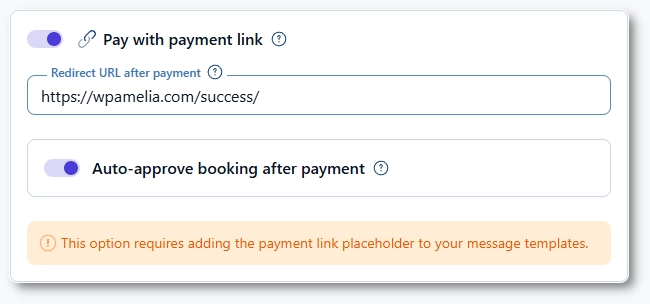
If the default appointment status is set to Pending in Appointment settings, the Auto-approve booking after payment will be displayed, as shown in the screenshot above. With this slider enabled, the booking status will automatically be updated from Pending to Approved as soon as Amelia registers the payment.
How do payment methods work in Amelia?
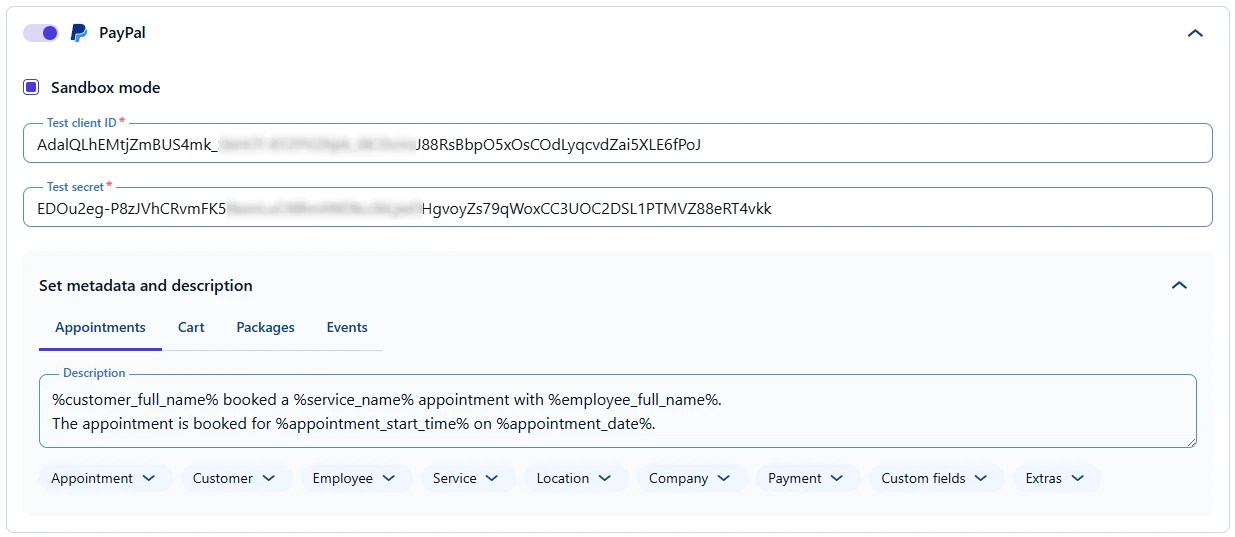
What can I configure inside each payment method?
Each method (except On-site) has an expandable configuration section where you can:
- Adjust specific settings for the payment provider
- Add a payment description
- Define unique descriptions for Appointments, Packages, and Events
- Use placeholders from the dropdown menus
- Translate each description into any language added in General settings
This lets you customize how each payment type’s description appears to customers and how payment data is stored.