



How do I connect the main Outlook account in Amelia using the standard setup
You can connect Outlook Calendar and Microsoft Teams in Amelia through the simple Sign in with Microsoft setup. This method requires no Azure configuration and supports localhost environments, making it ideal for most installations.
Once connected, Amelia syncs new appointments automatically and generates Microsoft Teams links when Teams is enabled and properly configured.
How do I access the Outlook setup screen?
After enabling the integration in Amelia → Features & Integrations → Integrations, click the Set up button inside the Outlook Calendar & Microsoft Teams card.
In the setup screen, open the General tab. This is where you establish the main Outlook connection that employees rely on when syncing their calendars.
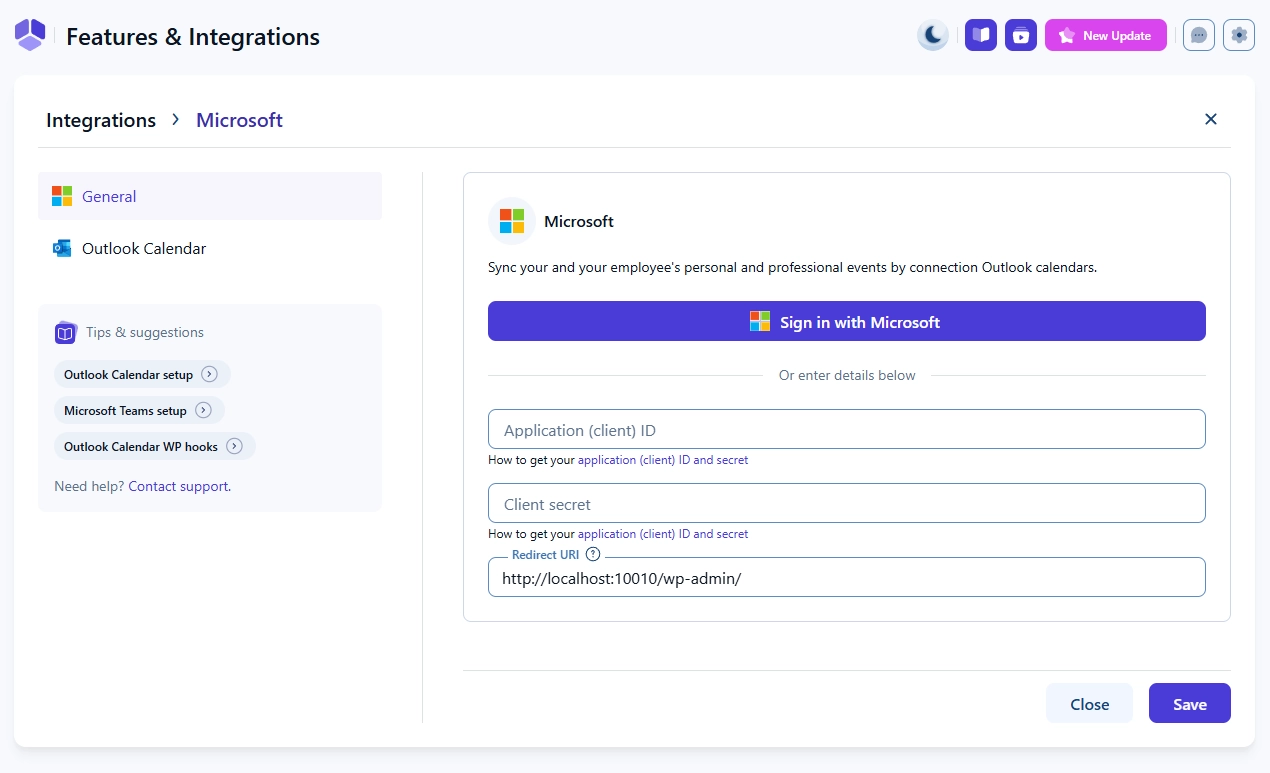
How do I sign in with Microsoft?
In the General tab, click Sign in with Microsoft.
If you are already logged into one or more Microsoft accounts in your browser, Microsoft will show a list of available accounts. Otherwise, you will be asked to log in.
Choose the account you want Amelia to use for syncing and calendar access. This account becomes the primary Outlook account for the integration and determines which calendars are available for assignment to employees when using admin-managed connections through Features & integrations.
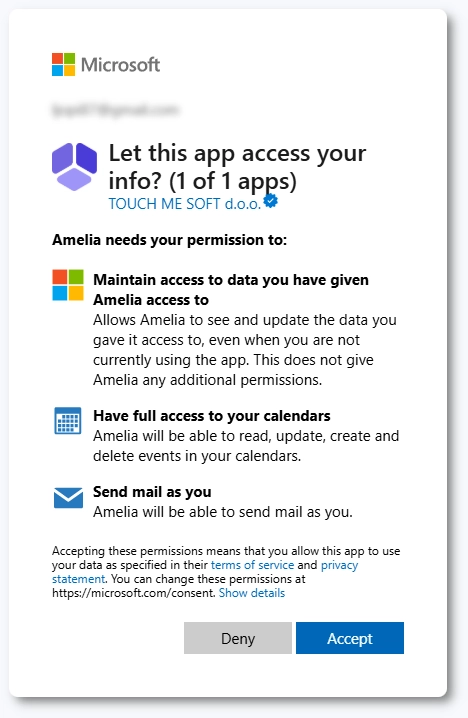
Microsoft then displays the permissions Amelia needs to access calendars and generate Microsoft Teams meetings. Accept the permissions to continue.
What happens after I confirm the connection?
After signing in, Microsoft redirects you back to Amelia.
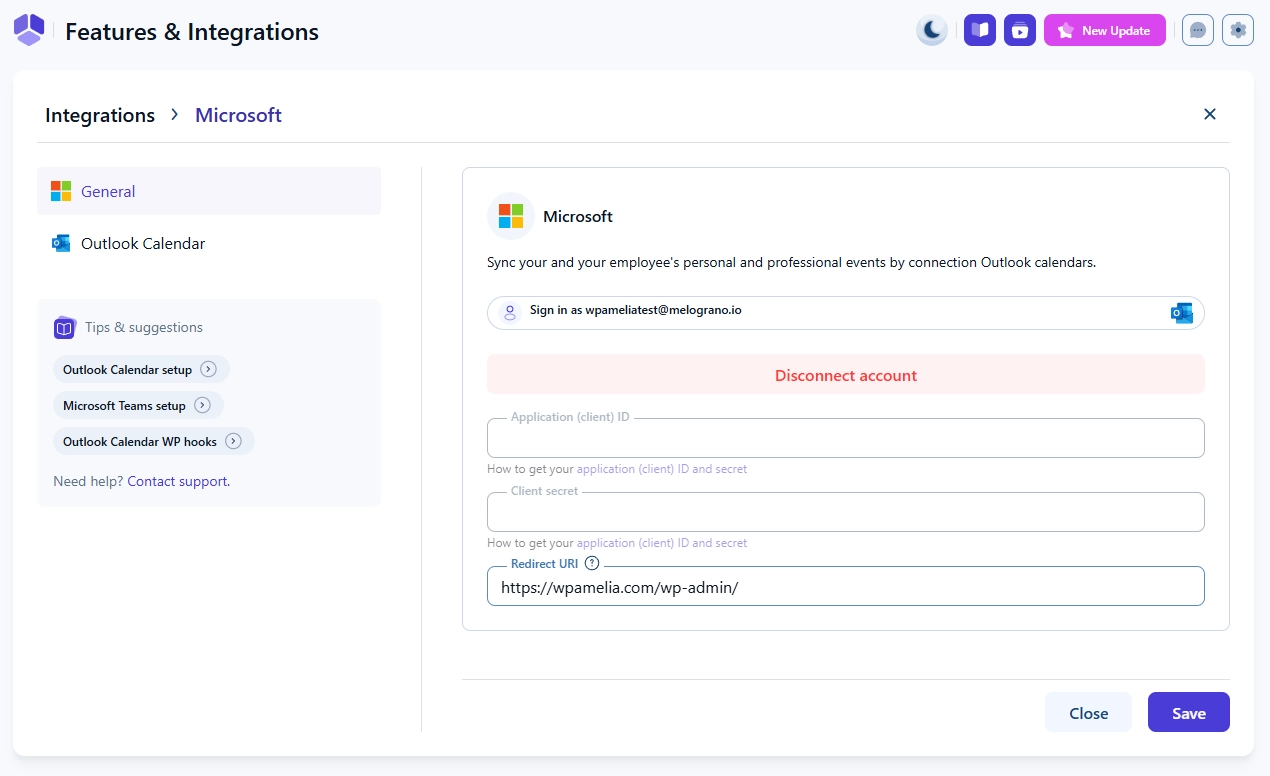
In the General tab, you will now see:
- Disconnect account button
- Client ID and Client Secret fields disabled
- Redirect URI automatically generated based on your site URL
This confirms that the standard connection was established successfully.
Administrators may now configure calendar behavior and connect employees to available Outlook calendars in Features & integrations → Outlook Calendar & Microsoft Teams → Set up → Outlook Calendar.
Can employees connect their own Outlook calendars?
Yes. After the main connection is established by an administrator, employees can connect their own Outlook accounts.
However, this is only possible if an admin has not already assigned a calendar to that employee through Features & integrations. If a calendar is assigned there, the employee cannot override or disconnect that connection.
If employees connect their own Outlook account, they can:
- Connect up to 6 Outlook accounts.
- Select 1 calendar (from any connected account) where Amelia will create events.
- Select up to 6 calendars to check for Busy events and block availability.
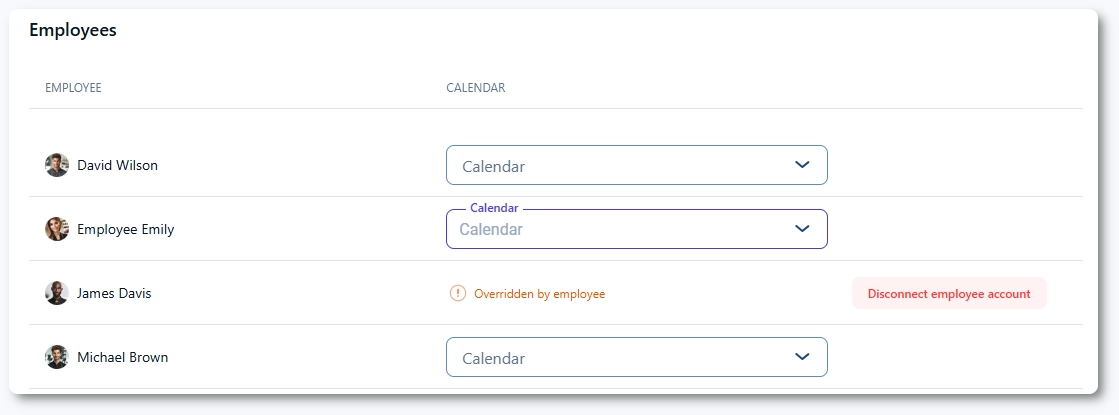
If an employee connects their own Outlook account, it overrides any calendar previously assigned through the Employees page.
In this case, Amelia will display an Overridden by employee label in the Outlook Calendar settings. Administrators can remove this connection at any time and assign a new one if needed.
What should I keep in mind when using the standard connection?
- Only administrators can establish the initial Outlook connection.
- The Outlook account used during setup determines which calendars are available for assignment when admins manage connections through Features & integrations.
- Calendar behavior depends on how employees are connected:
- If an admin assigns a calendar through Features & integrations, that calendar is used for event creation and the employee cannot override it.
- If employees connect their own Outlook accounts, they can connect up to 6 accounts, select 1 calendar for event creation, and use up to 6 calendars for availability checks.
- The Redirect URI is generated automatically and cannot be changed.
- Localhost is supported only with the standard setup.
- Appointments are not synced retroactively.
- Admin control:
- Connections assigned through Features & integrations cannot be overridden by employees.
- Admins can remove and reassign connections at any time.