


Limited time discount Spring Deals Are in Full Bloom
Up to 50%Off

How do employees connect their Outlook Calendar to Amelia

After Outlook Calendar integration is enabled and configured, each employee must connect their own Outlook account for synchronization to work. Employees can connect multiple Outlook accounts and calendars to manage availability and synchronization.

Calendar sync is established on a per-employee basis. Until an employee connects their Outlook account, their appointments and events will not be synced.

Who needs to connect an Outlook account?

Every employee who should have their appointments or events synced with Outlook Calendar must connect their own Outlook account.

This applies to both:

  • Appointments booked for that employee
  • Events where the employee is assigned as an organizer or staff member

How do employees connect Outlook Calendar from the back end?

In the WordPress back end, open Amelia → Employees and edit an employee.

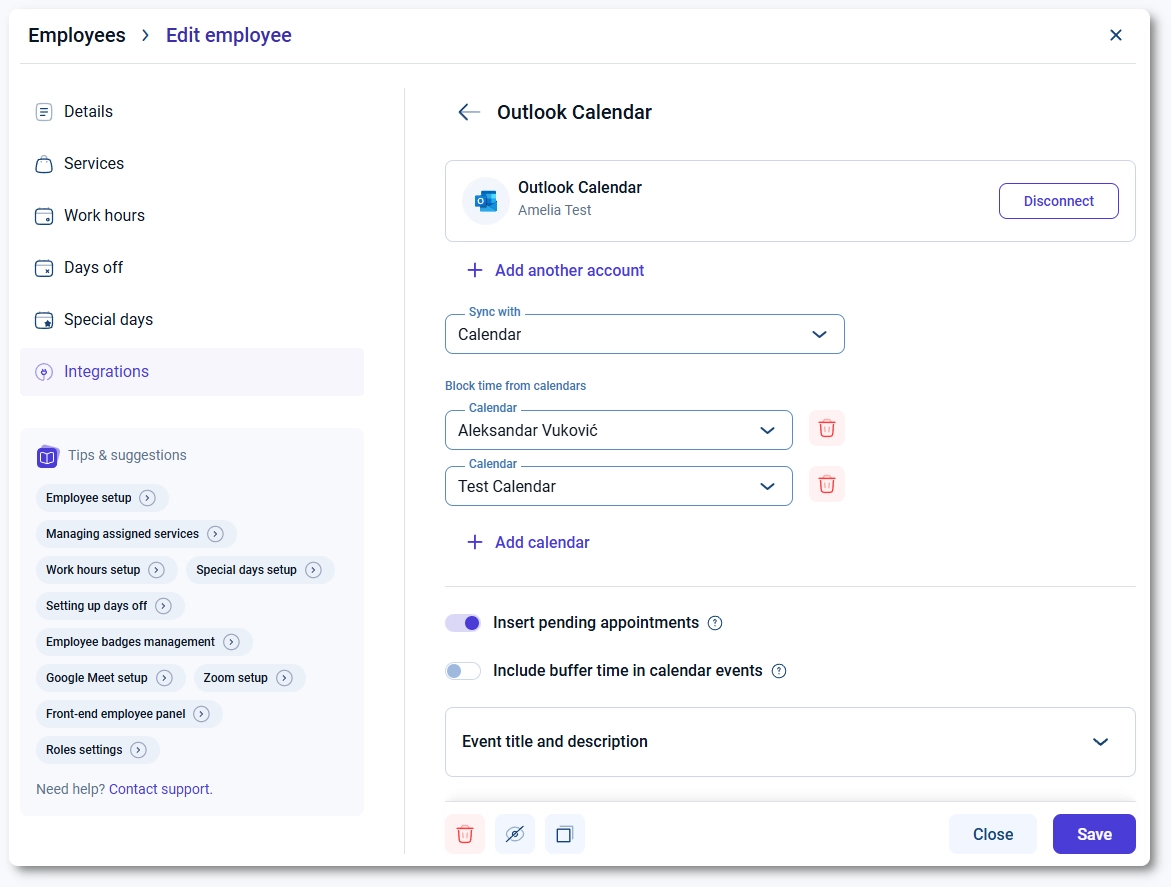
In the employee profile, access the Integrations tab. Click on the Outlook Calendar card and then click the Connect button.

After connecting, employees can:

  • Connect up to 6 Outlook accounts.
  • Select one calendar where Amelia will create events.
  • Select up to 6 calendars to check for Busy events and block availability.
Employee Outlook Calendar integration showing multiple connected accounts, selected calendar for event creation, and calendars used for blocking availability

How do employees connect Outlook Calendar from the front end Employee panel?

If you use the front end Employee panel, employees can connect their Outlook account from the My Profile page.

In the profile settings, click the button next to Outlook Calendar to start the connection process.

Employee panel My Profile page with Outlook Calendar connect option

After signing in and approving access, the employee is redirected back to the Employee panel and the connection becomes active. After connecting, employees can manage multiple Outlook accounts and calendars in the same way as in the back end, selecting one calendar for event creation and additional calendars for availability checks.

How can I tell if the Outlook account is connected?

When the Outlook account is successfully connected, the connect button changes to Disconnect and it changes color. The card displays connected Outlook account(s) and selected calendars for synchronization and availability checks.

Can employees disconnect their Outlook Calendar?

Employees can disconnect their Outlook account at any time by clicking the Disconnect button in their Employee panel or in the back end if they are linked with an Amelia Employee WordPress user role.

After disconnecting, Amelia will stop syncing appointments and events for that employee, but existing Outlook events will not be removed automatically.

What happens after employees are connected?

Once an employee connects their Outlook account:

  • New appointments created in Amelia are synced to the selected Outlook calendar.
  • Busy events from selected calendars can block availability in Amelia (if enabled).
  • Events where the employee is assigned as Organizer are added to Outlook.
  • Multiple connected calendars are used only for availability checks, not for event creation.

Synchronization behavior depends on the Outlook Calendar settings configured in the integration’s General tab.