


How does the IvyForms integration work in Amelia
A physiotherapy clinic wants every new patient to describe their injury before they pick a time slot. With the IvyForms integration, the clinic builds an intake form in IvyForms, sets it as the pre-booking form, and the patient answers those questions first; the Amelia booking form then loads with the patient’s name, email, and phone already filled in. The integration lets you collect extra details up front and carry the customer’s core data straight into the booking.
The IvyForms integration works with both the free Lite and the premium versions of Amelia and IvyForms. The version you run on each side decides which fields and features are available to you.
How do I enable the IvyForms integration in Amelia?
Head to Features & Integrations → Integrations in Amelia.
If you don’t have IvyForms installed yet, its card in Features & Integrations will show “Install & Activate” so you can install and activate the Lite version of IvyForms without ever leaving the Features & Integrations page. Once installed, the integration will be automatically enabled.
If you had IvyForms installed, simply activate this integration.
Open the integration is activated, click Set up.
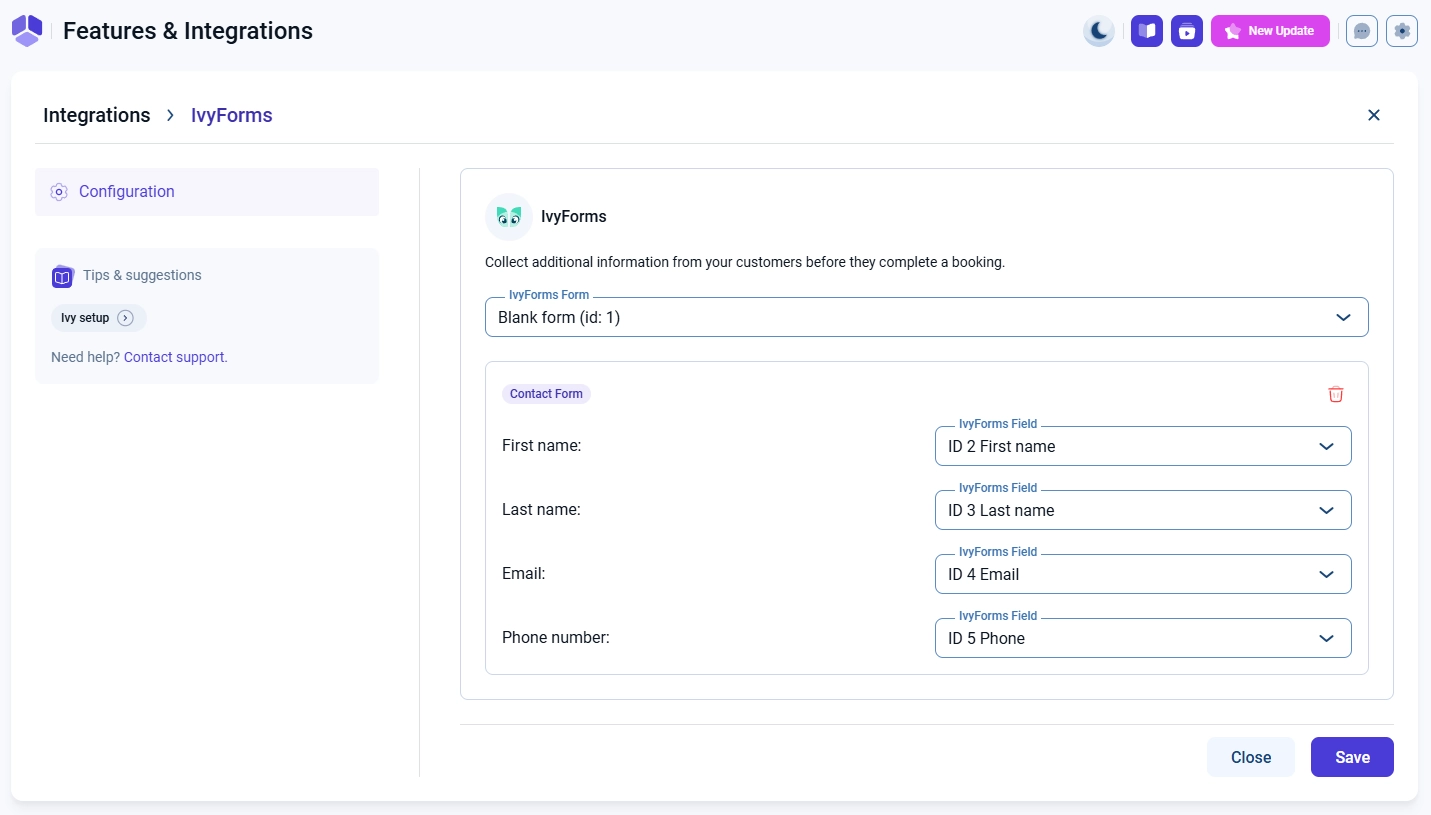
What you see depends on whether you already have IvyForms forms. If no form exists yet, you’ll get a Create form option that sends you into IvyForms to build one. If you already have forms, pick one from the IvyForms Form dropdown and map its fields to Amelia. Amelia currently supports mapping for:
- First name in Amelia – Name field or the Text field in IvyForms;
- Last name in Amelia –Â Name field or the Text field in IvyForms;
- Email in Amelia – Email field in IvyForms;
- Phone number in Amelia – Phone field in IvyForms.
Map each one to the matching IvyForms field, or leave them unmapped, since mapping is optional.
For detailed steps on building a form, refer to the creating forms in IvyForms documentation.
Only fields from entries that are set to be saved in IvyForms will sync to Amelia. If a field isn't saved on the IvyForms side, it won't carry over, even if you map it.
Currently, only one IvyForms form can be mapped in Amelia.
How do I link the intake form to a booking form?
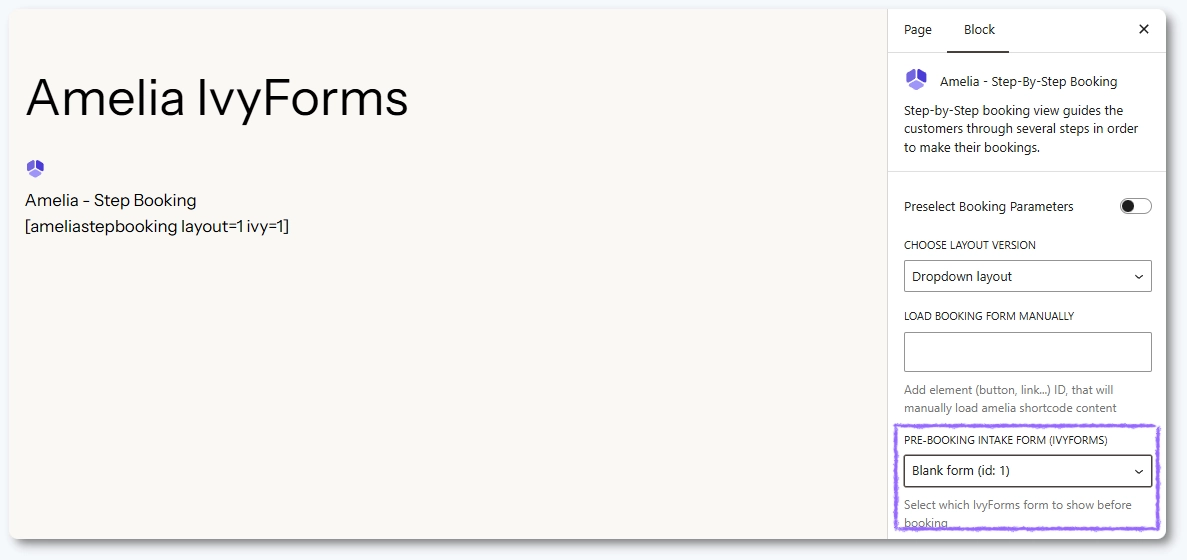
The IvyForms form attaches to an Amelia booking form as a pre-booking intake form; you choose which form to use from that field in the page builder, and you can link any IvyForms form you have to any booking form. Linking works in Elementor, Gutenberg, the Classic Editor, and Divi 5. Divi 4 is not supported. When a visitor opens the page, the intake form loads first, then the Amelia booking form.
What happens if the form is deleted or unpublished?
If the linked IvyForms form is deleted or unpublished, the page simply skips the intake step and loads the Amelia booking form on its own. The booking still works as normal, just without the pre-booking form in front of it.
Why isn't the pre-booking intake form field showing in the builder?
If you’re using the Amelia Popup and you’ve populated the Load booking form manually trigger with anything, the Pre-booking intake form field disappears from the builder. Clear that trigger field if you want the intake form option back.
What happens when a customer books?
If you didn’t map any fields, the customer fills in their details on the Amelia booking form as usual. If you did map fields, the First name, Last name, Email, and Phone number from the IvyForms intake are picked up and added to the customer in Amelia automatically.
This auto-fill only happens when the visitor is not logged in; logged-in users keep the details already tied to their account.
Field mapping only carries data into the customer when the visitor is not logged in. For logged-in users, Amelia uses their existing account details instead of the intake form values.
Where do I see the submitted IvyForms data?
Open Amelia → Bookings and select the appointment; in the appointment overview you’ll find a Pre-booking form details section showing what the customer entered in IvyForms, marked as Permanently linked. It includes every saved field from the entry, not just the mapped ones, and there’s a link out to IvyForms Entries so you can open the full submission.
What should I keep in mind when using IvyForms with Amelia?
- Both Amelia and IvyForms must be installed and active on the same WordPress site.
- Only First name, Last name, Email, and Phone number can be mapped, and mapping is optional.
- Only fields set to be saved in IvyForms will sync to Amelia.
- Auto-fill from mapped fields works only for visitors who are not logged in.
- Linking works in Elementor, Gutenberg, Classic Editor, and Divi 5, but not Divi 4.
- If the linked form is deleted or unpublished, Amelia falls back to its own booking form.
- Using the Amelia Popup with the Load booking form manually trigger hides the pre-booking intake field.