


Grow Your Business This Fall
Up to 40%Off

How do I use the Amelia Business mobile app

A stylist is between clients and wants to check if her next appointment is still confirmed. Instead of walking to a laptop and logging into wp-admin, she opens the Amelia Business app on her phone and sees the status right there.

What is the Amelia Business app?

The Amelia Business app is a companion mobile app for Amelia admins and employees. It lets them view upcoming appointments and events, update booking status, scan event tickets, and copy online meeting links, all from a phone. Employees can also receive push notifications for new appointments, status changes, rescheduled or updated appointments, and upcoming appointment reminders.

Admins get a business-wide view of the schedule, while employees see only their own appointments and events.

The app is available for free on the Play Store and the App Store.

Alert Please note

The Amelia Business app is included only with the Elite plan. If your site is on a lower plan, the sign-in screen will still load, but you won't be able to access your account through the app.

Info Please note

The app is built for managing your own schedule on the go. It doesn't currently support customer-facing bookings or admin-level settings changes.
How do I sign in to the Amelia Business app?

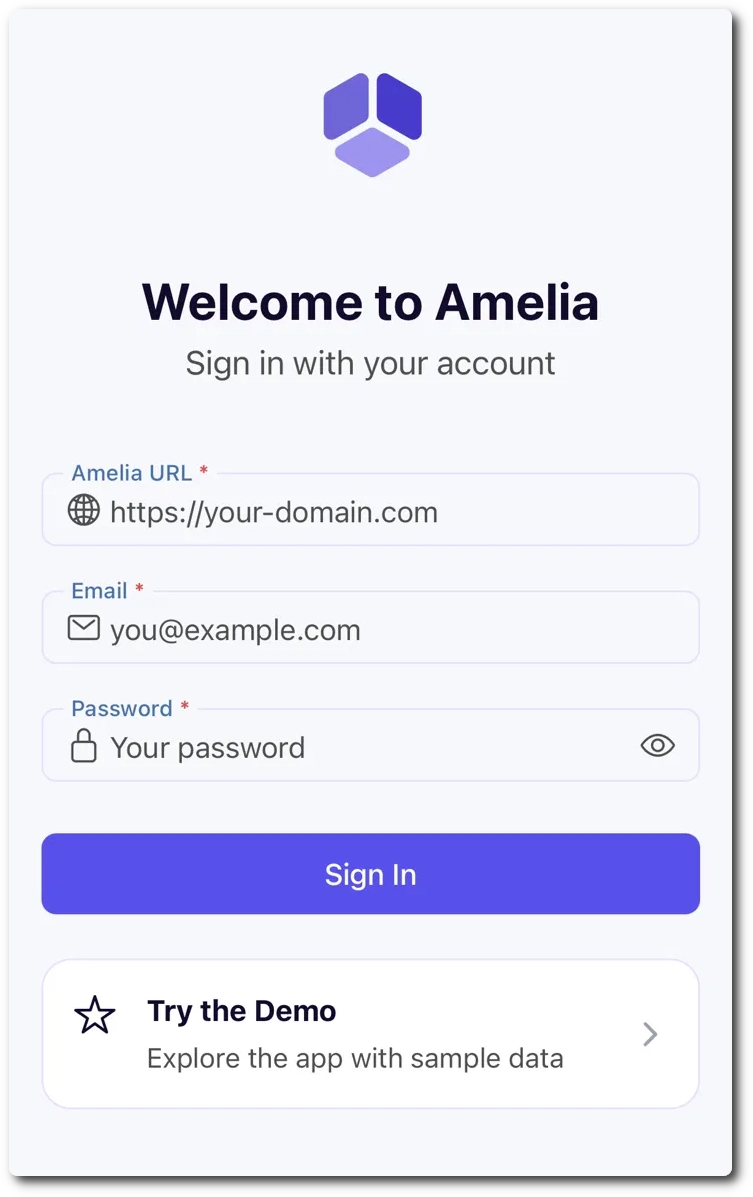
You sign in with your Amelia URL, email, and password, the same credentials you use to log in to Amelia on the website, whether you’re signing in as an admin or as an employee. Enter your site’s domain in the Amelia URL field (just the domain, not the wp-admin path), then your email and password, and tap Sign In. If you want to explore the app first, tap Try the Demo to browse sample data without an account.

Sign in screen for the Amelia Business mobile app

Your access in the app matches your role on the website. If you sign in as an admin, you’ll see the full business schedule; if you sign in as an employee, you’ll only see appointments and events assigned to you. There’s no separate app account to set up, your existing Amelia login works as is.

Add Your Heading Text Here

If your site is hosted on WordPress.com and you log in with your WordPress.com account, the app can’t use those credentials. Set a separate password on the site itself and sign in to the app with that. The app checks the username and password stored on your WordPress site, not your WordPress.com account, so a WordPress.com password won’t work. You don’t need to create a second user.

To set a site password for your existing account:

  1. Log in to your site’s dashboard through WordPress.com as usual and go to Users → Profile (/wp-admin/profile.php).
  2. Under Account Management, click Set New Password, enter a password and click Update Profile.
  3. In the Amelia Business app, enter your site in the Amelia URL field, then your site email or username and the new password, and tap Sign In.
Info Note

This only changes the password stored on your site. Your WordPress.com password stays the same, and you keep logging in to the dashboard through WordPress.com as before. Make sure the app is updated to version 1.0.4 or later.

What can admins and employees do in the app?

The app supports the same two roles you already use in Amelia: admin and employee.

    • Admin: can sign in with their own admin account and gets a business-wide view, including every appointment and event created by any employee, not just their own.
    • Employee: sees only the appointments and events assigned to them, and can receive push notifications about their appointments.

Both roles can view details, update booking status, scan event tickets, and copy meeting links, scoped to what they can see. Neither role can change account, employee, or company-level settings from the app, and push notifications are available to employees only.

How do I view my appointments and events?

You view appointments and events from the two tabs at the bottom of the screen. The Appointments tab lists one-on-one bookings, and the Events tab lists group events, each showing the date, duration, and how many spots are booked. Tap any entry to open its full details, including the customer or attendee list, location, price, and any online meeting link attached to it. Admins see every appointment and event across the business; employees see only the ones assigned to them.

Events tab in the Amelia Business app showing upcoming bookings

How do I update a booking's status?

You update a booking’s status by opening the appointment or event and scrolling to the Update status section, where you can choose between Approved, Pending, Canceled, and No Show. Tap the status that matches, and it updates immediately, no separate save step needed.

Status options for a booking in the Amelia Business app

How do I scan event tickets?

You scan event tickets by tapping the QR code icon in the top bar of the Events tab, which opens the ticket scanner. Point the camera at the attendee’s QR code to check them in, or tap Enter code manually if the code can’t be scanned. The scanner also has a torch toggle for low light and a flip camera button.

Ticket scanner in the Amelia Business app

How do I copy an online meeting link?

You copy an online meeting link from the Online meeting section on an appointment or event’s detail screen, where the app shows the provider (Google Meet or Zoom) and the meeting URL. Tap the copy icon next to the link to copy it to your clipboard, ready to paste wherever you need it.

Where do I change app settings?

You change app settings by tapping the gear icon in the top bar, which opens the Settings screen. From there you can check the account you’re signed in as, switch the language or theme, view the app version, open the in-app FAQ, or sign out.

Employees also see a Notifications item right below Language, where they manage push notifications for their device; admin accounts don’t have this item.

Settings screen in the Amelia Business app with the Notifications option for employees

How do push notifications work in the Amelia Business app?

Push notifications alert employees on their phone when something changes with their appointments, so they can stay on top of their schedule without keeping the app open. They’re available only to employee accounts and cover only the appointments assigned to the employee who’s signed in.

Event bookings don’t trigger push notifications, whether the employee is assigned to the event as an organizer or as staff. Learn which notifications you can get and how to manage them below.

Which push notifications can employees receive?

Employees can receive four types of push notifications, each with its own toggle in Settings → Notifications:

  • New bookings: an appointment is booked or is waiting for approval.
  • Status changes: an appointment is canceled or rejected.
  • Changes: an appointment is rescheduled or updated.
  • Reminders: an appointment is coming up, sent ahead of time based on the Remind before setting.

Push notifications are sent only for changes made by someone else, such as a customer booking or canceling an appointment online, or an admin updating it in the back end. If you change an appointment yourself, for example by updating its status in the app, you won’t receive a push notification for that change.

What do push notifications look like?

Each push notification has a short title and a one-line message filled in with the appointment’s details, so you can tell what happened straight from the lock screen without opening the app. These are the templates the app uses:

  • New appointment: %customer_first_name% booked Appointment at %appointment_start_date_time%
  • Appointment status changed: %service_name% on %appointment_start_date_time% had a status change.
  • Appointment status changed (cancellation): %service_name%, %appointment_start_date_time%, was canceled.
  • Appointment updated: %service_name% on %appointment_start_date_time% was updated.
  • Appointment reminder: Reminder: %service_name% is scheduled for %appointment_start_date_time%.

On your phone, the placeholders are replaced with the real values, such as the customer’s first name, the service name, and the appointment’s start date and time. Tapping a notification opens that appointment’s details screen directly, so you can act on it right away.

Info Please note

Push notification templates are fixed and can't be edited, unlike the email, SMS, and WhatsApp templates you manage on the website. For those, refer to the Notifications overview documentation.

How do I turn push notifications on or off?

You turn push notifications on or off in Settings → Notifications. The Push notifications toggle at the top controls whether this device receives appointment alerts at all, and the toggles below it let you choose which types you want: New bookings, Status changes, Changes, and Reminders. Turn off the ones you don’t need, and the rest keep working as usual.

Notifications screen in the Amelia Business app with push notification toggles for employees
Info Please note

Notifications for the Amelia Business app also need to be allowed in your phone's system settings. If they're blocked there, you won't see any alerts, even with the toggles in the app turned on.

How do I choose when appointment reminders are sent?

You choose when reminders are sent with the Remind before option, found under Reminders in Settings → Notifications. It’s set to 1h by default, so you get a reminder one hour before the appointment starts. Tap it to pick a different lead time: 15 minutes, 30 minutes, 1h, 2h, 3h, 6h, 12h, or 24h. The option only applies while the Reminders toggle is on.

Why isn't my appointment reminder arriving on time?

If appointment reminders arrive late or not at all, the most likely cause is that WP Cron isn’t running reliably on your website. Unlike the other push notifications, which are sent the moment something happens to an appointment, reminders are sent on a schedule, and that schedule runs through WP Cron, the task scheduler built into WordPress. WP Cron only runs when someone visits your site, so on low-traffic sites the reminder can go out well after the Remind before time, and if WP Cron is disabled (for example with define( 'DISABLE_WP_CRON', true ); in wp-config.php) reminders won’t be sent at all.

To make reminders reliable, keep WP Cron enabled, or disable it and replace it with a real server cron job that calls https://yourdomain.com/wp-cron.php at a regular interval, such as every 5 minutes. Your hosting provider can help you set this up if you don’t have access to the server’s cron settings.

Alert Please note

WP Cron is part of your WordPress site, not the Amelia Business app, so making sure it runs is up to you or your hosting provider. It's also separate from the cron job used for Amelia's scheduled email and SMS notifications; configuring one doesn't configure the other. For the scheduled notifications setup, refer to the Scheduled notifications documentation.

Why don't admins receive push notifications?

Admins don’t receive push notifications because they see every appointment across the business, which on a busy site could mean hundreds of alerts per hour, depending on the number of employees and bookings. For that reason, push notifications are limited to employee accounts, and admin and super admin accounts don’t see the Notifications item in Settings at all.

Admins can still follow bookings through the Appointments and Events tabs in the app, or through the email and SMS notifications configured on the website.

Getting the most out of the Amelia Business app

The Amelia Business app is meant for the moments when a laptop isn’t within reach: checking a schedule between appointments, updating a status right after a session, or scanning attendees in at the door. Admins and employees both get a view scoped to what they actually need, so the app stays quick to check rather than another dashboard to manage. For employees, push notifications do most of the checking for them; turn on only the alerts you actually act on and set a reminder lead time that fits your day. Keep the app installed on the device you use most during the day, since most of its value comes from being one tap away rather than a deliberate check-in.

The app is still an early, focused version of what’s planned, so a few things aren’t in it yet.

  • You can’t create, edit, or delete appointments and events from the app.
  • You can’t change account, employee, or company-level settings.
  • Push notifications cover appointments only (not events), admins don’t receive them, and their text can’t be customized.
  • The app doesn’t handle customer-facing bookings; it’s a management tool, not a booking front end.