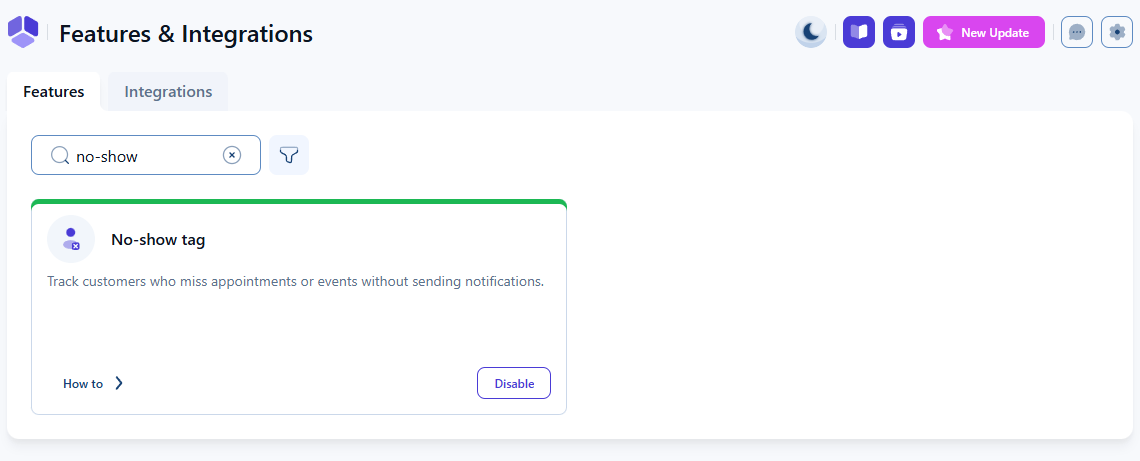
How does the no-show tag work in Amelia
The no-show tag helps you quickly identify customers who repeatedly miss their appointments, using a visual indicator displayed next to the customer’s name.
By tracking how often a customer has been marked as a no-show in the past, Amelia provides immediate context during booking and customer management, helping your team make better scheduling decisions.
Where do I enable the no-show tag?
You can enable the no-show tag in Amelia → Features & Integrations → Features by activating the No-show tag option.
Once enabled, Amelia automatically reviews historical appointment data and assigns a no-show indicator to customers based on how many times they were marked as no-show in past bookings.
What happens after the no-show tag is enabled?
After the feature is active, Amelia displays a no-show indicator next to customer names based on their no-show history.
The indicator updates automatically and reflects how many appointments the customer has previously missed.
What do the different no-show indicators mean?
The no-show tag uses different colors and symbols to show the severity of a customer’s no-show history:
- Gray icon with one exclamation mark indicates the customer was marked as no-show once
- Orange icon with two exclamation marks indicates the customer was marked as no-show twice
- Red icon with an X indicates the customer was marked as no-show three or more times
This visual escalation makes it easy to assess attendance risk at a glance without opening the customer profile.
Where is the no-show tag displayed?
The no-show indicator is shown in the following areas:
- Amelia → Bookings, next to the customer name in appointment, event, and package bookings
- The Customers page, inside the customer list
- When creating a booking from the back end, in the Customers tab, after a customer is selected.
This allows staff to identify attendance patterns during both booking management and customer review.
Why is the no-show tag useful?
The no-show tag allows you to make informed decisions about scheduling and customer management. It is especially helpful when:
- Assigning bookings to employees who need reliable attendance.
- Checking which customers may require upfront deposits or stricter cancellation rules.
- Reviewing customer history during busy hours when quick decisions are needed.
This small visual marker improves workflow efficiency by giving your team more context at a glance.
What should I keep in mind when using the no-show tag?
- The indicator appears only for customers who were previously marked as no-show
- The no-show tag is informational and cannot be edited manually
- The indicator updates automatically based on booking status history
- Removing the no-show status from all past bookings removes the indicator after the system re-evaluates the customer history