


Limited time discount Book Smarter This Christmas
Up to 50%Off

How do WhatsApp message templates work in Amelia

WhatsApp uses a template-based system, so every notification sent through Amelia must use a pre-approved message template created in Meta.

These templates contain variables, and each variable must be linked with an Amelia placeholder so the correct appointment or event details appear in the message.

Once your templates are created and approved, you can assign them inside Amelia → Notifications → WhatsApp.

Info Note

WhatsApp notifications work only with approved templates created in your Meta Business Manager account. Each template must have variables that match the placeholders you use in Amelia → Notifications.

Selecting WhatsApp templates in Amelia notifications

Where do I create WhatsApp message templates?

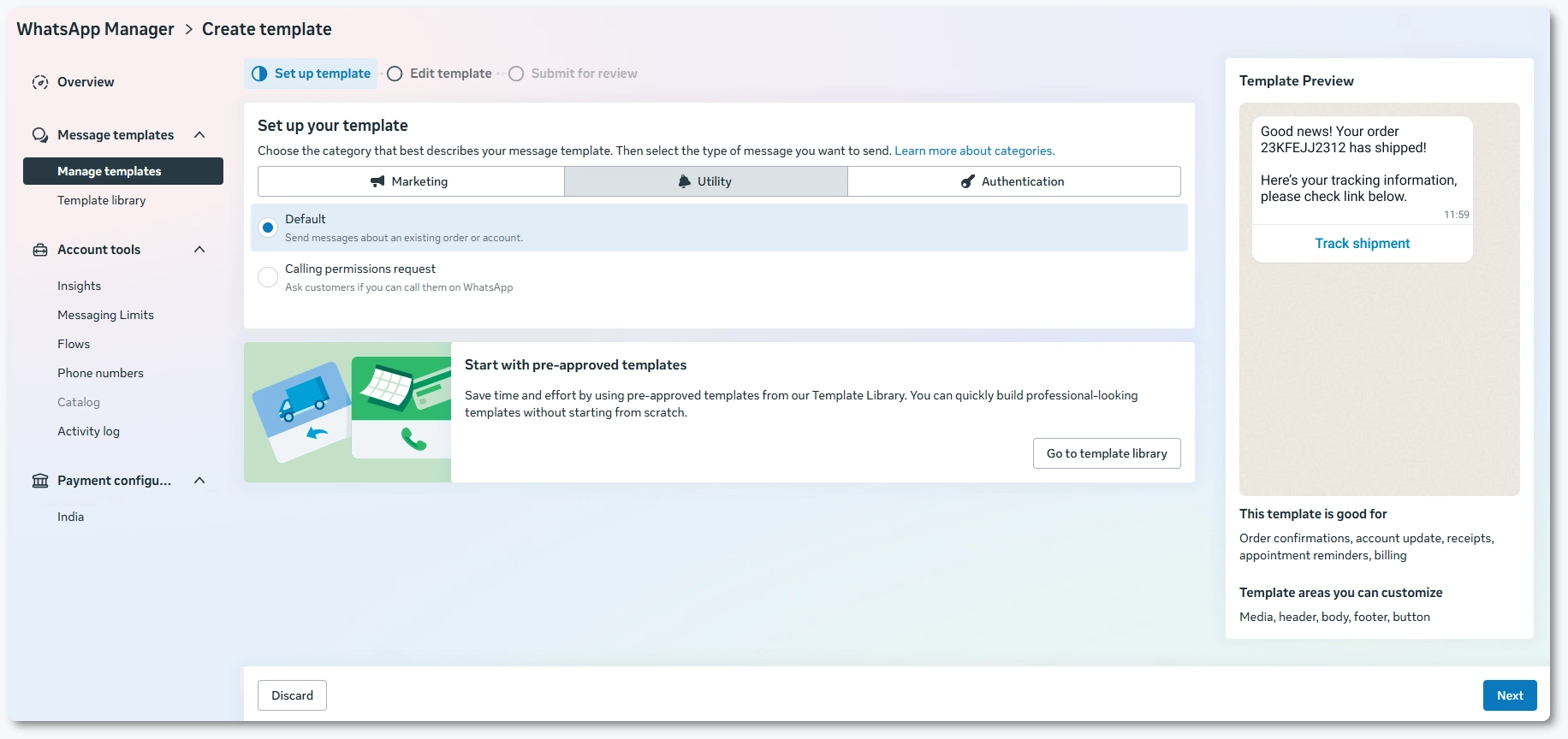
Open your Meta Business Manager and navigate to the WhatsApp Manager. Select Message Templates and click Create template.

Choose the Utility template category → Default, and then click on Next in the bottom right corner to proceed.

Category and template type used when creating a template in WhatsApp

The next step is the template editor where you define the name of the template, the language and its content.

Templates can consist of headers, a body section, and a footer with variables such as {{1}}, {{2}}, or {{3}}. These variables will later be mapped to Amelia placeholders so the correct information is sent to the customer.

Each section (header, body, footer) has its own templates, so if you already used {{1}} in the header, you will need to use it again in the body.

Once the template is created, scroll down to prvovide some context to it. You will be able to see the preview of the message on the right side of the screen.

WhatsApp template editor showing variable fields

Once you click the Submit for review button in the bottom right corner, it will undergo review by WhatsApp, typically taking about an hour for approval.

An approved template will display a green status, marked as Active – Quality pending, while a template under review will appear gray with the status In review.

Info Note

The name of the template needs to be lowercase without spaces. You can try adding them, but Meta will automatically modify uppercase to lowercase, and replace spaces with an underscore.

What should I include in a WhatsApp template?

A typical WhatsApp template includes a header (optional), a body section with variables, and a footer. The most important part is the body section, where your variables belong.

For example:

“Hello {{1}}, Your appointment is scheduled for {{2}}”

{{1}} might be mapped to %customer_full_name% in Amelia, and {{2}} might be mapped to %appointment_start_date_time%.

Make sure the language you choose matches the Default language set in Amelia’s WhatsApp settings.

How do I assign a template to an Amelia notification?

Open Amelia → Notifications, switch to the WhatsApp tab and choose the notification you want to send through WhatsApp.

Select your approved WhatsApp template from the dropdown. For each variable in the template, choose the matching Amelia placeholder using the dropdown on the right and save your changes.

Amelia will now use your WhatsApp template when sending this notification.

How do WhatsApp variables map to Amelia placeholders?

Inside Amelia → Notifications, each notification contains placeholders such as %customer_full_name%, %service_name%, %appointment_start_date_time%, and many others.

When you switch to the WhatsApp tab in Amelia’s Notifications page, you will see a dropdown for each template variable.

You must map each WhatsApp variable ({{1}}, {{2}}, etc.) to an Amelia placeholder. Amelia will automatically replace these placeholders with real booking information when sending the message.

Mapping WhatsApp variables to Amelia placeholders

How does WhatsApp handle notification languages?

Every template in Meta must be created in a specific language.

The Default language selected in Amelia → Features & integrations → Integrations → WhatsApp → Set up
must match a language version that exists in your Meta templates.

If the languages do not match, the WhatsApp API will reject the message and the notification will not be sent.

If you use multiple languages on your website, make sure you create template versions for each language you plan to use.

How can I verify that templates work?

When everything is configured, open any WhatsApp-enabled notification in Amelia and click the Send test icon in the bottom left corner below the template.

Amelia will send a message using your selected template and placeholders. If the test succeeds, your setup is correct.

If it fails, double-check your template language, the mapping of variables, and the values you pasted in the WhatsApp setup screen.

What should I do next?

If you want Amelia to respond automatically when customers reply to WhatsApp messages,
continue to the auto-responder configuration page to set up the webhook and the automatic reply message.