

Limited time discount Book Smarter This Christmas
Up to 50%Off

How do I set pricing by date and time in Amelia

Sometimes businesses need to charge different prices depending on the day of the week, a specific date, or even the time of day. For example:

  • A hair salon may want to charge more on weekends
  • A tour company may want higher prices during the summer season
  • A gym may want off-peak and peak-hour rates

Amelia allows this through the Pricing by Date & Time option in each service’s Pricing & duration tab.

Info Note

Pricing by date & time is a part of the Custom pricing feature and it is available in the Standard, Pro, and Elite license plans.
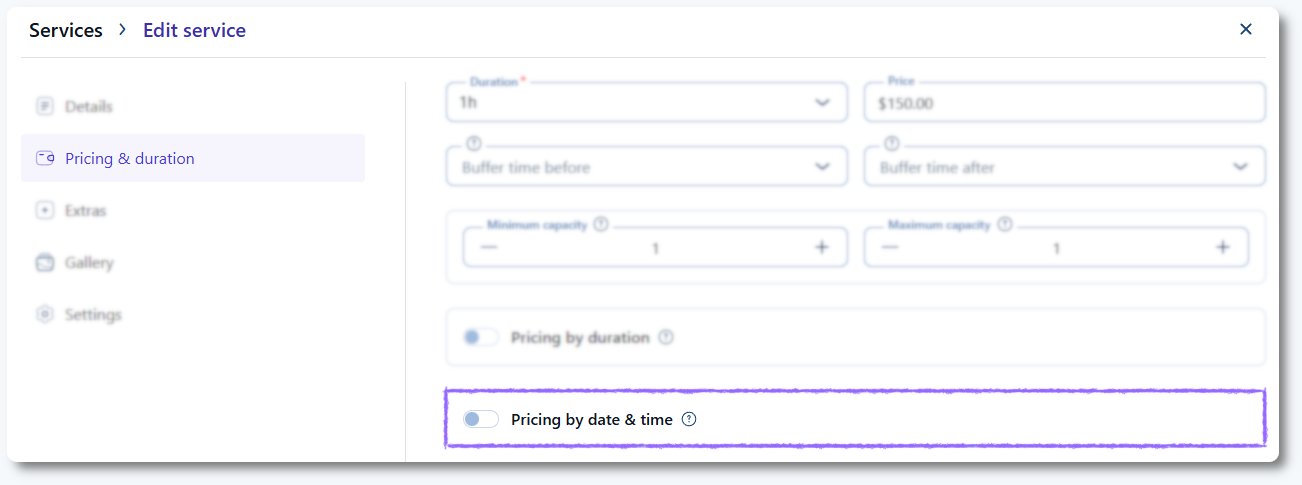
Pricing by date & time toggle in Amelia service settings

How do I enable pricing by date & time?

The prerequisite for enabling the Pricing by date & time option is to enable the Custom pricing feature in Features & integrations first. Once enabled:

  • Access Amelia → Catalog → Services and create or edit a service
  • Open the Pricing & duration tab
  • Enable the Pricing by date & time slider

If you enable it but don’t add any rules, Amelia will ignore the setting and use the default price.

What options are available?

When enabled, you’ll see two tabs:

  • Day of the week – set custom prices for recurring weekdays (e.g., every Friday and Saturday from 18:00–22:00)
  • Specific date & time – set custom prices for exact dates or ranges (e.g., December 24–31)

Click Add day(s) to start adding your first rule.

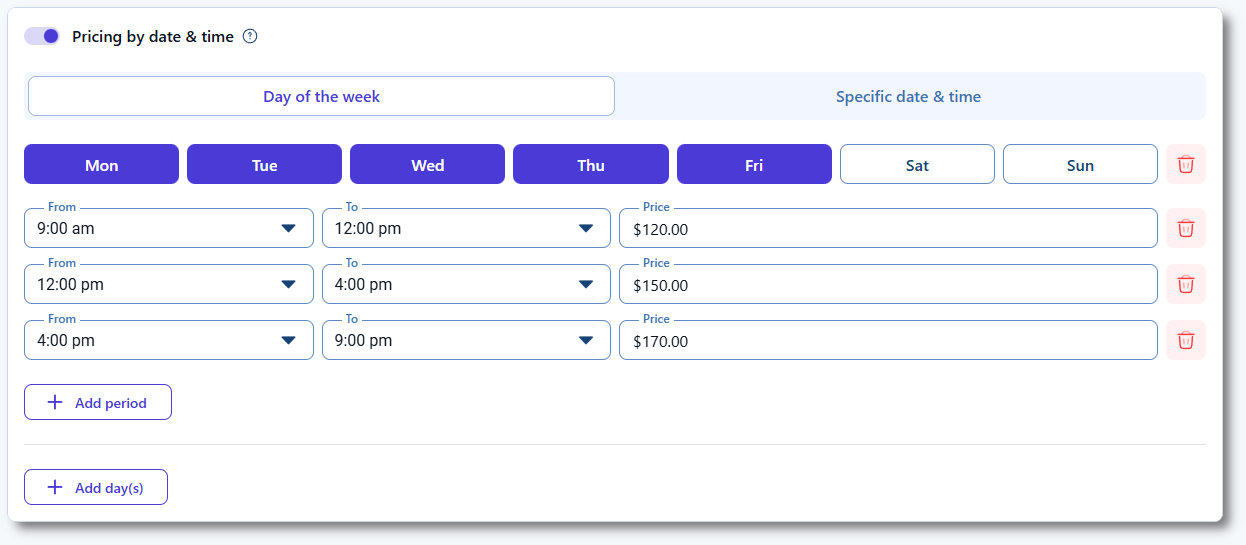
Custom pricing by day of the week in Amelia

How do I configure custom prices?

  • Day of the week: Select one or more weekdays, then define the time range and the custom price.
  • Specific date & time: Choose a single date or a range of dates, then define the time range and price.
Info Info

When you add your first day under Day of the week, all business days (Mon–Fri) are selected by default, but you can manually adjust the selection to include only the days you want.

You must add time ranges consecutively. + Add period creates a new pricing period that begins after the previous one ends for the chosen day(s).

Once you use days/dates in one rule, they won’t be available for reuse in another rule, ensuring you cannot define multiple pricing rules for the same days/dates.

Custom pricing by specific date and time in Amelia

How do prices appear on the booking form?

By default, the form looks the same and does not visually indicate that pricing changes based on the selected day or time. The final price is shown in the last step of the booking flow, on the Payment screen, just before the booking is completed.

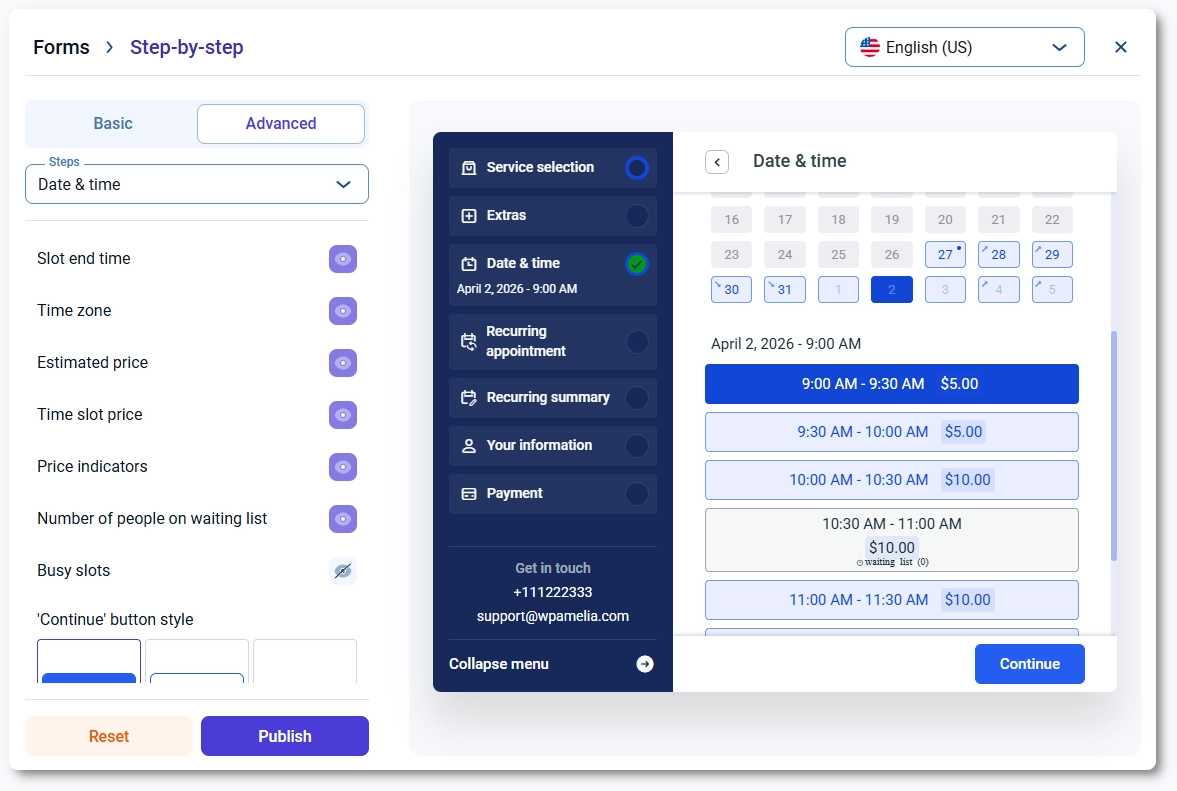
However, under Customize → Step-by-step form → Date & time selection → Options, you can control how prices display:

  • Show estimated price – displays lowest, regular, and highest prices above the calendar
  • Show time slot price – displays prices inside each time slot when a date is selected
  • Show price indicators – arrows showing whether a slot is higher or lower than the default price
No image selected

In the Customize menu, you can also change colors for:

  • Lower price cell background and text
  • Higher price cell background and text

So both the dates and the times are marked with specific colors when the prices are higher or lower than the base price of the service.

How does booking from the back end work with pricing by date & time?

Once you access Bookings → Appointment → + Book appointment, select the service and employee, choose the date and time, and select the customer(s) in the Customers tab.

You won’t see any new fields or dropdowns when booking from the back end, but the price you configured for specific days, dates, or time ranges will still apply automatically. Amelia calculates the correct price based on the selected appointment date and time, even if the interface itself looks unchanged.

What should I know about pricing by date & time?

  • Pricing by date & time disables other custom pricing methods and they cannot be used at the same time for the same service.
  • You can’t add overlapping time ranges.
  • Set a default price first.
  • Use Day of the week for recurring rules, Specific date & time for seasonal/holiday pricing.
  • Preview your booking form after saving to confirm prices display correctly.