Limited time discount Book Smarter This Christmas
Up to 50%Off

How custom pricing works in Amelia

Custom pricing allows you to define pricing per number of people, offer multiple durations for a service with separate prices, or set different prices depending on the date and time. Only one custom pricing method can be enabled at a time, so you can activate only one of the three options for each service.

Info Note

Custom pricing is available in the Standard, Pro, and Elite license plans.
How do I enable custom pricing?

To enable custom pricing, access Features and Integrations → Features in Amelia’s menu and enable the feature. It does not have any specific setup options, so once enabled, it simply modifies the services you already created.

How does custom pricing affect my services?

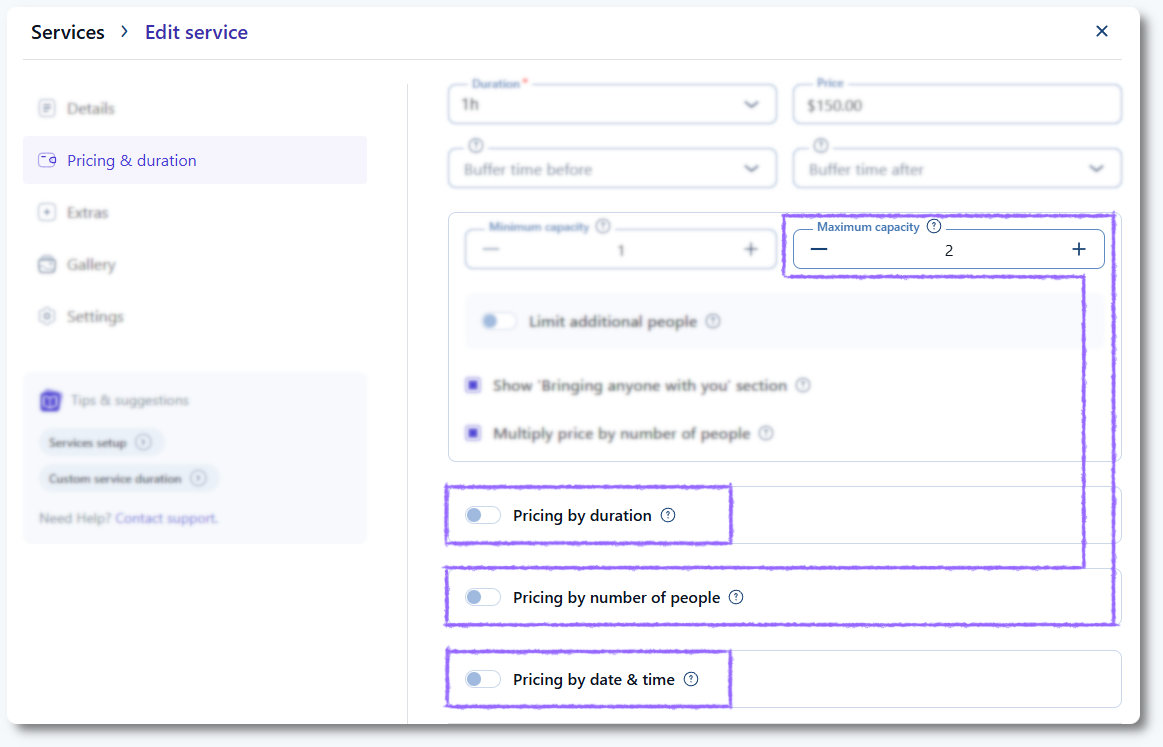
Once enabled, the Pricing & duration tab of your services displays additional options. Pricing by duration and Pricing by date & time appear immediately, while the Pricing by number of people slider appears only if the service’s maximum capacity is above 1.

Service pricing and duration tab showing custom pricing options in Amelia

What do these options offer me?

Each of these options offers a different type of flexibility for managing your services, whether you need multiple durations for a single service, pricing based on the number of people, or different prices depending on the date, time, or day of the week.

Pricing by duration

Pricing by duration allows you to define shorter or longer service durations based on the Default time slot step configured in Settings → General. The default duration of the service is already selected and cannot be changed, but you can add additional durations and define specific prices for each. The available duration steps depend on the global time slot setting.

Pricing by number of people

When this slider is enabled, two pricing categories are added automatically. The first inherits the service price for a single person. The second inherits the next available people count (2) and the maximum capacity, with the price initially set to zero. When you reduce the second category, Amelia automatically adds the next available count below it, and all you need to do is define the price for each group.

Pricing by date and time

This slider provides two options: Day of the week and Specific date and time. Both can be used simultaneously. For example, if all Tuesdays cost $150, but you define a single Tuesday (January 20th, 2026) to cost $170, then all Tuesdays will be $150 except for January 20th.

Depending on the setup, you can define multiple pricing periods within a single day. Each period determines when the next available pricing block begins, and the Add period option becomes available only when the day still has remaining time before midnight.

How does this affect my employees?

You can save the new pricing configuration for all employees or for the service alone. Saving it for the service alone applies the new settings only to employees assigned after the change, while existing employees keep their previous configuration. You can adjust employee-specific pricing at any time in the employee profile under Services.

What should I keep in mind when defining custom pricing?

  • The feature must be enabled in Features and Integrations.
  • You can enable only one custom pricing option per service.
  • If you apply the configuration to all employees, each employee receives a corresponding pricing section in their profile, where individual prices can be set.
