



Limited time discount Book Smarter This Christmas
Up to 50%Off

How do I manage employees in Amelia

The Employees list is the central place for managing all created employees.

If a fitness studio owner wants to quickly disable a trainer who is on sick leave without removing their profile, then restore their availability later with one click. This is done directly from the Employees list.

You manage employees in Amelia through the Employees list, where you can search, filter, control visibility and availability, reorder columns, and perform quick actions without opening full employee profiles.

What controls are available at the top of the employees list?

The top toolbar lets you quickly manage how employees are displayed and filtered in the list. You can search employees, apply filters, change sorting order, switch views, and open the column editor from a single control bar.

Top controls on the Employees page with list and grid view toggle, edit table button, and add employee button

How does search, sorting, and filtering work?

The employees list can be refined using:

  • Search – searches employees by name
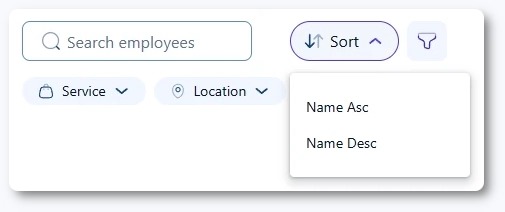
  • Sort – orders employees by name in ascending or descending order
  • Filter – limits the list by assigned service and location

By default, the Employees page loads with employees sorted by their ID, both in list view and in grid view.

In grid view, sorting is controlled through the Sort dropdown, where you can sort employees by name in ascending or descending order.

In list view, sorting by name is controlled through the arrow icon in the Name column header. Clicking the arrow sorts employees in ascending or descending order by name.

Filters and search work together with sorting, so you can combine all three to narrow down large employee lists.

Employees list controls showing search field, sort dropdown, and filter button
Alert Please note

Sorting is not saved. When you refresh the page, the list returns to the default ID-based order. After you apply name-based sorting (in either view), you cannot switch back to ID-based sorting without refreshing the page.

What views are available for the employees list?

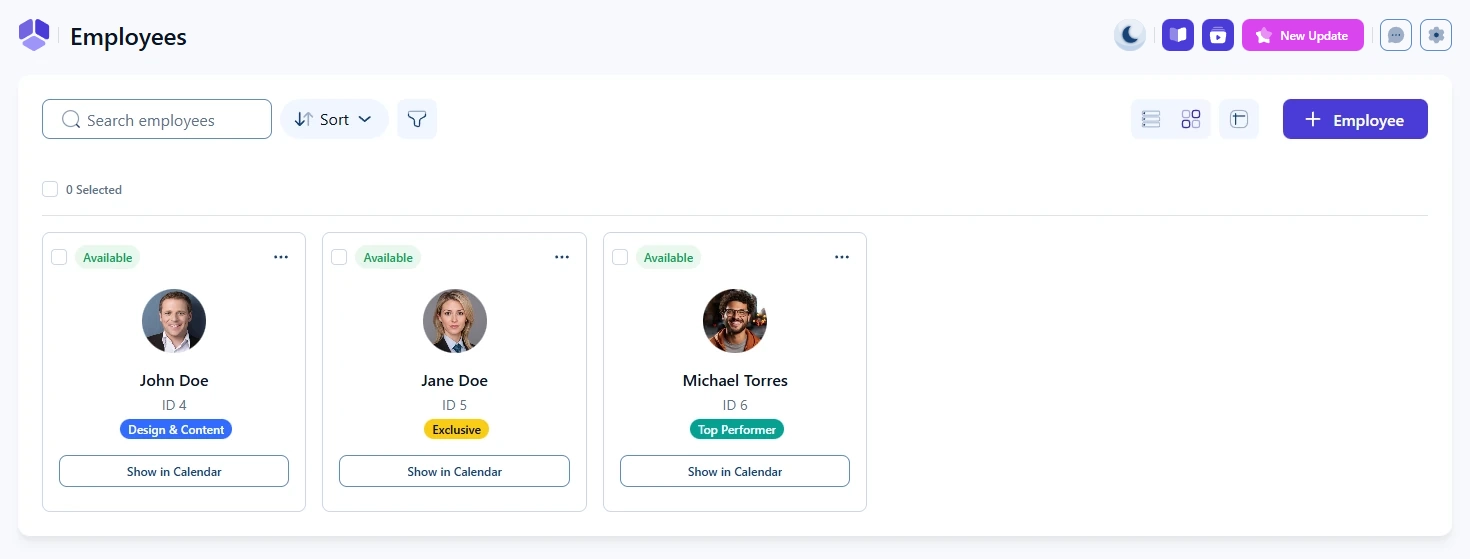
The employees list supports two display modes:

  • List view – a table layout with sortable columns
Employees list view showing multiple employees with visibility, availability, phone, and email
  • Grid view – card-based layout with employee thumbnails

Both views show the same data. The difference is purely visual.

Employees grid view showing employee cards with availability and badges

How does the Edit table option work?

The Edit table option allows you to control which columns are visible and how they are ordered in the list view.

You can:

  • Drag and drop columns to change their order
  • Enable or disable individual columns

The Name column is mandatory and cannot be hidden. All other columns can be customized.

These settings affect only your own view.

Edit table modal showing draggable columns and visibility toggles

What information and actions are available in each row?

Each employee row contains:

  • Checkbox – used for bulk actions
  • Name – with badge if assigned
  • Visibility – whether the employee is visible on the front end
  • Availability – whether the employee is currently bookable
  • Phone number – clicking it opens your default calling app
  • Email address – clicking it opens your default email app
  • Show in Calendar – opens the Calendar filtered for that employee
  • Three-dots menu – Edit, Duplicate, Hide, Delete

What do Visibility and Availability mean?

The Visibility column shows whether an employee appears on front end booking forms. Hidden employees remain visible in the back end for management purposes, but they are not bookable on the website or from the back end.

The Availability column indicates whether the employee is currently available for booking based on:

  • Work hours
  • Days off
  • Special days

If the current time falls within an employee’s active working period and they are not blocked by days off or special days, the status appears as Available.

Info Info

If a hidden employee was the only one assigned to a specific service or location, that service or location will automatically be hidden as well.

What happens when I click an employee in the list?

Clicking an employee row opens a right-side overview panel with a summary of the employee’s details.

From this panel, you can:

  • Open the full Edit employee screen
  • Create a new appointment using the + Appointment button

When creating an appointment this way, the selected employee is preselected automatically. If only one service is assigned to that employee, it is also preselected.

Info Info

If the employee is hidden, the + Appointment button will not be visible.
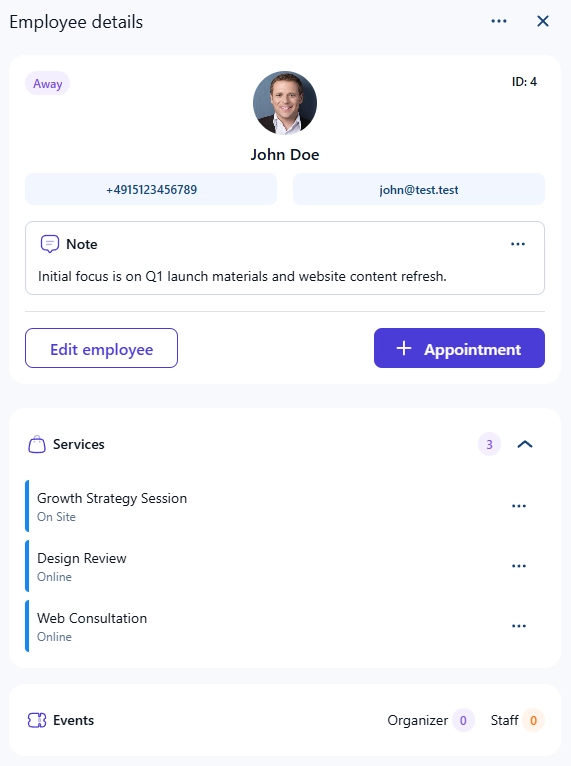
Employee overview side panel with quick actions and summary

How do Duplicate, Hide, and Delete work?

The following actions are available from both the three-dots menu and the employee profile:

Duplicate

  • Creates a full copy of the employee
  • Copies services, work hours, days off, special days, and locations
  • The email is not copied and must be unique

Hide

  • Removes the employee from front end booking forms
  • The employee remains fully usable in the back end
  • If the employee was the only one assigned to a service or location, that service or location is automatically hidden

Delete

  • Available only to administrators
  • Not allowed if the employee has future appointments
  • Past appointments are permanently removed together with the employee

How does bulk delete work?

Alert Please note

If you delete an employee who has had appointments in the past, those appointments will be deleted as well.

Each employee row includes a checkbox, and the table header contains a checkbox for selecting all employees at once.

When one or more employees are selected, the only available bulk action is Delete.

Bulk deletion follows the same rules as single deletion. Employees with future appointments cannot be deleted.