



Where do I configure event pricing in Amelia
After completing the Details tab of your event, open the Pricing tab to define the event price, capacity limits, and booking rules. The available options depend on enabled features such as Tickets, Deposits, and Events waiting list.
How do price and capacity settings work?
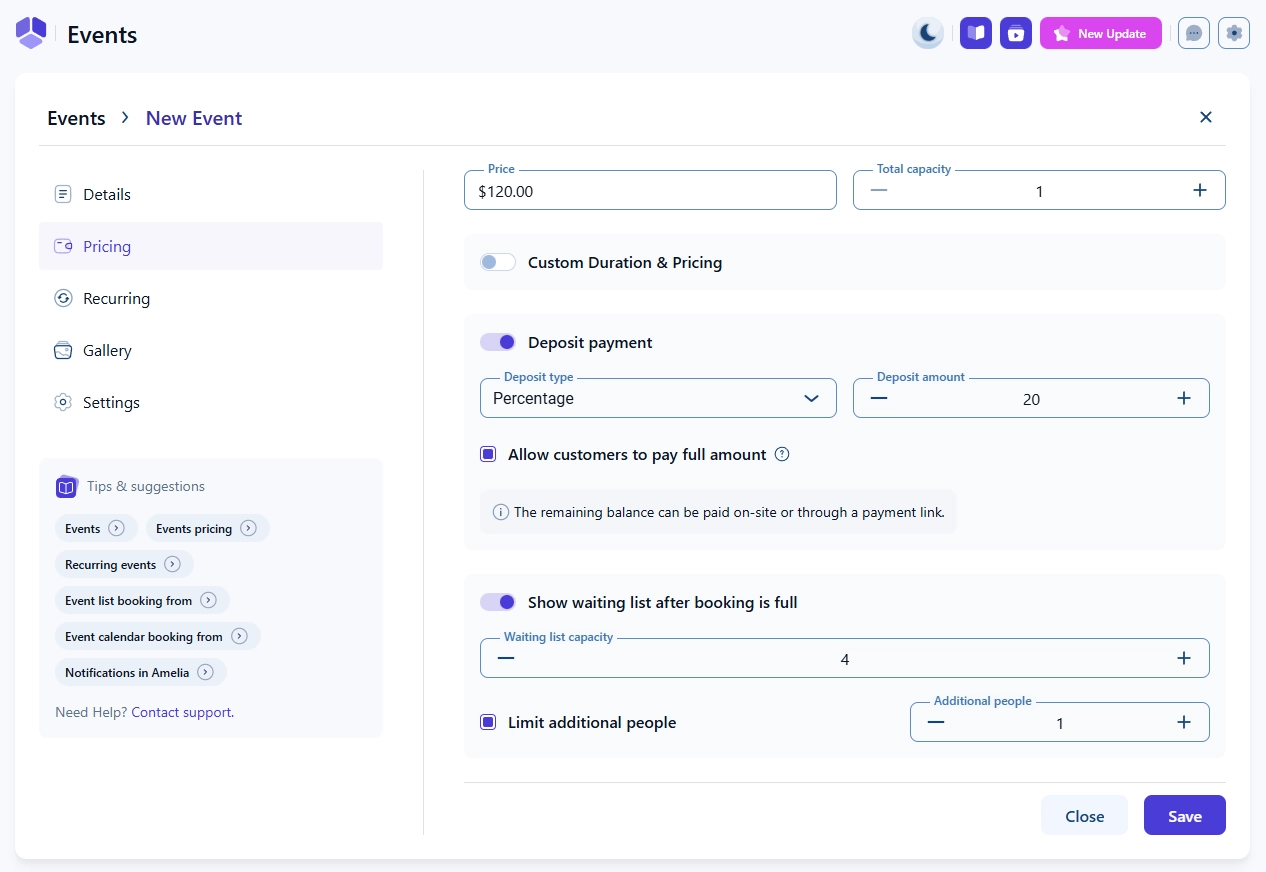
At the top of the Pricing tab, you can set the base Price and Total capacity of the event. Capacity determines how many attendees can join this event. If capacity is set to 1, only single-person bookings are allowed and ticket-related options (Custom Duration & Pricing) appear when the Tickets feature is enabled.
When capacity is greater than 1, additional booking options become available that allow attendees to book multiple spots or make repeated bookings for the same event.
What options appear when capacity is greater than one?
When Total capacity is set above 1, additional configuration options appear:
- Allow multiple bookings per customer: lets one attendee book the same event more than once.
- Allow additional people: enables group bookings where a single attendee books multiple spots.
If Allow additional people is enabled, two more options become available:
- Limit additional people: defines the maximum number of additional attendees a single booking can include. The value must be below the Total capacity.
- Multiply price by number of people: calculates the total cost based on the number of attendees in a single booking.
You can also choose to Close event when minimum capacity is reached. This lets you define whether the minimum applies to individual attendees or to booking count, and you can set the required number in the Set minimum field.

How do Tickets affect pricing options?
If the Tickets feature is enabled, the Custom duration & pricing option will be shown.
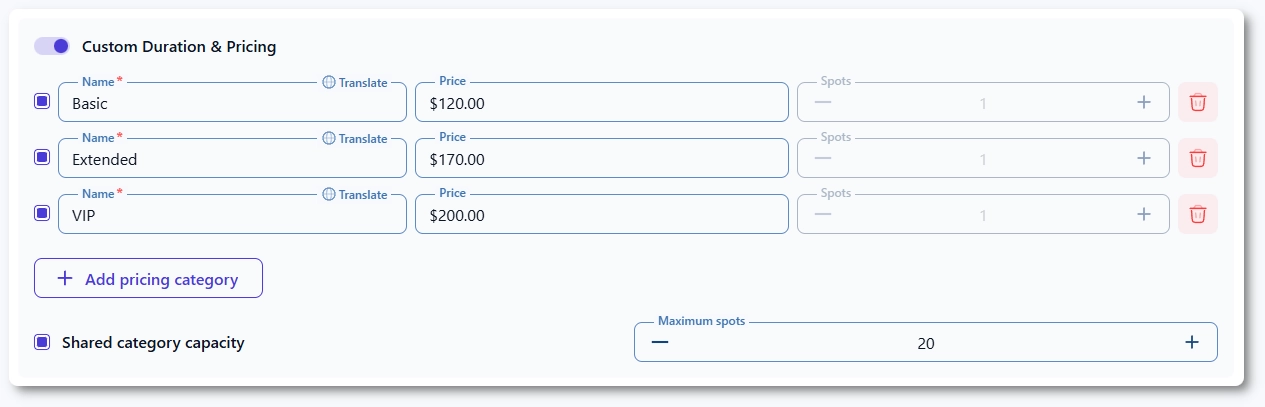
Once this option is enabled, the Price and Total capacity fields become disabled. Instead, you create one or more ticket types with their own prices and capacity (either shared capacity, or capacity per ticket category).
Custom duration & pricing and ticket creation are explained in detail in the Tickets feature article.
How does Pricing by date range work?
When Custom duration & pricing is enabled, the Pricing by date range slider becomes available. This feature lets you define different prices depending on when customers book the event.
The available date range depends on the Booking opens and Booking closes settings from the Details tab. If booking opens immediately, you can configure pricing starting from today until the last day of the Booking closes date.
Examples include:
- Early-bird pricing for the first few days after creating the event.
- Standard pricing until a few days before the event starts.
- Last-minute pricing the day before the event.
- Lower prices during a multi-day event if booking remains open.
Pricing by date range can only be enabled when the Tickets feature is active and when Custom Duration & Pricing is enabled. Date ranges not explicitly configured will use the ticket’s default price.
Learn more about ticket-based pricing in the Tickets feature article.

How does deposit payment work for events?
If the Deposit feature is enabled, you can allow customers to pay only part of the event price when booking. Deposits can be fixed or percentage-based.
You can also enable:
- Allow customers to pay full amount: gives customers the option to pay the total price instead of just the deposit.
- Multiply deposit by number of people: applies the deposit to each attendee included in the booking.
Full details are available in the Event deposits documentation.

How does the event waiting list work?
If the event becomes fully booked, you can show a Waiting list option instead of a “Sold out” message. When Show waiting list after booking is full is enabled, customers can join the waiting list once capacity is reached.
Full details are available here in the Events waiting list documentation.

What should I keep in mind when configuring event pricing?
- Capacity controls which pricing options appear, especially for group bookings.
- Custom duration & pricing requires the Tickets feature to be enabled.
- Pricing by date range is only available when ticket-based pricing is active.
- Deposits and waiting lists depend on their corresponding features being enabled.
- When booking opens or closes depends on the event’s date and time, defined in the Details tab.
- Customers see only the ticket prices that are valid on the date when they’re booking.
- If you do not need multiple ticket types, create only one so you can still use pricing by date range.