




How to activate Amelia
As of Amelia version 9.9 the plugin runs in unactivated mode until a valid purchase code is entered. Bookings still work, but features included in your license stay locked until you activate.Â
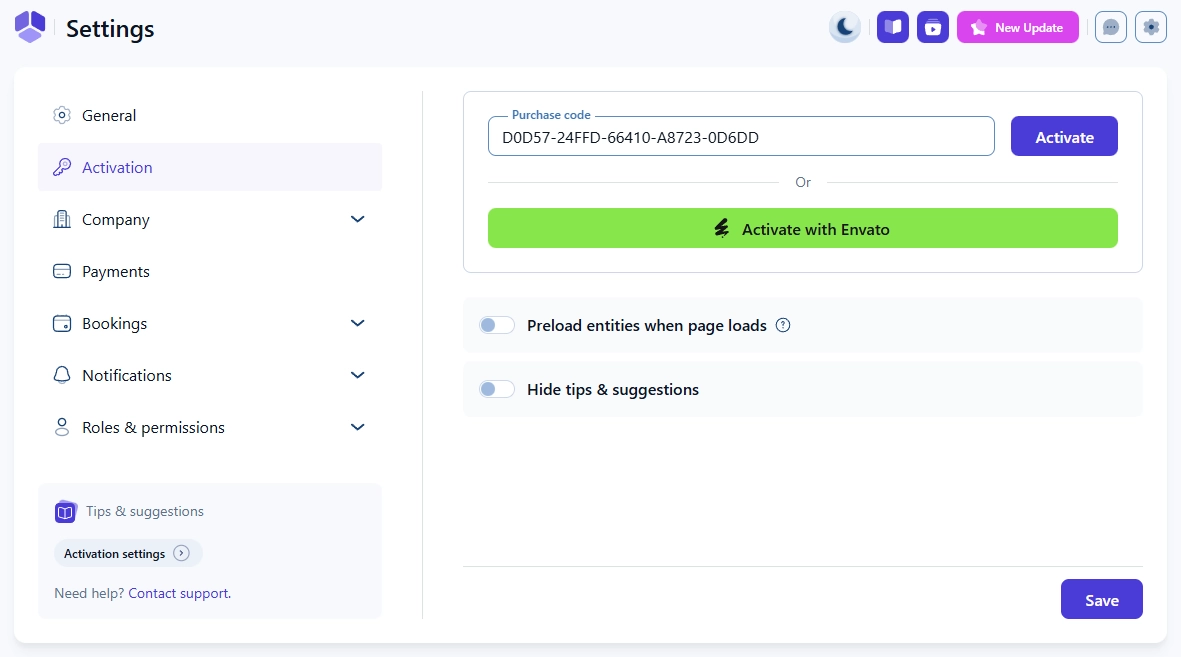
You can activate Amelia in Settings → Activation.
What happens if Amelia is not activated?
- Amelia is not blocked. The back end stays accessible and you can keep working.
- Premium features are locked until a code is entered.
- An activation banner appears on all Amelia admin pages, including the Welcome page.
Why activation failed?
- Expired license
- Domain limit reached
- Purchase code removed or cleared
How do I add a new domain to my license?
There's no "add domain" button in your Store account. The domain list there is a read-only overview of which sites are already activated, not a place to register new ones. Just repeat the activation steps below on each new site.
If you have a license that covers multiple domains (Pro 5, Elite 20, or Elite unlimited), you’ll use your purchase code to activate the license on every website where Amelia is installed. Domains aren’t added manually from your Store account; once you activate the plugin on a new site with that same code, the site is automatically registered against your license.
How do I activate my Amelia license?
Depending on where you purchased your license, there are two activation methods:
- If you purchased from our website:
Enter your purchase code in the Purchase Code field, then click Activate. - If you purchased from CodeCanyon/Envato:
Click the green Activate with Envato button. You’ll be redirected to Envato to sign in and confirm the activation.
Once the activation is complete, click Save in the bottom-right corner to apply changes.
What do the other settings mean?
Below the activation section, you’ll find two additional toggles:
- Load entities on page load – When enabled, Amelia loads all entities (services, employees, locations, packages, and tags) as soon as the page loads, instead of using AJAX calls. This can slightly improve performance on smaller websites.
- Hide locked options – When enabled, Amelia hides all premium features that aren’t available on your current license plan, keeping the interface cleaner.
After adjusting the settings, don’t forget to click Save.
Where can I find my purchase code?
If you purchased Amelia on our website, you’ll receive your purchase code right after checkout. It’s needed to activate your license and receive updates.
You can find your code in two places:
- In your confirmation email:
After purchasing, you’ll receive two emails – one from Melograno (with your purchase code, store URL, the email you registered with, and download link) and one from our reseller Paddle (containing your invoice).
- In your Store account:
Log in to your Store account. Once logged in, you will see all the Licenses you own. Click on the down arrow on the far right of the license card to expand it, and you will see your purchase code.
If this is your first time accessing the store account, you’ll be asked to set your password before you log in.
If you didn’t receive the confirmation email after purchase, there’s a good chance the email address was entered incorrectly during checkout. In that case, please reach out to our support team through the Store login page by expanding the Amelia menu at the top and selecting Contact Support, so we can help you locate your account and update your email.
What if activation fails?
If activation fails, Amelia stays in unactivated mode. Your data is not affected and existing bookings are not deleted. Once a valid code is entered, all features included in your license become available again.
Please note that this error will also be shown if you reached the maximum number of registered domains. See How do I add a new domain to my license? to learn how domains are counted, or visit your store account to manage your active domains. Deactivate Amelia on websites you no longer use to free up a slot.