



Almost every booking tool has a free plan now. What differs is the part that gets cut, and most signup pages don’t make that easy to see.
Calendar sync is the cut that tends to hurt. Zoho’s 2026 scheduling survey found that 36% of businesses cite double bookings as a major scheduling challenge, and two-way sync is the feature built to stop that from happening. Several free tiers below leave it out.
Free Scheduling Apps To Try
My bar for “free” was low but firm. Someone has to be able to book a real slot on your calendar, and nobody asks for a credit card.
Most tools say they clear that bar. Fewer still clear it once you read the plan limits.
I gave each app below its own use case, so you won’t find two tools doing the same job. Every entry also says where the free tier stops.
Most of these work as real scheduling software for small businesses. They aren’t demos built to expire. Trafft and Amelia also appear on lists of the best WordPress booking plugins, but they work differently. Amelia is a self-hosted WordPress plugin. Trafft is a hosted booking platform, and its WordPress plugin just embeds the booking form.
Get calendar sync, buffer time and time zone detection working and appointment scheduling itself stops eating your day.
| Setup | Best pick | Why |
|---|---|---|
| Running on WordPress | Amelia or Trafft | Booking lives on your own site, not a third-party page |
| Just need one link, fast | Calendly | Fastest signup to a working booking page |
| Need several meeting types for free | Cal.com | Unlimited event types on the free solo plan |
| Already live in Google Workspace | Google Calendar | No new login, no new tool to learn |
| Coordinating a group, not 1:1s | Doodle | Built around meeting polls, not solo bookings |
Trafft: best for multi-location service businesses
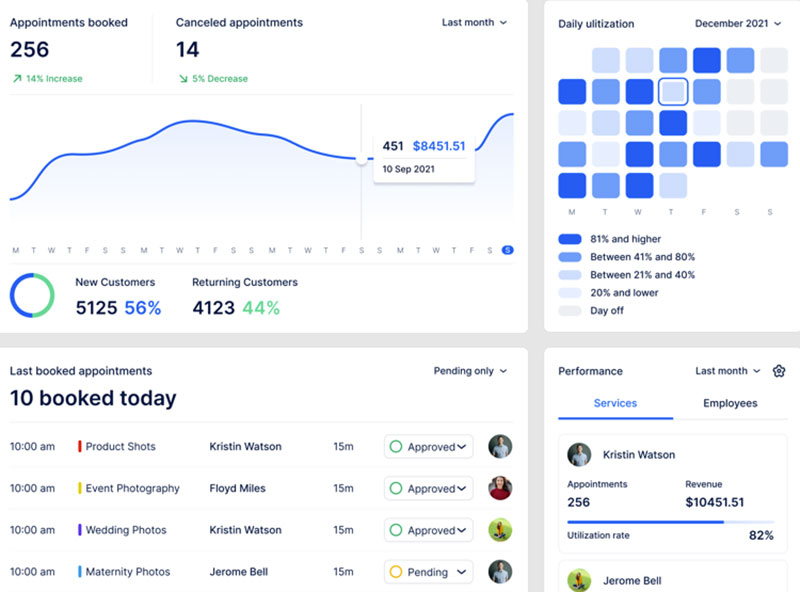
Trafft is built for service businesses with more than one location. It handles bookings, staff calendars and payments. The free plan is a real free plan and not a trial in disguise. It’s also a one-person, one-location plan, so the multi-staff setup Trafft is known for starts once you pay.
Multi-location management is the reason to pick it. Each location gets its own settings, and they all run from one dashboard. The Mini plan allows 3 locations, and Professional and Business are unlimited.
Beyond that, you get:
- Two-way calendar sync with Google Calendar, Outlook, and Apple Calendar on paid plans
- Automated email reminders (200 per month on the free plan), SMS through purchasable credits, and WhatsApp messaging on the Business plan
- Customer profiles and booking stats for repeat clients
- Coupon codes and service extras on paid plans
The free plan is free forever, but it’s capped at 1 user, 1 location, and 100 appointments a month. It does not include Google or Outlook calendar sync (Trafft pricing page, 2026). Sync, unlimited appointments and extra seats start on the paid Mini plan (3 users, 3 locations). Growth covers 5 users and 5 locations.
Treat the free tier as a test drive rather than a permanent setup. Without calendar sync it can’t block slots held in a personal calendar, and any business with staff passes the 1-user, 100-appointment ceiling fast.
On the plus side, you don’t need a separate account per location. Customer profiles keep each client’s history in one place. WhatsApp alongside email and SMS on the top tier is also uncommon in this category.
Trafft holds a 4.9 out of 5 rating across roughly 49 reviews on Software Advice. The praise mostly mentions how flexible staff scheduling is and doesn’t center on any one headline feature (Software Advice, 2026).
Roundups tend to put it next to basic link-in-bio tools, and I think that’s wrong. It’s closer to a lightweight team booking system, meant for coordinating staff across locations instead of managing one calendar. The demos make that difference obvious.
Amelia: best for WordPress sites that want booking built in
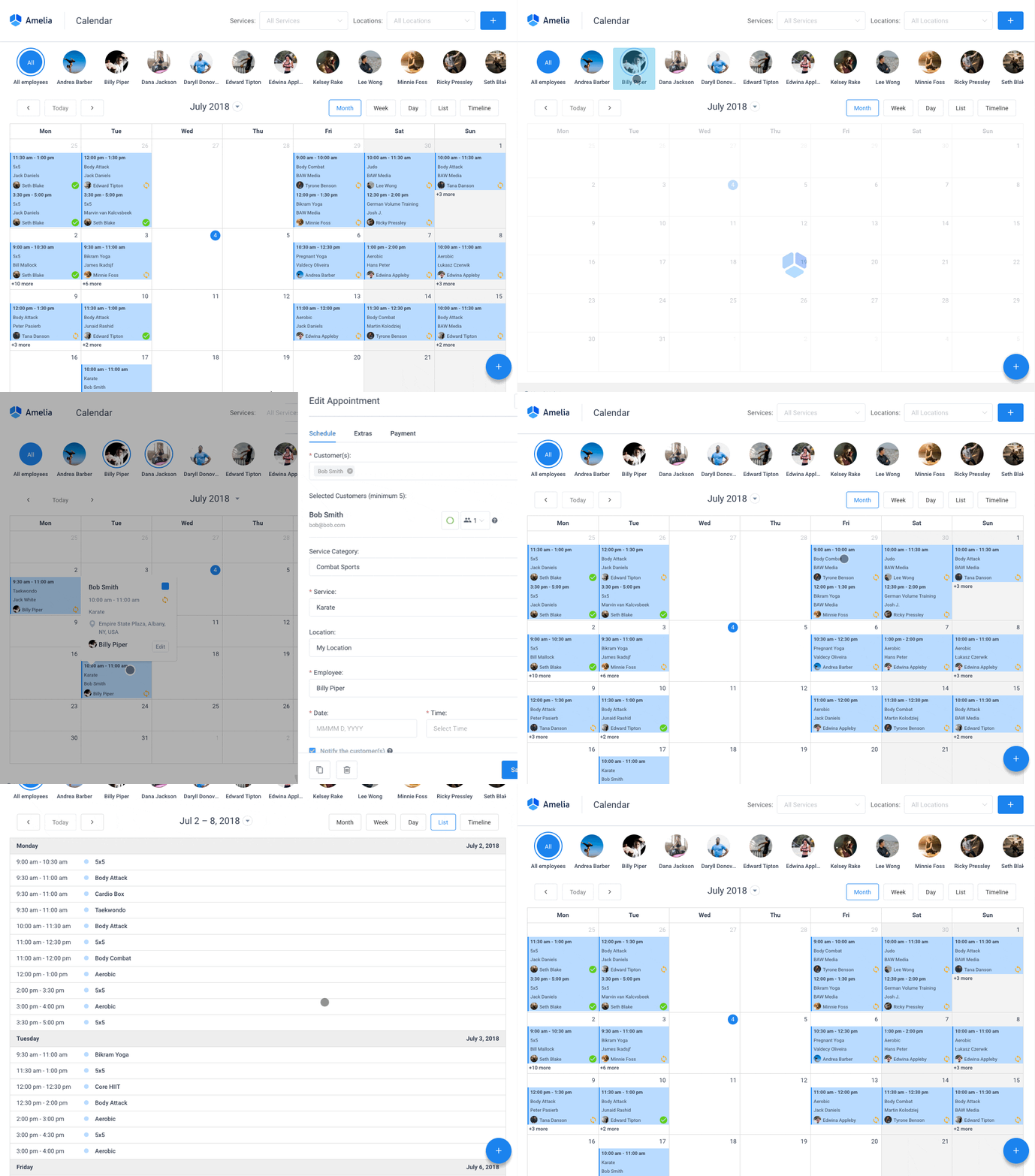
With Amelia, appointments, packages and events all run from your own WordPress site instead of a separate booking page. The free Lite version covers one staff member. That’s enough to test the whole flow before you spend anything.
The events module is what sets it apart, and it’s included even in Lite. Paid plans add ticket tiers and QR-coded e-tickets, which is rare among free WordPress booking plugins.
- Step-by-step or catalog booking widget added by shortcode or block
- Customizable email and SMS booking notifications
- Square payment gateway included on the free tier
Amelia Lite is free forever on WordPress.org and limited to 1 employee. Paid plans start at $49 a year for Starter, which adds automated reminders, group bookings, and coupons. Google Calendar two-way sync and event ticket types come with the Pro plan, around $149 a year (Capterra, 2026).
I like the licensing. You pay annually, or once for a lifetime license, instead of the monthly per-seat fees most SaaS tools charge. It also makes sense if you’re already adding a calendar to a WordPress site, and events and appointments share one admin screen.
Two things to plan around. Lite is solo only, since the Employees feature starts on the paid tiers. And it runs inside WordPress, so it suits sites already on the platform rather than standalone use.
Amelia holds a 4.6 out of 5 rating on WordPress.org across nearly 790 reviews, with a 4.9 score on Capterra.
People often compare it directly with Calendly, but the events layer changes things. Event sign-ups live in the same plugin as one-on-one appointments, and paid plans add ticketed sign-ups with QR codes. None of the pure link schedulers here do that. The demos cover both sides.
Calendly – Best for solo professionals who just need one clean link
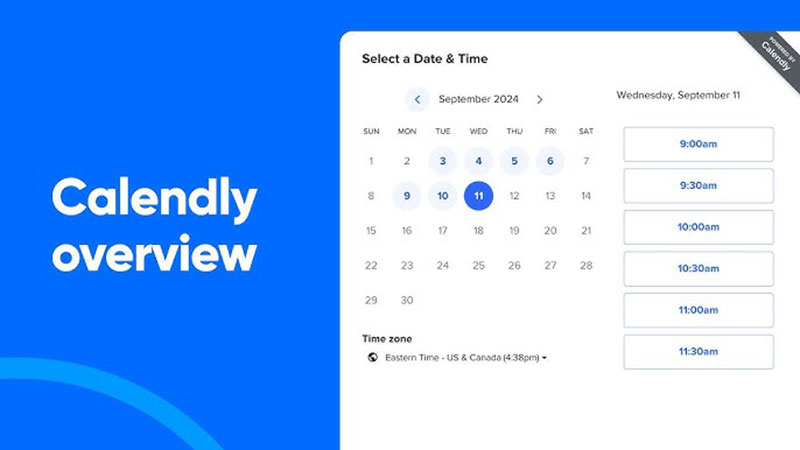
Calendly is the tool most people think of first. The free plan does one thing well: one event type on one connected calendar. For a consultant, coach or recruiter who only runs one kind of meeting, that’s enough.
Its integrations are the main strength. There’s one for almost every CRM, video tool and payment processor people use, though most of them need a paid plan. For sales teams already working with CRM tools, that connection can keep booked meetings and customer data in the same workflow instead of requiring manual updates.
- Automatic time zone detection for every invitee
- Buffer time and minimum notice settings
- Embeddable booking widget for websites
- Zoom, Google Meet, and Microsoft Teams links added automatically
It’s free forever for one event type and one calendar connection. The Standard plan costs $10 per seat monthly, billed annually, and adds unlimited event types and multiple calendars. Round robin team routing starts on the Teams plan at $16 per seat monthly, billed annually.
Setup takes minutes, and invitees don’t have to learn anything. The free plan also has no limit on booking volume, only on event types.
That event-type limit is the real constraint. Say you offer a 15-minute intro call and a separate 45-minute consultation. That’s two links, so you’re over the free limit on day one. Automated reminders, payment collection and round robin routing also need a paid tier.
For a sense of what the paid version can do, Calendly’s customer story with Credera, a management and technology consulting firm, reports that automating interview scheduling cut time-to-hire by 4 days and saved more than 446 hours (Calendly customer stories).
If you outgrow the free plan, compare Calendly alternatives before paying for a seat.
Cal.com – Best for solo professionals who need several meeting types for free
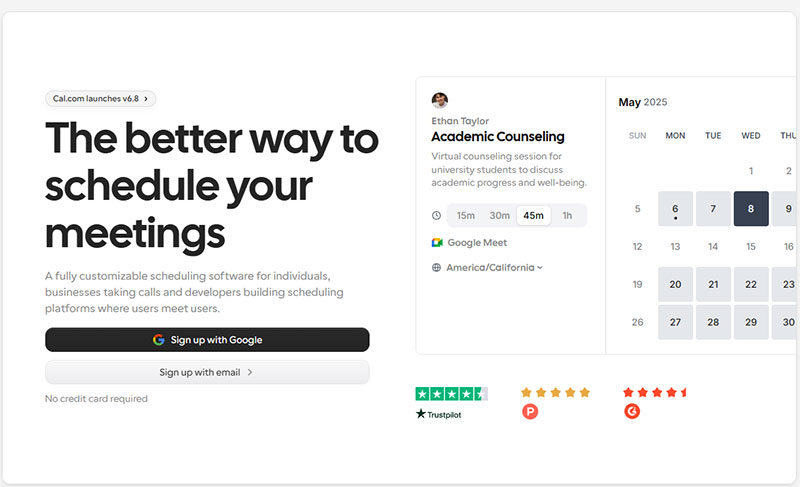
Cal.com’s free cloud plan gives one user unlimited event types, calendar connections and workflows, with no seat fee. No other free solo plan on this list comes close.
The licensing history is worth knowing. Cal.com started as an open source project. In April 2026 the company moved its commercial product to a proprietary license. At the same time, it released a separate MIT-licensed community fork called Cal.diy for self-hosting.
- Unlimited event types on the free solo cloud plan
- API and webhooks for custom integrations
- Round robin and collective event types on team plans
- Multilingual booking pages
- Payment collection through Stripe included on the free plan
The cloud plan is free forever for one user. The Teams plan costs $12 per seat monthly billed annually, or $15 billed monthly. Cal.diy is free to self-host, but its maintainers recommend it for personal, non-production use. It also drops Teams, Workflows, Routing Forms, and SSO.
The downside is collaboration. The free cloud plan is one user only, so a teammate means paying. And because Cal.diy is community-maintained, lacks the team features and isn’t recommended for production, it’s not a real workaround for a business.
Cal.com’s former public GitHub repository, now Cal.diy, has more than 40,000 stars, which gives you a rough idea of how widely developers adopted it. The company cited security concerns when it moved the commercial Cal.com codebase from the open source AGPL license to a proprietary one, and released Cal.diy under the MIT license. Don’t assume the hosted product will stay open.
For a single user, nothing else here matches the unlimited event types. Teams with strict data-residency needs, such as healthcare and legal practices, should know that fully self-hosting the commercial product isn’t the open option it used to be.
Google Calendar – Best for anyone who already lives inside Google Workspace
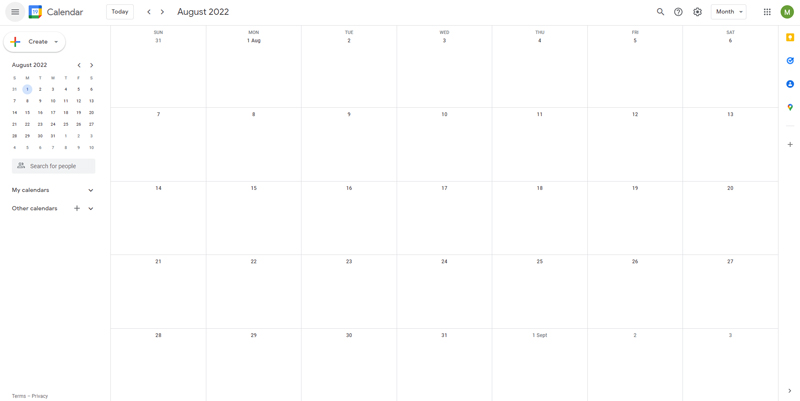
You might already have this one. Google Calendar’s built-in appointment schedules turn your existing calendar into a public booking page, so there’s no separate app and no new login.
Your availability comes straight from the calendar you already use, so there’s nothing to migrate. Bookings are checked against your existing events automatically, and Google Meet links can be added to each one. You can also embed the booking page on a personal website.
A personal Google account gets it free, but only for a single booking page. Extra booking pages, automated email reminders, and availability checks across multiple calendars require Google One Premium, a Google AI plan, or an eligible Workspace plan. Payment collection requires Workspace Individual or a Business Standard plan or higher.
If you already work in Gmail and Calendar, there’s nothing new to learn. The sync is native, which keeps double bookings rare. It’s also a good fit for scheduling appointments straight from Google Calendar without handing your data to a third party.
Customization is minimal compared with dedicated booking tools, though. A free personal account also gets no payment collection and no automated reminders.
The booking feature sits in the same calendar most people check every day. There’s no second dashboard to forget about.
It’s the only entry here that needs no new account at all. What you give up is flexibility. The free version gives you one booking page, not a configurable system.
Setmore – Best for small teams that want a free shared booking calendar
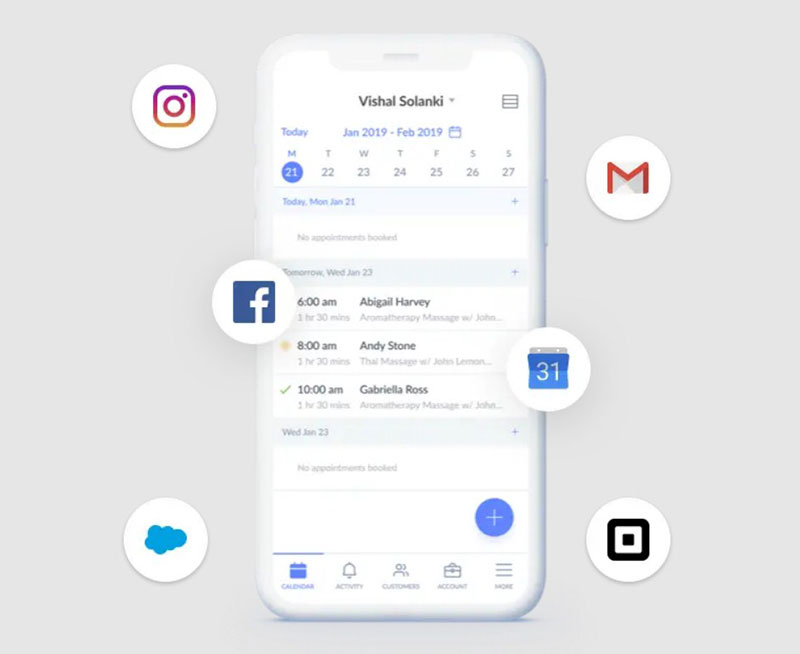
Setmore’s free plan supports up to 4 staff calendars, and each user gets a public booking page. Most tools on this list only offer multi-staff booking on paid plans, and that’s the reason Setmore made the list over similarly priced options.
It suits small service teams that need more than a solo link and aren’t ready to pay, as long as they stay under the monthly appointment cap.
- Custom business subdomain for the booking page
- Desktop and mobile apps alongside the web dashboard
- Price tags attachable to bookable services
- Payment collection built in, plus third-party integrations on the free tier
It’s free forever for up to 4 users and 200 appointments a month, with email reminders and one-way calendar sync. Setmore Pro removes the caps and adds SMS reminders and two-way sync. It costs $5 per user monthly billed annually, or $12 billed monthly.
The booking page looks reasonably polished for a free tool. The limits are elsewhere. SMS reminders, two-way calendar sync and the recurring appointment option all need an upgrade. A busy salon or clinic could also go through 200 appointments a month fairly fast.
Doodle – Best for coordinating a group, not a single one-on-one
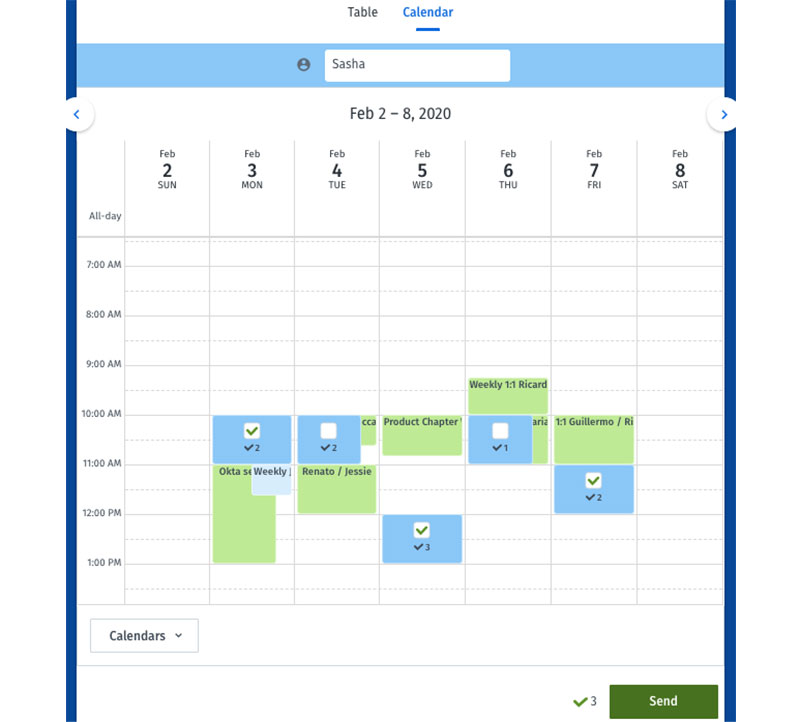
Doodle solves a different problem from the rest of this list. It finds one time that works for several people. It doesn’t book one person into your calendar.
Participants vote on time slots in a meeting poll instead of picking from a fixed calendar. The free plan still includes polls, but only one active poll at a time with up to 10 time slots. Participants see ads in exchange. You also get one 1:1 booking page, voters don’t need an account, and calendar integrations come with an upgrade.
Basic polling is free, and polling is the core use case among group scheduling apps. The Professional plan removes ads and adds calendar sync for $132 a year (about $11 a month), or $15 billed monthly.
I don’t love the ads. Sending a client a poll with ads on it can look unpolished. You’re also limited to one active poll, and “if need be” votes, reminders, deadlines and calendar sync all need Professional.
Still, no 1:1-first tool on this list handles group coordination better, and the free tier covers a real one-off group poll. It works more like a survey tool than a booking system, collecting preferences instead of confirming a slot right away.
Every other free entry assumes one person books one slot. Before you pick Doodle for a mixed use case, check how Doodle stacks up against Google Calendar.
YouCanBook.me – Best for a lightweight booking page tied to Google Calendar
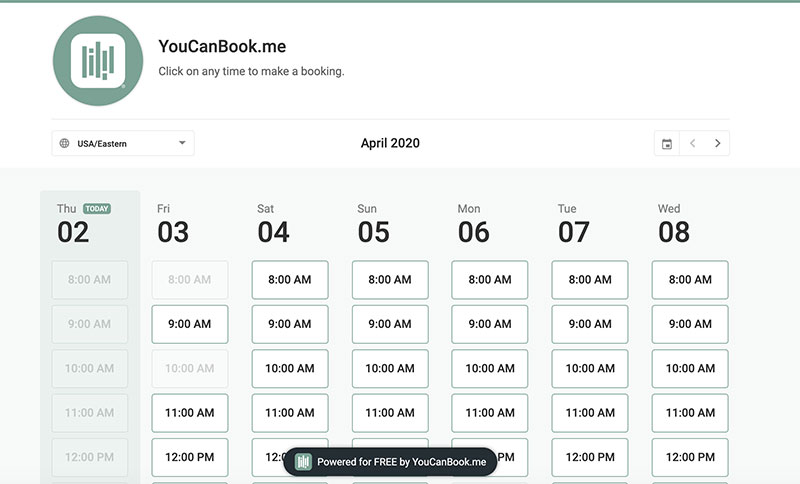
Connect one Google or Outlook calendar and you have a booking page. YouCanBook.me doesn’t need much more setup than that. It’s for someone who wants a simple public link and has no extra staff or locations.
The free plan gives you one booking page and one connected calendar, and a “Powered for free” badge appears on the page and in emails. You also get custom questions on the booking form, confirmation emails and Stripe payment collection. Paid plans start at $9 a month and add more booking pages, more calendar connections and settings like buffer times and minimum notice.
Setup is fast, a few minutes from signup to a working link. The booking page is clean and uncluttered.
The limits are one calendar and one booking page, and buffer times and minimum or maximum notice settings need a paid plan. On the free tier, it’s close to Calendly’s free plan. The differences show up in the paid plans.
It rarely tops “best free scheduling app” lists, but it includes Stripe payments for free, and Calendly charges for that. Compare how Calendly compares to YouCanBook.me before choosing between them.
Square Appointments – Best for solo sellers already taking payments through Square
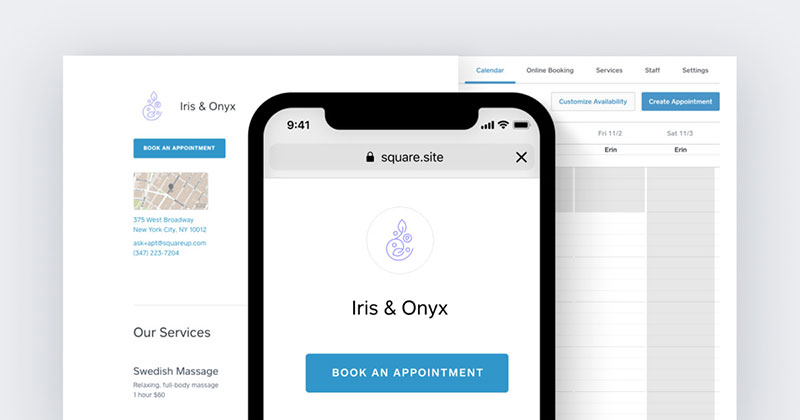
If you already take payments through Square, scheduling comes free on top. Square Appointments collects payment with every booking, so you don’t need a separate checkout tool. It works best for one person at one location.
- Free booking website generated automatically
- Instagram booking integration
- Automated email and text confirmations and reminders
- Card-on-file, prepayment, and deposit options
It’s free for individuals at one location. On the free plan, payment processing fees are 2.6 percent plus 15 cents per in-person transaction and 3.3 percent plus 30 cents online. The Plus plan costs $49 per location monthly and Premium costs $149. Both add multi-staff features and lower online processing rates.
A true solo setup has no subscription cost. Payment and booking happen in one flow, and the Instagram integration helps if you sell through social media. Pairing a simple booking process with product or service videos can also help you easily boost your sales by giving potential customers more context before they book or buy.
The cost moves to processing fees instead. You’re tied to Square payment processing, and online transactions cost more on the free plan than on paid tiers. If your transaction volume is high, compare the fees against a tool with a flat monthly price.
It usually gets filed as a payment tool, which undersells it. If you’re a solo seller, compare Acuity Scheduling against Square Appointments. They target the same audience but price the free tier differently.
HubSpot Meetings – Best for sales teams who want bookings logged to CRM
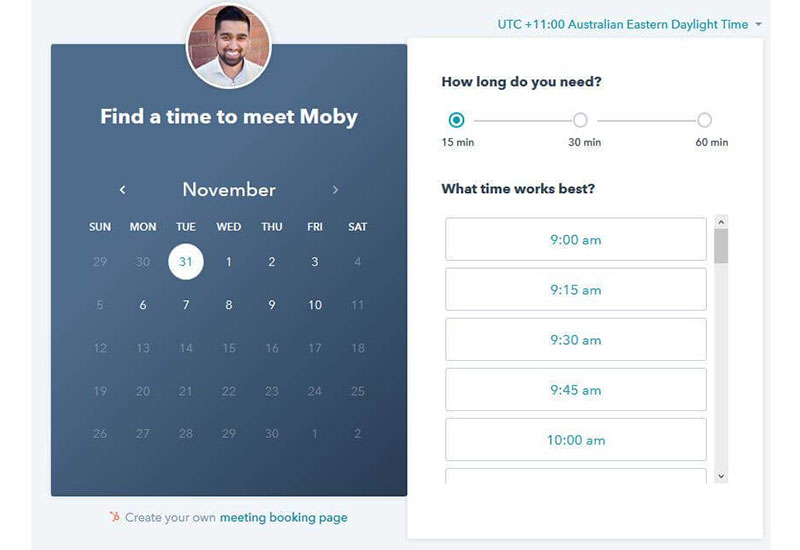
HubSpot’s scheduler is a free tool inside a much larger CRM. It’s built for sales and marketing teams, not solo appointment booking. Every booked meeting attaches to the contact’s timeline automatically, with no manual entry.
The free CRM gives you a personal one-on-one scheduling page. It syncs with Google or Office 365 calendars, includes an embeddable widget for external pages and creates a contact for every new booking. HubSpot says the free version has no time limit, and it doesn’t ask for a credit card.
Round robin, group meetings, and branding removal require Sales Hub or Service Hub Starter, from $20 per user monthly billed annually. Higher tiers add automation and reporting to the same meeting scheduler.
Outside a CRM context, it has fewer features than dedicated scheduling tools, and team routing isn’t free. A verified user on SoftwareReviews said the no-cost pricing was the main draw, while noting a thinner feature set than paid competitors (SoftwareReviews, 2024).
Most lists skip it because it lives inside a CRM. If your sales team already logs contacts in HubSpot, that CRM connection is the main reason to use it.
What Is a Free Scheduling App?
You share a link, someone picks an open time, and the booking lands on your calendar without any back-and-forth emails. If you don’t pay a subscription for that, it’s a free scheduling app.
That covers everything from a single Calendly link to a full WordPress plugin like Amelia. The underlying job is the same.
Free plans usually cap one thing and leave the rest alone. That might be the number of event types, booking links or monthly appointments. It might be connected calendars or team members. Sometimes it’s features, like SMS reminders, custom branding or payment collection.
A real free plan never expires and never asks for a card. A disguised trial does one or both.
You can see the difference in the benefits of scheduling software gives you every day. Your availability updates automatically, you send fewer emails and you stop missing slots, and it keeps costing nothing after a 14-day window.
How Calendar Sync Works on Free Scheduling Apps
The Zoho double-booking figure from the top of this article is mostly a calendar sync problem. The booking page itself is rarely the cause.
With two-way sync, the tool checks every connected calendar before it shows a slot as open. One-way sync only pushes new bookings out. So if you add an event directly in Google Calendar or Outlook, the booking page still shows that slot as free.
- Two-way sync across multiple calendars: Cal.com’s free plan, Trafft’s paid plans, Amelia’s Pro tier, and Setmore Pro
- Single-calendar conflict checking on free tiers: Calendly, YouCanBook.me, and Google Calendar on a personal account
- One-way sync on the free tier: Setmore
Time zone detection runs on top of sync. It converts the host’s availability into the invitee’s local time automatically.
Atlassian uses Calendly across its sales, marketing, and recruiting teams, with automations that prevent conflicting times and time zone mix-ups in customer-facing bookings (Calendly customer stories).
Most sync problems come from calendars you forgot to connect, including personal ones. Leave one out and you’re back to the double booking appointments problem that sync is supposed to prevent. If you split your time between Google and Outlook, read up on syncing Google Calendar with Outlook, since not every free tool handles both well.
Booking Page Customization on Free Plans
You’ll usually get custom questions on the booking form, a shareable link and basic color or logo branding for free. A fully custom domain, removing the provider’s branding and advanced buffer rules per service usually cost money.
Buffer time matters more than people expect. Without it, back-to-back bookings leave no travel or prep time between clients. Some tools, including YouCanBook.me and Trafft, still only offer buffer settings on paid plans.
A good booking form asks only what the appointment needs, like name, service and a short note. Every extra field lowers the completion rate on mobile.
Minimum notice works alongside buffer time. It blocks bookings inside a window you choose, usually one to a few hours, so nobody books a slot that starts a few minutes later.
Group and Team Scheduling on Free Plans
A meeting poll and a round robin link solve different problems. A poll finds one time that works for several people. A round robin link sends each request to whichever team member is free first.
- Doodle: built entirely around the poll format, free for one active poll at a time
- Trafft: coordinates multiple staff calendars on its paid plans
- Calendly, Cal.com, and HubSpot Meetings: round robin distribution gated behind a paid or team-level plan
Both depend on shared availability. Several calendars merge into one bookable view, so a client sees open slots across the whole team instead of for one person.
ClickUp’s Customer Advocacy team reported much faster project turnaround times after using Calendly to cut the back-and-forth email around customer calls (Calendly customer stories).
Sales and support teams doing B2B appointment setting rely on round robin because it spreads inbound leads evenly. A manager doesn’t have to assign each one by hand.
Integrations and Automation on Free Scheduling Apps
Video links are the most common integration. Calendly, Cal.com, Trafft, and HubSpot Meetings all add a Zoom integration or a Google Meet link to bookings automatically. Trafft only offers Zoom on its higher paid tiers.
Zapier and native webhooks cover the rest. They can send a new booking to a CRM, a spreadsheet or a Slack channel as soon as it happens. For example, a new booking can update a CRM contact, and a cancellation can alert the team. Businesses can also connect scheduling data with broader customer-acquisition efforts, including referral and ambassador programs designed to boost your sales through recommendations from existing customers.
Calendly’s own support team uses Zapier to connect Zendesk with Salesforce and Airtable, closing a feedback loop that used to run across disconnected tools. The company says Zapier saves it more than 10 hours a week (Zapier customer stories).
API access goes a step further than Zapier. Cal.com includes API access and webhooks on its free individual plan. Calendly and most other SaaS tools only offer the API on paid tiers.
Zoho’s scheduling research found 44% of businesses cite back-and-forth coordination as a major scheduling challenge. It was the most-cited problem in the survey, and it’s the exact friction automation and integrations are built to remove (Zoho Bookings scheduling survey, 2026).
Reminders, Payments, and Data Privacy on Free Scheduling Apps
Reminders and No-Shows
Reminders measurably reduce no-shows. A systematic review of 26 studies (21 in its main meta-analysis) found that text-based electronic reminders in healthcare clinics cut no-show rates from 21% to 15%, a 25% relative reduction (BMJ Open, 2016).
Almost every tool sends booking confirmation emails for free. Automated reminders are less common. Calendly and a free Google account keep them on paid plans. SMS is locked more often still. Setmore’s free tier leaves it out, and Trafft sells it as add-on credits.
- Email reminders: free on Cal.com, Setmore, and Trafft (200 a month), paid on Calendly and Google Calendar
- SMS: Setmore Pro only; purchasable credits on any Trafft plan, with a monthly allowance on its top two tiers
- WhatsApp: Trafft’s Business plan and Amelia’s paid tiers
In my view, a clear appointment confirmation text sent right after booking does more than a reminder the day before. It catches mistakes while the client can still fix them.
Payment Collection
Square Appointments, Amelia, Cal.com, Setmore, and YouCanBook.me all collect payment at booking through a built-in gateway, even on free tiers. Calendly and Doodle don’t process payments on free plans. Google Calendar requires a paid Workspace plan. With those, you’ll need a separate invoice or an upgrade.
A deposit protects you against no-shows without charging the full fee upfront. That matters most when a cancellation is expensive, like a multi-hour consultation.
Put your cancelled appointment policy up front, for instance a refundable deposit within 24 hours and non-refundable inside 24 hours. Then both sides know the rule before any money is paid.
Data Privacy and Compliance
Every booking form collects personal data. That’s at least a name and email, and often a phone number or a note about why someone is booking.
GDPR applies to businesses outside the EU too, as soon as they offer services to people in the EU. The most serious violations can draw fines of up to €20 million or 4% of annual global turnover, whichever is higher.
- A lawful basis is required for processing booking data; for most bookings that is performing the service the client requested, while marketing use typically needs explicit consent
- Data subject requests (access, export, deletion) must be answered within one month, extendable by two further months for complex requests
- A Data Processing Agreement with the scheduling vendor is required whenever the vendor processes client data on your behalf
Free plans rarely advertise compliance features. Before your first EU client books, check whether the tool can export and erase data on its own, without a support ticket.
When Free Scheduling Apps Are Not Enough
A free plan is fine until your real usage hits its cap. Upgrading before that just pays for room you don’t need yet.
Here’s which limit usually runs out first for each app:
- Calendly: one event type total, forcing an upgrade the moment you offer two kinds of meetings
- Cal.com: one user on the free cloud plan, so any teammate needs a paid seat
- Amelia: one staff member on the free Lite version
- Square Appointments: built for an individual at one location
- Trafft: 1 user, 1 location, and 100 appointments a month
- Setmore: 4 users and 200 appointments a month
Some businesses should start on a paid plan instead of working around a free one. That includes multi-location businesses, teams with more than a few staff and HIPAA-sensitive practices that need a signed agreement with their vendor.
A scheduling app also won’t help if booking isn’t your real bottleneck. If the problem is no-shows or messy intake, a scheduling tool alone won’t fix it.
What You Get When You Upgrade to a Paid Plan
Paying usually gets you more seats and more calendar connections. It also unlocks features that were already built but held back on the free plan.
| App | Free plan caps | Paid entry price | What upgrading unlocks |
|---|---|---|---|
| Calendly | 1 event type, 1 calendar | $10/seat/month (billed annually) | Unlimited event types, multiple calendars, reminders (team routing on Teams, $16/seat) |
| Cal.com | 1 user on cloud plan | $12/seat/month annually ($15 monthly) | Round robin, collective events, branding removal |
| Trafft | 1 user, 1 location, 100 appointments/month | Mini plan (see Trafft’s pricing page) | More users and locations, calendar sync, unlimited appointments |
| Amelia | 1 employee | $49/year | Automated reminders, group bookings, coupons (Google Calendar sync on Pro, about $149/year) |
| Doodle | 1 active poll, ads on free polls | $132/year (about $11/month) | No ads, calendar sync, custom branding |
None of the free tiers here are stripped-down demos. The paid version is usually the same product with the limits removed. That’s why upgrading rarely means switching tools.
How to Set Up a Free Scheduling App
The order is about the same for every tool on this list, whether it’s a SaaS link or a WordPress plugin.
- Connect the calendar account you actually use day to day, not a backup one
- Set real working hours and block out personal time as unavailable
- Create one event type: name, duration, and a short description
- Add buffer time and a minimum notice period, where your plan allows it
- Customize the booking page with your name, logo, and a couple of custom questions
- Share the link, or embed the page on your site, and send yourself a test booking
The most common mistake is leaving an old or secondary calendar unconnected. A meeting booked on that calendar never shows as busy on the booking page, and you end up with the same scheduling mistakes the tool was meant to prevent.
Make a real test booking. Checking the settings screen doesn’t catch nearly as many errors.
How to Add a Free Booking Page to Your Website
You can embed a widget from a SaaS tool, or you can install a plugin that runs the booking system on your own site.
Calendly, Cal.com, and YouCanBook.me give you a script or iframe to paste into a page. The booking widget then appears on the page instead of linking out.
Plugins work differently. Amelia installs directly into WordPress, so the booking form and its data live in your site’s own database. Trafft’s WordPress plugin embeds its hosted booking form on your pages, but the data stays in your Trafft account.
- A schedule an appointment button works well as a simple call to action, linking out to a booking page rather than embedding the full widget
- Store-based sites sometimes use WooCommerce Appointments instead, treating a booking slot as a purchasable product
Send people to a page that confirms the appointment after they book, instead of a blank confirmation screen. It’s a small detail, and it makes clients less likely to wonder whether the booking went through.
FAQ on Free Scheduling Apps
What’s the difference between a scheduling app and a calendar app?
A calendar app stores and shows events for one person. A scheduling app adds a public booking page, calendar sync and automated reminders. That lets someone outside your calendar claim an open slot without an email or a phone call.
Is it worth paying for scheduling software as a solo user?
Usually not at first. Most free plans cover one event type and one calendar, and Cal.com’s free plan covers unlimited event types. That’s enough for most solo consultants, coaches and freelancers. Paying makes sense once you need a second event type, a team member or SMS reminders.
How do you migrate from one scheduling app to another?
Export your existing bookings and contacts first. Most tools offer a CSV or calendar export. Connect the same calendar account to the new tool, and rebuild your event types, buffer times and integrations before you switch the public link over.
How do you cut no-shows using a free plan’s reminder features?
Turn on every free channel that appointment reminder apps offer, which is usually email. Send the first message right after booking instead of waiting until the day before. Research on clinic reminders found that multiple notifications improved attendance more than one, so add a second reminder closer to the appointment if your plan allows it.
What Should You Check First in Free Scheduling Apps?
Start with the cap. Compare the free tier’s limit on event types, appointments, calendar connections or staff seats against your booking volume today, not what you expect next year.
Sync comes next. Sync failures pile up without anyone noticing. A missing event type or a gap in reminders at least shows up quickly, usually as a client complaint. So check that every calendar you use is connected. Then find out which reminder channel your clients actually read, and test that one.
Staying on the free tier means slower support and no uptime guarantee. That’s a fair trade for a tool that costs nothing until your volume outgrows it.
For many people, payment collection ends up deciding it. Before you commit to a free plan’s checkout limits, compare it against a full WordPress booking system with payment gateways.

Explore topics

Read Inspiring Customer Stories
Check out how our user set Amelia for his business