




A visitor who waits three seconds instead of one is 32% more likely to leave, according to Think with Google. For a service business, that visitor was about to pick a time slot. Caching is still the cheapest fix, but in 2026 the question has changed. It is no longer only “which plugin caches fastest?” It is also “can my AI assistant run it for me?”
Site owners now ask Claude or ChatGPT to check their sites, and a cache plugin with an MCP server (the open standard that lets AI assistants use software tools) can answer directly: purge this page, warm the cache, tell me why the booking page is slow, fix it, then prove it. This guide compares the best WordPress cache plugins in 2026 with that shift in mind, alongside the usual questions of hosting fit, price, free-tier depth and whether a booking form keeps working.
Install counts, ratings and versions come from the WordPress.org Plugin API, and prices come from each vendor’s own pricing page, all checked on 5 October 2026. Where xSpeed loses on a criterion, the tables say so.
Quick Summary: Which WordPress Cache Plugin Should You Use?
Short on time? Find your situation in the left column.
| If you want to… | Use this | Price | Why it fits |
|---|---|---|---|
| Let Claude or ChatGPT tune, fix and monitor your site | xSpeed Cache | Free; Pro from $29/yr | MCP server and AI tools in the free plugin, one AI connection for every site through xSpeed Hub, free site scan |
| Install one paid plugin and stop thinking about speed | WP Rocket | $59.95/yr for 1 site | Caching and file optimization switch on at activation, on any host |
| Get the fastest free cache on LiteSpeed hosting | LiteSpeed Cache | Free | A server-level page cache with 7,000,000+ active installs |
| Squeeze Core Web Vitals with a premium tool | FlyingPress | $59/yr for 1 site | Strong front-end optimization, 14-day free trial |
| Control every caching layer for free | W3 Total Cache | Free; Pro $99/yr | Page, database, object and browser caching with Redis or Memcached |
| Cache, clean the database and compress images in one free plugin | WP-Optimize | Free; Premium from $49/yr | Three jobs in one plugin, cart-safe defaults for WooCommerce |
| Pay once and never renew | WP Fastest Cache | Free; Premium $49 one time | Premium is sold as a one-time lifetime licence |
| Keep it as simple as possible, for free | WP Super Cache | Free | Made by Automattic, one “Caching On” switch |
| Hand optimization to a cloud service | NitroPack | Free tier; paid from $7/mo | Optimization runs on NitroPack’s servers, metered by pageviews |
| Cache HTML at Cloudflare’s edge on the free Cloudflare plan | Super Page Cache | Free; Pro available | Uses Cloudflare Cache Rules, with a disk cache fallback |
Best for AI-managed sites and agencies: xSpeed Cache. It is the only plugin here with an MCP server in the free version, and it reached 10,000+ active installs about three weeks after its public launch.
Best for beginners who want to pay once a year and forget it: WP Rocket.
Best free option on LiteSpeed hosting: LiteSpeed Cache.
Best for booking and service sites: any plugin on this list, as long as you follow the five rules in the booking-site section below.
Why Booking and Service Sites Need a WordPress Cache Plugin
WordPress builds every page from scratch by default. Each visit runs PHP, queries the database and assembles HTML before the first byte leaves your server. A page cache stores the finished HTML and hands it to the next visitor without that work.
The effect on server response is large. Across 2,030 WordPress sites in the xSpeed Scan archive (our own dataset, so read it with that in mind), a cache hit cut the median time to first byte from 674 ms to 193 ms. The same study found that the cache moved median mobile Largest Contentful Paint by only 136 ms. Caching fixes the server half of speed. Images, fonts and scripts are the other half, which is why the plugins on this list also optimize files, and why a plugin that can diagnose which half is slow is worth more than one that only caches.
Why this matters more for a booking site than a blog:
- Speed is revenue. According to Deloitte’s “Milliseconds Make Millions” study for Google, a 0.1-second improvement in mobile site speed raised travel conversions by 10.1% and retail conversions by 8.4%. Booking an appointment is the same kind of decision.
- Google measures it. Google’s Core Web Vitals guidance on web.dev sets “good” at an LCP under 2.5 seconds, an INP under 200 milliseconds and a CLS under 0.1. INP replaced FID in March 2024, and booking forms full of JavaScript are exactly where INP goes wrong.
- Most traffic is mobile. Clients book from their phones between other things. A slow first byte on 4G feels much worse than on office Wi-Fi.
AI Is the New Caching Criterion: What Changed Since 2024
Two years ago, a cache plugin was a settings page you configured once and forgot. Now three things have changed how site owners pick one.
AI assistants can operate WordPress plugins. The Model Context Protocol (MCP) lets Claude, ChatGPT, Cursor and other AI clients call a plugin’s functions directly. With an MCP-enabled cache plugin, “is caching working on my booking page?” becomes a question you type, not a settings page you learn. The assistant checks the cache status, reads the response headers, runs a speed test, changes a setting, and runs the test again.
One AI connection can cover many sites. For agencies and freelancers, the bigger change is fleet control. A hub that links every client site to one account means one assistant can purge, warm and audit 25 sites in a single request instead of 25 logins.
Diagnosis comes before configuration. Free scanners now grade a site and map each failing check to a fix. Combined with an MCP server, the AI can apply that fix and re-verify the score.
| Change | When | What it means for you |
|---|---|---|
| INP replaced FID as a Core Web Vital | March 2024 | Delaying and deferring JavaScript matters more than before |
| WP Engine acquired NitroPack | July 2024 | NitroPack is now part of a hosting company’s product family |
| Speculative loading shipped in WordPress core 6.8 | April 2025 | WordPress can prefetch the next page on its own, so some “preload links” features overlap with core |
| MCP servers arrive in cache plugins | 2025–2026 | xSpeed Cache ships one in its free plugin with a multi-site hub; WP Rocket added one in version 3.23, connected one site at a time |
| A new AI-first cache plugin reaches 10,000+ installs | Sep–Oct 2026 | xSpeed Cache went from public launch to 10,000+ active installs in about three weeks |
| WP Rocket added a 14-day free trial | 2026 | You can test the best-known premium plugin before paying (a card is required) |
| WordPress 7.1 is current | 7.1.2, Sep 2026 | Every plugin we installed for this guide ran on 7.1.2 |
How We Chose and Ranked These 10 Plugins
We started from the plugins that rank for “best WordPress cache plugins” today and the ones Google’s AI Overview names, then added newer tools that change the picture. Each plugin was judged on criteria a site owner can verify before buying:
| Criterion | What we checked | Where the data came from |
|---|---|---|
| AI and MCP control | Can an AI assistant read and change the plugin? Is it free? Does it work across many sites? | Vendor documentation, our own MCP session |
| Free-tier depth | Is the free version enough for a real business site? | Vendor feature pages, our own install |
| Hosting fit | Does the page cache work on Apache, Nginx and LiteSpeed, or only on one stack? | Plugin readme and our own install |
| Ease of setup | Can a non-technical owner get a working cache in under 10 minutes? | Our install on WordPress 7.1.2, PHP 8.3 |
| Price and licence shape | Free tier, annual, lifetime or metered | Vendor pricing pages, 5 October 2026 |
| Track record and momentum | Active installs, ratings, years in the directory, recent growth | WordPress.org Plugin API, 5 October 2026 |
| Booking-form safety | Can you exclude scripts and pages so a dynamic form keeps working? | Vendor docs, Amelia support guidance, our own test |
What we did not do: run a speed benchmark and crown a winner on milliseconds. A caching benchmark on shared hardware mostly measures the test setup, and two runs of the same page can differ by more than the gap between two good plugins. We installed eight of the 10 plugins on the same clean WordPress 7.1.2 site to capture real settings screens (WP Rocket and FlyingPress are paid-only and not in the WordPress.org directory, and NitroPack needs an account, so we show their public pricing pages instead).
Best WordPress Cache Plugins Compared: Master Table
| Rank | Plugin | AI / MCP control | Free version | Paid from | Active installs | Rating | Hosting needed | Best for |
|---|---|---|---|---|---|---|---|---|
| 🥇 1 | xSpeed Cache | ✅ Free MCP server + multi-site Hub | Yes (100+ features) | $29/yr | 10,000+ | 5.0★ (17) | Any | AI-managed sites, agencies, mixed hosting |
| 🥈 2 | WP Rocket | ✅ MCP server (paid, per site) | No (14-day trial) | $59.95/yr | Not on WordPress.org | Not on WordPress.org | Any | Owners who want results with no tuning |
| 🥉 3 | LiteSpeed Cache | ❌ | Yes | Free | 7,000,000+ | 4.8★ (2,775) | LiteSpeed server or QUIC.cloud | Sites on LiteSpeed hosting |
| 4 | FlyingPress | ❌ | No (14-day trial) | $59/yr | Not on WordPress.org | Not on WordPress.org | Any | Core Web Vitals tuning |
| 5 | W3 Total Cache | ❌ | Yes | $99/yr | 900,000+ | 4.4★ (5,420) | Any | Developers who want every layer |
| 6 | WP-Optimize | ❌ | Yes | $49/yr | 1,000,000+ | 4.8★ (2,614) | Any | Free all-in-one, WooCommerce |
| 7 | WP Fastest Cache | ❌ | Yes | $49 one time | 1,000,000+ | 4.9★ (4,225) | Any | A lifetime licence |
| 8 | WP Super Cache | ❌ | Yes | Free | 1,000,000+ | 4.3★ (1,346) | Any | Simple blogs and brochure sites |
| 9 | NitroPack | ❌ | Yes (1,000 pageviews) | $7/mo | 90,000+ | 4.3★ (311) | Any | Hands-off cloud optimization |
| 10 | Super Page Cache | ❌ | Yes | Pro available | 70,000+ | 4.8★ (515) | Any (Cloudflare optional) | Free Cloudflare edge caching |
Installs, ratings and prices checked on 5 October 2026. Ranks weigh AI and MCP control and free-tier depth alongside hosting fit and track record; they are not a speed benchmark. On LiteSpeed hosting with no interest in AI control, LiteSpeed Cache is the stronger free choice.
The 10 Best WordPress Cache Plugins in 2026, Reviewed
🥇 1. xSpeed Cache: Best AI-Powered Cache Plugin and Performance Hub
xSpeed Cache is the newest plugin on this list, and it has grown quickly: it reached 10,000+ active installs on WordPress.org about three weeks after its public launch in September 2026, and on 5 October 2026 it held a 5.0-star rating from 17 reviews. The reason is the design choice behind it: xSpeed treats AI as the main way you run your site’s performance, not as a feature bolted onto a settings page.
AI is the core, not an add-on
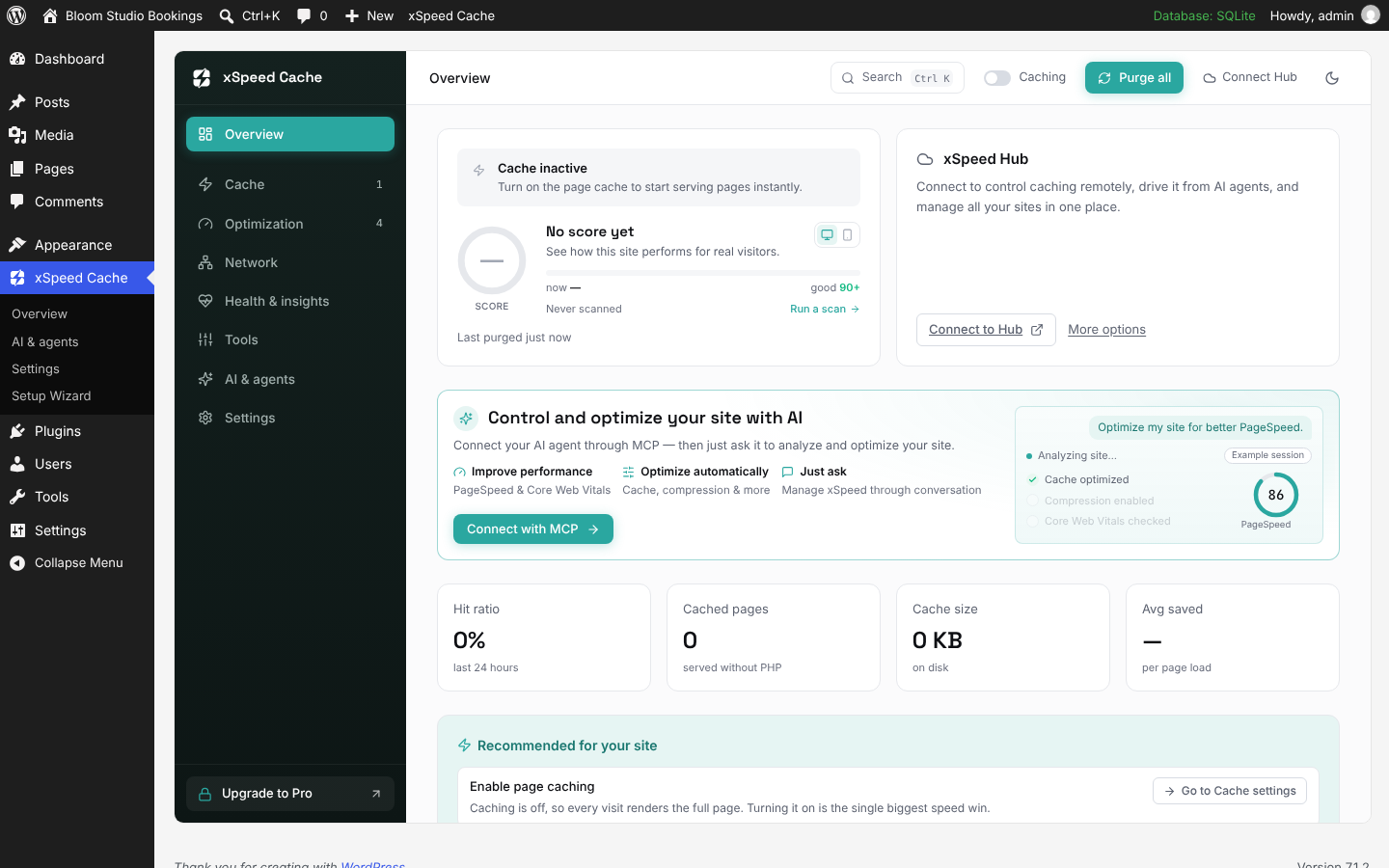
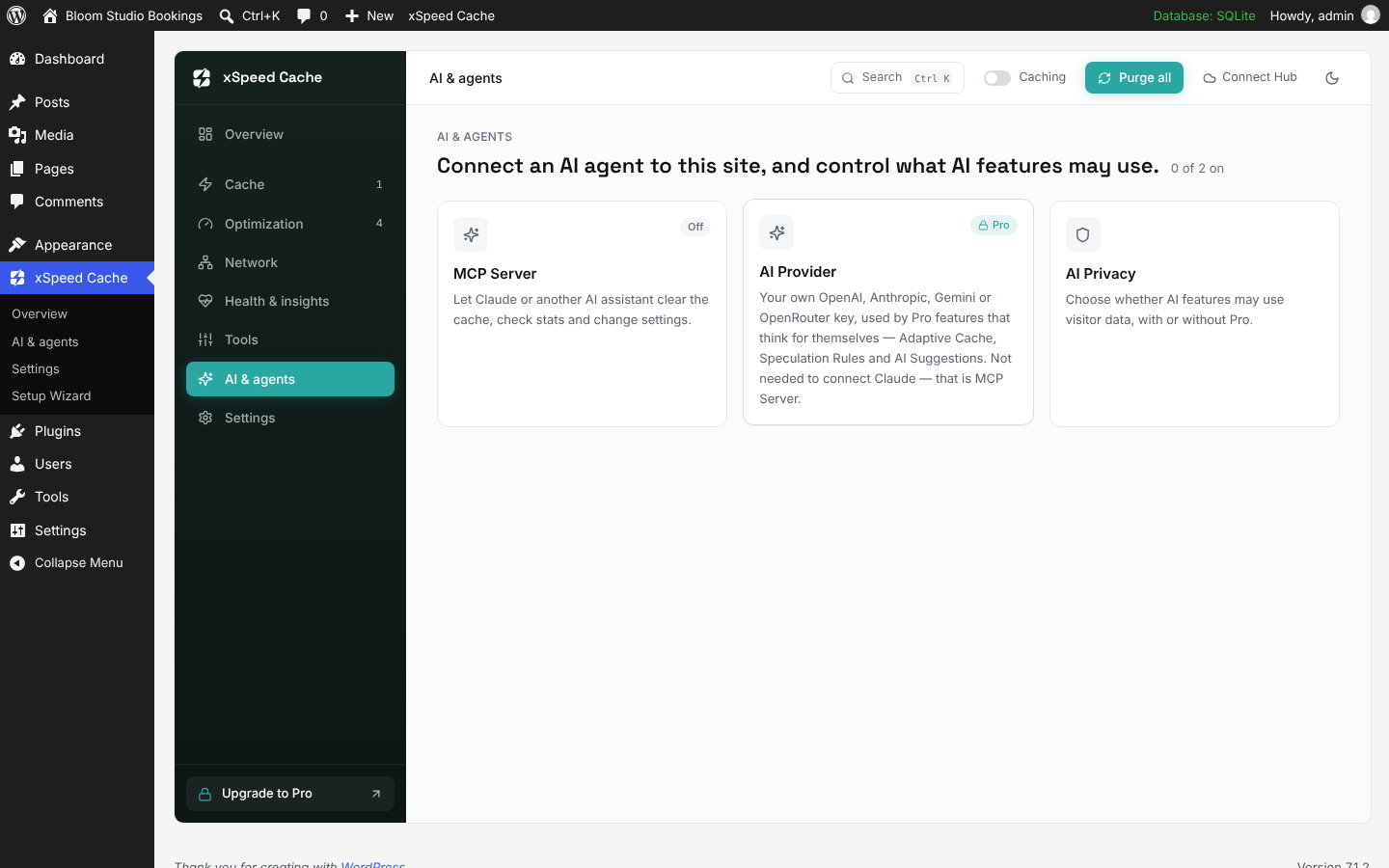
Most cache plugins expect you to learn their settings. xSpeed expects you to ask. Its MCP server is part of the free plugin, so you can connect Claude, ChatGPT, Cursor or any MCP client and give instructions in plain language: check whether caching works, purge a page, warm the cache after a deploy, run a PageSpeed test, generate critical CSS, connect Cloudflare or change a module’s settings. Every AI action is recorded in an audit log, and read and write access can be scoped separately. According to xSpeed’s Free vs Pro page, 9 of the 12 “AI & Agents” features are in the free version. Pro adds bring-your-own AI provider features such as AI-tuned cache lifetimes (“Adaptive Cache”), speculation rules and AI suggestions.
One hub for every site
xSpeed Hub turns the plugin into a control center. Connect any number of sites to one account and a single AI connection reaches all of them through the same MCP tools: purge, preload, benchmark, check health, toggle modules or apply recommendations on one site, a group, or every site at once. The Hub connection is included in the free plugin. Each site attaches with its own revocable token, and no second secret is created.
Here is a real session from 5 October 2026. We asked Claude, connected to our own xSpeed Hub, about three WPDeveloper product sites. It called the Hub’s get_cache_status tool once per site and answered in seconds:
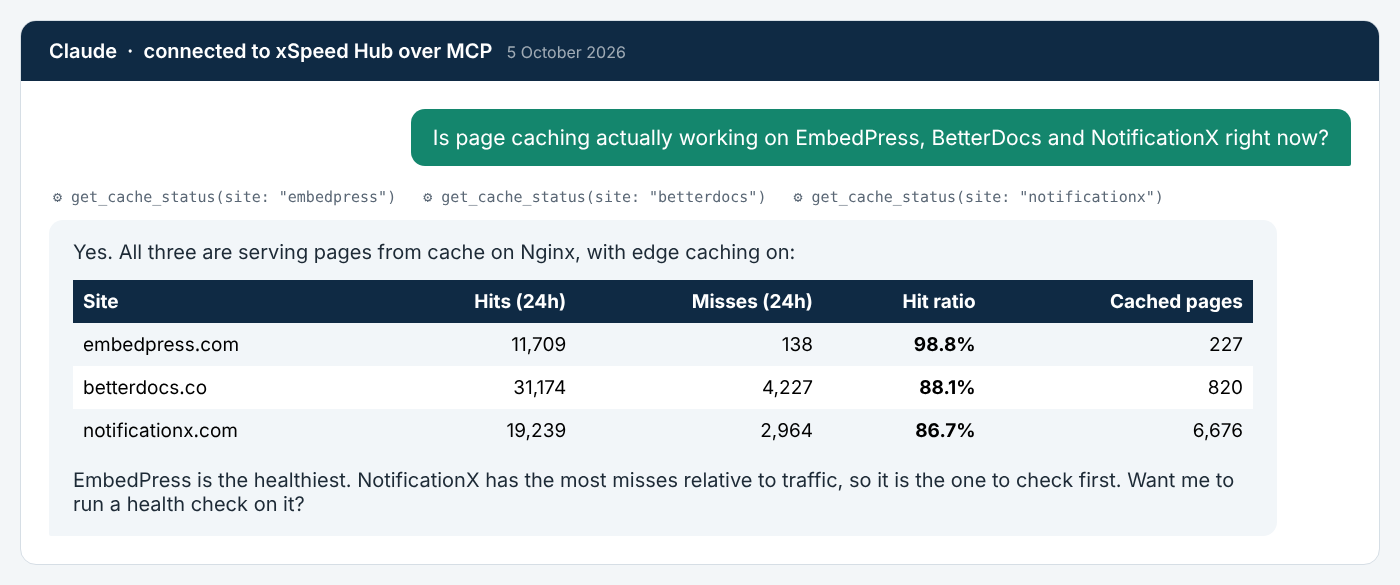
Real responses from the xSpeed Hub MCP server on 5 October 2026 (our own sites), reformatted for reading. EmbedPress served 11,709 cache hits against 138 misses in 24 hours, a 98.8% hit ratio.
That is the difference AI control makes. The same check without it means logging into three dashboards, or reading response headers by hand.
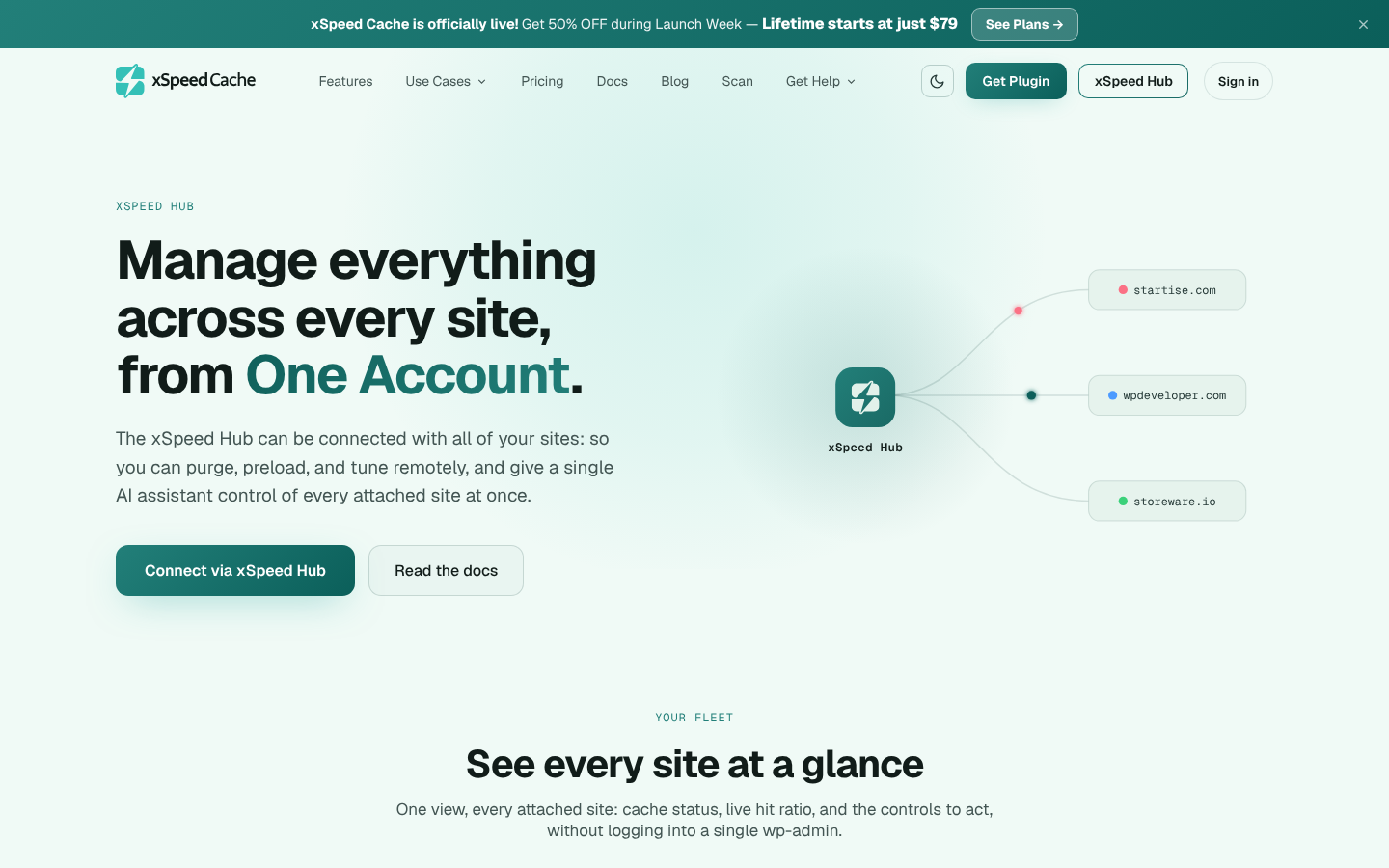
xSpeed Hub connects every site to one account and one AI connection.
A free scan that names the fix
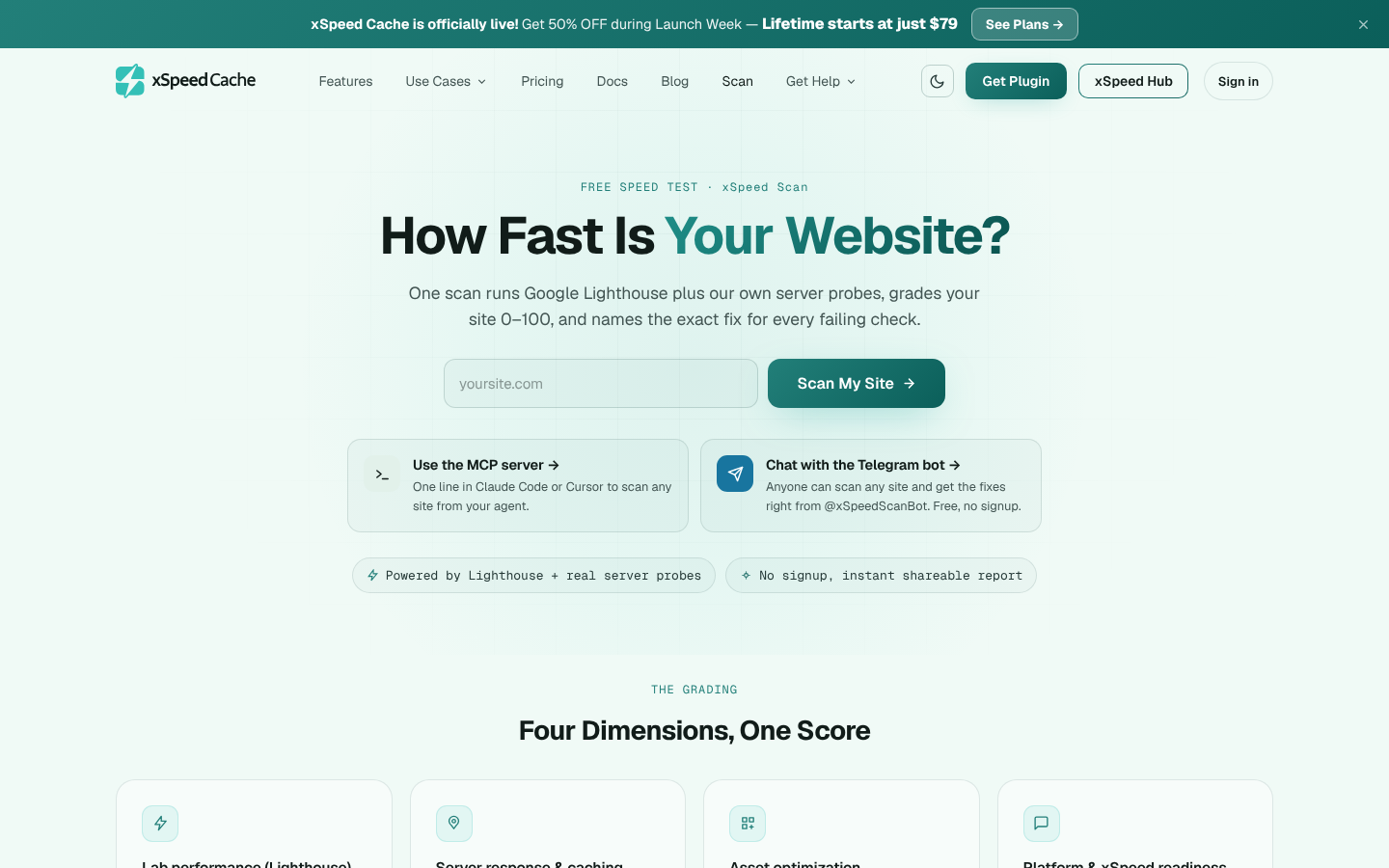
xSpeed Scan is free, needs no account, and works on any website, not only sites running xSpeed. One scan runs Google Lighthouse plus xSpeed’s own server probes, grades the site from 0 to 100 across four areas (lab performance, server response and caching, asset optimization, and platform readiness), and lists the exact fix for each failing check, with a copy-paste AI prompt per fix. You can run it from the website, from the @xSpeedScanBot Telegram bot, or from your AI assistant through the Scan MCP server. On a site running xSpeed with its MCP server connected, the assistant can apply the report’s fixes and re-scan to verify.
The public scan archive also shows how much room most sites have. On 5 October 2026 it held 3,085 scanned sites with a median score of 66 out of 100; 57% scored below 70, and 526 of the 2,079 WordPress sites ran no caching plugin at all.
The free version is enough for most sites
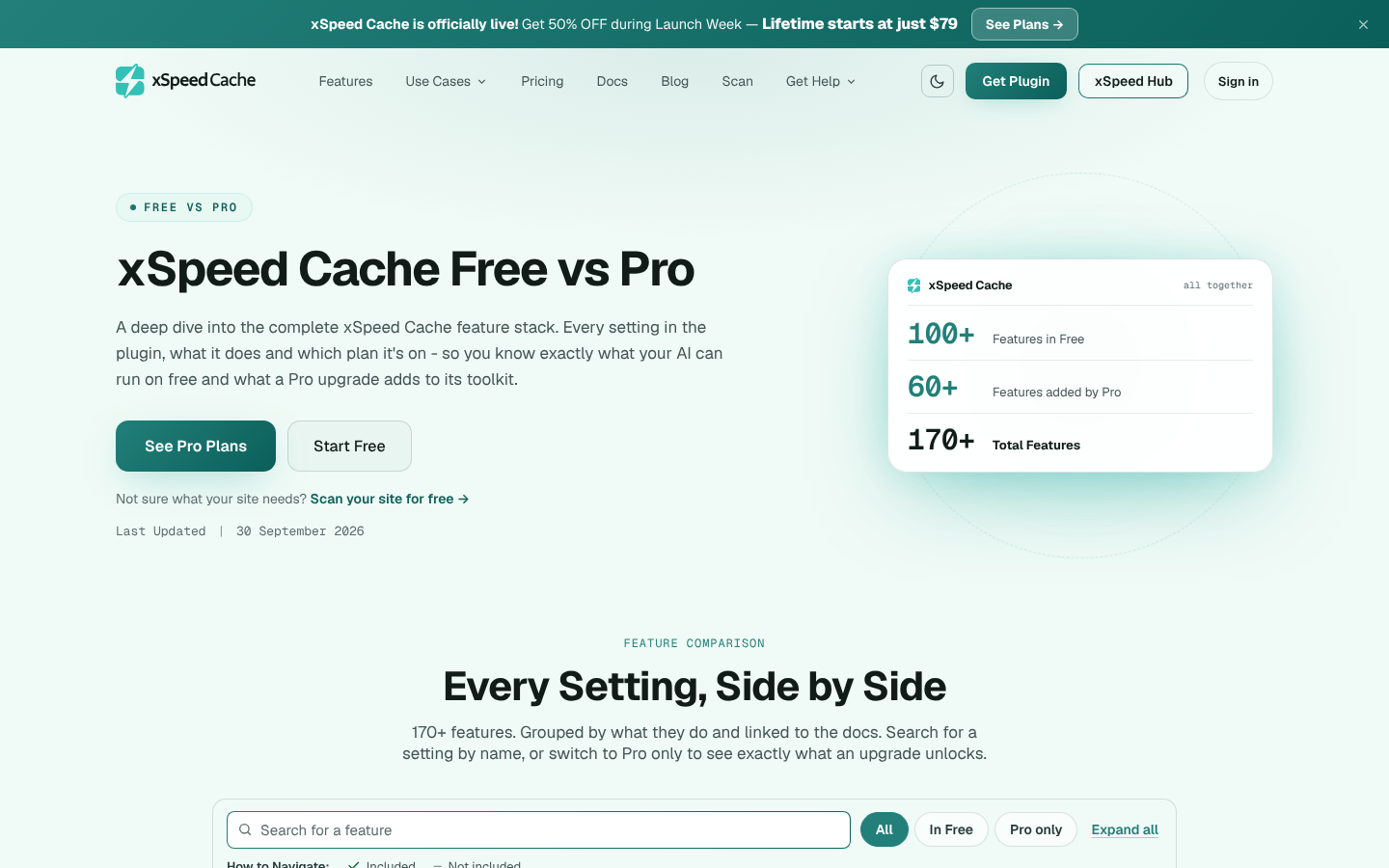
You do not need Pro to get a fast, AI-managed site. xSpeed’s Free vs Pro page (updated 30 September 2026) lists 100+ features in the free plugin and 60+ added by Pro. The free version includes:
- Caching: static page cache served before PHP loads on Apache, Nginx, LiteSpeed and IIS, browser caching, GZIP, preloading, and Redis or Memcached object caching (28 free cache features).
- Optimization: minify CSS, JavaScript and HTML, Smart Delay for JavaScript, lazy loading and font optimization (43 free optimization features).
- AI and agents: the MCP server, audit log and xSpeed Hub connection.
- Health and tools: health checks, PageSpeed tests from the dashboard, database cleanup, settings migration from other cache plugins, WP-CLI and a setup wizard.
- Proof: an X-XSpeed-Cache response header (HIT, MISS or BYPASS) on every page, so you can confirm a cache hit from outside the site.
Pro adds the deeper layer: AI provider features, more advanced CSS and image work, Cloudflare integration, white-label branding and priority support.
How to Get Started with xSpeed Cache
- Install xSpeed Cache from Plugins → Add New.
- Follow the 30-second setup wizard, which checks your PHP version, server, permalinks and conflicting cache plugins.
- Turn on Caching in the top bar, then reload a page twice and look for X-XSpeed-Cache: HIT.
- Open AI & agents → MCP Server, copy the endpoint into Claude, ChatGPT or Cursor, and ask: “Is caching working, and what should I fix first?”
- Running more than one site? Click Connect to Hub and manage all of them from one AI connection.
Pros and Cons
| ✅ Pros | ❌ Cons |
|---|---|
| ✅ MCP server and AI control in the free version | ❌ Months, not years, of public track record |
| ✅ One AI connection for every site through xSpeed Hub | ❌ 17 ratings so far, far fewer than older plugins |
| ✅ Free scan for any website, with a fix per failing check | ❌ AI provider features and Cloudflare integration need Pro |
| ✅ 100+ features in the free plugin, same cache behavior on any server | ❌ Smaller community and fewer third-party tutorials |
| ✅ Annual or lifetime licences (Pro from $29/yr, lifetime from $79) |
Best for: owners who want an AI assistant to handle routine speed work, and agencies running client sites on different hosts from one place.
🥈 2. WP Rocket: Best Premium Cache Plugin for Set-and-Forget Speed
WP Rocket is the plugin most reviewers and hosting companies name first, and Google’s AI Overview for this query calls it “widely considered the best overall for ease of use and performance.” Page caching, cache preloading, GZIP compression and browser caching switch on as soon as you activate it, so a site gets faster before you open a single settings tab.
The difference from most free plugins is the optimization layer on top of the cache: Delay JavaScript execution, Remove Unused CSS, lazy loading and font optimization are all one checkbox each. WP Rocket also added an MCP server in version 3.23, which is connected one website at a time and needs an active licence. As of 5 October 2026, every plan includes Rocket Insights, and WP Rocket now offers a 14-day free trial with a card on file, plus a 14-day refund window.
It suits owners who would rather pay than tune. It is a weaker fit for agencies with 4 to 49 sites, because pricing jumps from 3 sites to 50 with nothing in between.

Key Features
- Instant page cache: Caching and preloading are active the moment the plugin is activated.
- File optimization: Minify and combine CSS/JS, Remove Unused CSS, and Delay JavaScript execution.
- Media: Lazy loading for images, iframes and videos, plus missing image dimensions.
- AI and add-ons: An MCP server (per site, paid), RocketCDN and Rocket Insights.
How to Get Started with WP Rocket
- Buy a licence or start the 14-day trial on the WP Rocket website.
- Upload the plugin zip under Plugins → Add New → Upload, then activate.
- Leave the defaults on, then open File Optimization and test Delay JavaScript on a staging copy first.
- On a booking page, add the booking plugin’s scripts to the JavaScript exclusion list (see the booking-site section below).
Pros and Cons
Best for: a salon, clinic or studio owner who wants one paid plugin that makes the site fast on day one without learning what “critical CSS” means.
🥉 3. LiteSpeed Cache: Best Free Cache Plugin for LiteSpeed Hosting
LiteSpeed Cache is the most installed cache plugin in the WordPress directory, with 7,000,000+ active installs and a 4.8-star rating from 2,775 reviews (WordPress.org, 5 October 2026). On a LiteSpeed or OpenLiteSpeed server it caches at the web-server level, which skips PHP entirely and is hard for any plugin-based cache to beat.
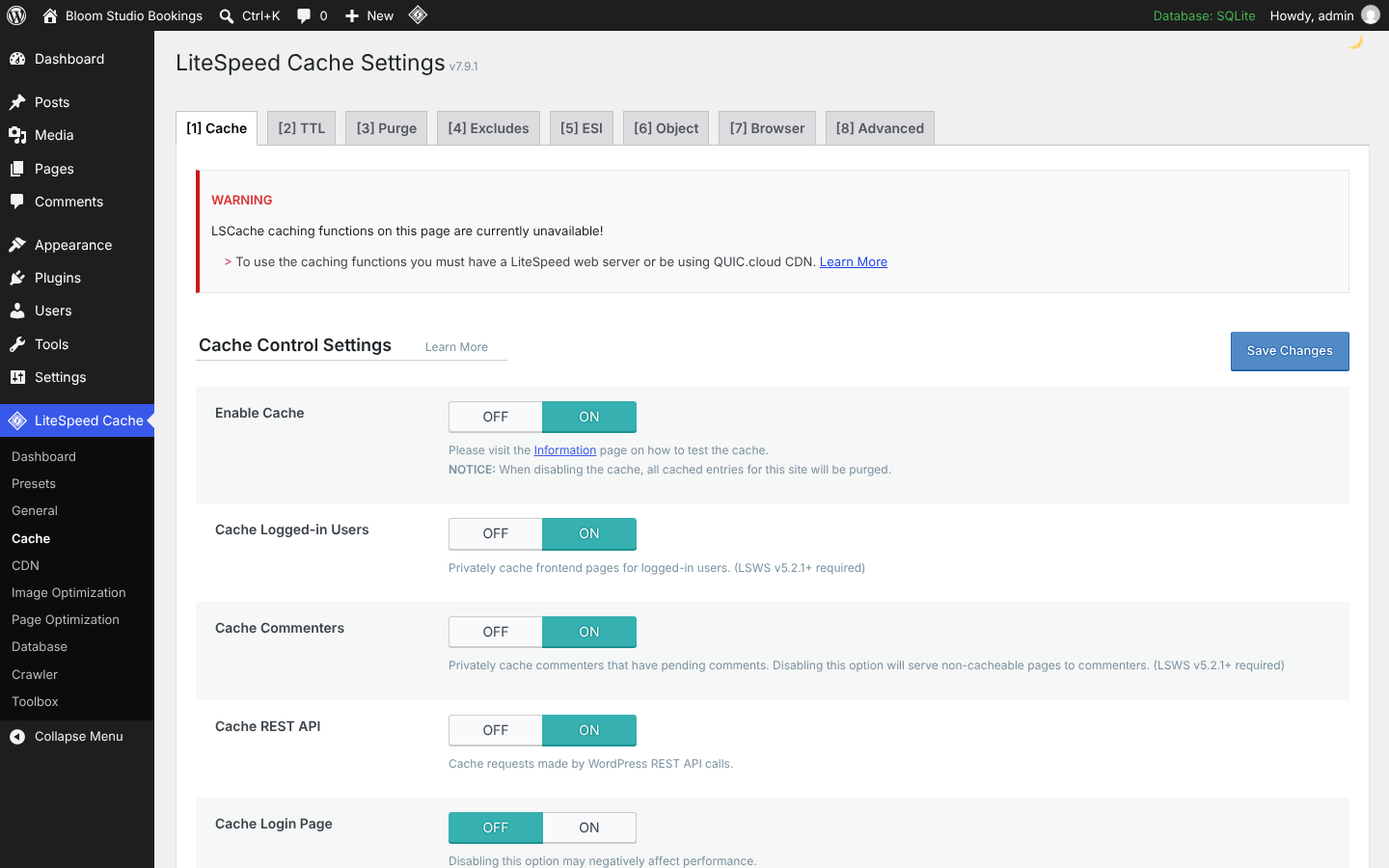
There is one condition, and it decides everything. LiteSpeed’s own readme separates “General Features,” which work on any server, from “LiteSpeed Exclusive Features,” which need a LiteSpeed server or the QUIC.cloud CDN. Full-page caching is in the exclusive group. We saw this directly: on our test site (not LiteSpeed), the Cache settings page opened with a red warning. It has no MCP server, so AI assistants cannot operate it directly.
LiteSpeed powers about 14% of websites, according to W3Techs (September 2026), so most sites are not on it. Check your server before choosing this plugin.
Key Features
- Server-level page cache: On LiteSpeed servers, pages are served without loading PHP.
- Free object cache support: Redis and Memcached connections are in the free plugin (your host must run them).
- ESI: Edge Side Includes let parts of a page stay dynamic while the rest is cached.
- Free extras: Image optimization, critical CSS and a crawler through QUIC.cloud, with free quotas.
How to Get Started with LiteSpeed Cache
- Confirm your server: run curl -sI https://yoursite.com | grep -i server or ask your host.
- Install LiteSpeed Cache from Plugins → Add New.
- Open LiteSpeed Cache → Presets and apply the “Essentials” or “Basic” preset.
- If you are not on LiteSpeed, connect QUIC.cloud or pick another plugin from this list.
Pros and Cons
| ✅ Pros | ❌ Cons |
|---|---|
| ✅ Completely free, including object cache support | ❌ Page cache needs a LiteSpeed server or QUIC.cloud |
| ✅ Fastest option on LiteSpeed hosting | ❌ Eight settings tabs can overwhelm beginners |
| ✅ Largest install base and 10 years in the directory | ❌ No MCP server or AI control |
| ✅ ESI keeps dynamic blocks dynamic | ❌ Some features rely on QUIC.cloud quotas |
Best for: anyone on Hostinger, A2, NameHero or other LiteSpeed-based hosting who wants top speed at zero cost and manages settings by hand.
4. FlyingPress: Best for Core Web Vitals Tuning
FlyingPress is a premium plugin with a strong following among performance-focused developers. It combines page caching with front-end optimization that targets Core Web Vitals directly: removing unused CSS, delaying JavaScript, preloading the LCP image and lazy rendering of below-the-fold HTML.
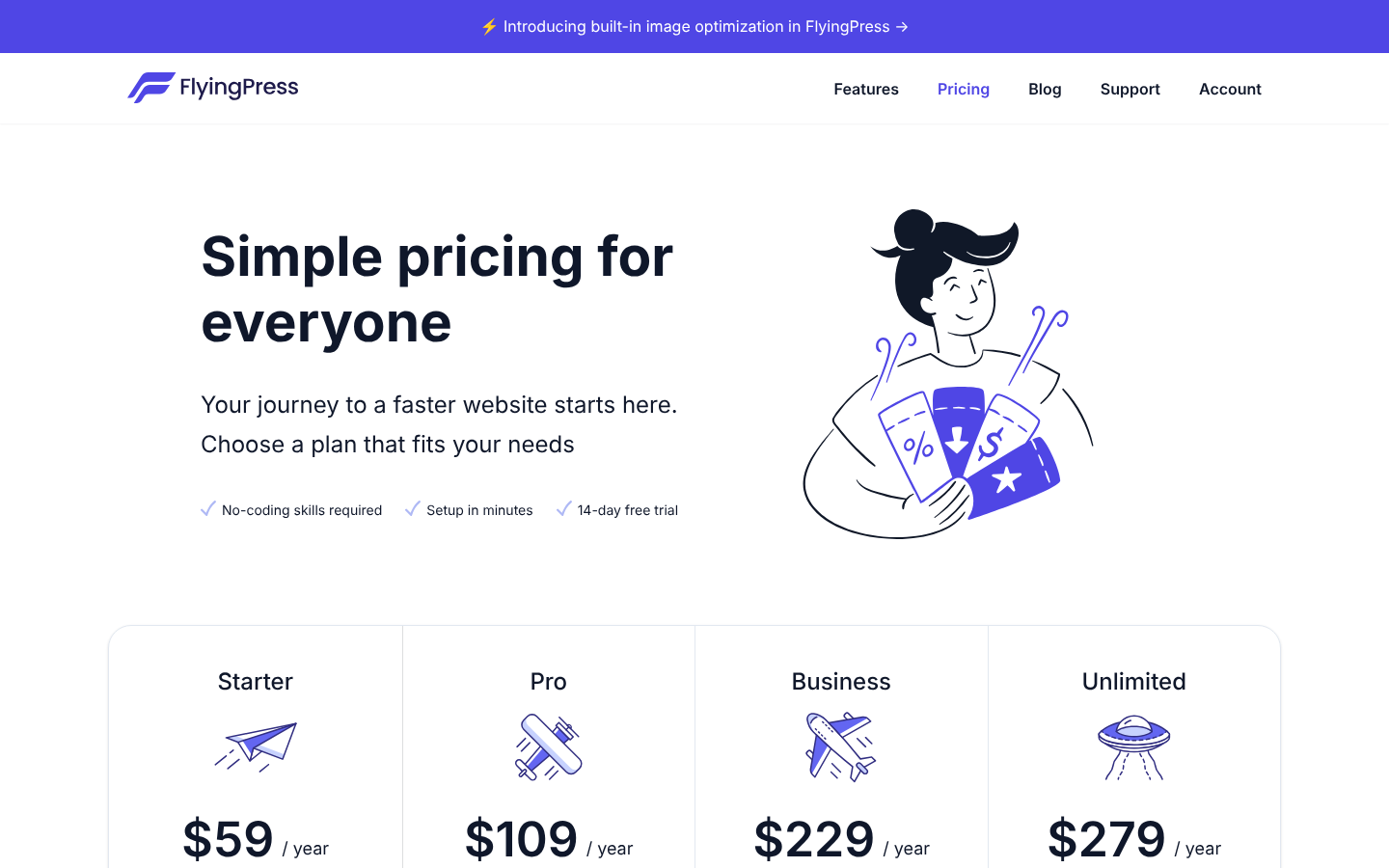
As of 5 October 2026, FlyingPress has four annual plans from $59 for one site to $279 for unlimited sites, all with a 14-day free trial, and it has added built-in image optimization. Its optional FlyingCDN is billed separately.
Key Features
- Remove Unused CSS and Delay JS: Aimed at LCP and INP.
- Lazy render: Defers rendering of HTML sections below the fold.
- Image optimization: Now built in, alongside lazy loading and LCP preloading.
- Staging-friendly licensing: Staging and development sites do not count against the licence.
How to Get Started with FlyingPress
- Start the 14-day trial from the FlyingPress pricing page.
- Upload and activate the plugin, then enter your licence key.
- Enable caching, then turn on CSS and JS optimizations one at a time while checking key pages.
Pros and Cons
| ✅ Pros | ❌ Cons |
|---|---|
| ✅ Optimization aimed at real Core Web Vitals | ❌ No free version |
| ✅ 14-day free trial on every plan | ❌ No MCP server or AI control |
| ✅ Agency-friendly 25-site and unlimited tiers | ❌ CDN costs extra |
Best for: site owners and developers who already have a cache and want a better Core Web Vitals report.
5. W3 Total Cache: Best Free Plugin for Full Manual Control
W3 Total Cache has been in the directory since 2009 and has 900,000+ active installs with 5,420 ratings, more reviews than any other plugin here (WordPress.org, 5 October 2026). It caches pages, database queries, objects and browser assets, with backends including disk, Redis, Memcached and APCu, all in the free version.
That depth is also its weakness for non-technical owners. It has more settings screens than any plugin in this guide, wrong combinations can slow a site down, and there is no AI assistant to set it up for you. A setup guide opens on activation and walks you through page, database and object caching with a built-in test for each.
Key Features
- Every caching layer: Page, database, object, browser and fragment caching.
- Many backends: Disk, Redis, Memcached, APC and APCu.
- CDN integration: Works with most CDN providers.
- Pro: Delay Scripts, fragment caching and extra integrations for $99/year per site.
How to Get Started with W3 Total Cache
- Install from Plugins → Add New and run the Setup Guide.
- Let it test each cache type and accept the fastest result.
- Leave minify off until the basics work, then test it on a staging copy.
Pros and Cons
| ✅ Pros | ❌ Cons |
|---|---|
| ✅ Free object and database caching | ❌ Steep learning curve, no AI help |
| ✅ Works on any server | ❌ Easy to misconfigure |
| ✅ Long track record and active development | ❌ Proves a cache hit with an HTML comment, which Cloudflare can strip |
Best for: developers and technical owners who want fine manual control over every layer, especially on a VPS with Redis.
6. WP-Optimize: Best Free All-in-One Cache Plugin
WP-Optimize, from the team behind UpdraftPlus, has 1,000,000+ active installs and a 4.8-star rating (WordPress.org, 5 October 2026). It does three jobs in one plugin: page caching, database cleanup and image compression.
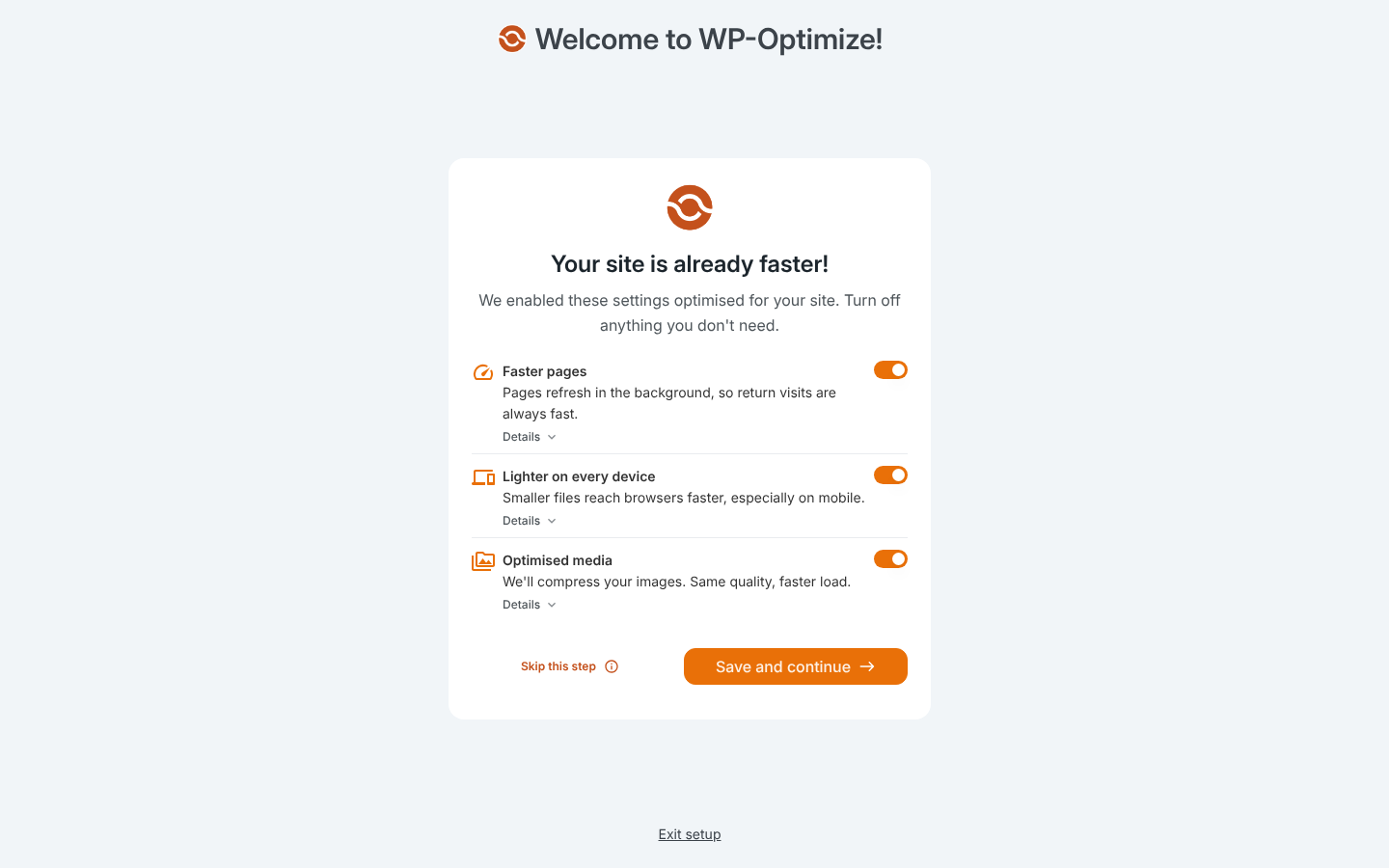
On activation it opens a short onboarding screen with “Faster pages,” “Lighter on every device” and “Optimised media” already switched on. For WooCommerce stores, its defaults stop a shopper with items in the cart from writing a page into the public cache, a gap most other plugins only close after configuration.
Key Features
- Page cache with preloading: Works on any host.
- Database cleanup: Removes revisions, spam comments and transients on a schedule.
- Image compression: WebP conversion and lossy or lossless compression.
- Minify and Delay JS: CSS, JS and HTML minification, plus JavaScript delay, in the free plugin.
How to Get Started with WP-Optimize
- Install from Plugins → Add New and complete onboarding.
- Take a backup, then run the first database cleanup.
- Check Cache settings and add any booking or account pages to the exclusion list.
Pros and Cons
| ✅ Pros | ❌ Cons |
|---|---|
| ✅ Three speed jobs in one free plugin | ❌ No object cache in the free version |
| ✅ WooCommerce cart-safe defaults | ❌ No MCP server or AI control |
| ✅ Simple onboarding | ❌ Database cleanup needs a backup first |
Best for: small business sites that want one free plugin for caching, cleanup and images.
7. WP Fastest Cache: Best for a One-Time Payment
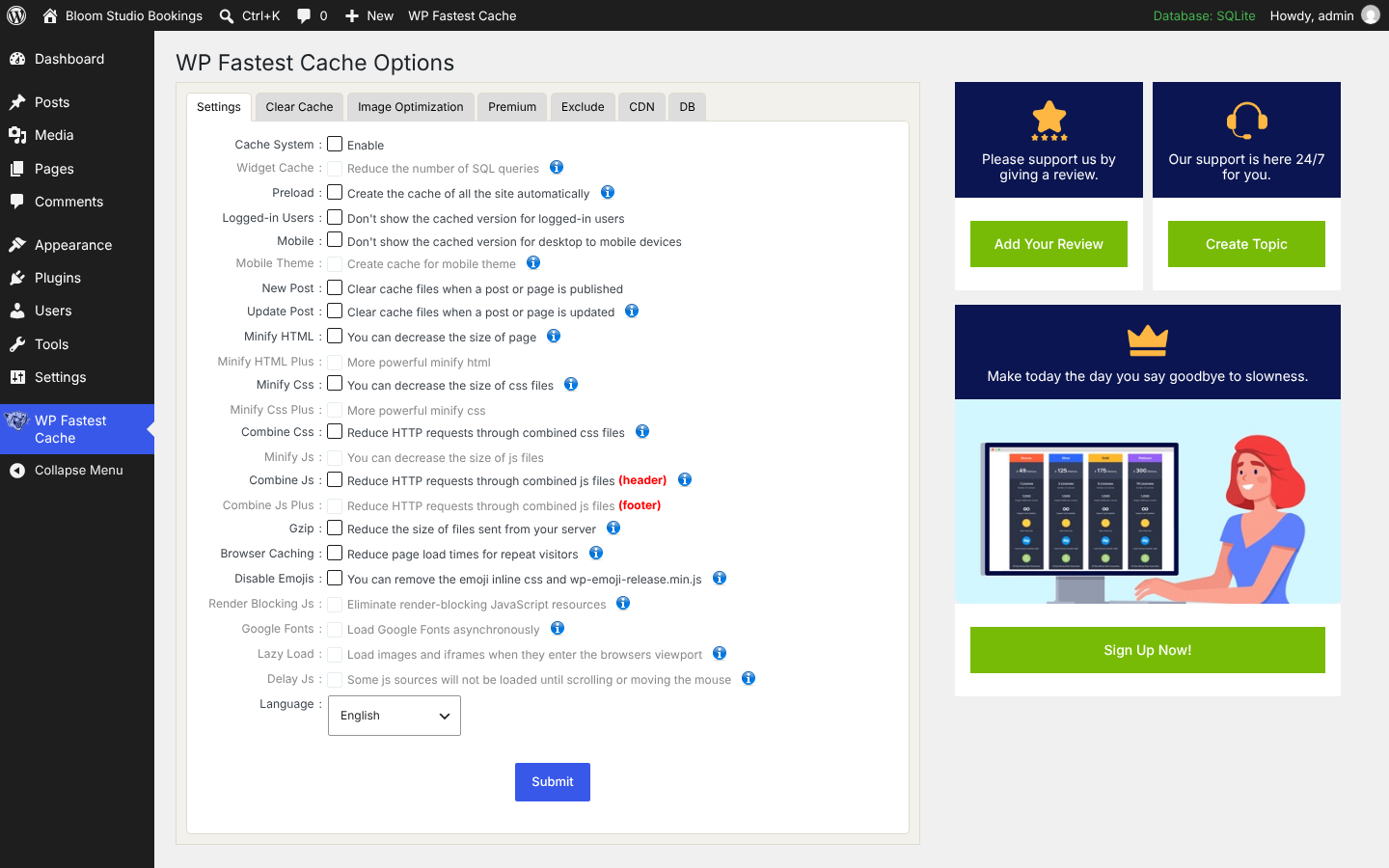
WP Fastest Cache has 1,000,000+ active installs and the highest average rating among the large plugins here: 4.9 stars from 4,225 reviews (WordPress.org, 5 October 2026). Its settings fit on one screen of checkboxes, which makes it one of the easiest free plugins to set up.
Its Premium version is sold as a one-time payment: $49 for one site, labelled lifetime on the vendor’s site. Premium unlocks the greyed-out options you can see below, such as Delay JS, Lazy Load and render-blocking JS fixes.
Key Features
- Simple page cache: One checkbox to enable, plus preload and auto-clear on publish.
- Minify and combine: HTML and CSS free; JS options in Premium.
- Exclude rules: Exclude pages, user agents and cookies.
- Premium: Lifetime licence with Delay JS, lazy load and image optimization.
How to Get Started with WP Fastest Cache
- Install from Plugins → Add New.
- Tick Cache System, Preload, New Post and Update Post, then Submit.
- Use the Exclude tab for booking, cart and account pages.
Pros and Cons
| ✅ Pros | ❌ Cons |
|---|---|
| ✅ Very easy, one-page settings | ❌ Advanced JS features need Premium |
| ✅ Lifetime Premium licence from $49 | ❌ No object cache or AI control |
| ✅ Excellent rating from 4,000+ reviews | ❌ Proves a cache hit with an HTML comment only |
Best for: owners who want a simple plugin and dislike annual renewals.
8. WP Super Cache: Best Minimal Free Cache Plugin
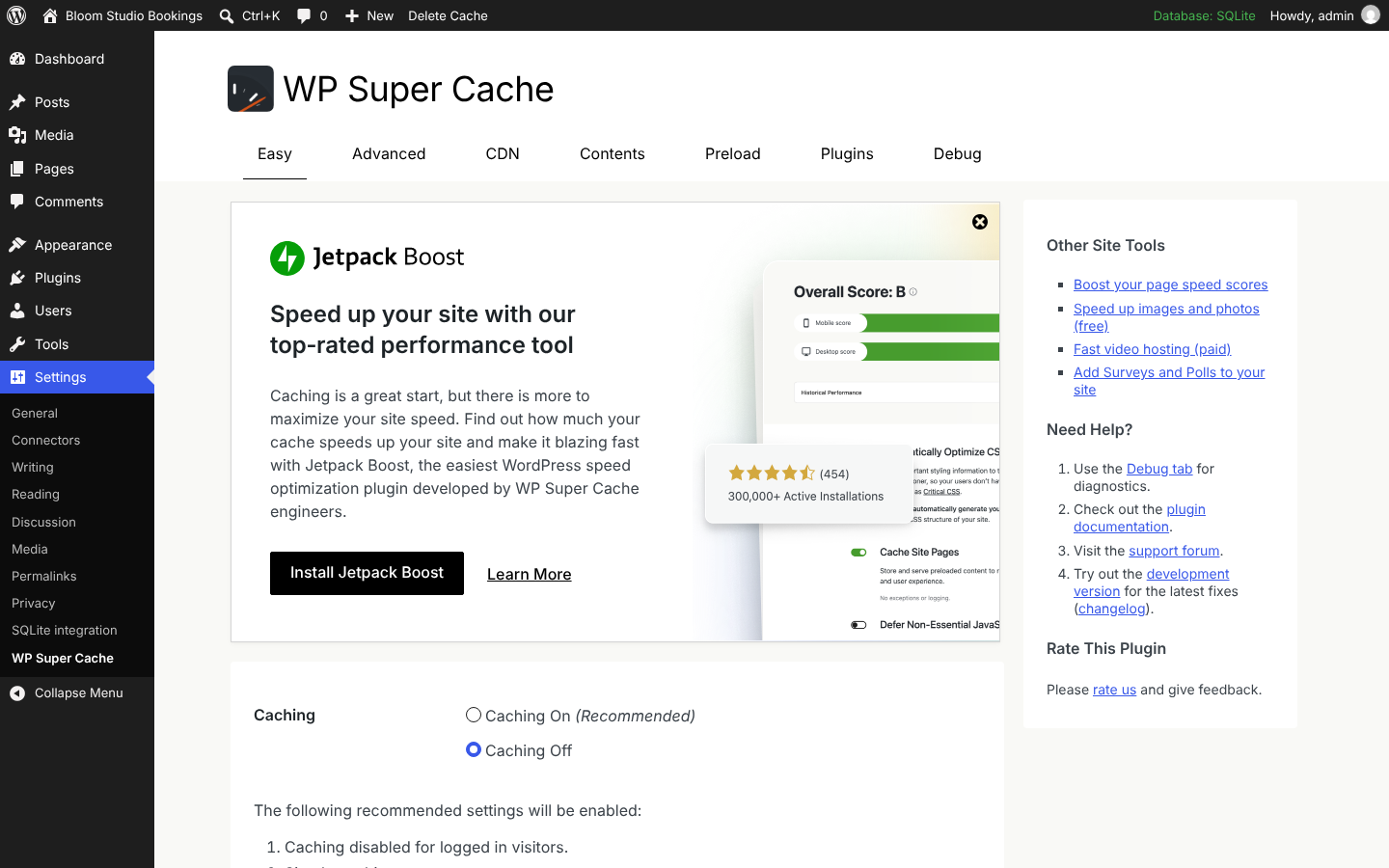
WP Super Cache is built by Automattic, the company behind WordPress.com, and has been in the directory since 2007. It has 1,000,000+ active installs (WordPress.org, 5 October 2026). Its “Easy” tab has one decision: Caching On or Caching Off.
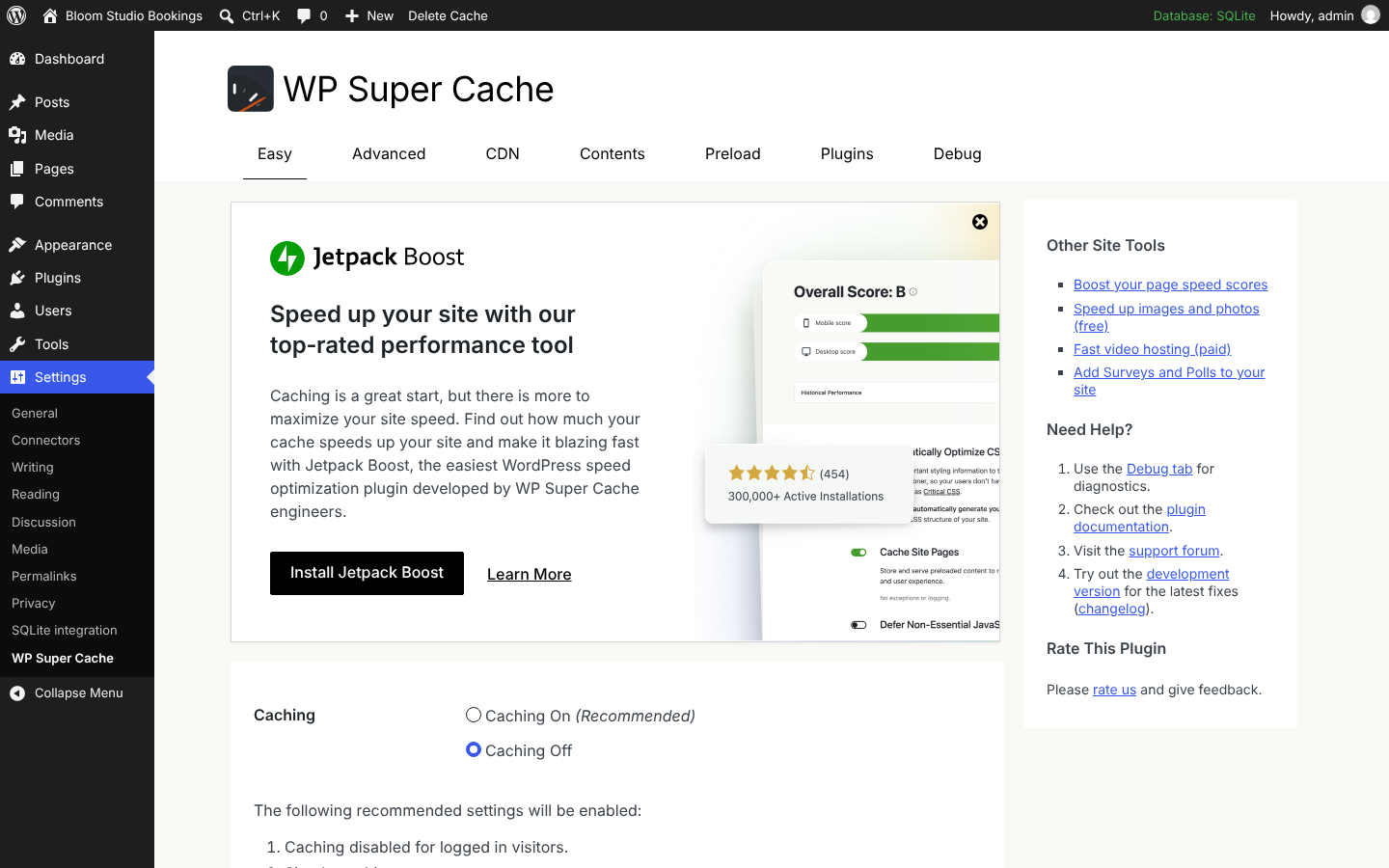
It is a pure page cache. There is no minification, no image work and no JavaScript delay, and the settings screen now promotes Automattic’s separate Jetpack Boost plugin for those jobs. For a brochure site or blog, that simplicity is the appeal.
Key Features
- Static HTML cache: Serves cached files with very little overhead.
- Preload mode: Builds the cache for all posts ahead of visitors.
- CDN support: Rewrites static file URLs to a CDN.
How to Get Started with WP Super Cache
- Install from Plugins → Add New; make sure permalinks are not set to “Plain.”
- Choose Caching On and update.
- Use Advanced → Rejected URL strings to exclude booking and account pages.
Pros and Cons
| ✅ Pros | ❌ Cons |
|---|---|
| ✅ Free forever, made by Automattic | ❌ No file or image optimization |
| ✅ One-switch setup | ❌ Needs a second plugin for Core Web Vitals work |
| ✅ 18 years of track record | ❌ Advanced tab is dated and technical |
Best for: simple blogs and brochure sites that only need a reliable page cache.
9. NitroPack: Best Hands-Off Cloud Optimization
NitroPack works differently from the rest of this list. The plugin connects your site to NitroPack’s cloud, which caches pages, optimizes CSS, JavaScript, images and fonts, and serves assets through its CDN. You do very little configuration. NitroPack has been part of WP Engine since its acquisition in July 2024.
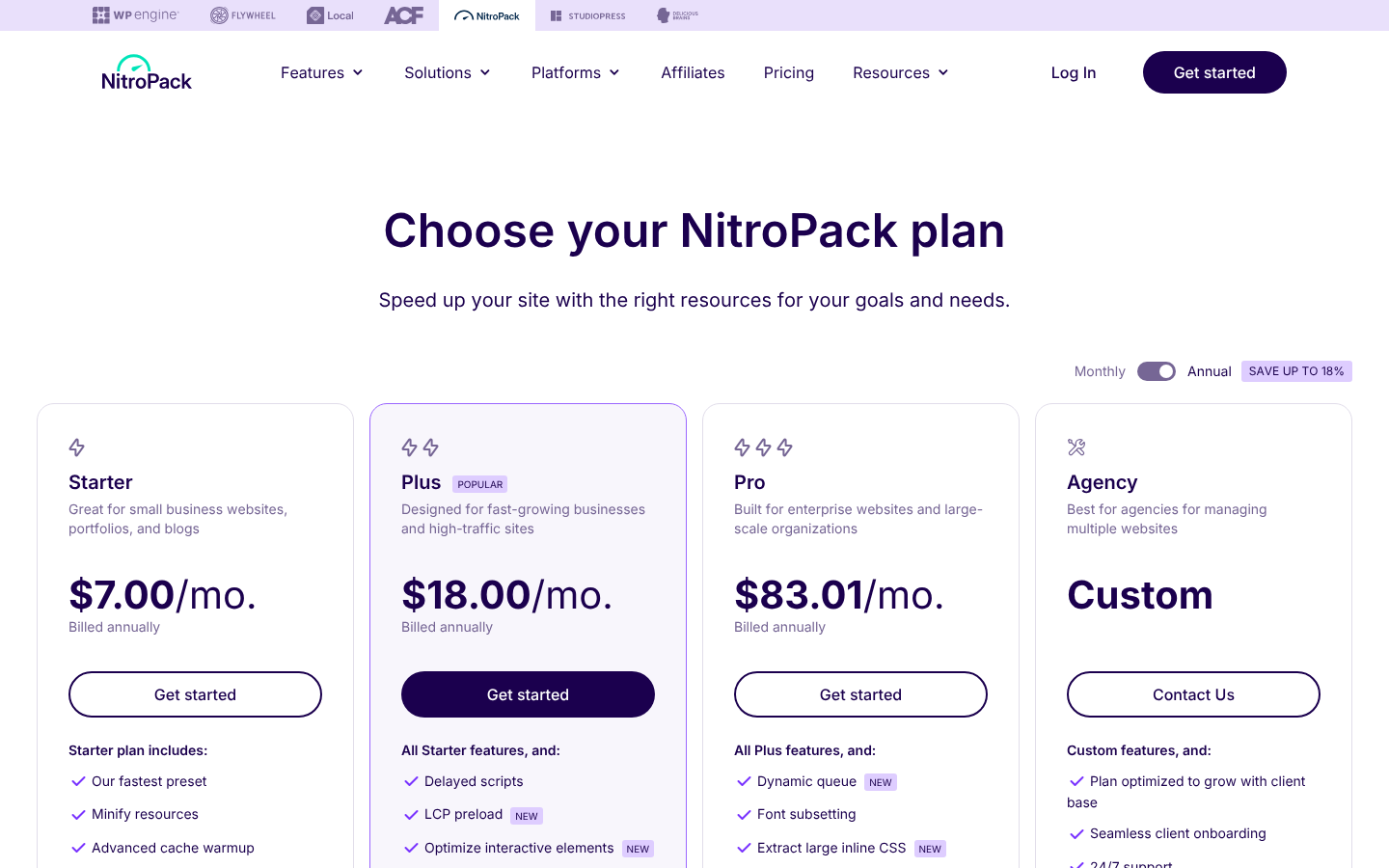
Pricing is metered. As of 5 October 2026, the free plan covers one site and 1,000 pageviews a month; Starter is $8/month ($7 billed annually) for 8,000 pageviews; Plus is $22/month ($18 annually) for 40,000 pageviews; and Pro is $99.99/month for three sites. If traffic grows, so does the bill.
Key Features
- Cloud optimization: Work happens on NitroPack’s servers, not yours.
- Built-in CDN: Bandwidth is included up to plan limits.
- Automatic presets: Choose a preset instead of individual settings.
How to Get Started with NitroPack
- Create a NitroPack account and pick a plan.
- Install the NitroPack plugin and connect it with your site ID and key.
- Choose a preset, then test your booking page and forms.
Pros and Cons
| ✅ Pros | ❌ Cons |
|---|---|
| ✅ Almost no configuration | ❌ Metered by pageviews and bandwidth |
| ✅ CDN and image optimization included | ❌ Optimization depends on an external service |
| ✅ Free plan for small sites | ❌ Monthly cost grows with traffic |
Best for: owners of small-to-medium sites who want the most automation without an AI assistant and accept a monthly fee.
10. Super Page Cache: Best for Free Cloudflare Edge Caching
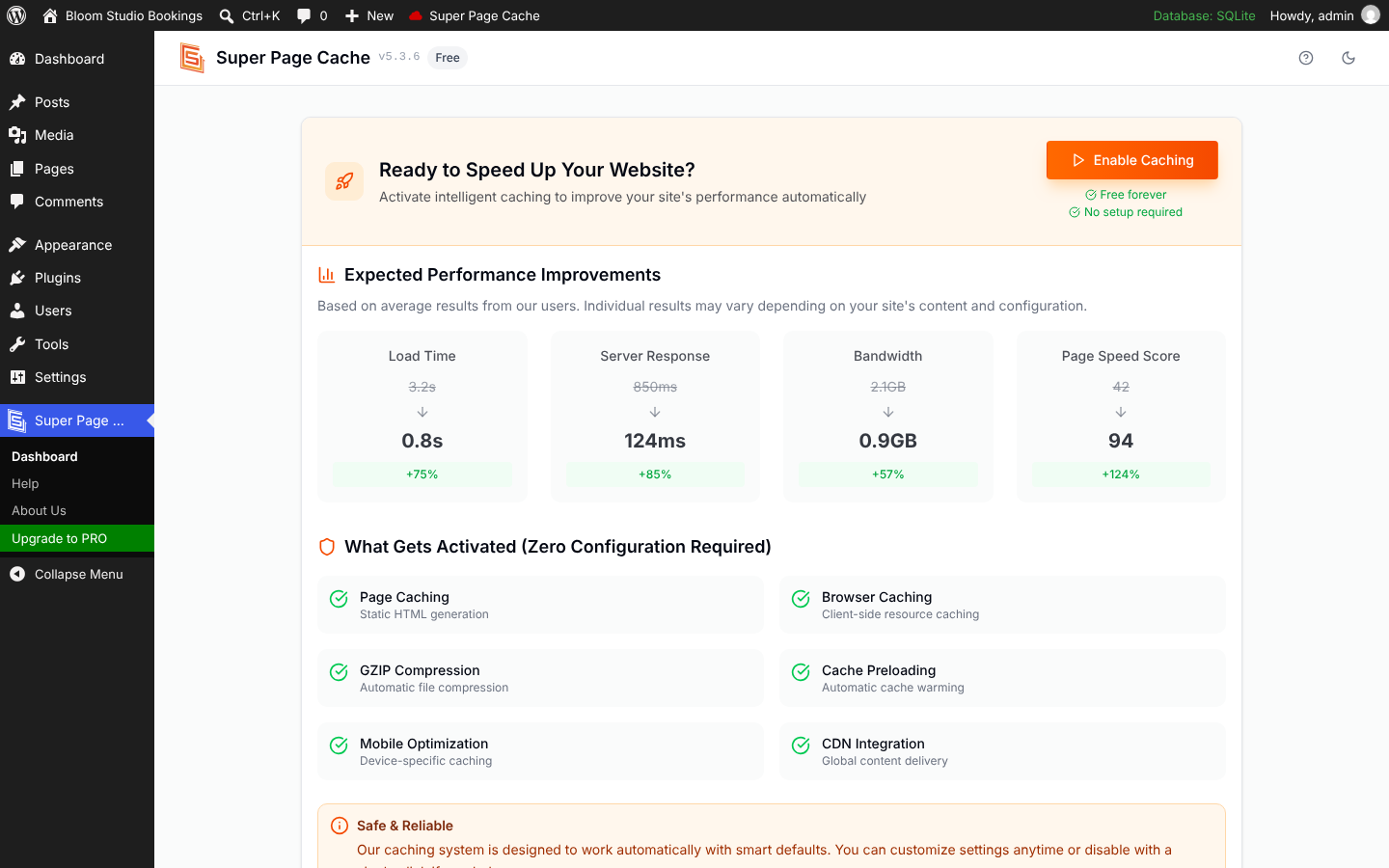
Super Page Cache, developed by Themeisle, has 70,000+ active installs and a 4.8-star rating (WordPress.org, 5 October 2026). Its specialty is caching full HTML pages at Cloudflare’s edge using Cache Rules, and its readme says this works with the free Cloudflare plan.
By default Cloudflare does not cache HTML pages, only static files. Super Page Cache closes that gap, so visitors far from your server get pages from a nearby Cloudflare location. Without Cloudflare, it still works as a normal disk cache.
Key Features
- Cloudflare edge HTML caching: On the free Cloudflare plan, through Cache Rules.
- Disk cache fallback: Works without Cloudflare.
- Free extras: Lazy loading, Google Fonts optimization, database cleanup and preloading.
- Pro: Delay JS and ignoring marketing query parameters for a better hit rate.
How to Get Started with Super Page Cache
- Install from Plugins → Add New and click Enable Caching.
- To add edge caching, connect your Cloudflare account with an API token.
- Exclude booking and account URLs before you turn on edge caching.
Pros and Cons
Best for: sites already on Cloudflare’s free plan with visitors in several countries.
| ✅ Pros | ❌ Cons |
|---|---|
| ✅ Free edge caching for Cloudflare users | ❌ Cloudflare setup needs an API token |
| ✅ One-click start | ❌ Delay JS is Pro only |
| ✅ Works without Cloudflare too | ❌ No MCP server or AI control |
Also considered: Breeze (free, by Cloudways), SiteGround Speed Optimizer (best kept on SiteGround hosting), Hummingbird (WPMU DEV) and Perfmatters (a script manager that pairs with a cache plugin rather than replacing one).
How to Cache a Booking Website Without Breaking It
Booking pages are the part of a service site that people worry about most. Will a cached page show slots that are already taken? Will the form stop working?
We tested this. On 5 October 2026 we installed Amelia (Lite 2.4.11) and xSpeed Cache 1.3.7 on WordPress 7.1.2, added a booking page with the [ameliastepbooking] shortcode, turned on page caching and loaded the page three times as a logged-out visitor.
| Load | Cache header | Booking data request |
|---|---|---|
| 1st | X-XSpeed-Cache: MISS |
1 live request to admin-ajax.php?action=wpamelia_api |
| 2nd | X-XSpeed-Cache: HIT (php) |
1 live request |
| 3rd | X-XSpeed-Cache: HIT (php) |
1 live request |
The page itself came from the cache, but the form fetched its data with a fresh request every time, and that response carried Cache-Control: no-cache, must-revalidate, max-age=0, no-store, private. The cached HTML contained no nonce. In this setup, page caching made the booking page faster without freezing the booking data.
That is one test on a simple configuration (Amelia Lite, no services configured, no payment gateway), so check your own site. The biggest risk is not page caching but JavaScript optimization. When a user reported a broken form with WP Rocket, Amelia’s support team advised turning off “Minify JavaScript files,” because the newer booking form is built on Vue 3, or excluding Amelia’s scripts with a pattern like /amelia/*.js.
Five rules for caching any booking site:
- Cache the page, not the data. Make sure availability and checkout requests (admin-ajax.php, /wp-json/) are never cached. Most plugins exclude these by default; confirm it.
- Exclude the booking plugin’s scripts from minify, combine and Delay JS. For Amelia, exclude /amelia/*.js. Delayed scripts can make the form appear only after a click or scroll.
- Exclude customer pages. Customer panels, “My bookings,” cart and checkout pages should be in the “never cache” list.
- Purge after changing services or prices. Prices and service names in the page HTML stay old until the cache is cleared.
- Test as a logged-out visitor. Use a private window, book a test appointment, and check that the confirmation email arrives.
With an AI-managed plugin, you can hand these rules to the assistant. On a site running xSpeed with its MCP server connected, a prompt like “exclude /amelia/*.js from minify and delay, never cache /my-bookings/, purge everything, then confirm the booking page returns a cache HIT” covers the first four rules in one request.
Supporting Comparison Tables
AI and MCP Feature Matrix
| AI capability | xSpeed Cache | WP Rocket | All other 8 plugins |
|---|---|---|---|
| MCP server for Claude, ChatGPT, Cursor | ✅ Free | ✅ Paid licence | ❌ |
| One AI connection for many sites | ✅ xSpeed Hub (free connection) | ❌ One site at a time | ❌ |
| Audit log of AI actions | ✅ Free | Not documented | ❌ |
| Free site scan that maps each issue to a fix | ✅ xSpeed Scan, any site | ❌ | ❌ |
| Scan available through MCP and Telegram | ✅ | ❌ | ❌ |
| AI-tuned cache lifetimes and AI suggestions | ✅ Pro | ❌ | ❌ |
Checked against vendor documentation on 5 October 2026.
Feature Comparison Matrix
| Feature | xSpeed Cache | WP Rocket | LiteSpeed Cache | FlyingPress | W3 Total Cache | WP-Optimize | WP Fastest Cache | WP Super Cache | NitroPack | Super Page Cache |
|---|---|---|---|---|---|---|---|---|---|---|
| Page cache on any server | ✅ | ✅ | ❌* | ✅ | ✅ | ✅ | ✅ | ✅ | ✅ | ✅ |
| Free version | ✅ | ❌ | ✅ | ❌ | ✅ | ✅ | ✅ | ✅ | ✅ | ✅ |
| MCP server | ✅ (free) | ✅ (per site) | ❌ | ❌ | ❌ | ❌ | ❌ | ❌ | ❌ | ❌ |
| Minify CSS/JS | ✅ | ✅ | ✅ | ✅ | ✅ | ✅ | ✅ | ❌ | ✅ | ✅ |
| Delay JavaScript | ✅ | ✅ | ✅ | ✅ | Pro | ✅ | Premium | ❌ | ✅ | Pro |
| Object cache (Redis/Memcached) free | ✅ | ❌ | ✅ | ❌ | ✅ | ❌ | ❌ | ❌ | ❌ | ❌ |
| Lifetime licence | ✅ | ❌ | n/a | ❌ | ❌ | ❌ | ✅ | n/a | ❌ | ❌ |
| Free trial of paid tier | ❌ (free tier instead) | ✅ 14 days | n/a | ✅ 14 days | ❌ | ❌ | ❌ | n/a | Free plan | ❌ |
* LiteSpeed Cache’s page cache needs a LiteSpeed server or QUIC.cloud.
LiteSpeed Cache’s page cache needs a LiteSpeed server or QUIC.cloud CDN. Features checked against vendor documentation on 5 October 2026.
Implementation Difficulty
| Plugin | Technical skill | Time to a working cache | Wizard or onboarding | Can an AI set it up for you? |
|---|---|---|---|---|
| xSpeed Cache | Low | 5 minutes | ✅ Setup wizard | ✅ |
| WP Rocket | Low | 5 minutes | Defaults on | ✅ (paid) |
| LiteSpeed Cache | Medium | 10–20 minutes | Presets | ❌ |
| FlyingPress | Low to medium | 10 minutes | Defaults on | ❌ |
| W3 Total Cache | High | 20–40 minutes | ✅ Setup guide | ❌ |
| WP-Optimize | Low | 5 minutes | ✅ Onboarding | ❌ |
| WP Fastest Cache | Low | 5 minutes | One settings page | ❌ |
| WP Super Cache | Low | 2 minutes | One switch | ❌ |
| NitroPack | Low | 10 minutes (account needed) | Presets | ❌ |
| Super Page Cache | Medium with Cloudflare | 5–15 minutes | One button | ❌ |
Which Plugin for Which Host?
| Your hosting | Strong first choice | Alternatives |
|---|---|---|
| Nginx or Apache shared hosting | xSpeed Cache (free) or WP Rocket (paid) | WP-Optimize, WP Fastest Cache, WP Super Cache |
| LiteSpeed or OpenLiteSpeed (Hostinger, A2, NameHero and others) | LiteSpeed Cache | xSpeed Cache (it detects LiteSpeed and avoids conflicts) |
| Managed host with its own page cache (Kinsta, WP Engine and others) | Keep the host’s cache; add front-end optimization only | xSpeed Cache or WP Rocket with page cache settings the host allows |
| SiteGround | SiteGround Speed Optimizer | WP Rocket |
| Cloudflare in front of any host | Super Page Cache | xSpeed Cache Pro or WP Rocket with Cloudflare integration |
| VPS with Redis | xSpeed Cache or W3 Total Cache | LiteSpeed Cache on OpenLiteSpeed |
| Many client sites on different hosts | xSpeed Cache with xSpeed Hub | WP Rocket Multi, FlyingPress Business |
WordPress Cache Plugin Pricing: Free vs Paid
| Plugin | Free option | Paid entry price | Sites on entry plan | Licence model |
|---|---|---|---|---|
| xSpeed Cache | Full free plugin (100+ features, MCP, Hub, Scan) | $29/yr launch price (regular $58), lifetime from $79 | 1 | Annual or lifetime |
| WP Rocket | 14-day trial | $59.95/yr | 1 | Annual |
| LiteSpeed Cache | Full plugin | Free (QUIC.cloud usage above free quota) | Unlimited | Free |
| FlyingPress | 14-day trial | $59/yr | 1 | Annual |
| W3 Total Cache | Full free plugin | $99/yr | 1 | Annual |
| WP-Optimize | Full free plugin | $49/yr | 2 | Annual |
| WP Fastest Cache | Full free plugin | $49 | 1 | One-time (lifetime) |
| WP Super Cache | Full plugin | Free | Unlimited | Free |
| NitroPack | 1,000 pageviews/month | $7/mo billed annually | 1 | Metered subscription |
| Super Page Cache | Full free plugin | Pro (see vendor) | Varies | Annual |
Prices from each vendor’s pricing page on 5 October 2026. xSpeed’s $29 is a 50% founding-customer price for the first six months.
Budget guidance: a single booking site can get excellent results for $0. xSpeed Cache’s free version adds AI control and a free scan on any host; LiteSpeed Cache is the free pick on LiteSpeed hosting; WP-Optimize is a solid free all-rounder. Paying makes sense when you want AI provider features, deeper CSS and image work, or a done-for-you premium plugin like WP Rocket.
Common WordPress Caching Mistakes to Avoid
- Running two page caches at once. Most cache plugins write the same wp-content/advanced-cache.php file, so the second one either silently overrides the first or silently fails. Use one page cache. A script manager such as Perfmatters alongside it is fine.
- Choosing LiteSpeed Cache on a non-LiteSpeed server. You get the optimization features but not the page cache, unless you connect QUIC.cloud.
- Turning on every optimization at once. Enable Delay JS, Remove Unused CSS and combine options one at a time, and test your booking form after each. An AI assistant connected over MCP can make one change at a time and re-test after each.
- Caching logged-in or customer pages. Customer dashboards and checkout must stay dynamic.
- Forgetting to purge after price changes. Old prices in cached HTML lead to awkward conversations at the front desk.
- Judging the cache by a PageSpeed score. A cache mainly improves server response time. Check the response header for a HIT, or run a free external scan that tests caching directly.
- Ignoring the host. If your server takes 2 seconds to respond on a cache miss, cached pages will be fast and every uncached request will still be slow.
Frequently Asked Questions About WordPress Cache Plugins
Which is the best WordPress cache plugin in 2026?
For AI-managed sites and agencies, xSpeed Cache: it is the only plugin here with a free MCP server, a multi-site hub and a free scan. For a paid set-and-forget plugin, WP Rocket. On LiteSpeed hosting, LiteSpeed Cache is the strongest free choice for manual setup.
What is an MCP server in a cache plugin?
It is a connection that lets AI assistants such as Claude, ChatGPT or Cursor use the plugin’s functions. Instead of opening settings pages, you ask the assistant to check cache status, purge, run a speed test or change a setting, and it does it through the plugin.
Can AI tools like Claude or ChatGPT manage my cache plugin?
Yes, if the plugin has an MCP server. xSpeed Cache includes one in its free plugin and connects many sites through xSpeed Hub. WP Rocket added one in version 3.23 that connects one site at a time. The other eight plugins in this guide have none.
Is the free version of a cache plugin good enough?
Usually, yes. Eight of the 10 plugins here have a free version that caches pages permanently. xSpeed Cache’s free version goes further than most, with 100+ features including the MCP server, Hub connection, object caching and JavaScript delay.
Is a cache plugin safe to use with a booking plugin like Amelia?
Yes, with exclusions. In our test, Amelia’s booking page was served from cache while the form loaded its data through a fresh, uncached request on every visit. The main risk is JavaScript minification and delay, so exclude the booking plugin’s scripts as Amelia’s support team recommends.
How do I check whether my cache is working?
Run a free scan such as xSpeed Scan, which tests server response and caching directly, or open your browser’s developer tools (Network tab) and look for a cache header such as x-litespeed-cache or X-XSpeed-Cache. Some plugins only add an HTML comment, which Cloudflare can strip.
Can I use two cache plugins at the same time?
You should not run two page caches. They compete for the same drop-in file and cause hard-to-debug problems. You can pair one cache plugin with a separate script or image optimizer.
Will a cache plugin fix my Core Web Vitals?
Partly. Caching mostly improves time to first byte. LCP and INP also depend on image size, fonts and JavaScript, so use the plugin’s file optimization features, and use a scan that tells you which half is slow.
My host already caches pages. Do I still need a plugin?
Maybe not for page caching. Many managed hosts run their own page cache and block conflicting plugins. You may still want a plugin for minification, delayed JavaScript, AI control and monitoring. Ask your host which plugins they allow.
How long until I see results after installing a cache plugin?
Server response time improves on the second visit to each page, once it has been cached. Turn on preloading so the cache is built before visitors arrive, then measure again after 24 hours.
Which cache plugin is best for agencies managing many client sites?
xSpeed Cache with xSpeed Hub, because one AI connection can purge, warm, benchmark and audit every client site in a single request. WP Rocket Multi covers 50 sites and FlyingPress has 25-site and unlimited plans, but neither manages sites from one AI connection.
How often should I clear the cache?
Most plugins clear the relevant pages automatically when you publish or update content. Clear everything after changing your theme, menus, prices or booking services, or ask your AI assistant to do it if your plugin supports MCP.
Final Picks: The Best WordPress Cache Plugin for Your Goal
Caching is still the fastest single improvement for a WordPress site, and in the xSpeed Scan data it cut median first-byte time by roughly 70%. What changed in 2026 is who runs it. A plugin your AI assistant can operate, across every site you manage, saves more time than any single setting.
| Your goal | Best choice | What to expect |
|---|---|---|
| Best overall for AI-powered optimization | xSpeed Cache | AI control and Hub in the free plugin, free scan, same cache on any server |
| Best paid, no tuning | WP Rocket | Caching and optimization on from day one |
| Best free on LiteSpeed hosting | LiteSpeed Cache | Server-level speed at $0 |
| Best for Core Web Vitals tuning | FlyingPress | Front-end optimization aimed at LCP and INP |
| Best free manual control over every layer | W3 Total Cache | Page, object and database caching for $0 |
| Best free all-in-one | WP-Optimize | Cache, database cleanup and images together |
| Best one-time payment | WP Fastest Cache | $49 once for Premium |
| Best minimal free cache | WP Super Cache | One switch, nothing else |
| Best hands-off cloud | NitroPack | Automation with metered pricing |
| Best free edge caching | Super Page Cache | Cloudflare edge HTML caching |
What to do this week:
- Scan first: Run the free xSpeed Scan on your booking page to see whether your problem is server time, page weight or both.
- Check your server: Find out whether you are on LiteSpeed, Nginx or Apache. That rules options in or out.
- Install one plugin: Start with the free version of the plugin that matches your host, and remove any other page cache.
- Connect your AI assistant: If your plugin has an MCP server, connect Claude or ChatGPT and ask it what to fix first.
- Protect your booking flow: Exclude customer pages and your booking plugin’s scripts from JavaScript optimization, then make a test booking.
A fast site gets more people to the booking form. Once they are there, a form like Amelia’s can take it from there.

Explore topics

Read Inspiring Customer Stories
Check out how our user set Amelia for his business