


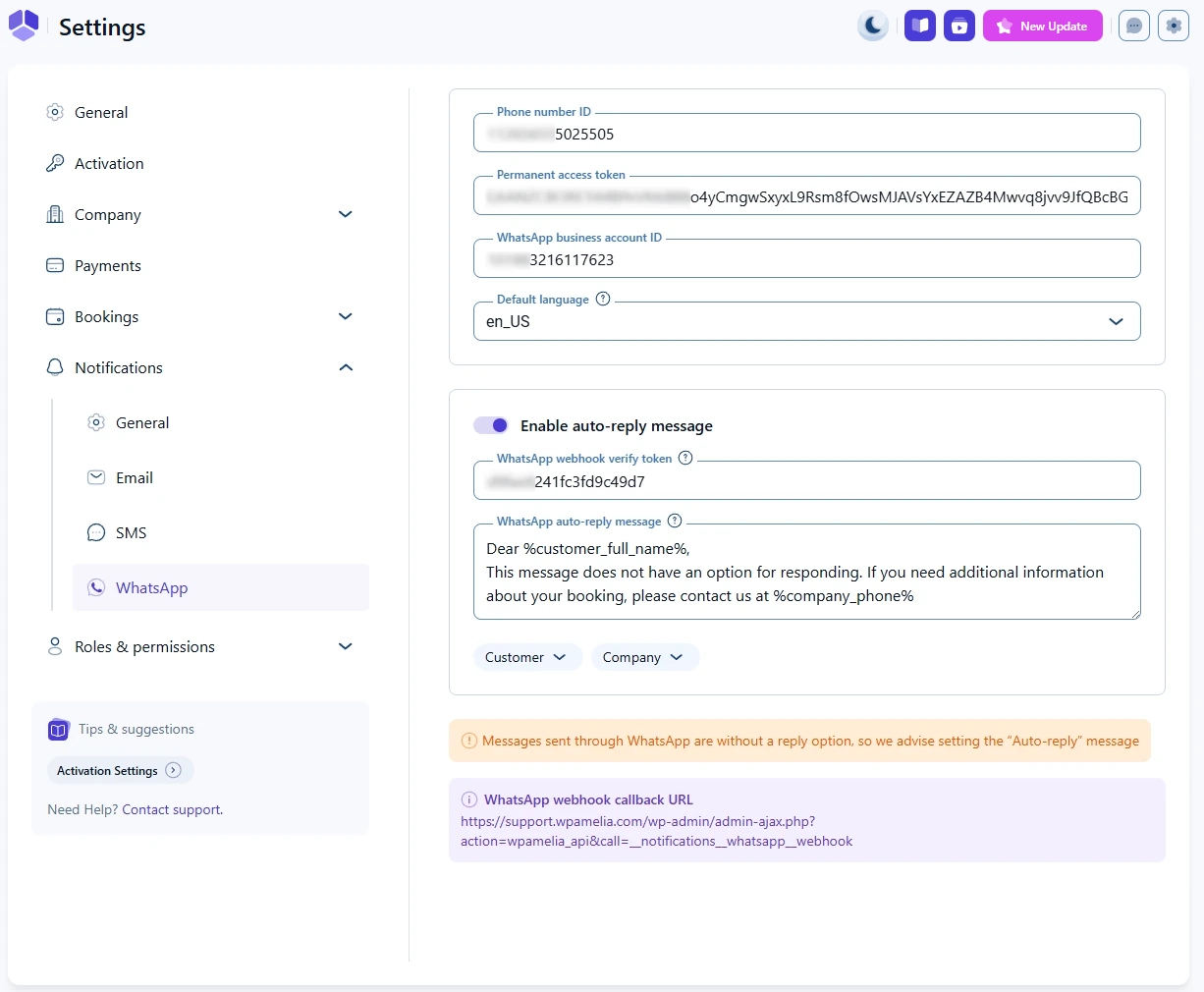
WhatsApp notifications settings in Amelia
WhatsApp notifications in Amelia let you send booking updates through your WhatsApp Business account.
This tab appears in Settings → Notifications only after WhatsApp is enabled in Amelia → Features & Integrations → Integrations.
On this page you connect your WhatsApp account, choose the default language for templates, and configure the optional auto reply message.
How do I access WhatsApp notification settings?
To open the WhatsApp notifications settings:
- Go to Amelia → Settings → Notifications.
- Select the WhatsApp tab.
Only when WhatsApp is enabled in the Integrations screen does the WhatsApp tab appear in Settings → Notifications.
What WhatsApp account details do I need?
Three fields connect Amelia to your WhatsApp Business account:
- Phone number ID → the ID of the phone number you are using in WhatsApp Business Cloud API.
- Permanent access token → the token that authorizes Amelia to send messages through your WhatsApp Business account.
- WhatsApp business account ID → the ID of your WhatsApp Business account.
These values are obtained from Meta for Developers. Paste them into the corresponding fields and save changes to activate WhatsApp message delivery.
Make sure all three values belong to the same WhatsApp Business account in Meta for Developers.
How does the default language setting work?
The Default language dropdown controls which WhatsApp templates you can select when configuring notifications in Amelia.
Only templates created in the default language will appear in the back end. If a customer receives a notification in a language without an available template, Amelia sends the default language version instead.
How can I configure the WhatsApp auto reply message?
Enable the Auto-reply message slider if you want Amelia to respond automatically when customers reply to a WhatsApp notification.
When enabled, two additional fields appear:
- WhatsApp webhook verify token → copy this token into the Verify token field when creating your webhook in Meta.
- WhatsApp auto-reply message → the message sent automatically when a customer replies through WhatsApp.
The auto reply informs customers that replies are not monitored and can include placeholders from the dropdown next to the field.
What webhook URL do I use in Meta?
Amelia provides a WhatsApp webhook callback URL that you will copy into Meta when creating your webhook.
The URL in your installation will look similar to:
http://your.website.com/wp-admin/admin-ajax.php?action=wpamelia_api&call=__notifications__whatsapp__webhook
Use the exact URL shown in your own system, along with the verify token above, to complete the webhook setup.
Both the callback URL and the verify token must be entered correctly in Meta for automatic replies to work.
What else should I know about WhatsApp notifications?
A few important notes:
- WhatsApp notifications rely on message templates created and approved in your WhatsApp Business account.
- If the integration is disabled, Amelia cannot send WhatsApp notifications even if templates were already configured.
- Use the auto reply to redirect customers to channels where replies are supported.
For detailed setup instructions, see the dedicated WhatsApp Integration article and the Notification Placeholders documentation.