



WPAmelia and Trafft sit at the top of this list of ten employee scheduling tools, mostly because they cover the widest range of situations, appointment slots, staff shifts, multi-location teams, from a single dashboard.
Every tool in this category does roughly the same job underneath: it puts a person on a calendar so two people don’t end up in the same slot. Salons run on it. So do clinics, restaurants, and any business juggling more than one location. Reviewers mostly judge these tools on two things, whether it stops double bookings and whether every shift actually gets covered.
WordPress runs 41.2 percent of all websites tracked (W3Techs, August 2026). That number matters here because it’s the reason a self-hosted plugin can go up against cloud-only platforms in a category that could easily have stayed SaaS-only.
The Best Employee Scheduling Software
The list below runs ten tools deep, roughly best overall first, though “best” gets slippery once you’re past the top two.
Everything after WPAmelia and Trafft is sorted by fit rather than pure quality. A tool that’s mediocre for a salon might be exactly right for a 200-person retail chain, so ranking all ten on one scale would be a little dishonest.
Some lean toward fixed weekly shifts, others toward on-demand appointment slots, and the split between different work schedule types ends up mattering more than any feature checklist. Match the tool to your team first.
Amelia: best for WordPress-based service businesses
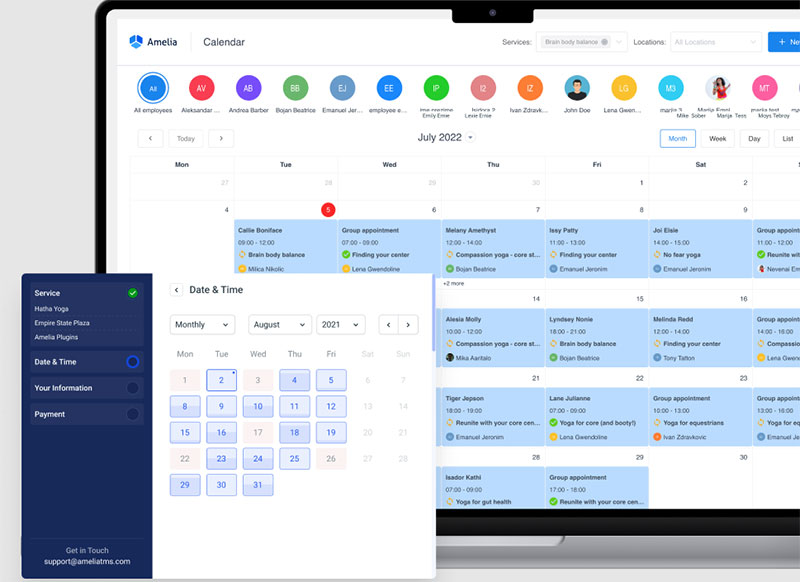
Amelia is a WordPress plugin, self-hosted, that handles appointments, group bookings, and staff schedules right from wp-admin. If you’re already running a WordPress site, salon, clinic, studio, whatever, this keeps scheduling inside the same place instead of bolting on a separate SaaS account nobody logs into.
The part that actually separates it from most booking plugins is the front-end employee panel. Staff log in on their own, manage their own days off, and sync a personal Google or Outlook calendar without ever touching the WordPress dashboard. That’s not nothing. Most plugins in this space treat employees as data the admin manages, not people who manage themselves.
Amelia’s own guide on how to effectively schedule appointments goes deeper into buffer time and service duration than the plugin’s settings screen alone, worth a read before launch.
Key features
- Custom working hours and special days per employee
- Two-way Google and Apple Calendar sync (Pro tier)
- Recurring appointments and service packages
- REST API and webhooks (Elite tier)
- Multilingual booking pages
Pricing starts with a free Lite version on WordPress.org, one employee, Square payments only. Past that it’s Starter at $49/year, Standard at $89/year, Pro at $149/year, and Elite at $259/year, each billed per domain (Capterra, 2026). For a wordpress booking system with payment gateways built in, Standard and up adds Stripe, PayPal, and Mollie alongside Square. The Lite tier still works fine as an actual free wordpress booking plugin if you’re a one-person operation.
What I like is the licensing model itself. Paying once a year per domain instead of per seat means growing your staff doesn’t grow your bill, and every paid tier from Starter up allows unlimited employees. The WordPress and WooCommerce integration goes deep too. Worth planning for: most payment gateways and the calendar sync sit on higher tiers, the REST API needs Elite specifically, and because it’s self-hosted, your booking page runs on the same hosting as the rest of the site.
Capterra lists Amelia with more than 90,000 active customers and a 4.9-star average across 245 reviews as of 2026, with reviewers noting that a multi-branch setup takes a bit more configuration than a single location.
Most WordPress booking plugins treat staff scheduling like an afterthought stapled onto customer booking. Amelia built the employee panel as a real piece of the product, and that starts to matter the moment a business has more than one or two people on the calendar.
Trafft: best for a ready-made booking website without coding
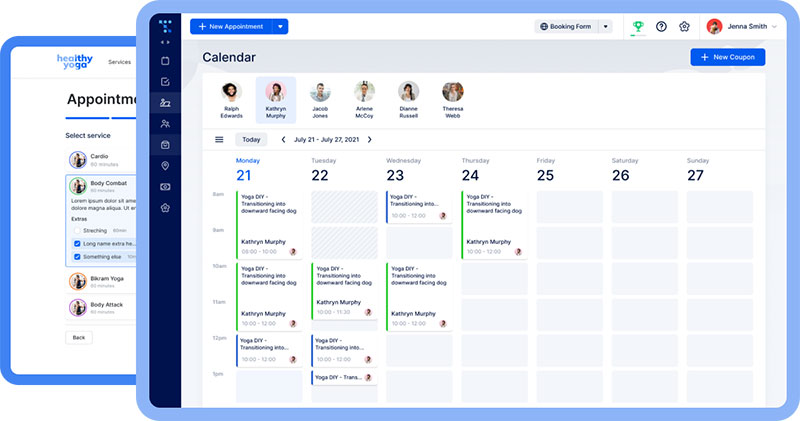
Trafft builds an entire booking website in minutes, no WordPress, no code, no developer on standby. That’s the whole pitch, really, and for a lot of multi-location businesses it’s the right one: staff scheduling, payments, and a public booking page all live in one dashboard from day one.
Team booking is the feature worth knowing about. A client picks “any available staff member” instead of a specific person, and Trafft auto-assigns whoever’s actually free. Small thing, but it removes the awkward moment where a client wants the earliest slot and doesn’t care who they see.
Key features
- No-code booking website with custom domain support
- Google, Outlook, and Apple Calendar two-way sync
- SMS, email, and WhatsApp reminders
- Deposit payments through Stripe or PayPal
- White-label option for agencies
The free plan covers up to 5 employees with unlimited bookings, more generous than most competitors offer for free. Paid plans start around $7.99 a month flat and scale to roughly $24.50 a month annually once a team grows (Capterra, 2026).
Setup is genuinely fast, no developer required, and agencies managing several client sites get a white-label option most tools in this price range skip entirely. Things to plan for: SMS reminders run on separate credit purchases, custom domains sit on the higher tiers, and it’s hosted rather than self-hosted, so the data lives on Trafft’s side.
Trafft says it now has more than 30,000 businesses on the platform, handling over 5 million appointments and events to date (Trafft, via SaaSWorthy, 2025).
Once personal calendars are actually connected, busy slots block automatically, and that’s really the main thing standing between a growing team and double booking appointments nobody meant to create. Past two or three staff manually checking their own calendars, this stops being optional.
Deputy – Best for compliance-heavy hourly teams
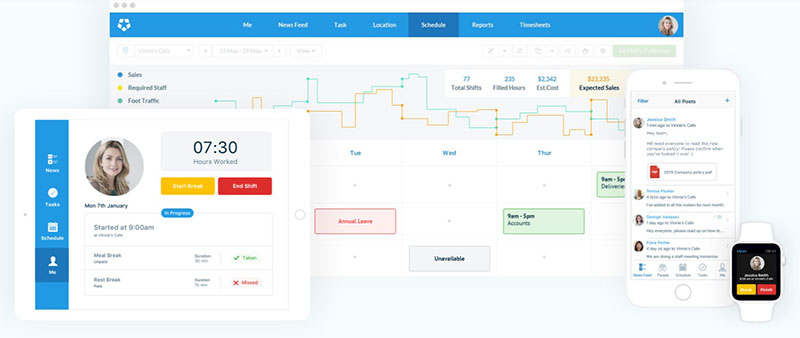
Deputy is built around shift management for hourly workforces that can’t afford to slip on labor law, break requirements, overtime caps, the works. Retail, hospitality, and healthcare operators lean on it hardest, since a missed break rule there isn’t just annoying, it’s a real compliance risk with real fines attached.
Automated compliance alerts are the standout piece. The software flags a rule violation, say a shift that skips a mandated break, before the schedule even gets published. Catching it before publishing beats catching it in an audit.
Key features
- Auto-scheduling based on demand forecasts
- Built-in time clock with geofencing
- Break and overtime compliance alerts
- Payroll integrations with ADP, Gusto, and Xero
There’s no permanent free plan here, just a trial. Paid tiers start at $5 per user per month for Lite, rising to $6.50 for Core and $9 for Pro, and monthly billing carries a $30 per month minimum spend (Deelo, 2026).
The compliance tooling is genuinely strong, and the POS and payroll integrations hold up well across desktop, tablet, and mobile. For employers managing staff across worksites, a GPS Time Tracker can complement that approach by tying clock-ins to location as well as scheduled hours. That $30 minimum, though, hits small teams disproportionately hard, and add-ons like Analytics+ push the real per-user cost higher than the sticker price suggests.
Most scheduling tools treat compliance as something you check after the fact, in a report. Deputy checks the rules before the schedule goes out the door, which changes how a manager actually works day to day in a regulated industry.
When I Work – Best for simple mobile-first shift scheduling
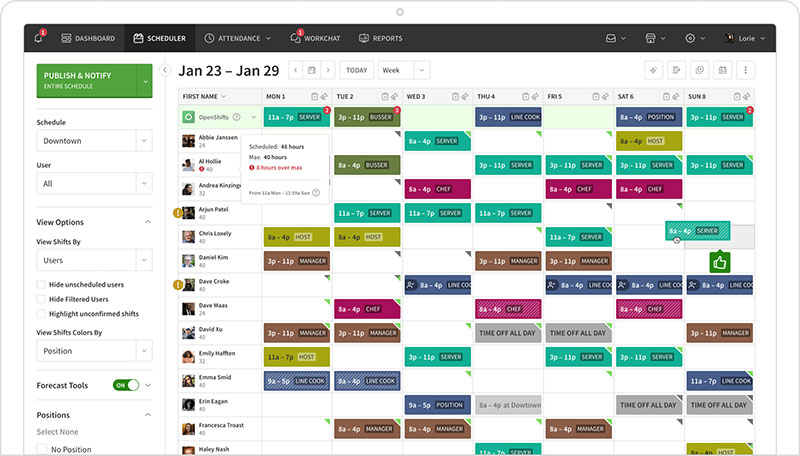
When I Work keeps shift scheduling and team messaging in one lightweight app, built for staff who’ll actually open it on their phone without needing a training session first.
Shift swaps and availability requests happen right inside the same chat thread employees already use. Nothing routes through a separate approval queue that gets forgotten about.
Key features
- Drag-and-drop schedule builder with shift templates
- In-app team messaging and shift swap requests
- Geofenced time and attendance tracking
Plans start around $2.50 per user per month, and beyond the trial there’s no permanent free tier (Capterra, 2026).
The learning curve for hourly staff is about as low as it gets, and keeping messaging and scheduling in one app is genuinely convenient at small headcounts. Compliance tooling is lighter than Deputy’s though, labor forecasting sits behind Premium, and reporting thins out on the cheaper plans.
A lot of shift-scheduling software buries messaging in some separate tab nobody checks. Keeping swap requests in the same thread as regular chat cuts down on the “did you even see my message” back-and-forth that eats into a manager’s morning.
Homebase – Best for single-location small businesses
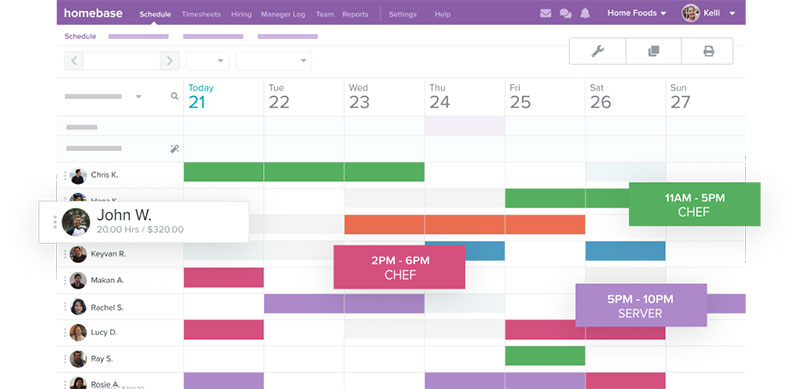
Homebase bundles scheduling, time tracking, hiring, and payroll into one app that’s free to start, built around running a single location well rather than juggling several. Its hiring tools also give smaller businesses a way to personalize onboarding around the role and workplace instead of treating every new employee’s first days as the same generic checklist.
A manager can create a work schedule from a saved template in a few taps and push it to every phone at once. For a small restaurant or salon owner doing this weekly, that’s real time back.
Key features
- Free scheduling and time tracking for one location
- Built-in hiring and onboarding tools
- Payroll add-on tied directly to logged hours
- POS integrations, including Square
- Team messaging alongside the schedule
The Basic plan is free for one location and up to 10 employees. Paid tiers run Essentials at $30/month, Plus at $70/month, and All-in-One at $120/month, with payroll priced separately on top (Costbench, 2026).
The free plan is actually useful, not a stripped demo, and payroll math gets handled automatically from clocked hours rather than requiring a second calculation somewhere, which helps businesses automate payroll calculations as scheduling and time-tracking data comes in. Hiring tools come included instead of sold as an add-on.
Multi-site businesses pay for this convenience though: pricing is per location, so a three-location operation pays three times over, payroll still costs extra even on paid plans, and compliance depth doesn’t match Deputy.
Homebase says more than 100,000 small businesses use the platform, spread across restaurants, retail, salons, gyms, healthcare, and home services (Homebase, 2026).
A single-location shop rarely needs enterprise workforce software, and Homebase’s free tier is built specifically for that reality instead of acting like a watered-down trial of something bigger.
Connecteam – Best for deskless teams needing more than scheduling
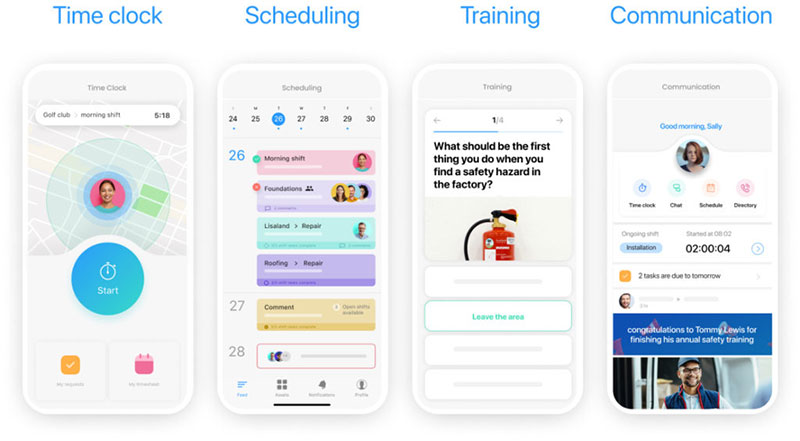
Connecteam pairs shift scheduling with task lists, training modules, and internal chat, built for teams that don’t sit at a desk. Field service crews and construction teams use it about as much as retail or hospitality staff do. Businesses that also rely on pulse survey tools for quick employee feedback can treat scheduling and engagement as two sides of the same workforce-management process.
The free plan covers full scheduling controls for up to 10 users, not a crippled demo version. That’s unusual among group scheduling apps at this price point, where “free” often means “barely functional.”
Key features
- Shift scheduling with GPS clock-in verification
- Task management and training modules
- Internal team chat and company updates feed
- Payroll-ready time export
It’s free for life at 10 users or fewer. Past that, paid plans start around $29/month flat per hub and scale with whichever additional modules you add (Capterra, 2026).
The feature set is the broadest on this list outside scheduling itself, and the flat per-hub pricing beats per-user billing once you’re past 10 employees. The full communication toolkit lives in a separate Hub subscription once you outgrow the free tier, and honestly, if scheduling is all you need, Connecteam can feel like more app than the job requires.
GPS clock-in verification also needs a clear workplace policy, particularly if managers expect location features to track their mobile devices rather than simply confirm where a shift starts.
A lot of small teams end up running scheduling, a task list app, and a group chat as three separate subscriptions. Connecteam keeps all three under one free tier before it ever asks for a card.
7shifts – Best for restaurant scheduling and labor cost control
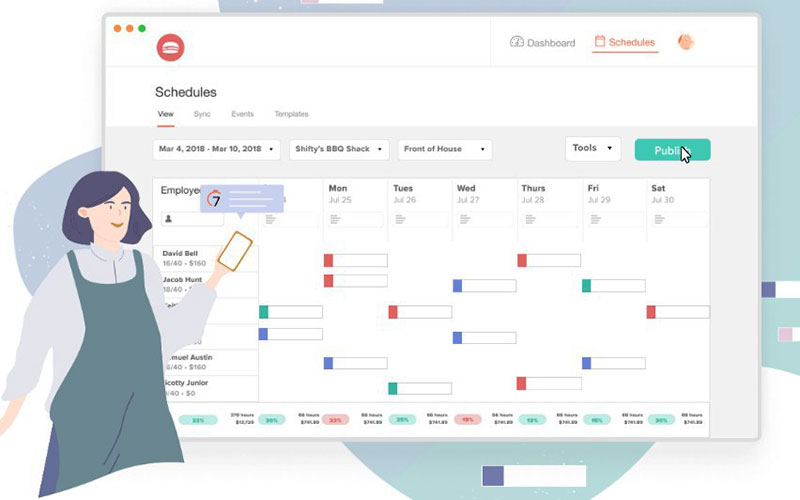
shifts was built around restaurant shift patterns specifically: tip pooling, POS-linked labor data, the rhythm of open, mid, and close. Restaurants and hospitality groups tracking labor against real-time sales, not just a flat headcount, gravitate here.
Projected labor cost shows up against forecasted sales while a manager is still building the schedule, not after it publishes and the numbers are already locked in. Seeing the cost live changes decisions in a way an after-the-fact report never does.
Key features
- Restaurant shift templates covering open, mid, and close
- Tip pooling and POS integrations
- Labor cost forecasting against sales data
The free Comp plan covers one location, with an employee cap that’s been tightened over the years and currently sits somewhere in the 15-to-20 range depending on when you check. Paid plans start at $39.99/month per location, with payroll available as an add-on on the Pro and Premium tiers (SelectHub, 2026).
Restaurant workflows are built in here, not adapted from some generic weekly grid, and the free tier genuinely works for a single small restaurant. The POS integration library is strong too. Per-location pricing adds up fast for anyone running multiple units though, it’s less useful outside food service by design, and payroll costs extra even on the paid tiers.
A 2026 National Restaurant Association and Workday report found understaffing drags on growth, service quality, and sales, and noted that being short just one employee can cost a restaurant thousands of dollars in annual sales, close to the exact gap 7shifts’ forecasting view is built to close.
Restaurants juggle several distinct types of work shifts in a single day, and 7shifts is one of the few tools built specifically around that rhythm rather than a generic weekly grid stretched to fit.
Sling – Best for very small teams on a tight budget
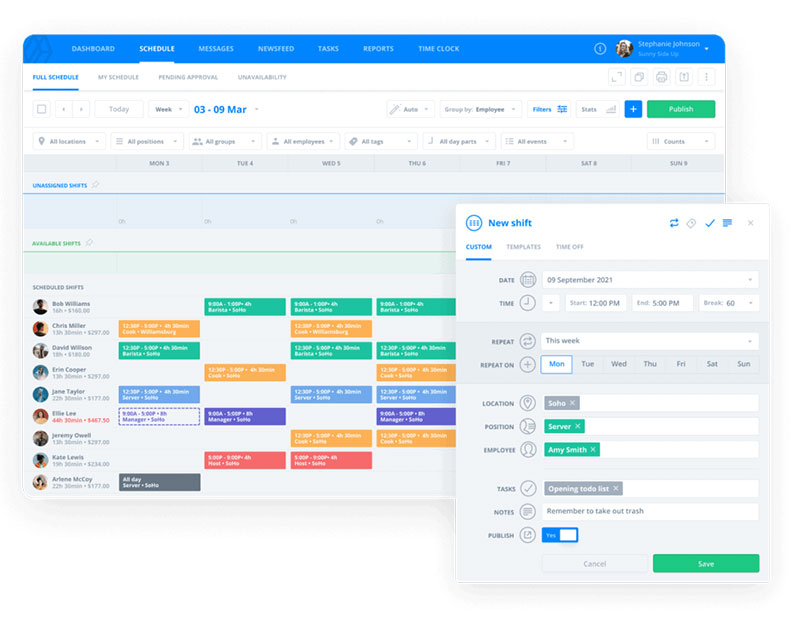
Sling’s free plan covers up to 30 users, drag-and-drop scheduling and messaging included, no catch buried in the fine print. Small shops moving off paper schedules without wanting a monthly bill land here often.
There’s no meaningful feature cliff on that free tier up to 30 users, which is rare. Most scheduling software for small businesses gates messaging or reporting behind a paywall almost immediately, and Sling just doesn’t.
Key features
- Drag-and-drop, color-coded schedule builder
- Team newsfeed and private or group messaging
- Shift templates for recurring schedules
- Time clock with geofencing on paid tiers
Free for up to 30 users. Paid plans run from roughly $1.70 to $2 per user per month on the Premium tier up to about $3.40 to $4 per user per month on the Business tier (SpotSaaS, 2026).
Staff need essentially no training to use it, and the jump to a paid tier stays affordable if you outgrow free. Time tracking sits behind paid tiers though, reporting and accountability tools stay limited on the free plan, and there are fewer payroll integrations than Deputy or Homebase offer.
A lot of “free” scheduling tools cap out at 5 or 10 users before the upsell hits. Sling’s 30-user ceiling covers most small teams entirely, and at this price point that’s genuinely rare.
Humanity (TCP Software) – Best for large, complex enterprise workforces
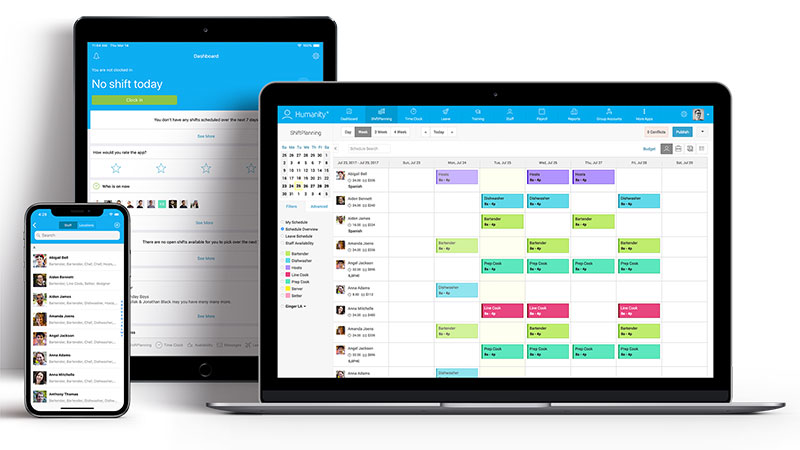
Humanity uses demand forecasting and rules-based auto-scheduling to manage thousands of employees across shifts, skills, and locations at once, the kind of scale that breaks small-business tools outright.
AI-assisted scheduling weighs availability, skills, and forecasted demand together to build a schedule, instead of leaving a manager to balance all three by hand across a few hundred people.
Key features
- Demand forecasting and AI-assisted auto-scheduling
- Custom compliance rules engine by state and region
- Shift trading with manager approval workflows
No published free plan. Third-party pricing data puts entry cost around $2.75 to $3 per user per month billed yearly, and a 30-day free trial is available (ITQlick, 2026).
Demand forecasting for high-volume operations is a genuine strength, and the custom compliance rules by jurisdiction hold up at scale, thousands of employees without the system falling over. Pricing isn’t transparent without a sales call, there’s no free plan, and for a single-location small business this is straightforwardly overkill.
Most tools on this list were built for teams under a few hundred people. Humanity is the one still working at a few thousand, and that starts to matter once headcount outgrows what a spreadsheet, or a lighter tool, can hold together.
Acuity Scheduling – Best for solo providers already on Squarespace
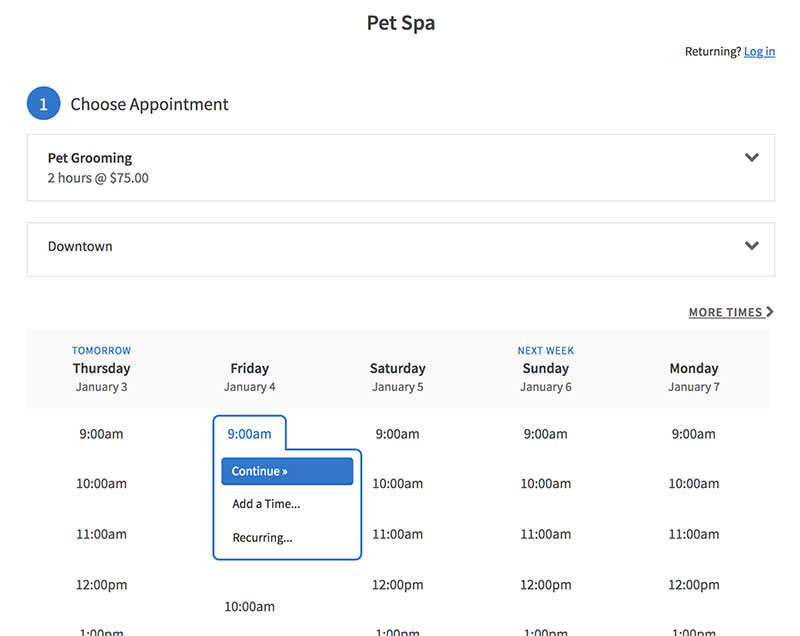
Acuity Scheduling, rebranded Squarespace Scheduling at this point, functions more like a meeting scheduler for solo providers than a full staff-shift platform. Coaches, therapists, consultants taking one-on-one bookings, especially ones already living inside the Squarespace ecosystem, are the natural fit.
Its Squarespace roots make it work well as consultant scheduling software for anyone already running a site on the platform who wants billing, branding, and booking under one login rather than three.
Key features
- Client intake forms and package or membership booking
- SMS reminders and automated booking confirmations
- Stripe, Square, and PayPal payment processing
- Up to 36 calendars with HIPAA support on the top tier
There’s no free plan, just a 7-day trial. Starter runs $16/month, Standard $27/month, Premium $49/month, all billed annually, and paying month-to-month costs about 20 percent more on every tier (Talkspresso, 2026).
The Squarespace integration is tight if you’re already on the platform, intake forms and package booking work well, and HIPAA readiness on Premium matters for the right kind of practice. There’s no free plan at all though, payment processor fees stack on top of the subscription, and the employee-management tools thin out fast compared to Trafft or Amelia once you’re past a handful of staff.
Not every scheduling need involves shifts. A solo consultant assigning their own calendar to client bookings has a lot more in common with Acuity than with a 50-person retail roster juggling three shift patterns a day.
When none of these are the right fit
None of these ten handle payroll across multiple countries with local tax rules. That gap still gets filled by dedicated HR and payroll systems, not scheduling software stretched past its job.
None of them replace field-service dispatch either, not if the actual job is routing technicians to addresses rather than assigning staff to fixed shifts or bookings.
And whatever ends up on the calendar, none of it moves the needle on employee efficiency without a manager keeping it current and staff who actually check it. Software doesn’t fix that part.
What Is Employee Scheduling Software
A shared team calendar just displays events. It doesn’t assign anyone to anything, doesn’t track hours, doesn’t handle a time-off request. Employee scheduling software does all of that: it puts staff on appointments, services, or shifts and keeps every calendar synced from one dashboard, which is really the whole distinction that matters.
It’s also not a one-off meeting scheduler meant for single calls between two people. That’s a different category, closer to Acuity’s original use case than to Amelia’s or Deputy’s.
The category itself splits two ways. Appointment-based tools let a client book a slot with a specific employee or service. Shift-based tools have a manager assigning hourly staff to fixed coverage blocks instead. Both show up throughout the benefits of scheduling software generally: fewer double bookings, less manual back-and-forth, an actual record of who’s working when.
How Two-Way Calendar Sync Keeps Schedules Conflict-Free
Connect Amelia, Trafft, or anything comparable to Google, Outlook, or Apple Calendar, and a busy slot in one place blocks that same slot everywhere else. Skip it, and an employee’s personal appointment can land on the same hour as a client booking with nobody noticing until someone just doesn’t show up.
Getting it right depends on a handful of things actually lining up: the calendar connection has to be active, buffer time needs to sit between bookings so back-to-back slots don’t overlap, service duration has to be set correctly since a wrong number blocks either too much or too little time, and the refresh interval needs to be short enough that changes show up before someone books a slot that’s already gone.
This trips people up more than you’d expect. A dedicated walkthrough on scheduling appointments with Google Calendar covers the permission and refresh settings most tutorials skip entirely.
Working Hours, Special Days and Time Off
Working hours set the default window a service can be booked in. Everything else layers on top of that default.
Special days override the default for a single date, handy for a holiday hour change without editing the entire week’s schedule. Vacation blocks pull an employee off the bookable calendar entirely for a date range. Recurring time off, a weekly half-day for instance, repeats on its own instead of getting re-entered every week. And location-specific hours let one branch stay open later than another under the same account.
How the Employee Panel Puts Staff in Control of Their Own Schedule
Blue Ribbon Restaurants cut managerial scheduling admin time by 40 percent after giving staff a self-service panel for shift swaps and time-off requests (TimeForge, 2026). That’s the kind of number that actually justifies the feature.
The employee panel itself is a front-end login, separate from the admin dashboard, where staff handle their own side of things. They can check upcoming bookings or shifts without pinging a manager first, request time off or flag a special day directly, and connect a personal Google or Outlook calendar just so everything shows up in one place for them.
Admins keep the boundaries in place through role-based permissions, deciding whether a given employee can edit prices, see other staff’s bookings, or only their own slice of the calendar.
Panel depth is a real part of why time management improves once staff stop routing every small change through one overloaded person.
Managing Multiple Locations, Services and Employees From One Dashboard
Location structure sits above everything else in a multi-branch account. Each location gets its own working hours, staff list, and service menu. Employees can be assigned to one location or several depending on where they actually work, and pricing can shift by location too, useful when rent or demand differs between branches.
Reporting is where multi-location setups either earn their keep or fall apart. Occupancy and revenue broken out by branch tell an owner which location is actually booked solid and which one is running half empty, a comparison a single shared calendar simply can’t make.
How Payments and Reminders Reduce No-Shows
A systematic review of 10 randomized controlled trials found appointment reminders increase attendance by 11 percent overall, with SMS reminders producing the strongest individual effect (Journal of Hospital Management and Health Policy, 2026).
Deposits work through a different mechanism entirely. A reminder fights forgetfulness. A deposit makes a no-show actually cost the client something, not just the business, and that changes behavior in a way a text message alone doesn’t.
Reminders get sent by SMS, email, or WhatsApp on a set schedule before the appointment, cutting down on people who simply forgot. Deposits cut down on casual, low-commitment bookings instead, since someone who’s already paid something is more likely to show up or cancel properly rather than just ghosting.
Gateways like Stripe, PayPal, and Square handle the deposit side. A clear appointment confirmation text handles the reminder side. Most tools bundle both rather than making you stitch together separate services.
What happens after a cancellation matters just as much, honestly. Good software reopens that slot automatically instead of leaving it dead, and that’s where handling cancelled appointments correctly protects revenue that would otherwise sit empty for no reason.
Appointment-Based or Shift-Based Scheduling: Which Fits Your Business
This one choice filters out entire categories of software before price or features even enter the conversation. A salon assigning a stylist to a client booking needs an appointment-based tool. A retail store covering an 8-hour shift with three cashiers needs a shift-based one. Trying to force either job through the wrong kind of tool tends to end badly.
Appointment-Based Scheduling
This works well when each booking ties to one client and one service, when clients book their own slot online instead of a manager assigning coverage, and when service length varies enough that recurring appointment setup actually matters for regulars coming back week after week.
It struggles the moment a business needs to guarantee three people are covering a floor at once, regardless of who’s booked what individually.
Shift-Based Scheduling
This works well when coverage matters more than which specific employee a client sees, when hourly staff rotate across fixed blocks like opens, mids, and closes, and when labor law compliance around breaks and overtime is a genuine risk rather than a formality.
It struggles when a client expects to pick a specific person for a specific time, since shift-based tools generally aren’t built around that at all.
WordPress Plugin or Cloud Platform: Choosing a Deployment Model
WordPress powers 41.2 percent of all websites tracked, roughly eight times its nearest competitor (W3Techs, August 2026), and that’s basically the entire reason a plugin-based option exists in this category at all.
| Factor | WordPress Plugin | Cloud Platform |
|---|---|---|
| Data ownership | Self-hosted, full control | Hosted by the vendor |
| Maintenance | Plugin and hosting updates | Handled by the provider |
| Customization | Full WordPress ecosystem | Limited to vendor’s API |
| Setup speed | Requires an existing site | Live in minutes, no site needed |
Anyone comparing options against the best WordPress calendar plugin lists runs into the same tradeoff over and over: more control costs more upkeep, every time, no matter which plugin you pick.
Migrating later works in both directions, technically, but moving off a self-hosted plugin usually means re-entering service and employee data by hand unless the vendor happens to offer an export tool. Worth checking before you commit either way.
What Employee Scheduling Software Actually Costs
Two pricing models dominate here, and they’re not really comparable on sticker price alone. Per-domain annual licensing, the WordPress plugin approach, charges once a year no matter how many bookings come through. Per-user or per-location SaaS billing scales with headcount or branch count instead, so the bill grows as the business does.
The average cost of basic employee scheduling software runs around 17 dollars per month (ITQlick, 2026). Entry-tier WordPress plugin licenses commonly start near 49 dollars a year, while entry-tier cloud SaaS plans commonly start somewhere around 5 to 8 dollars per user per month. Add-ons, SMS credits, payroll, extra locations, sit outside the advertised base price on most platforms, which is where budgets actually get blown.
What drives the real bill up is rarely the base plan itself. It’s employee count, location count, and which calendar sync tier a business ends up needing.
Free vs Paid Employee Scheduling Software: When Free Is Enough
Free tiers stay useful longer than most buyers expect, right up until one specific limit gets hit and everything stops.
Employee count is usually the first cap, often somewhere between 1 and 10. Location count is the second, usually locked at one. Payment gateways or calendar sync tend to be the third, frequently gated to paid tiers entirely even when everything else is free.
A solo provider or single-location shop can genuinely stay on a free plan indefinitely, no upgrade required. The upgrade trigger is almost always growth: a second employee, a second location, or the need to collect payment at booking instead of on arrival.
The real risk isn’t the free tier itself. It’s building an entire workflow around its exact feature set, then losing that workflow the moment the vendor quietly tightens the limit.
Features That Matter Most When Comparing Options
Interface polish is the easiest thing to judge off a screenshot and, honestly, the least useful thing to judge a tool by.
Calendar sync depth matters more, since a tool that only does one-way sync will eventually double-book someone, it’s just a matter of time. Role-based permissions decide how much a growing team can safely self-manage. Payment gateway breadth matters especially for any business collecting deposits. And reporting depth starts to matter the moment there’s more than one employee worth comparing.
None of this shows up clearly in a five-minute demo, which is exactly why it gets overlooked in favor of whichever booking form happens to look cleanest on screen.
Setting Up Employee Scheduling Software for the First Time
Order matters more than most setup guides let on. Doing this out of sequence is the single biggest cause of early rework, and it’s an easy mistake to make.
- Set business hours and add services before anything else, since every later step references them
- Add employees and assign them to the correct services and locations
- Configure payment gateways and deposit rules
- Connect calendar sync last, once the schedule structure is stable
- Test the booking flow as a customer before publishing the page live
Adding employees before services exist is the most common ordering mistake out there, and it forces a second pass through every single employee’s settings once the services finally get created.
Anyone weighing specific products at this stage runs into the same shortlist that shows up on most best wordpress booking plugins roundups, which is a reasonable enough starting point before testing the actual booking flow yourself.
Common Mistakes That Break a New Schedule Rollout
Most rollout failures trace back to a handful of repeatable mistakes, not to bad software. Worth naming them plainly.
Skipping buffer time between bookings is probably the most common one. Appointments stack back to back until a single late client cascades into a delayed afternoon for everyone behind them.
Ignoring time zone settings on multi-location accounts quietly double-books a branch sitting in a different zone, and nobody notices until a client shows up to an empty desk. Skipping staff training on the employee panel means employees keep texting a manager instead of just updating their own availability, which defeats half the point of having a panel at all. Leaving reminder notifications off by default raises the exact no-show rate the software was supposed to fix in the first place. And publishing shifts with little advance notice erodes the predictability employees actually rely on to plan their lives around.
Gap, Inc. tested that last point directly. Eliminating on-call shifts and posting schedules two weeks ahead across 28 stores raised store productivity by 5.1 percent, driven mainly by a 3.3 percent sales increase, according to a randomized field experiment published in Management Science (2022).
A dedicated guide on how to avoid appointment scheduling mistakes walks through the buffer time and reminder settings most rollouts get wrong in that first month.
When Employee Scheduling Software Is Not the Right Tool
This category has real edges, and pretending otherwise just leads to buying the wrong product.
Multi-country payroll and tax compliance sit outside what any of these tools handle well. A business running payroll across several countries needs a dedicated HR platform, not a scheduling add-on stretched way past what it was built for.
Field-service dispatch is a different job entirely. Routing technicians to addresses based on drive time and job type is a logistics problem, not a staff-to-shift or staff-to-appointment one, and dedicated dispatch software solves it better than anything on this list.
A very small solo operation with one calendar and no staff to coordinate might not need this category at all. A shared calendar is genuinely sufficient right up until a second person enters the picture.
And enterprise-scale demand forecasting, the kind that predicts staffing needs from foot traffic weeks out, sits above what small-business scheduling tools are built to do. That belongs with platforms purpose-built for that scale instead.
FAQ on The Best Employee Scheduling Software
What Is the Difference Between Employee Scheduling Software and a Shared Team Calendar?
A shared calendar just displays events, nothing more. It doesn’t assign anyone to them. Employee scheduling software actually assigns staff to appointments or shifts, tracks working hours, enforces buffer time, and syncs the whole thing back to Google Calendar or Outlook automatically.
Is Employee Scheduling Software the Same Thing as Shift-Swap Software?
No, and people mix these up a lot. Shift-swap software handles one narrow task: letting two employees trade assigned shifts, that’s it. Employee scheduling software builds the original schedule, manages calendar sync, payments, and reminders, and usually includes shift-swap requests as just one feature among several.
Can Staff Swap Shifts Directly Inside the Software?
On most shift-based platforms, yes. An employee requests a swap through the employee panel, a coworker accepts, and a manager approves before it actually posts to the schedule. Appointment-based tools rarely offer this at all, since bookings already tie to one specific employee by design.
Does Employee Scheduling Software Integrate With Payroll and Accounting?
Most platforms connect to payroll through native integrations or Zapier, exporting clocked hours to tools like QuickBooks Time or Xero. A few, Homebase and Deputy among them, bundle payroll processing directly instead of exporting anywhere.
How Do You Migrate From Spreadsheets Without Losing Data?
Export the spreadsheet as CSV first, then import employees, services, and working hours before touching calendar sync at all. Keep the old file untouched for one full booking cycle, just in case, and reconcile appointments by hand until the new system proves itself stable.
How Long Does Setup Typically Take?
A single-location business with a handful of employees can go live within a few hours: services, staff, and payment gateways first, calendar sync last. Multi-location accounts with custom branding and REST API connections usually take one to two weeks instead.
What Should You Fix First in The Best Employee Scheduling Software?
Fix the deployment model question first, before price ever enters the picture. A WordPress plugin and a cloud platform solve genuinely different problems, and no amount of feature comparison fixes a mismatch there.
Deployment model gets checked against how the business already operates. Calendar sync depth gets checked against how many staff share one calendar. Free tier limits get checked against actual headcount and location count, not projected growth six months out.
Price comes last in that order, since a cheap plan that fails on sync depth ends up costing more in missed bookings than it ever saved on the subscription.
That order stops paying off once an agency is running more than three WordPress installs at once, for what it’s worth. Patchstack logged 11,334 WordPress vulnerabilities in 2025, up 42 percent from the year before, and at that point self-hosted maintenance turns into its own job.
Once the shortlist narrows down to one tool, the next practical question is how to get more bookings out of whichever calendar ends up live.

Explore topics

Read Inspiring Customer Stories
Check out how our user set Amelia for his business