How do I set up WhatsApp for Amelia using Meta
This guide walks you through the essentials of creating a WhatsApp Cloud API setup in Meta so Amelia can send WhatsApp notifications.
You will create a Meta app, add the WhatsApp product, collect your Phone number ID, WhatsApp Business account ID, and create a Permanent access token.
When these values are ready, you will paste them into Amelia → Notifications → WhatsApp.
You need a Meta Developer account and a WhatsApp Business Account to connect WhatsApp with Amelia → Notifications → WhatsApp.
How do I access the Meta for Developers platform?
Open the Meta Developer Console and log in with your Facebook or company account.
After logging in, click My Apps in the top right. If this is your first time using Meta for Developers, you will be prompted to create a developer account. Once you complete the registration, continue to app creation.
How do I create a Meta app for WhatsApp?
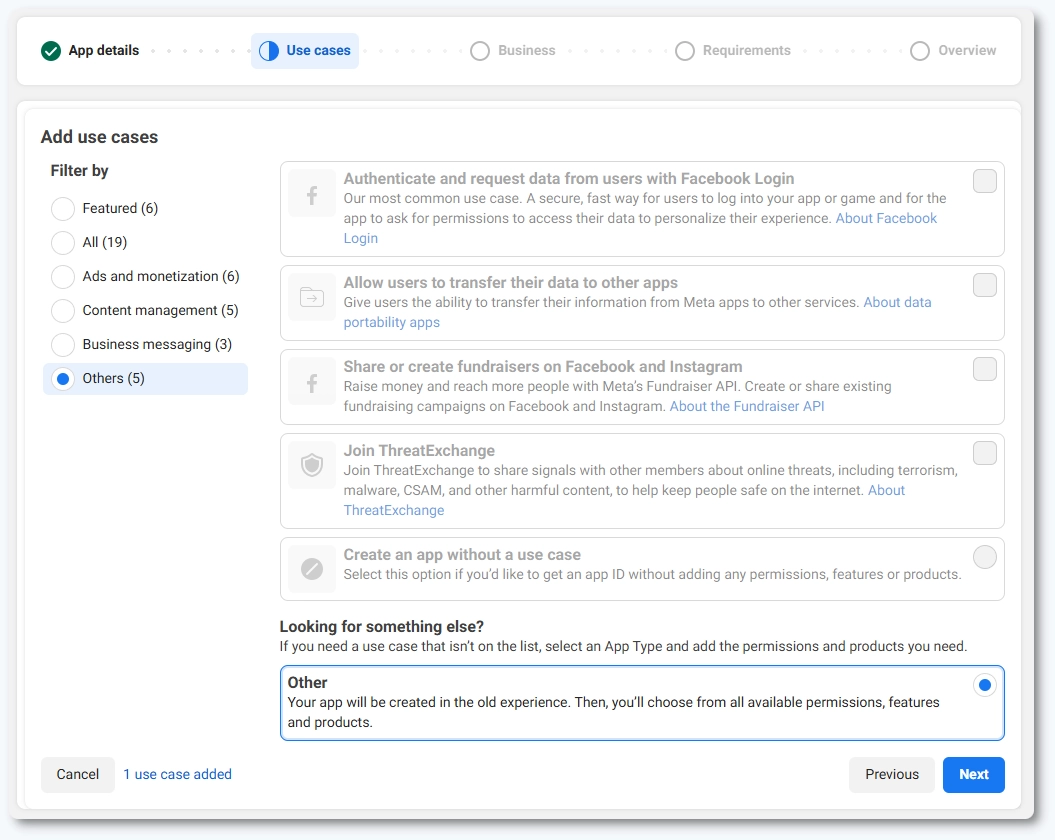
Click Create App in the top right and enter the App name. Select the Other option in the Use Cases step. Choose the Business app type on the next step. Confirm the app name and email address, then click Create app.
Once you enter your Facebook account password, Meta will redirect you to the app dashboard where you can add products.
How do I add the WhatsApp product to the app?
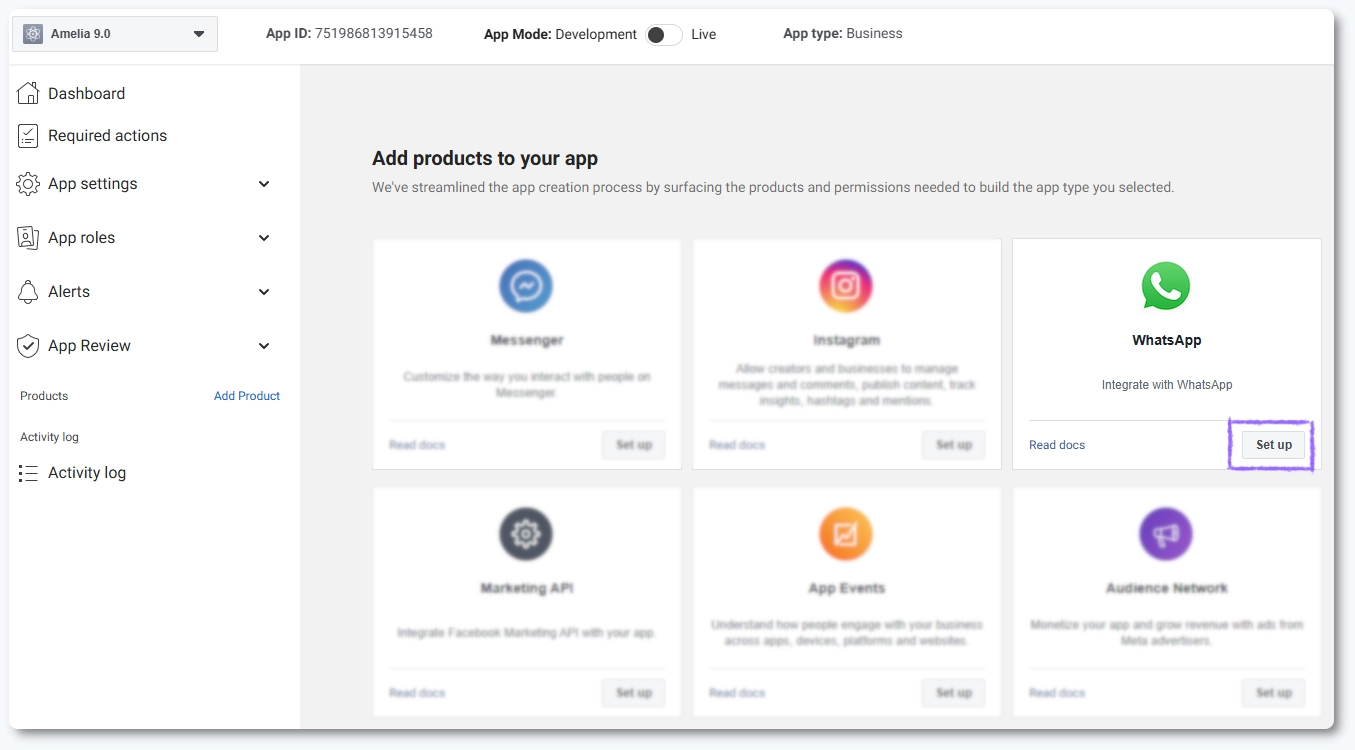
On the app dashboard, locate the WhatsApp card and click Set up to add WhatsApp to your app. Meta will link or create a WhatsApp Business Account during this process.
Where do I find the IDs needed for Amelia?
Once the business is selected, click the Start using the API button where the details needed for Amelia are displayed.
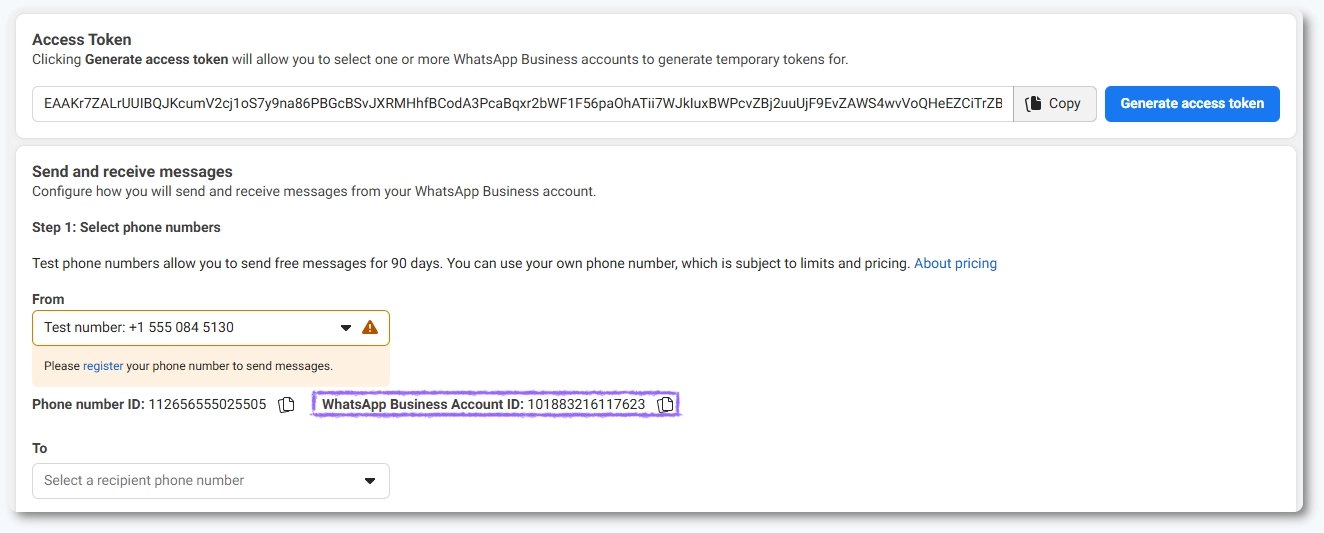
In WhatsApp → API Setup, Meta displays the details required for Amelia:
- Phone number ID
- WhatsApp Business account ID
- A temporary access token (not used in production in Amelia)
While you can copy the Business account ID, bear in mind that the Phone number ID you see here is the ID for the Test number, generated by Meta. Do not copy this ID.
How do I add and verify my business phone number?
Scroll down in the Quickstart and click Add phone number. Enter your business name, business email, website, country, timezone, category, and description.
Add the phone number that will be used for WhatsApp messaging. If this is a landline, select the Phone call option to receive the verification code. Complete the verification by entering the code Meta sends to the number.
Once verified, the number becomes active in your WhatsApp Business Account.
Once you’re back on the API setup page, the “From” section (shown in the screenshot above) should contain the phone number you just registered. Expand the dropdown if it’s not automatically selected. Copy the Phone number ID from here and paste it into the corresponding field in Amelia.
You cannot use a phone number already linked to a personal or business WhatsApp account unless you are ready to remove it from all devices.
If the number is already active on WhatsApp, linking it here will disconnect it from your mobile device and convert it into a Cloud API number.
To avoid issues, it is recommended to use a new phone number or a business landline dedicated to WhatsApp notifications.
Do I need to send a test message?
Meta provides a test environment with a temporary number and temporary token. You can add your personal number to the test list and send a test message to confirm everything works.
This step is optional and not required for Amelia, since test numbers cannot be used in production. The important values for Amelia are the Phone number ID, WhatsApp Business account ID, and the Permanent access token.
How do I create a permanent access token?
Open Business Settings in Meta and to Users → System users and create a new system user with the admin role.
Assign the previously created Meta app to this system user under Add Assets. Next, under Accounts → WhatsApp accounts, assign the same system user with Full control.
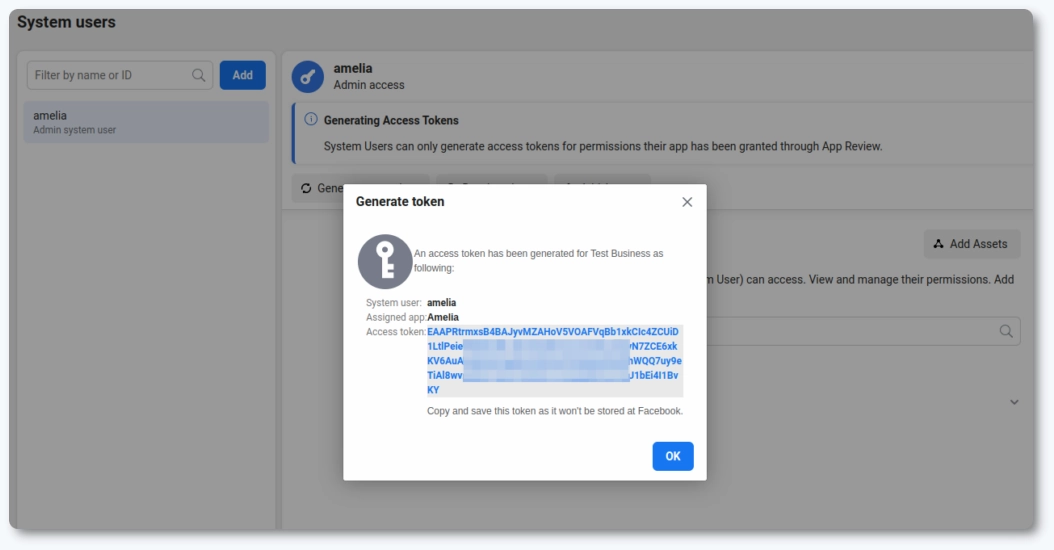
Return to System users and click Generate new token. Select the app from the dropdown and enable two permissions:
- whatsapp_business_messaging
- whatsapp_business_management
Click Generate token to create your Permanent access token. Copy it and store it safely, since Meta will not display it again after closing the window.
Once copied, paste this token into the corresponding field in Amelia.
Where do I paste the values in Amelia?
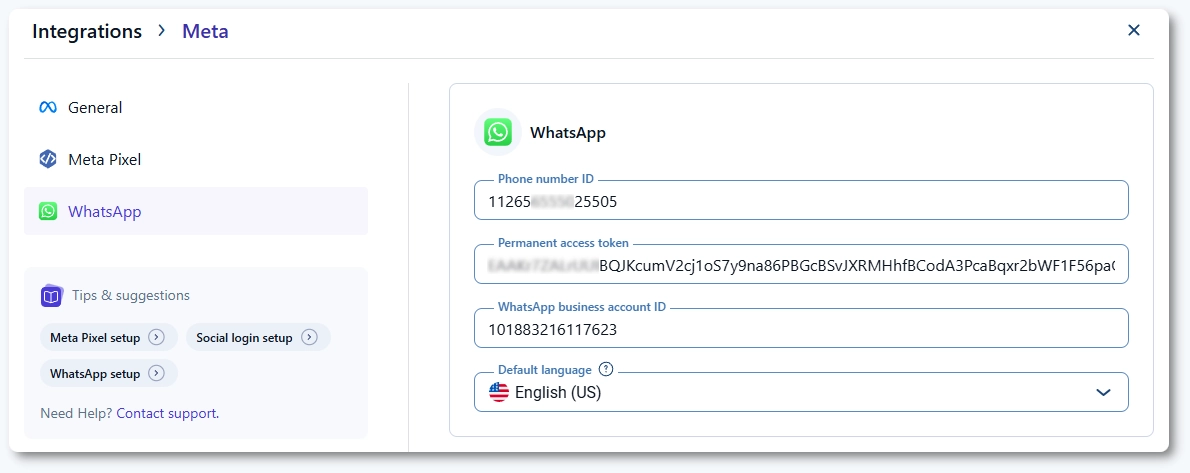
Go to Amelia → Features & integrations → Integrations → WhatsApp → Set up.
Paste the following values into their corresponding fields:
- Phone number ID
- Permanent access token
- WhatsApp Business account ID
Select your Default language to match the language that you’ll later define in your WhatsApp templates and Save your settings.
Amelia is now connected to your WhatsApp Business API.
What should I do next?
Continue to the template configuration guide to learn how WhatsApp message templates work and how to link Amelia placeholders to template variables.