Limited time discount Book Smarter This Christmas
Up to 50%Off

How do I enable the WhatsApp auto-responder in Amelia

WhatsApp messages sent from Amelia do not support two-way conversations, so customer replies are not delivered back to Amelia.

To avoid unanswered messages, you can enable the auto-responder, which sends one predefined WhatsApp message to anyone who replies.

The auto-responder uses a webhook provided by Amelia, and Meta requires a verify token to activate it.

Info Note

WhatsApp replies cannot be viewed inside Amelia.

The auto-responder sends a single automatic message when a customer replies to any WhatsApp notification.
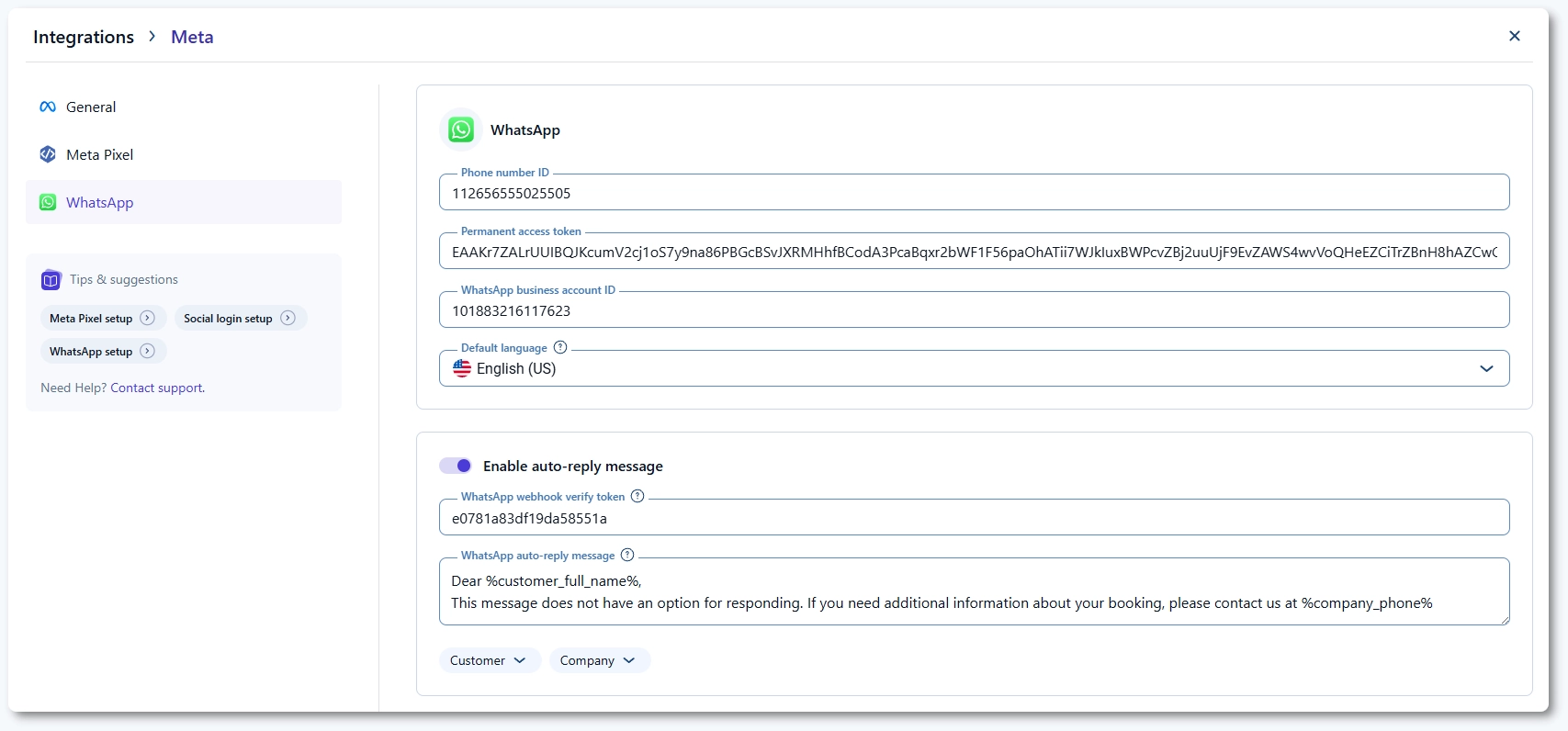
Auto-reply message and webhook fields in Amelia

Where do I enable the WhatsApp auto-reply message?

Open Amelia → Features & integrations → Integrations → WhatsApp → Set up, scroll down a bit and toggle the Enable auto-reply message slider.

Enter a reply message in the WhatsApp auto-reply message field. You can use placeholders such as %customer_full_name% or %company_phone% to personalise the message. This message is sent once per customer reply, regardless of which notification they responded to.

What is the webhook verify token?

The WhatsApp webhook verify token is an identifier you create in Amelia. Meta uses this value during verification to confirm that you own the callback URL.

Copy the verify token from Amelia → Features & integrations → Integrations → WhatsApp → Set up. You will paste it into your Meta app when activating the webhook.

Where do I find the webhook callback URL?

The callback URL is displayed at the bottom of Amelia → Features & integrations → Integrations → WhatsApp → Set up. Meta will use this URL to deliver customer replies so Amelia can send the auto-response. Copy the full URL exactly as shown.

You do not need to change anything inside Amelia for the webhook to work beyond enabling the auto-reply.

Webhook callback URL displayed in Amelia’s WhatsApp settings

How do I activate the webhook inside Meta?

Open the Meta Developer Console and select your WhatsApp app. Navigate to WhatsApp → Configuration, find the section for webhooks, and either configure the webhook or click on Edit if one already exists.

  • Paste the Amelia callback URL into the Callback URL field.
  • Paste the value from WhatsApp webhook verify token into the Verify token field.
  • Save your changes, then click Verify and save.

Once verified, the webhook becomes active and the auto-responder will start working.

Webhook configuration for WhatsApp inside Meta Developer Console

What does the auto-responder actually do?

When a customer replies to any WhatsApp notification sent through Amelia, Meta forwards that reply to the callback URL.

Amelia receives the message and immediately sends your predefined auto-reply. The auto-reply is only sent once per user reply and does not continue a conversation.

If a user sends multiple replies, they will receive the auto-reply each time.

What should and what shouldn't I do with the auto-responder?

Do:

  • Use clear instructions, such as asking the customer to call or email for assistance
  • Include placeholders to personalise the message
  • Keep your auto-reply short so the template stays clean

Don’t:

  • Expect two-way conversation in Amelia
  • Use unapproved content or unsupported characters
  • Set a template language that differs from your WhatsApp template language
