How to fix the “The link you followed has expired” error in WordPress
This error often appears when you try to upload a theme or plugin that’s larger than your server’s upload limit. Most WordPress sites have default server restrictions for file upload size and script execution time. If a file exceeds these limits (or if the upload takes too long) WordPress stops the process and shows this message:
“The link you followed has expired.”
How can I check my current upload limit?
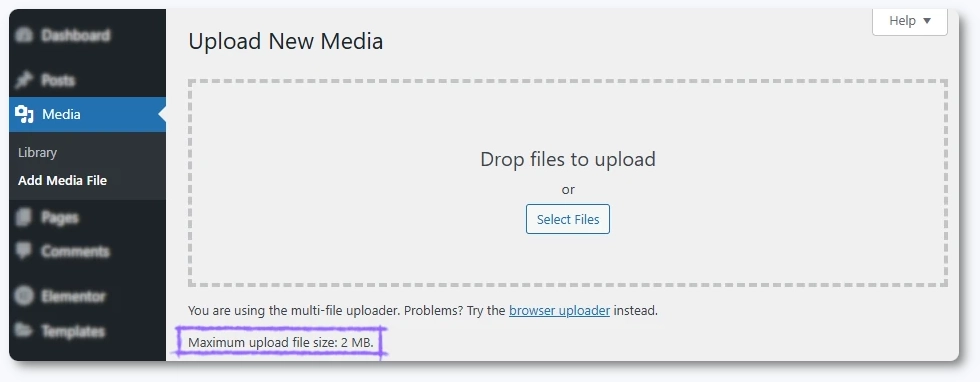
You can quickly see your upload limit from your WordPress dashboard:
Go to Media → Add New.
At the bottom of the page, you’ll see a line like:
“Maximum upload file size: 2 MB”
(This is the default limit for many hosting providers, but it varies.)
If your file is larger than this value (or if your server timeout is too short), you’ll need to increase the limits.
How can I fix the upload size limit issue?
Fortunately, it’s not hard to fix. You can use one of several methods below to increase your upload limit.
Important:
Try only one method at a time. If it doesn’t work, undo the change before trying another to avoid conflicts.
Method 1: Edit the php.ini file
If your hosting environment gives you access to the php.ini file, this is the most reliable approach.
Steps:
Connect to your site via FTP or your hosting control panel.
Locate or create a php.ini file in your root directory.