Limited time discount Book Smarter This Christmas
Up to 50%Off

How to update the Amelia WordPress booking plugin

Updating Amelia regularly ensures you receive the latest features, improvements, and bug fixes. You can update the plugin automatically through the Activation page or manually using the WordPress installer or FTP.

This guide explains both methods.

Why should I keep Amelia updated?

Each new Amelia release may include new features, performance improvements, security fixes, and compatibility updates with WordPress and other plugins. Regular updates help keep Amelia stable and secure.

Alert Please note

Older versions are not supported and should only be used for testing purposes.
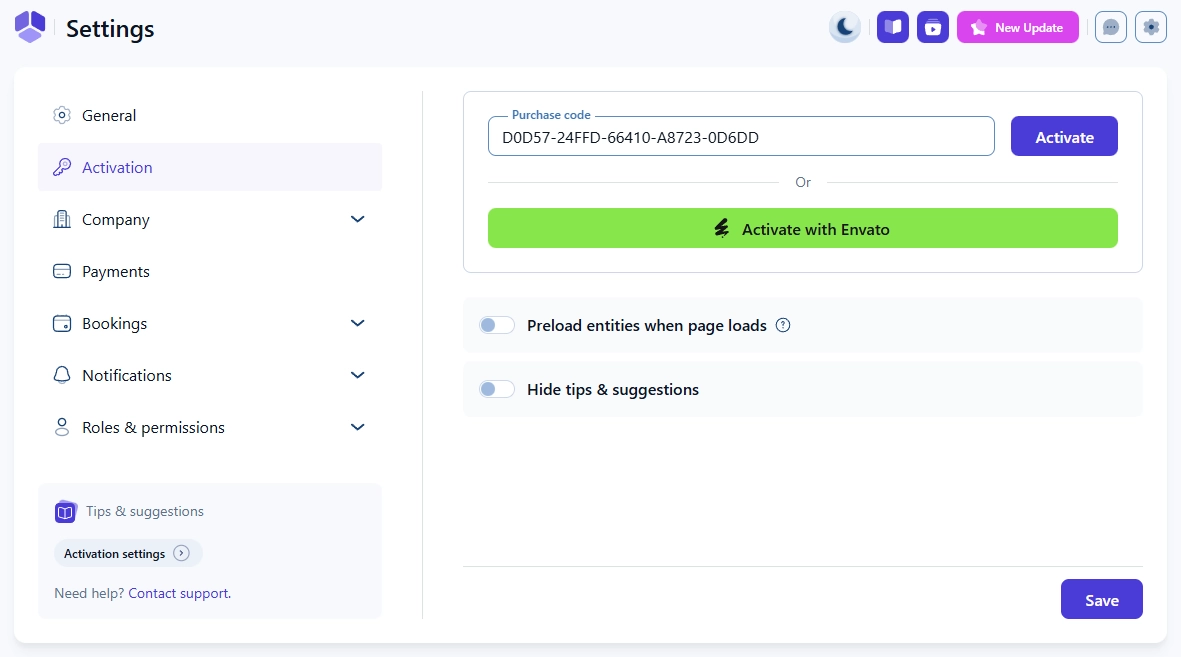
How do I enable automatic updates in Amelia?

To receive automatic updates, you first need to activate your license in Settings → Activation.

If you purchased Amelia on our website:

  • Enter your purchase code into the license field.
  • Click Activate.

You can find your purchase code in your confirmation email and in your store account.

If you purchased Amelia from CodeCanyon/Envato:

  • Click Activate with Envato.
  • Log in to your Envato account when redirected.

Once activated, Amelia will receive updates like any other premium plugin in WordPress.

Amelia Activation settings showing the license key field

Automatic updates will install new versions as soon as they’re available.

How do I update Amelia manually through WordPress admin?

If automatic updates are not available or you prefer to update manually, you can upload the new version through the WordPress Upload Plugin screen.

Step 1 – Download the latest version

  • If you purchased on our website, download ameliabooking.zip from your TMS Store account.
  • If you purchased from Envato, download the installable ZIP from your Envato Downloads page.

Step 2 – Upload and replace the plugin

  1. In WordPress, go to Plugins → Add New → Upload Plugin.
  2. Click Choose file and select ameliabooking.zip.
  3. Click Install Now.
  4. WordPress will detect that Amelia is already installed and display a message asking if you want to replace the existing version.
  5. Confirm the replacement.
  6. When the installation finishes, click Activate.

Your existing settings, appointments, events, and other data remain intact.

WordPress Upload Plugin screen with ameliabooking.zip ready to install

Step 3 – Clear your cache

You should always clear your site cache after installing, updating, activating, deactivating, or deleting any plugin in WordPress, including Amelia.

If the cache is not purged, your site may continue loading old scripts and styles. This can cause:

  • New features not appearing in the back end
  • Front end booking forms not reflecting recent changes
  • Layout or styling inconsistencies
  • The impression that the update “didn’t work”

Install a caching plugin if you don’t have one already and purge the cache immediately after updating Amelia to ensure everything loads correctly.

Can I update Amelia via FTP instead?

Yes. If you prefer it that way, or the WordPress upload method does not work on your hosting environment, you can update Amelia using an FTP client.
  1. Download the latest ameliabooking.zip and unzip it on your computer.
  2. Open your FTP client (FileZilla, Cyberduck, etc.).
  3. Connect to your server and go to /wp-content/plugins/.
  4. Upload the unzipped ameliabooking folder, replacing the existing folder.
  5. In WordPress, go to Plugins, and if needed, deactivate and then activate Amelia again.
This method also keeps all your data and settings.
FTP client displaying the ameliabooking folder inside wp-content/plugins

After updating through FTP, you must purge your site cache. Otherwise, your site may continue loading outdated files, which can cause missing features or outdated front end forms.

Alert Important

When deactivating the plugin, WordPress will show a checkbox offering to delete Amelia tables, files, and settings when the plugin is removed. Checking this box will erase all Amelia data permanently, so use it only if you are completely removing Amelia from your site and won't use it again, not during updates.

Why do I get an upload size or timeout error when updating?

As Amelia continues to grow with new features, the plugin file becomes larger. If your server’s maximum upload limit is too low, WordPress may show:

  • “The link you followed has expired”
  • “File exceeds the maximum upload size”

In that case, you’ll need to increase your upload size limit in your hosting panel or configuration.

Learn how to adjust this in our Upload size limit guide.
