How do the top-right navigation icons work in Amelia
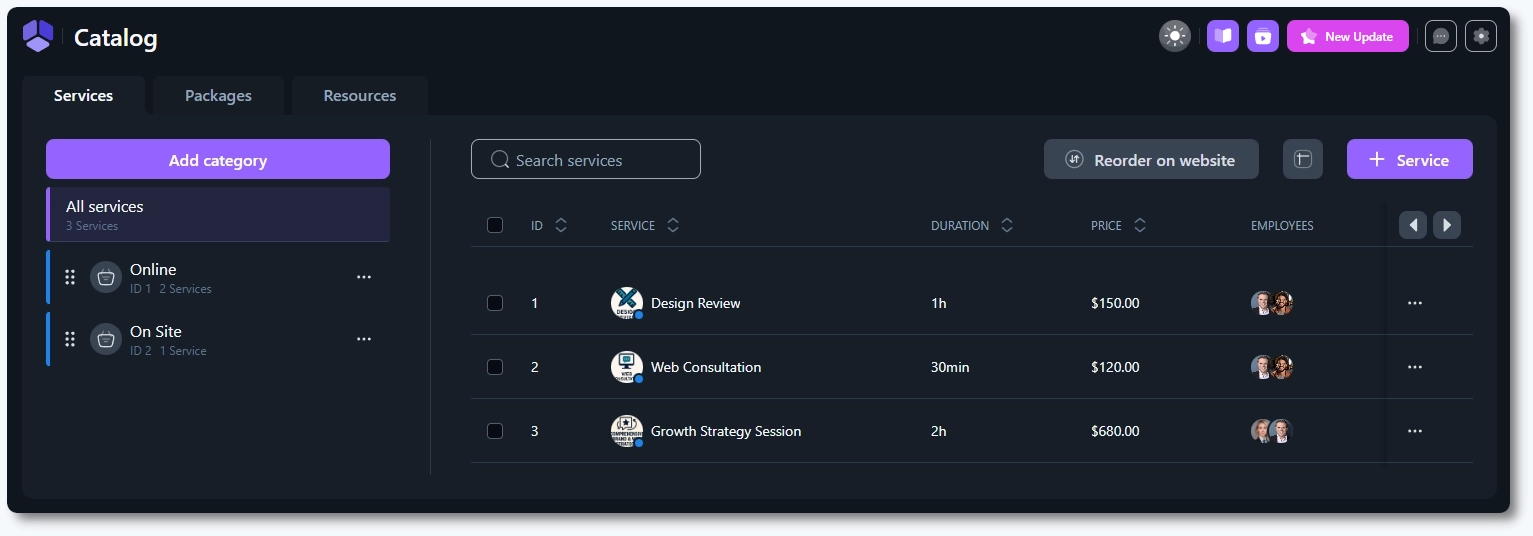
Anyone may want to switch the interface to dark mode, check the latest changelog before updating, or quickly open the documentation while configuring a service. All of this is available through the icons in the top-right corner of every Amelia page.
The icons in the upper-right corner of Amelia provide quick access to theme switching, documentation, tutorials, version history, customer portal login, and plugin settings. These controls appear on all pages inside the Amelia plugin.
Where can I find the top-right navigation icons?
You can find these icons in the top-right corner of every Amelia page inside WordPress. They always remain visible when navigating through Dashboard, Calendar, Bookings, Employees, Locations, Catalog, and other Amelia sections.
What does each top-right navigation icon do?
Each icon provides quick access to a specific action or resource. These are helpful shortcuts when configuring Amelia or reviewing activity inside the plugin.
Theme switcher, toggles between light and dark interface modes.
Documentation, opens the official Amelia documentation.
Store login, opens the Melograno store where you can log in and request support.
Settings, opens Amelia → Settings for configuring company information, payments, notifications, and general behavior.
How do the icons behave in different Amelia sections?
These icons remain visible as you move between Amelia’s internal pages, so you can switch themes, open settings, or check the changelog without leaving your current workflow. They behave identically on pages such as Bookings, Employees, Events, Locations, and Catalog.
What should I keep in mind when using the top-right navigation icons?
These icons offer quick navigation to commonly used resources. You can use the theme switcher at any time, open documentation for guidance, review updates, or adjust plugin settings without interrupting your work. This menu is only displayed inside Amelia and does not appear in standard WordPress pages.
 Spring Deals Are in Full Bloom