How to enable and configure Razorpay payments in Amelia
Razorpay integration in Amelia lets your customers complete bookings using one of India’s most widely used online payment gateways. Once enabled, Razorpay handles secure payment processing for appointments, packages, events, and cart bookings.
For example, if you serve customers in India, Razorpay allows them to pay through UPI, cards, or wallets depending on what they have set up in their Razorpay checkout, giving them a familiar and trusted payment experience.
The Razorpay integration is available on the Standard, Pro, and Elite license plans.
How do I enable Razorpay integration in Amelia?
Razorpay is activated in the same way as other payment providers in Amelia.
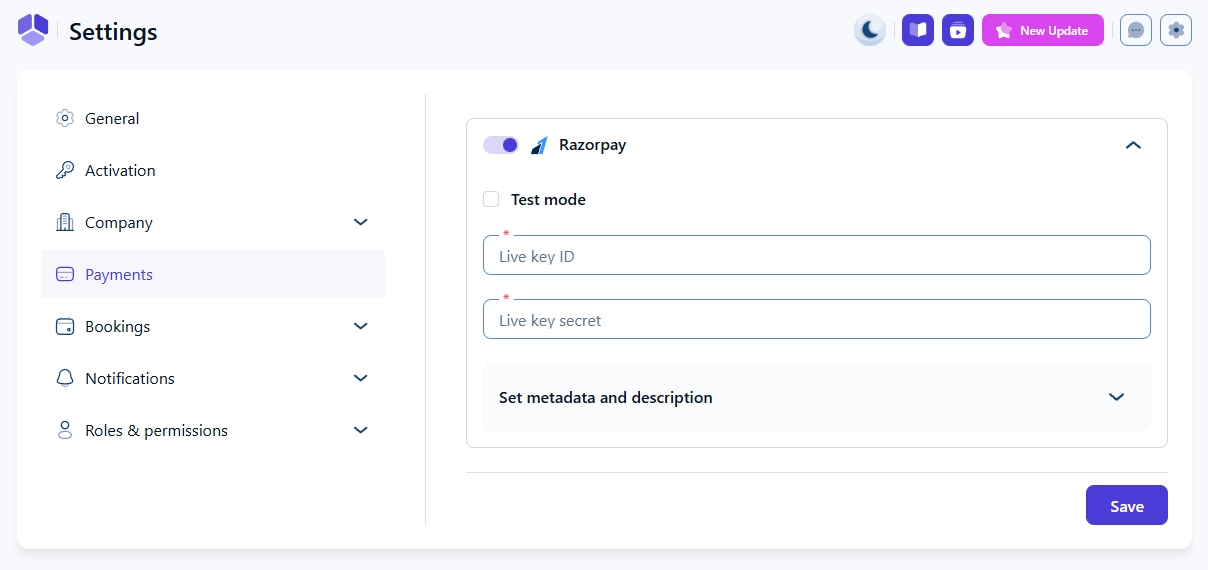
Go to Features & integrations → Integrations and enable Razorpay. Click Set up to open Amelia → Settings → Payments. Scroll down to the Razorpay section and enable it with the toggle.
You will see:
- Test mode – controls whether Razorpay uses test or live credentials.
- Live key ID and Live key secret – required for real payments.
- Test key ID and Test key secret – displayed when Test mode is enabled.
- Set metadata and description – allows you to send booking information to Razorpay with each payment.
How do I add live or test credentials from Razorpay?
Before entering any keys in Amelia, you need to generate an API key inside your Razorpay Dashboard.
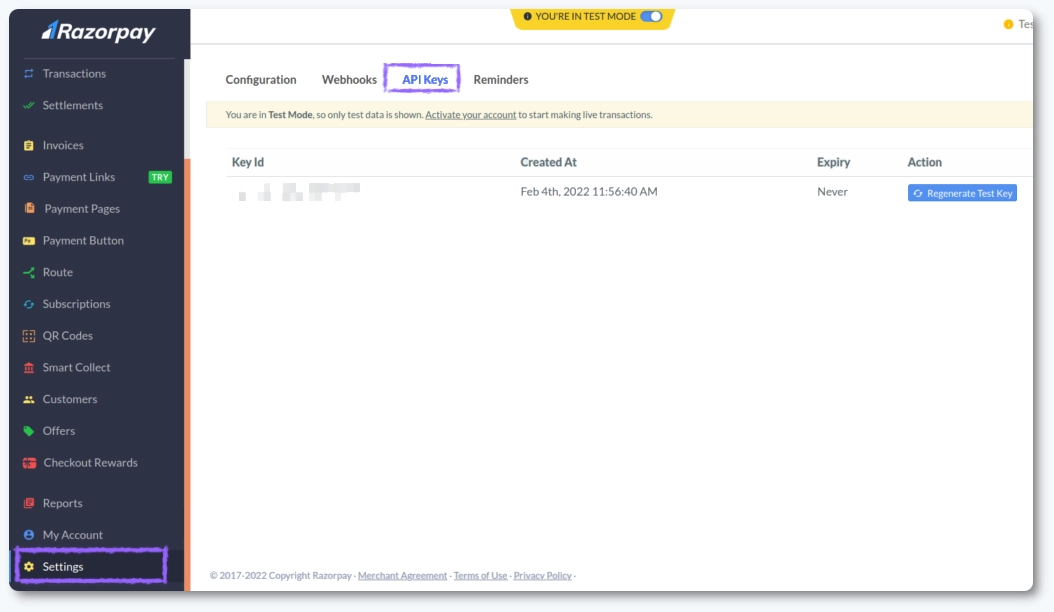
Log in to your Razorpay account, select whether you want to create Live or Test API keys, then navigate to Settings → API Keys and click Generate Key. Your Key ID and Key Secret will appear in a pop-up window.
Copy these values and paste them into the corresponding fields in Amelia → Settings → Payments → Razorpay. Repeat the process for test keys if you plan to use Test mode. Razorpay’s documentation provides additional guidance:
How to generate Razorpay API keys
In your Razorpay Dashboard, go to Settings and switch Payment Capture from automatic to manual. This prevents payments from being captured if something fails during the booking flow. Payments that remain uncaptured are refunded automatically after 5 days.
What is the “Set metadata and description” option in Razorpay?
Razorpay supports both metadata (key-value pairs) and description fields, allowing you to attach booking details to every transaction. These values appear in the Razorpay Dashboard and help you identify which booking each payment belongs to.
Metadata and descriptions can be configured separately for:
- Appointments
- Packages
- Events
- Cart bookings
You can add multiple metadata fields by specifying the property name and value, and you can use placeholders for dynamic values such as customer details, appointment information, service names, locations, payments, extras, coupons, and custom fields.
What should I keep in mind when using Razorpay in Amelia?
- You must generate your API keys in the correct mode (live or test) before adding them to Amelia.
- Razorpay Test mode requires matching test keys, not live ones.
- Set metadata and descriptions to easily track transactions in Razorpay.
- Use manual payment capture to avoid capturing payments for incomplete bookings.
- Verify that Razorpay is enabled for services, packages, and events where needed.