Limited time discount Make This Winter Your Most Organized Yet
Up to 50%Off

How to navigate the Amelia menus

Amelia provides multiple ways to access its features inside the WordPress dashboard. In addition to the standard Amelia menu in the WordPress sidebar, the plugin also includes a quick-access shortcut in the WordPress top admin bar for faster navigation to common actions.

These menus help you manage bookings, configure settings, and perform everyday tasks such as creating appointments, adding customers, or managing events.

This page provides an overview of both navigation areas so you can easily find the tools you need before diving into more detailed guides.

What is the Amelia shortcut in the WordPress top admin bar?

From version 9.2 Amelia adds a shortcut to the WordPress top admin bar to help administrators quickly access the most common booking actions without navigating through the main Amelia menu.

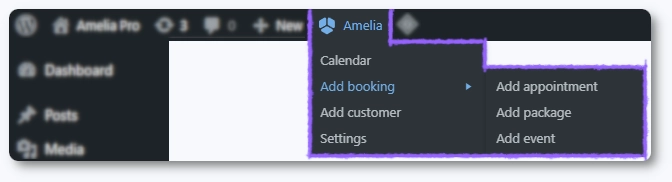
This shortcut appears in the WordPress admin toolbar at the top of the screen and provides quick access to frequently used actions such as creating new bookings, customers, packages, or events.

WordPress admin bar showing the Amelia shortcut menu with quick access options like Calendar, Add appointment, Add package, Add event, Add customer, and Settings

When you hover over the Amelia icon in the top admin bar, a dropdown menu appears with options like:

  • Calendar – opens the Amelia calendar view
  • Add appointment – quickly create a new appointment booking
  • Add package – create a new customer package
  • Add event – create a new event
  • Add customer – add a new customer to the system
  • Settings – open Amelia settings

This shortcut allows you to perform everyday actions faster, especially when you are already working inside the WordPress dashboard.

Info Note

The option to create Packages is available only on Pro and Elite licenses.

What is the Amelia menu in WordPress?

The Amelia menu is the main navigation area for managing your booking system inside the WordPress dashboard. It appears in the left WordPress admin sidebar after Amelia is installed and activated.

From this menu, you can access all core features of Amelia, including managing appointments and events, viewing the calendar, configuring services and employees, handling customers, reviewing payments, and adjusting system settings.

Each section of the Amelia menu focuses on a specific part of your booking workflow, allowing you to organize bookings, manage business resources, and configure how Amelia operates on your website.

Amelia menu items in WordPress
Info Note

Some menus in Amelia appear or disappear depending on which features you enable in the Features & Integrations section.

For example, disabling Custom Fields hides the Custom Fields menu in WordPress, and disabling Coupons removes the coupon tab from Finance. This keeps the interface clean and focused on what you actually use.

Dashboard

The dashboard provides an overview of your booking activity for the selected date range. It includes totals for appointments or events, new vs. returning customers, occupancy rate, revenue, upcoming bookings, and top trends by employees, services, and packages.

Calendar

A visual calendar showing all bookings in daily, weekly, or monthly view. You can filter by appointments or events, employees, services, locations, and more. New appointments or events can be added directly from the calendar.

Bookings

A centralized table showing all appointments, packages, and event bookings. Filters help narrow results by service, customer, employee, location, availability, or status. You can customize table columns, edit bookings, or create new ones from this page.

Events

A list of all events within the selected date range. You can filter by employee, attendee, location, or tags. This is where events are created or edited. Attendees are managed in the Bookings section, not here.

Employees

Add, edit, and manage your employees. Supports list and grid views, filtering by service or location, and customizing the visible columns. This is where you define who provides appointments.

Catalog

The place where you define what you offer: services, packages, and resources. You can create, edit, reorder items for the front end, and configure how they appear. This page is for managing offerings, not bookings.

Locations

Define the places where your appointments or events happen. Locations can later be assigned to employees and events.

Customers

A list of all customers who booked with you. You can add customers manually, import or export via CSV, and customize the table view.

Finance

The finance page shows transactions, invoices, and coupons. Includes filters for customers, employees, services, events, booking types, status, and date ranges. Transactions and coupons can be exported in CSV format.

Notifications

Manage the messages sent to customers and employees. Includes email, SMS, and WhatsApp notifications, as well as scheduled notifications and general sending settings.

Customize

The customize section allows you to adjust the appearance and behavior of your booking forms. You can change colors, labels, visibility, ordering of elements, and many layout options for each form type.

Custom Fields

Custom fields allow the creation of additional fields for bookings or customers. Booking fields appear during the appointment or event booking process, while customer fields are linked to customer profiles.

Features & Integrations

Enable or disable specific features or integrations to keep Amelia lean. Disabling a feature removes its menu entry; for example, disabling custom fields hides its menu.

Settings

The main configuration area for Amelia. Includes general settings (time slot step, phone country code, booking rules), activation, company details, working hours, days off, payment settings, notifications configuration, and roles & permissions.

What’s New

A feed of Amelia updates, including new releases, improvements, announcements, and video walkthroughs.