How to install the Amelia WordPress booking plugin
Installing the Amelia WordPress booking plugin is the first step after your purchase. The process is simple and can be done through your WordPress admin panel or manually via FTP. Follow the steps below to get started.
Where can I download the Amelia plugin after purchase?
After purchasing Amelia, you can download your plugin file (ameliabooking.zip) depending on where you bought it.
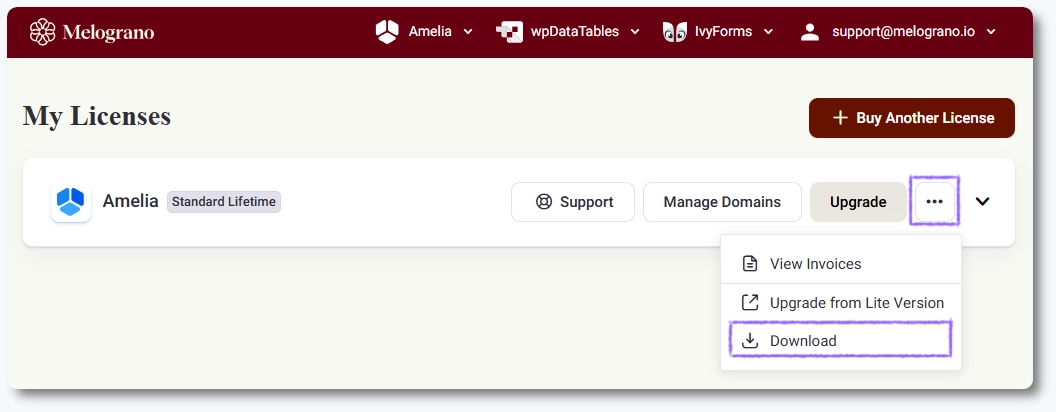
If you purchased Amelia on our website, log in to your account, and you’ll see your license card – click the three-dot menu (⋯) on the right side, and choose Download. This will download the latest version of the plugin to your computer.
You’ll also receive a confirmation email. It includes your purchase code, the email address used during checkout, a link to our store, and a direct Download button. The button stays active for 30 days or up to 5 downloads.
If you purchased Amelia from CodeCanyon/Envato, visit their website and download the installation file from there.
All Envato licenses are equivalent to the Amelia Standard plan on our website. They include lifetime updates but only 6 months of support.
For continued support and access to other plans, we recommend purchasing directly from our pricing page.
How do I install Amelia through WordPress admin?
The easiest way to install Amelia is through your WordPress dashboard.
- In your WordPress admin panel, go to Plugins → Add New → Upload Plugin.
- Click Choose File, select the
ameliabooking.zipfile you downloaded, and click Install Now. - Once the installation finishes, click Activate Plugin.
That’s it – Amelia is now installed and ready to be activated.
Next, continue to the Activating Amelia page to connect your license and start using Amelia.
What is the Welcome onboarding guide and when is it shown?
Starting with Amelia 9.1, a Welcome onboarding guide is displayed automatically after the plugin is installed and activated for the first time. This guide helps new users complete the minimum setup required for Amelia to work correctly.
The onboarding guide walks you through creating the basic elements needed for bookings, starting with an employee and then offering the creation of a service and or an event. This ensures that Amelia is usable immediately after setup, without requiring you to navigate through multiple back end pages.
When is the Welcome onboarding guide not shown?
The Welcome onboarding guide is not shown again if the plugin is deactivated and activated later. It will appear only if all Amelia data is removed during deactivation, which deletes all existing content, including employees, services, customers, events, and appointments.
Because this action permanently removes all booking data, it should be used only on fresh installations or test sites.
What happens if I skip steps in the onboarding guide?
Skipping steps in the Welcome onboarding guide does not limit Amelia’s functionality. If you choose not to create a service or an event during onboarding, you can still create them later from the Amelia back end.
The guide simply offers a faster starting point by creating essential data during the initial setup, without enforcing any restrictions.
Can I install Amelia via FTP?
Yes, if you prefer or if the WordPress upload doesn’t work, you can install the plugin manually via FTP.
- Unzip the
ameliabooking.zipfile on your computer. - Open your FTP client (such as FileZilla, Cyberduck, or Total Commander).
- Connect to your server and navigate to the
/wp-content/plugins/directory. - Upload the unzipped ameliabooking folder there.
- Once uploaded, go to your WordPress admin → Plugins and click Activate next to Amelia.
Both methods achieve the same result; Amelia will appear in your WordPress dashboard once installed.
Why do I see “The link you followed has expired” error?
This message is a common WordPress upload limit error, not an Amelia issue. It appears when your server’s maximum upload size is smaller than the plugin’s file size.
You can increase this limit in your hosting settings or by editing your WordPress configuration.
Learn how to fix this in our upload size limit guide.
If you’re upgrading from Amelia Lite
If you previously used the free Amelia Lite version, you’ll need to go through a short manual update process to switch to the premium version.
Follow our upgrading from free version guide for detailed steps.