 Spring Deals Are in Full Bloom

How do I use Amelia with Elementor
Amelia includes native Elementor widgets so you can add booking forms, event layouts, and both customer and employee panels directly through Elementor’s drag and drop interface.
Instead of copying shortcodes manually, you can place a widget on the page, select which Amelia form you want to display, and optionally preselect categories, services, employees, locations, packages, or events.
For example, you can drag the Step by step widget onto a page and filter it to show only one category, or switch an Event widget between a list view and a calendar view without editing shortcodes.
How do I add Amelia widgets in Elementor?
Before you start, make sure both Amelia and Elementor are installed and activated.
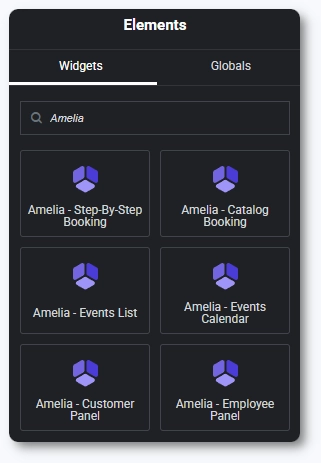
Open any page in Elementor and search for “Amelia” in the widgets panel, or scroll until you reach the Amelia section. The available widgets include all booking forms as well as the Customer and Employee panels.
Drag the widget you want onto the page and the preview will load automatically, showing the default shortcode for that form.
How do I customize Amelia widgets in Elementor?
After dragging a widget onto the page, the left sidebar displays customization options including Preselect booking parameters.
Enabling this option reveals fields that let you filter what the form shows. Depending on the selected widget, you can preselect services, categories, employees, locations, packages, or any combination of them.
The widget updates the shortcode automatically as soon as you adjust these parameters, and the preview refreshes in real time so you can confirm everything is displayed correctly.

How do I use event widgets with Elementor?
If you choose an Event Calendar or an Event List widget, you can also preselect a single event by ID, enable recurring event disp
ay, or filter events by tags. These options match the shortcode logic used outside Elementor, but the interface makes it easier to configure and preview the results before publishing.

How do I load booking forms manually using triggers in Elementor?
You can include manual loading options that allow you to show the form only after a visitor clicks a specific element. Enter the ID or class of the trigger (for example, a button created in Elementor), and enable Show in Amelia popup if you want the form to appear inside a modal window instead of being embedded on the page. This is useful for landing pages or layouts where booking forms should open only when requested.

What should I keep in mind when using Amelia with Elementor?
- Confirm that services, employees, and events exist and are assigned correctly or the widget preview may show a notice.
- Use preselected booking parameters when you want to limit what customers see on a specific page.
- Review the widget preview after adjusting filters to ensure the expected form loads correctly.
- Use manual triggers when you want the booking form to open in a popup instead of being displayed directly.
- Click the Publish or Update button in Elementor after configuration so changes appear on the front end.
- Clear website cache if the form does not update immediately after publishing.