Limited time discount Book Smarter This Christmas
Up to 50%Off

How do E-ticket QR codes work in Amelia?

E-ticket QR codes in Amelia allow organizers and employees to easily verify attendees at on-site events. Each attendee receives a unique QR code on their event ticket, which can be scanned at the entrance for quick and secure admission.

For group bookings, the person who made the reservation will receive individual e-tickets for each attendee plus a group ticket. The group ticket can be used to admit everyone at once, instantly validating all linked attendee tickets and streamlining entry for larger groups.

Although QR code e-tickets can technically be generated for all events, they’re primarily intended for on-site events. Online events (like those hosted through Zoom) already include a joining link, which serves as a built-in form of attendee validation.

Employees and managers can validate tickets directly by scanning the QR codes, either through the Amelia back end or the Employee Panel, using the Validate ticket button.

Info Note

The E-ticket QR code feature is available only in the Pro and Elite license plans.

The time zone shown on the ticket always matches your WordPress site’s time zone (the event’s actual location), ensuring that start times are displayed accurately for in-person attendance.


What do Amelia e-tickets look like?

Individual attendee e-ticket

Example of an Amelia QR code e-ticket showing ticket details and event information.

Group booking e-ticket

Example showing a group QR code e-ticket sent to the customer for a group booking in Amelia

How do I enable E-ticket QR code in Amelia?

To enable the E-ticket QR code feature, go to Amelia → Features & integrations and activate the feature.

Once the feature is activated, there is no further setup required. Even though, the Set up button appears in the E-ticket QR code card, for easy access to email notifications.

How do I configure the E-ticket QR code notification?

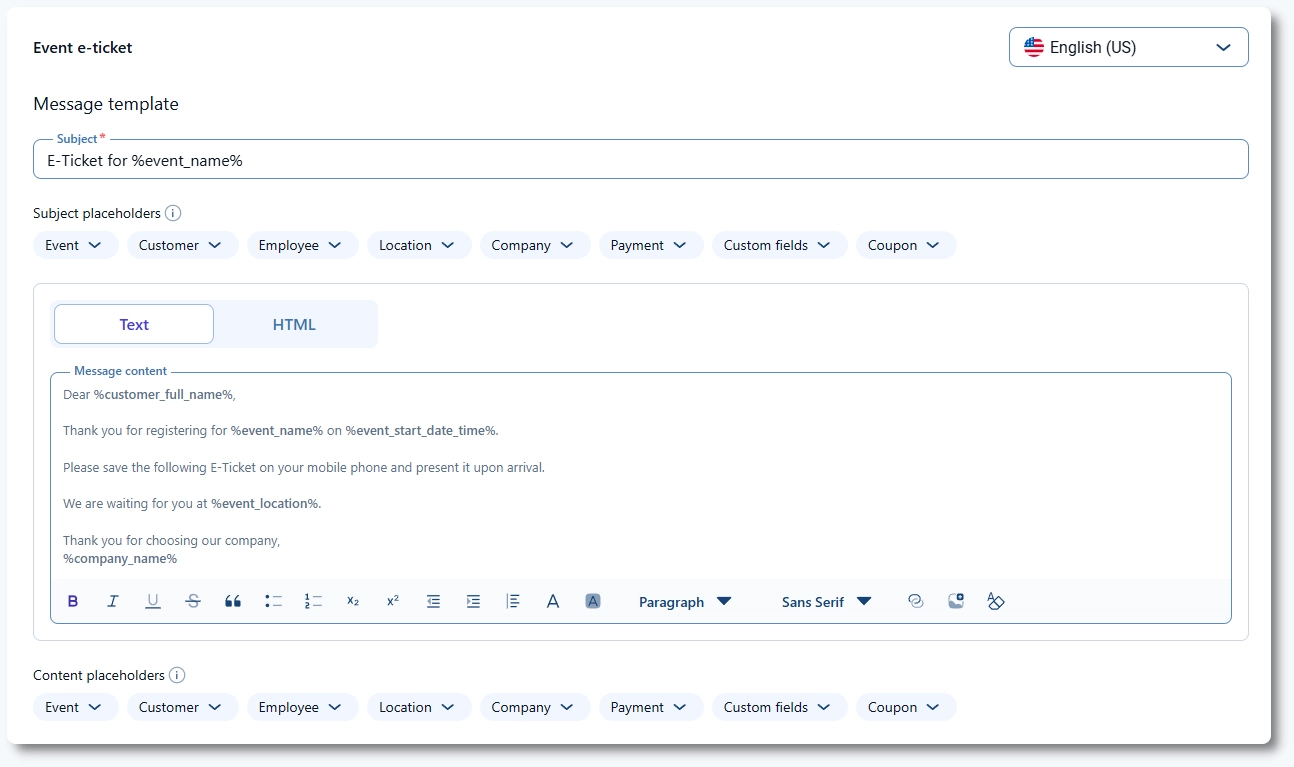
Clicking Set up takes you directly to the Notifications page, where you can configure the Event e-ticket email template. The template is pre-filled with default content, but you can adjust it at any time to match your event requirements.

You can also access this notification manually by navigating to Amelia → Notifications. The Set up button simply provides a shortcut to ensure the template is enabled and customized.

Event E-Ticket QR code notification template shown in Amelia’s Customers notifications list
Alert Please note

Keep the Event e-ticket notification enabled. It is responsible for generating the PDF ticket and sending it to customers.
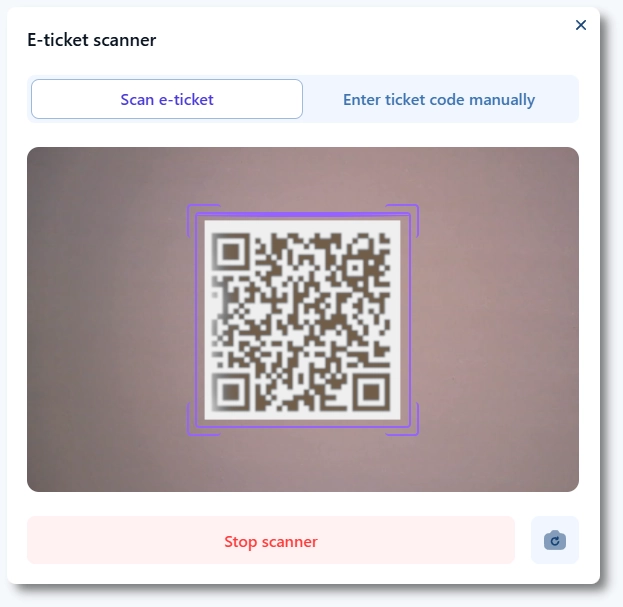
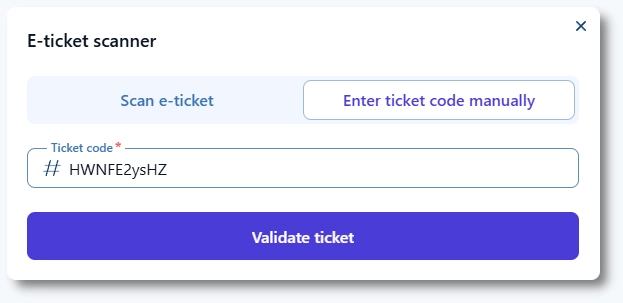
You can edit the subject and email body the same way you customize any other notification in Amelia. Once the notification is active, Amelia automatically generates e-tickets with QR codes and sends them to customers as PDF attachments.

How do QR code e-tickets work in Amelia?

Once an event is booked, Amelia automatically sends the QR code e-tickets to the customer who made the booking.

Depending on the booking type, the customer will receive either:

  • A single e-ticket (for individual attendees)
  • Single tickets for each attendee in a group + a group e-ticket (for group bookings, which validates all tickets in the group at once)

Each e-ticket contains key event and booking information, including the event name, ticket ID, event date and time (in the event’s local time zone), booking ID, and ticket type (single or group).
If custom pricing has been set up for the event, the ticket name (from the ticket type) will also appear on the e-ticket.

How ticket delivery and validation work?

When an event is booked with the On-site payment option, Amelia immediately sends the e-tickets to the customer.

If the booking is made with an online payment, the tickets will only be sent after the payment is completed, either automatically (through Payment via link) or manually, once the payment status is updated to Paid in the Finance section.

Customers can also access and download their e-tickets directly from their Customer Panel, so you can disable the e-ticket email notification if preferred.

Employees and managers can validate e-tickets in two ways:

  • From the WordPress back end under Amelia → Events
  • From the Employee Panel

Both options include a Scan button that opens a camera-based scanner for quick validation.

Active camera QR scanner in Amelia, validating an event code

If the device doesn’t have a working camera, there’s also an option to Enter ticket code manually, where employees can type the ticket code to validate the ticket.

How group QR codes are validated

In group bookings, the person who made the booking receives individual e-tickets for each attendee and one group e-ticket.

When the group QR code is scanned, all individual tickets in that group are validated automatically, meaning they can’t be used again.

Info Note

It’s best to scan the group QR code only when the entire group is present.

If someone arrives late, scanning the group ticket beforehand will invalidate all linked tickets, preventing their entry.
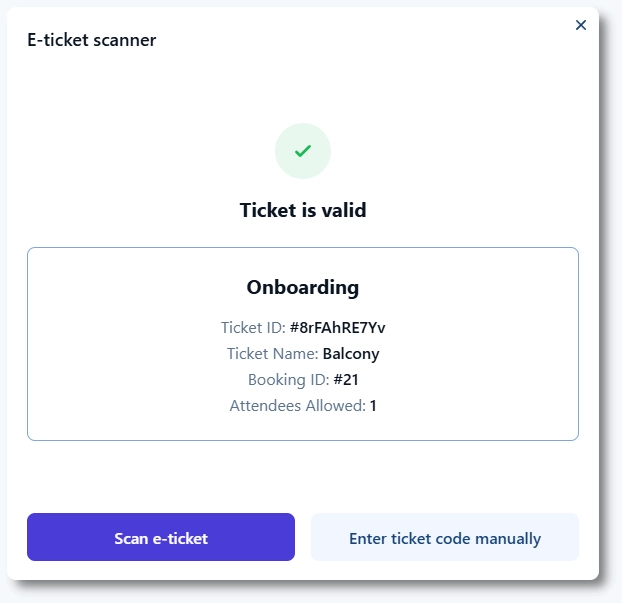
Individual attendees within the group can still validate their own single tickets separately. When this happens, the group ticket automatically adjusts its remaining valid count.

For example:

  • If a booking is made for 7 people and one attendee enters early, their individual ticket is validated.
  • The group QR code now becomes valid for 6 attendees.
  • If another person enters with their single ticket, the group QR code adjusts again and becomes valid for 5, and so on.

A scanned QR code (individual or group) can only be used once.

Example of an E-ticket QR code validation in Amelia

How multi-day events handle e-tickets?

If an event spans multiple days, Amelia validates tickets per day, not for the entire duration.

This means attendees can attend multiple days of the same event using the same e-ticket — but each visit validates only that day’s attendance.

For example, if the event runs from December 25–31, the attendee’s ticket will be validated for each day they check in, allowing them to return for subsequent days.

You can monitor daily validations by checking the Attendees list:

  • In the WordPress back end, click the Attendees button next to the event.
  • In the Employee Panel, click the three-dots menu → Attendees.
Attendees list in the Amelia back end showing one date validated out of many upcoming

For more information about the difference between multi-day and recurring events, see the Multi-day vs recurring events in Amelia documentation.

What should I know about E-ticket QR codes?

  • The QR code e-ticket feature is available only with Pro and Elite licenses.
  • E-tickets are automatically sent as PDF attachments via email when the Event e-ticket notification is enabled.
  • For on-site payments, tickets are sent immediately after booking.
  • For online payments, tickets are sent only after the payment is completed or marked as Paid in Amelia → Finance.
  • Customers can also access and download their e-tickets from the Customer Panel.
  • Each QR code (individual or group) can only be validated once.
  • Ticket validation is available from both the WordPress back end and the Employee Panel.
  • E-tickets work best for on-site events and use the event location’s time zone, not the attendee’s.