How do I connect Barion payments in Amelia?
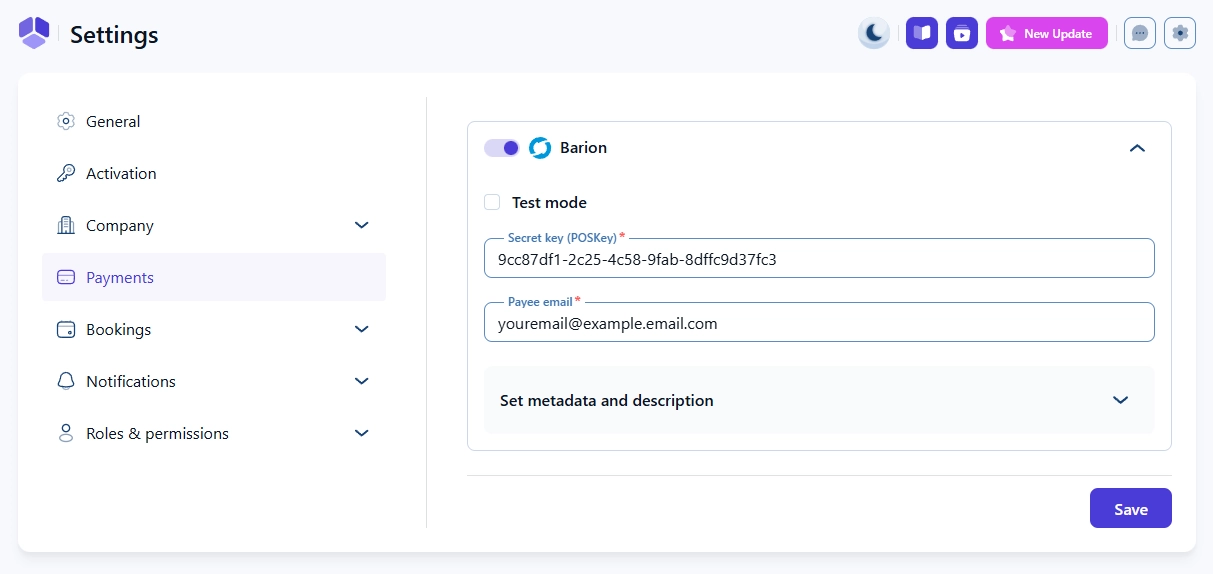
You can enable Barion as your payment gateway in Features & integrations → Integrations. Then click the Set up button and you’ll be taken to Amelia → Settings → Payments. Scroll down a bit and enable Barion. It can be used in both Live and Sandbox (testing) modes. Each requires its own configuration in your Barion account.
The Barion payment gateway is available in Standard, Pro and Elite license plans.
How do I configure Live and Sandbox modes in Barion?
In your Barion account, you’ll need to set up two separate environments:
- Sandbox – for testing transactions before going live.
- Live – for real customer payments.
To set up your Sandbox account, visit the Barion Sandbox and create a business account using dummy data for testing.
For your Live account, visit the Barion registration page and register using your actual business information.
Barion currently supports merchants located only within the European Economic Area (EEA).
Once you’ve created your Barion shop:
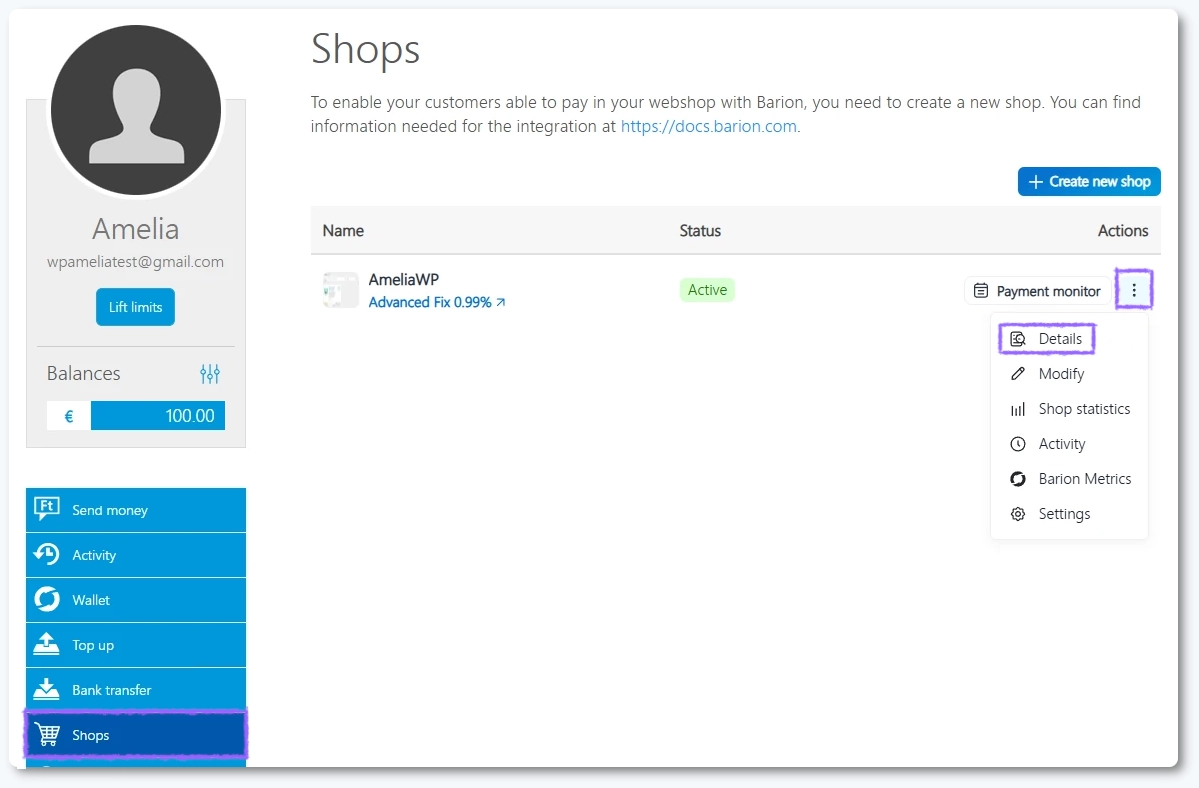
- Go to Shops → Actions → Details.
- Copy the Secret Key (POSKey).
- Paste it into Amelia → Settings → Payments → Barion → Secret key (POSKey).
What is the Payee Email and are there any limitations?
The Payee Email is the email address of the Barion wallet that will receive the payments.
It must belong to the same Barion account that owns the webshop connected to Amelia.
You cannot make a payment using the same Barion account that owns the shop. Barion does not allow merchants to purchase from their own store.
When using the Barion payment integration, the Service Description field in Amelia must not exceed 500 characters, or the payment will fail.
Which currencies does Barion support?
Barion currently supports only the following currencies:
- Hungarian Forint (HUF)
- Czech Koruna (CZK)
- Euro (EUR)
- US Dollar (USD)
Each currency has a minimum payment amount, below which transactions cannot be completed:
| Currency | Minimum amount |
|---|---|
| HUF | 10 Ft |
| EUR | 0.1 € |
| USD | $0.1 |
| CZK | 1 Kč |
If a payment amount is below these thresholds, the Barion Smart Gateway displays an error message, and the payment will not go through.
How do Barion payments and payment links work in Amelia?
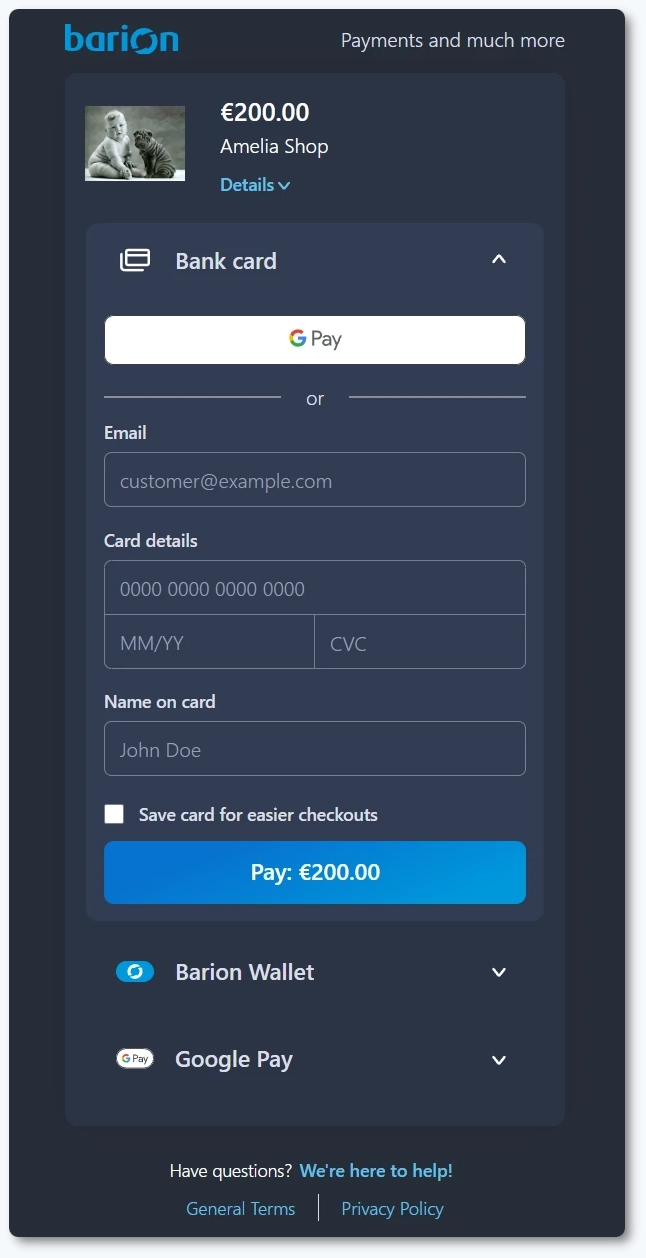
Barion works just like other Amelia payment gateways when it comes to payment links. You can send a Payment from link to your customers and they’ll be redirected to the Barion Smart Gateway to complete their payment.
For more information about how this feature works, see the Payment from Link in Amelia documentation
Where can I view my transactions in Barion?
Once you log in to your Barion account, you can view all payment transactions, whether from the Live or Sandbox environment.
You’ll see detailed records of completed, pending, and failed transactions, along with corresponding amounts and payment statuses.
What should I keep in mind when using Barion payment integration?
- The Barion integration is available for merchants within the European Economic Area (EEA).
- Live and Sandbox modes must be configured separately in Barion.
- Barion cannot be used together with other payment gateways in Amelia.
- Supported currencies are HUF, CZK, EUR, and USD.
- Payments via link work the same as with any other payment method.
- You can monitor all transactions directly from your Barion dashboard.