Limited time discount Make This Winter Your Most Organized Yet
Up to 50%Off

Which options are available in appointment settings

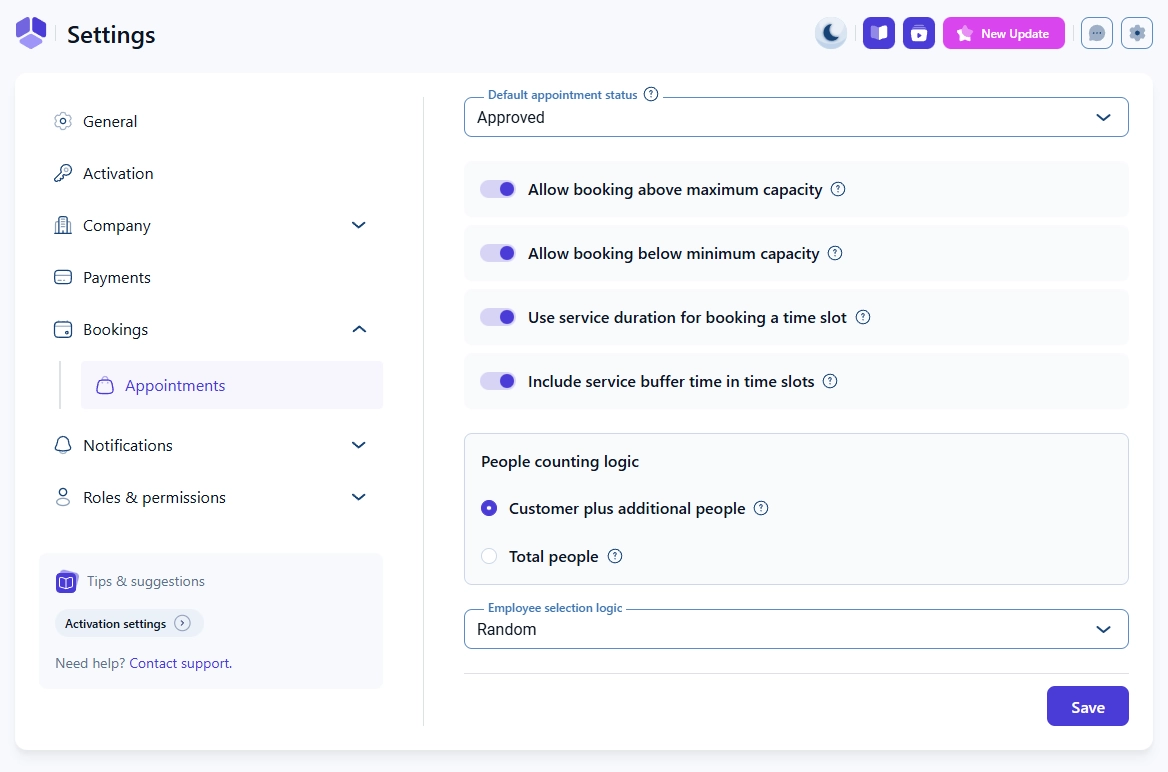
Appointment settings define how new appointments behave by default. Here you choose the default status for incoming bookings, how capacity is handled, how time slots are shown, how people are counted, and how Amelia picks an employee. You’ll find them in Amelia → Settings → Bookings → Appointments.

Overview of Appointment settings in Amelia with capacity, time slot, and employee logic options

What is the default appointment status?

The Default appointment status option sets the status that will be assigned to every new appointment created on the front end or in the back end. You can choose between Approved (default) and Pending.

  • If you choose Approved, new bookings are confirmed immediately.
  • If you choose Pending, new bookings will wait for manual approval before they become active.
Info Info
Regardless of the default status, group appointments for services with a capacity greater than 1 will always come in as Pending until the minimum capacity is reached.

How do capacity rules work for group appointments?

Capacity rules control how Amelia treats minimum and maximum capacity for services that allow more than one person per time slot. These rules are managed through two sliders that are both enabled by default.

What does “Allow booking above maximum capacity” do?

Allow booking above maximum capacity and allow booking below minimum capacity sliders in Amelia

The Allow booking above maximum capacity slider controls whether customers can book appointments with Pending status above the maximum capacity of a service.

  • If disabled, customers on the front end cannot create a new Pending booking once the maximum capacity has been reached. The appointment closes and the time slot becomes unavailable.
  • If enabled, Amelia can accept Pending bookings above the maximum capacity, which is useful if you want to overbook while you manually confirm or decline requests.

What does “Allow booking below minimum capacity” do?

The Allow booking below minimum capacity slider controls how strictly Amelia enforces the minimum capacity for services.

  • If disabled, customers must meet the minimum service capacity in a single booking. As soon as one customer books at or above that minimum, the time slot closes for everyone else. This creates a private group appointment.
  • If enabled, customers can book the same time slot even if they do not meet the minimum capacity on their own. Multiple customers can join that time slot until the maximum capacity is reached. This behaves more like a public group appointment where seats remain open until the slot is full.
Info Example
If you want group appointments to stay open so multiple customers can join over time, keep Allow booking below minimum capacity enabled.

How does service duration affect time slots?

Time slot display can follow either the global time slot step from General settings or the exact service duration. This is controlled with two sliders: Use service duration for booking a time slot and Include service buffer time in time slots.

What does “Use service duration for booking a time slot” do?

The Use service duration for booking a time slot slider defines how Amelia builds the grid of available time slots.

  • If disabled, Amelia uses the Default time slot step from Settings → General. For example, with a 30-minute step and a 1-hour service, customers might see time slots like 09:00 – 10:00 and 09:30 – 10:30.
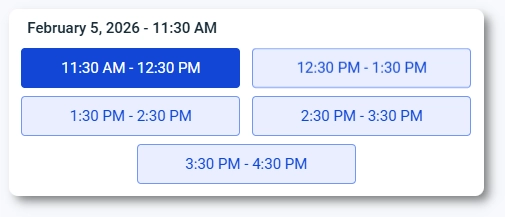
  • If enabled, Amelia uses the service duration (plus any extras duration) to define time slots. A 1-hour service will then appear as 09:00 – 10:00, 10:00 – 11:00, 11:00 – 12:00, and so on.

This setting is useful when you want clean, back-to-back appointment slots aligned exactly with service durations.

What does “Include service buffer time in time slots” do?

The Include service buffer time in time slots setting controls how buffer time affects the way available time slots are generated and displayed on the front end.

This setting does not remove buffer time. It changes whether buffer time is applied as a fixed gap between all time slots or dynamically after a booking is made.

What happens when the setting is enabled?

When enabled, buffer time is applied as part of a fixed schedule. Time slots are generated so that the buffer time is always respected between appointments.

Each time slot displays only the service duration (and any defined Extra times), but the next available slot is automatically shifted by the buffer time.

For example, with a 1-hour service and a 30-minute buffer after the appointment, available time slots are shown as:

  • 09:00 – 10:00
  • 10:30 – 11:30
  • 12:00 – 13:00

This approach creates a predictable schedule where buffer time is always enforced between bookings, making it suitable for busy services with a continuous flow of appointments.

Fixed appointment time slots with buffer time applied between bookings

What happens when the setting is disabled?

When disabled, time slots are generated without considering buffer time upfront. All available slots are displayed consecutively based on the service duration, creating a flexible schedule.

Using the same example, the available time slots initially appear as:

  • 09:00 – 10:00
  • 10:00 – 11:00
  • 11:00 – 12:00
Available appointment time slots before booking when buffer time is disabled

Once a customer books an appointment, buffer time is then applied to that booking and affects surrounding time slots dynamically.

For example, if the 10:00 – 11:00 slot is booked, the buffer time removes the 09:00 slot and shifts the next available slot to 11:30, followed by 12:30, and so on.

Adjusted appointment time slots after booking with buffer time applied

This setup allows customers to freely choose a start time, while Amelia adjusts availability only after a booking is made. It works well for services with lower booking volume or more flexible schedules.

Alert Please note

This setup allows customers to freely choose a start time, while Amelia adjusts availability only after a booking is made. It works well for services with lower booking volume or more flexible schedules.

How are people counted in group bookings?

The Logic for counting people setting defines how Amelia counts participants when customers add additional people to a booking. You can choose between two radio button options:

  • Customer plus additional people
  • Total number of people

With Customer plus additional people, Amelia automatically counts the customer who is making the booking. If they are bringing two more people, they select 2, and Amelia records a total of 3 participants.

With Total number of people, the customer must enter the full number of participants including themselves. If they are bringing two more people, they select 3.

Radio buttons for logic for counting people in Amelia appointment settings.
Info Info
Choose the option that best matches how your customers naturally think about group size to avoid confusion on the booking form.

How does employee selection logic work?

The Employee selection logic dropdown defines how Amelia chooses an employee when the customer does not pick a specific person or when the employee selection is hidden in Customize.

Available options are:

  • Random (default)
  • Round robin
  • Highest price
  • Lowest price

Random assigns the appointment to a random available employee for that service and time.

Round robin distributes bookings as evenly as possible by rotating through available employees so everyone gets a fair share of appointments.

The Highest price and Lowest price options are useful when employees have different prices for the same service. Prices are configured in Employees → Edit employee → Services tab, and Amelia uses those values to decide which employee is chosen.

Employee selection logic dropdown in Amelia appointment settings

All sliders in Appointment settings are enabled by default, so if you are unsure where to start, you can keep the default configuration and then refine it once you see how your customers use the booking form.