Limited time discount Book Smarter This Christmas
Up to 50%Off

How to activate Amelia

Before you start using Amelia, you’ll need to activate your license. Activation ensures that your plugin receives automatic updates and verifies your purchase.

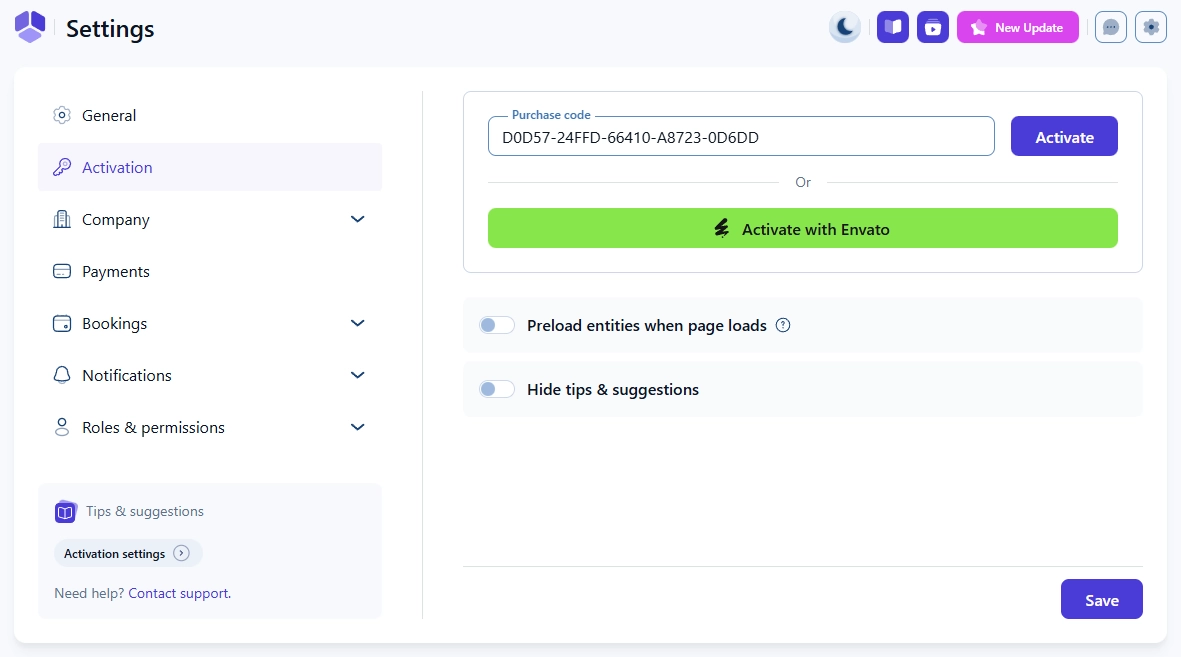
You can activate Amelia directly in Settings → Activation.

How do I activate my Amelia license?

Depending on where you purchased your license, there are two activation methods:

  • If you purchased from our website:
    Enter your purchase code in the Purchase Code field, then click Activate.
  • If you purchased from CodeCanyon/Envato:
    Click the green Activate with Envato button. You’ll be redirected to Envato to sign in and confirm the activation.

Once the activation is complete, click Save in the bottom-right corner to apply changes.

Activation page in Amelia showing the purchase code field, Activate with Envato button, and Save button

What do the other settings mean?

Below the activation section, you’ll find two additional toggles:

  • Load entities on page load – When enabled, Amelia loads all entities (services, employees, locations, packages, and tags) as soon as the page loads, instead of using AJAX calls. This can slightly improve performance on smaller websites.
  • Hide locked options – When enabled, Amelia hides all premium features that aren’t available on your current license plan, keeping the interface cleaner.

After adjusting the settings, don’t forget to click Save.

Where can I find my purchase code?

If you purchased Amelia on our website, you’ll receive your purchase code right after checkout. It’s needed to activate your license and receive updates.

You can find your code in two places:

  • In your confirmation email:
    After purchasing, you’ll receive two emails – one from Melograno (with your purchase code, store URL, the email you registered with, and download link) and one from our reseller Paddle (containing your invoice).
Email from Melograno showing the Amelia purchase confirmation with the purchase code and store login credentials highlighted.
Info Please note

Some hosting providers may flag these emails as spam, so if you don’t see them in your inbox, please check your Spam or Junk folders.

  • In your Store account:
    Log in to your Store account. Once logged in, you will see all the Licenses you own. Click on the down arrow on the far right of the license card to expand it, and you will see your purchase code.
Melograno store account showing the Amelia license card with visible purchase code and options to manage license.

If this is your first time accessing the store account, you’ll be asked to set your password before you log in.

If you didn’t receive the confirmation email after purchase, there’s a good chance the email address was entered incorrectly during checkout. In that case, please reach out to our support team through the Store login page by expanding the Amelia menu at the top and selecting Contact Support, so we can help you locate your account and update your email.

Info Note for CodeCanyon/Envato users

If you purchased Amelia from CodeCanyon, you don’t need to enter a purchase code. Simply click the Activate with Envato button in Amelia’s Activation settings. This will redirect you to your Envato account to securely confirm your license.

What if activation fails?

If you see an error message like “The purchase code is invalid or it has expired”, double-check that you entered the correct code. If the issue persists, log in to the store to confirm your license is active.

Please note that this error will also be shown if you reached the maximum number of registered domains. Visit your store account and manage your active domains. Deactivate Amelia on websites you no longer use to free up a slot.