
Calendly’s official plugin loads one file: widget.js. That’s the same file sitting inside the embed code Calendly hands you for free.
So the plugin isn’t adding capability. It’s adding a wrapper around a copy-paste, plus one more thing to update and patch.
Knowing how to embed Calendly in WordPress without a plugin skips that layer entirely. You paste Calendly’s snippet into a Custom HTML block, a theme file, or a plain iframe, and the booking calendar loads.
What Does It Mean to Embed Calendly in WordPress Without a Plugin?
It means pasting Calendly’s own embed code directly into WordPress rather than installing a third-party connector. The code loads a scheduling widget on your page, and nothing extra runs in the background.
Calendly hands you three ready-made code sources from its own dashboard:
- Inline embed: the booking calendar sits right on the page
- Popup widget: a floating button opens the calendar in an overlay
- Popup text: any link or text triggers the same overlay
All three snippets are built around one file:
https://assets.calendly.com/assets/external/widget.js
Note the assets. subdomain. The script does not live on calendly.com directly, and typing the URL from memory without it is a fast way to end up with a blank calendar. The popup embeds also pull a stylesheet from the same subdomain, https://assets.calendly.com/assets/external/widget.css, so copy Calendly’s snippet whole rather than rebuilding it by hand.
That script does the heavy lifting, which is exactly what a plugin would otherwise wrap for you.
The code lives in a few possible spots inside WordPress:
- A Custom HTML block in the Gutenberg block editor
- The theme header or footer for site-wide loading
- A plain iframe when you want zero external scripts
Why skip the plugin at all? Fewer scripts. Nothing extra to update every month. Full control over placement.
WordPress powers roughly 41% to 42% of all websites (W3Techs, 2026), and its official directory holds more than 60,000 free plugins. Plenty of those add features you genuinely can’t build yourself. A Calendly embed isn’t one of them.
Here’s the honest trade-off. Patchstack’s security research attributes the large majority of reported WordPress vulnerabilities to plugins rather than core, so every plugin you skip is one less thing to patch.
Which Calendly Embed Types Work Without a Plugin?
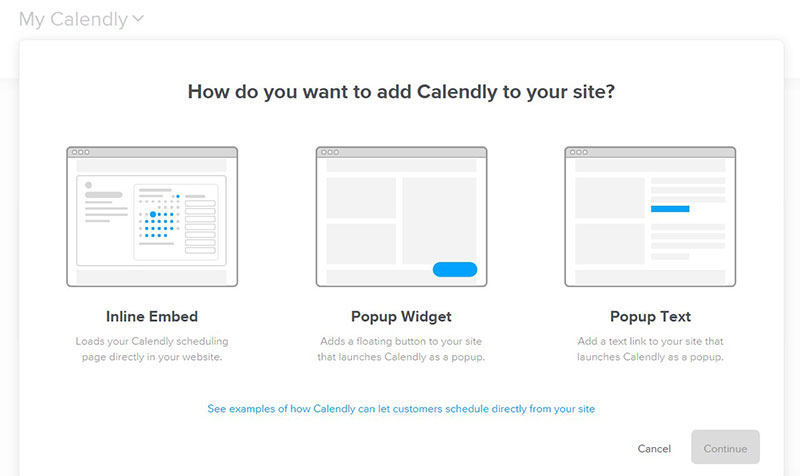
Inline embed, popup widget, and popup text. Each comes straight from the Share panel inside your Calendly account, and all three output a snippet you paste into WordPress.
Calendly reports serving more than 20 million users across 230+ countries, and every one of those accounts can generate these formats for free.
| Embed Type | What It Does | Best For |
|---|---|---|
| Inline | Calendar sits on the page | A dedicated booking page |
| Popup widget | Floating corner button | Site-wide presence |
| Popup text | Link opens overlay | Inside a paragraph or CTA |
Inline Embed
Best for a dedicated “Book a call” page.
The calendar renders directly in the page flow. Visitors see available slots without clicking anything. Works well on a contact page or a standalone scheduling URL.
Popup Widget
A small button parks itself in the corner of the screen. Click it, and the calendar slides open in an overlay.
The benefit is site-wide presence without eating page space. The button follows visitors across pages when you load it in the footer.
Popup Text
Turn any word, link, or button into a booking trigger. The overlay opens on click, same as the widget.
Perfect for “Schedule a call” mid-sentence. Terrible if you want the calendar visible without interaction.
Where Do You Find the Calendly Embed Code?
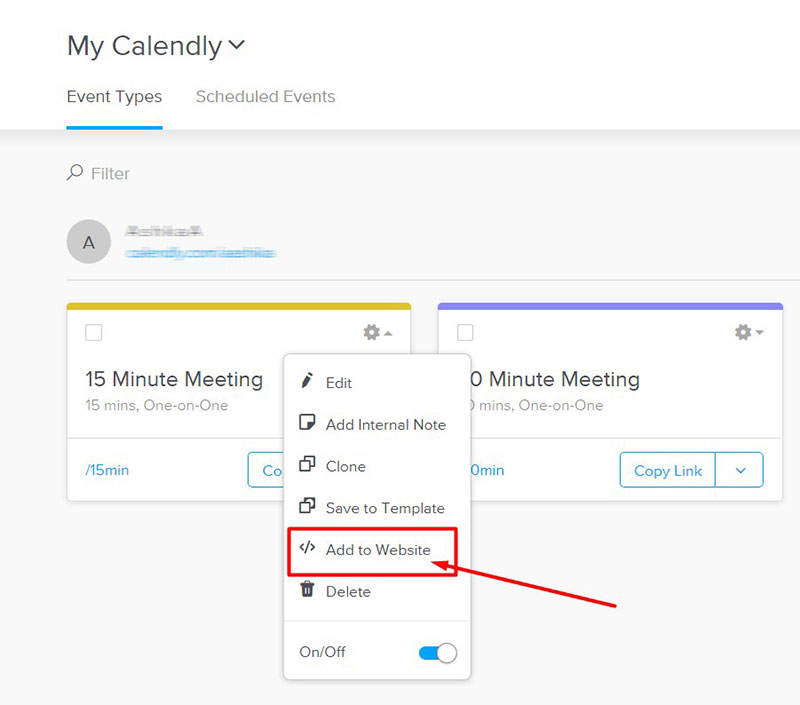
Inside your event type, under the Share button, then Add to Website. Pick one of the three embed types and Calendly generates the snippet.
- Log in and open the event type you want to embed
- Click Share
- Choose Add to Website
- Select inline, popup widget, or popup text
- Copy the generated code
The inline snippet contains two parts: a container div plus the widget.js script tag pointing at assets.calendly.com. The popup snippets add a stylesheet link from the same subdomain. You need every part Calendly gives you for the calendar to render, so copy the block whole rather than picking pieces out of it.
Free Calendly accounts can embed too. The catch is styling. Color customization and branding controls sit behind paid plans, so a free embed shows Calendly’s default look. Limited customization on the free tier is one of the most common complaints in user reviews, and embed styling is part of that gap.
How to Embed Calendly Inline With the Custom HTML Block
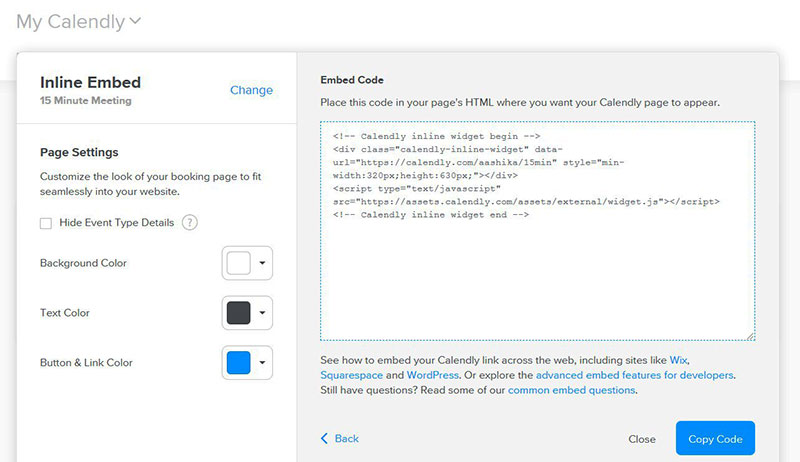
The Custom HTML block is the whole trick here. Paste the inline snippet, preview, publish.
- Open the page or post in the block editor
- Add a block, search Custom HTML, insert it
- Paste the inline snippet from Calendly’s Add to Website panel
- Hit the Preview tab inside the block, since live rendering only shows there
- Publish and open the front end to confirm
The block editor won’t show the calendar inside the editor itself, which throws people off.
The most common trip-up? Pasting into a Paragraph block instead of Custom HTML. A Paragraph block strips the script and shows raw code, or nothing at all. We’ve watched people redo this three times before checking the block type.
If you’d rather not touch code at all and want a fuller booking system, the dedicated Calendly plugin route for WordPress handles placement through a settings screen instead. For a plain embed, though, the Custom HTML block is faster.
How to Add a Calendly Popup Widget Without a Plugin
Copy the popup widget code from the Add to Website panel, then decide where it goes. The button appears in the screen corner and opens the calendar on click.
- Single page: Custom HTML block, same as the inline method
- Site-wide: the script goes in the theme header or footer
The snippet includes parameters you can edit before pasting. Button text and button color both live right there in the code, so change the label from “Schedule time with me” to whatever fits your brand voice.
One thing that bites people. The widget loads widget.js, and so does the inline embed. If you already have an inline calendar on the same page, don’t let the script load twice. A duplicate widget.js can cause the second embed to quietly fail.
Stack a few third-party scripts and the cost adds up. Several external scripts together can add noticeable time to page load, and a single popup widget is a light way to keep that count low.
How to Embed Calendly Using an iframe
Build a plain iframe tag pointing at your booking URL and drop it into a Custom HTML block. This method skips Calendly’s external script entirely.
The markup is about as simple as it gets:
<iframe src="https://calendly.com/yourname/">- Width: 100% so it fills the container
- Height: roughly 630px to 700px depending on your event type
Worth noting the difference here. The iframe points at your public booking page on calendly.com, which is a different URL from the assets.calendly.com script the official embeds load. That’s the whole reason this method sidesteps script conflicts.
The trade-off is that an iframe skips Calendly’s auto-resize and prefill features. The calendar won’t grow or shrink on its own, and it won’t pass visitor details into the booking form. You set a fixed height and live with it.
So why bother? The iframe is a solid fallback when Calendly’s official script fights with a caching or optimization plugin. Caching layers like WP Rocket and W3 Total Cache sometimes defer or strip widget.js, and a raw iframe sidesteps that whole mess.
It slots into the Custom HTML block exactly like the official snippet does. Same block, different code.
How to Add Calendly to Header or Footer Theme Files
Two routes here, one for coders and one for everyone else. Either way, work in a child theme so updates don’t wipe your changes.
Using functions.php and wp_enqueue_script
Load widget.js the proper way with wp_enqueue_script, hooked into the wp_enqueue_scripts action. That’s the action WordPress provides for registering scripts, and it’s the one to use rather than hooking into wp_footer directly.
Register it against the full URL, https://assets.calendly.com/assets/external/widget.js, since a wrong host is the single most common reason a hand-written enqueue produces nothing on the front end.
To place the file in the footer rather than the head, pass true as the final $in_footer argument to wp_enqueue_script. Enqueuing this way, rather than hardcoding a script tag, also ensures the file loads once and not twice.
Edit functions.php carefully. One typo takes the whole site down. Use a child theme or a code-snippet tool so a theme update doesn’t erase your work.
Using a Theme’s Header/Footer Field
No code required. Themes like Astra and Kadence ship with a header/footer scripts box in their settings, and GeneratePress offers the same through its Elements module.
Paste the widget code there and it loads across every page. Elementor gives you a similar custom-code area. This is the route most people actually take.
Still on the Classic Editor? Switch to the Text tab before pasting, never the Visual tab. Visual mode mangles the script into plain text and breaks the embed.
Which No-Plugin Method Fits Your WordPress Setup?
Match the method to what you actually run.
| Your Setup | Best Method | Difficulty |
|---|---|---|
| One booking page | Custom HTML inline embed | Easy |
| Button on every page | Popup widget in footer | Easy |
| Script conflicts, speed focus | Plain iframe | Medium |
| Full developer control | functions.php enqueue | Advanced |
Speed matters more than it used to. WordPress sites lag newer frameworks on Core Web Vitals pass rates in HTTP Archive data, so every script you handle carefully counts on a WordPress build.
Core Web Vitals remain a live ranking consideration, which pushes the iframe and single-page methods ahead for anyone chasing performance.
Start simple. Move up the list only when your setup forces it.
How Do You Fix a Calendly Embed Not Showing in WordPress?
The calendar renders blank, or you see only the raw widget.js link sitting on the page. That’s the classic symptom people report in the Calendly community forums.
Six causes account for nearly all of it, and they’re worth checking in this order:
- A wrong script URL (missing the
assets.subdomain) - A caching plugin stripping
widget.js - JavaScript deferral or minification
- The wrong block type
- A security plugin blocking calendly.com
- A duplicate script tag
Check the Script URL First
Before touching cache settings, open your browser’s dev tools, look at the Network tab, and reload the page. A 404 on widget.js means the URL is wrong, and the usual cause is a hand-typed calendly.com/assets/external/widget.js instead of assets.calendly.com/assets/external/widget.js.
This one takes ten seconds to rule out and saves you from debugging a caching problem you don’t have.
Caching and Script Deferral
Caching plugins are the next suspect. WP Rocket and W3 Total Cache defer or delay scripts to speed up load, and widget.js gets caught in the net.
The fix is to exclude the Calendly script from JavaScript deferral. In WP Rocket, add the data-nowprocket attribute to the script tag, or list the file under Excluded JavaScript Files in the settings. For an inline script, WP Rocket reads a // nowprocket comment inside the script instead.
The attribute name is data-nowprocket, not nowprocket on its own. WP Rocket won’t recognise it without the data- prefix, and the script stays deferred.
WP Rocket’s own documentation notes that deferring every script isn’t always possible without breaking functionality. Interactive widgets are exactly what breaks.
Wrong Block or Editor Mode
- Paragraph block: strips the script, shows plain text or nothing
- Custom HTML block: renders the embed correctly
- Classic Editor: paste in the Text tab, never Visual
A large share of interactive embed failures come down to this one mistake. Wrong container, dead calendar.
Security Plugins and Duplicate Scripts
A Content Security Policy or a security plugin can block Calendly outright. Whitelist both calendly.com and assets.calendly.com, since the booking page and the script sit on different hosts and allowing only one leaves you with the same blank calendar.
Loading widget.js twice on one page breaks the second embed. Keep the script to a single instance.
Third-party scripts are a leading cause of poor INP scores, so trimming duplicates helps both rendering and responsiveness.
How Do You Style and Resize the Calendly Embed?
Two levers do the work: the container’s CSS and the query string on your Calendly URL.
Setting Height and Width
The inline embed container carries its own inline styles. A typical setup uses min-width:320px and height:700px.
For responsive width, wrap the embed in a full-width container and the calendar fills it. Set width to 100% and the layout adapts to mobile.
Mobile traffic now accounts for roughly 55% to 60% of web visits depending on the month and the source, per StatCounter data, so a fixed pixel width that ignores small screens costs you real bookings.
Hiding Details and the Cookie Banner
Append URL parameters to the data-url value, separated by &, not a second ?. That separator mistake is the top reason these parameters silently fail.
hide_event_type_details=1removes the avatar, name, and descriptionhide_gdpr_banner=1suppresses the cookie noticehide_landing_page_details=1cleans up a full landing-page embed
Hide the GDPR banner only if your own site already handles cookie consent under GDPR or CCPA.
Brand Colors and Plan Limits
The color parameters are primary_color, text_color, and background_color, and they take hex values without the hash.
Color customization and removing Calendly branding require a paid plan. Calendly’s tiers are Free, Standard, Teams, and Enterprise, with branding and color controls unlocking on Standard (from $10 per seat per month billed annually). Free accounts keep the default look no matter what parameters you add.
A booking page that matches your brand converts better, and a Forrester Total Economic Impact study commissioned by Calendly found a 318% ROI over three years for customers using the platform. That figure comes from vendor-commissioned research, so weigh it accordingly. Styling the embed is a small part of capturing it either way.
FAQ on How To Embed Calendly In WordPress Without A Plugin
Can you embed Calendly in WordPress without a plugin?
Yes. Calendly gives you embed code from its Add to Website panel. Paste it into a Custom HTML block, a theme file, or an iframe. No plugin needed.
Where do I find the Calendly embed code?
Open your event type, click Share, then Add to Website. Pick inline, popup widget, or popup text. Calendly generates the snippet with a container and the widget.js script. Copy it whole.
What is the Calendly widget.js URL?
It’s https://assets.calendly.com/assets/external/widget.js, on the assets. subdomain rather than calendly.com itself. Getting the host wrong produces a 404 and a blank calendar, which is the most avoidable cause of a failed embed.
Which block do I paste the Calendly code into?
The Custom HTML block in the Gutenberg editor. A Paragraph block strips the script and breaks the embed. On the Classic Editor, switch to the Text tab first.
Why is my Calendly embed not showing in WordPress?
Check the script URL first, since a missing assets. subdomain gives a 404. After that, the usual cause is a caching plugin. WP Rocket or W3 Total Cache defers widget.js, leaving the calendar blank. Wrong block type, security plugins, or a duplicate script cause the rest.
How do I fix Calendly conflicting with WP Rocket?
Exclude the script from JavaScript deferral. Add the data-nowprocket attribute to the script tag, or list the file under Excluded JavaScript Files in WP Rocket’s settings. Note the data- prefix; nowprocket alone won’t be recognised.
Can I embed Calendly using an iframe instead?
Yes. Point a plain iframe at your booking URL on calendly.com, set width to 100% and height in the 630px to 700px range. You lose auto-resize and prefill, but skip the external script entirely.
How do I add Calendly to every page?
Load the popup widget site-wide. Enqueue widget.js from functions.php using the wp_enqueue_scripts hook with the full assets.calendly.com URL, or paste the snippet into a header/footer field in Astra, Kadence, or GeneratePress.
Does embedding Calendly work on the free plan?
Yes. Free accounts embed inline, popup widget, and popup text. The limit is styling. Color customization and removing Calendly branding require the Standard plan or higher.
How do I hide the Calendly cookie banner?
Append hide_gdpr_banner=1 to the booking URL, separated by &. Only hide it if your own site already manages cookie consent under GDPR or CCPA rules.
How do I resize the Calendly inline embed?
Edit the container’s inline style. Adjust min-width and height values directly in the div. Wrap it in a full-width container for a responsive embed on mobile screens.
Conclusion
You now know how to embed Calendly in WordPress without a plugin across every method that matters, from the inline embed to the popup text link.
The Add to Website panel hands you the snippet. WordPress gives you the Custom HTML block, the theme footer, or a raw iframe to drop it into.
Pick the route that fits. A single booking page wants the inline embed. A floating button belongs in the footer through wp_footer.
When the calendar renders blank, the fix is almost always script deferral in a caching plugin. Exclude widget.js and it loads.
Add your URL parameters, resize the container, and the booking calendar sits clean on your page. No connector, no bloat, full control.

Explore topics

Read Inspiring Customer Stories
Check out how our user set Amelia for his business