How the Zoom integration works in Amelia
The Zoom integration allows Amelia to automatically create and manage Zoom meetings for appointments and events.
Once connected, Amelia generates Zoom meeting links, assigns hosts, and includes meeting details in notifications and calendars. The setup consists of creating a Zoom Server-to-Server OAuth application and configuring the integration inside Amelia.
The Zoom integration is available in the Standard, Pro, and Elite license plans.
How do I enable Zoom integration in Amelia?
Open Features & Integrations → Integrations, locate Zoom, enable the integration, and click Set up.
All Zoom-related settings are configured from the Configuration tab.
How do I create a Zoom Server-to-Server OAuth app?
To connect Amelia with Zoom, you must create a Server-to-Server OAuth application in the Zoom App Marketplace.
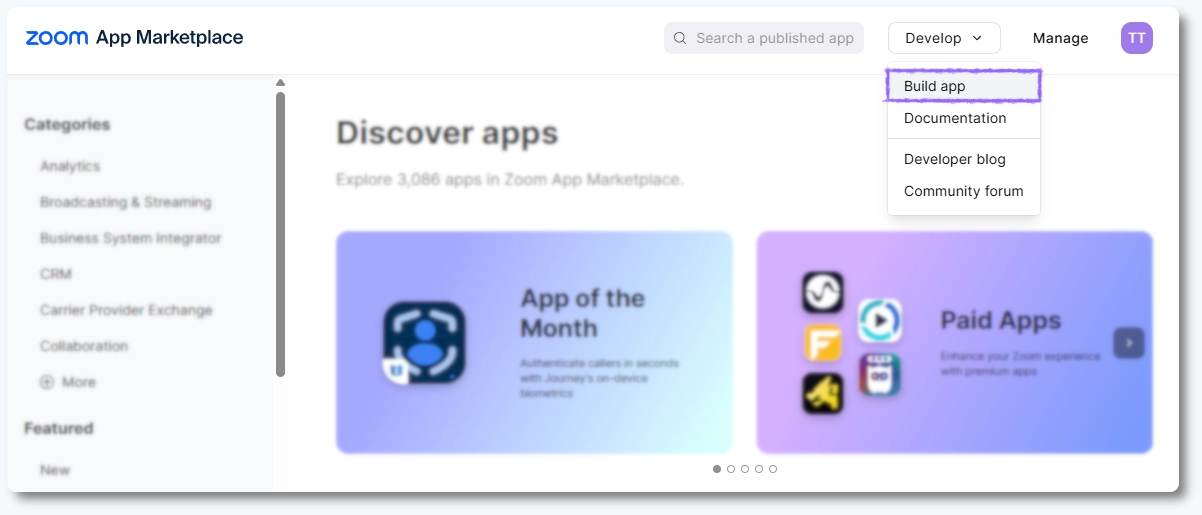
Start by signing in to your Zoom account and opening the Zoom App Marketplace.
From the top menu, open Develop and select Build App.
Select Server-to-Server OAuth App and click Create.
Enter a name for your application and confirm creation.
Where do I find Zoom Account ID, Client ID, and Client Secret?
After the app is created, Zoom opens the app details page.
Copy the following values:
- Account ID
- Client ID
- Client Secret
These values will be pasted into Amelia’s Zoom configuration fields.
Copying the credentials doesn’t complete the process. We’ll need to come back to Zoom’s Marketplace again, so keep that window open.
How do I configure Zoom settings in Amelia?
Return to Amelia and paste the Zoom credentials into the following fields:
- Account ID
- Client ID
- Client Secret
Don’t forget to click Save in the bottom right corner.
What information must be added before activating the Zoom app?
Before the app can be used, required information must be completed.
Open the Information section in Zoom and fill in:
- Company Name
- Developer Name
- Developer Email Address
Click Continue to proceed.
Which scopes are required for Zoom integration?
In the Scopes section, add the following scopes:
meeting:read:list_meetings:adminmeeting:update:meeting:adminmeeting:delete:meeting:adminmeeting:write:meeting:adminuser:read:list_users:admin
We recommend copying and pasting each scope directly into Zoom’s search field. Do not enable any additional scopes. These five scopes are mandatory; no more; no less.
After adding the scopes, verify they are listed and click Continue.
How do I activate the Zoom app?
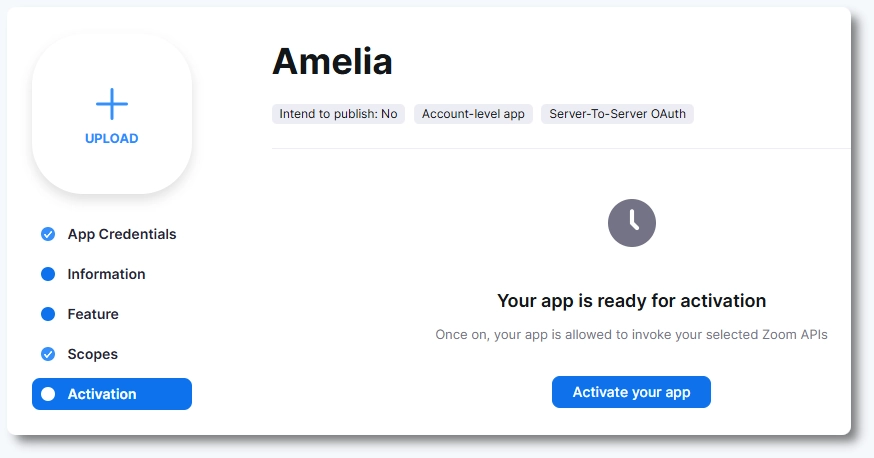
Once all required information and scopes are added, open the Activation step and activate the app.
How do Meeting Title and Meeting Agenda work in Amelia?
Back in Features & Integrations → Integrations → Zoom → Set up, the Meeting title and Meeting agenda define how meetings appear in Zoom.
Both fields support placeholders from Amelia notifications. Use placeholders to dynamically insert service, customer, or event details into Zoom meetings.
Should meetings be created for pending appointments?
Enable Create meetings for pending appointments if you want Zoom meetings to be created before appointments are approved.
When disabled, Zoom meetings are created only for appointments with the Approved status.