How does the WP Fusion integration work with Amelia
The WP Fusion integration lets you sync Amelia bookings to your connected CRM, map appointment details to contact fields, and automatically apply tags based on the service a customer books. This makes it easy to send automations, reminders, or follow-up campaigns using your CRM’s workflows.
Since this page focuses only on the integration between WP Fusion and Amelia, we won’t cover WP Fusion’s full settings. For details about WP Fusion features, see their documentation at WP Fusion documentation.
Which WP Fusion version is required for this integration?
All Amelia-related automation and field syncing require the full version of WP Fusion. You can review the full list of supported integrations at WP Fusion integrations.
If you are using WP Fusion Lite, only new WordPress user registrations are synced to CRM contacts. This works only if your Amelia bookings require users to create an account. Feel free to learn more about WP Fusion Lite if you require more information.
How do I connect WP Fusion to my CRM?
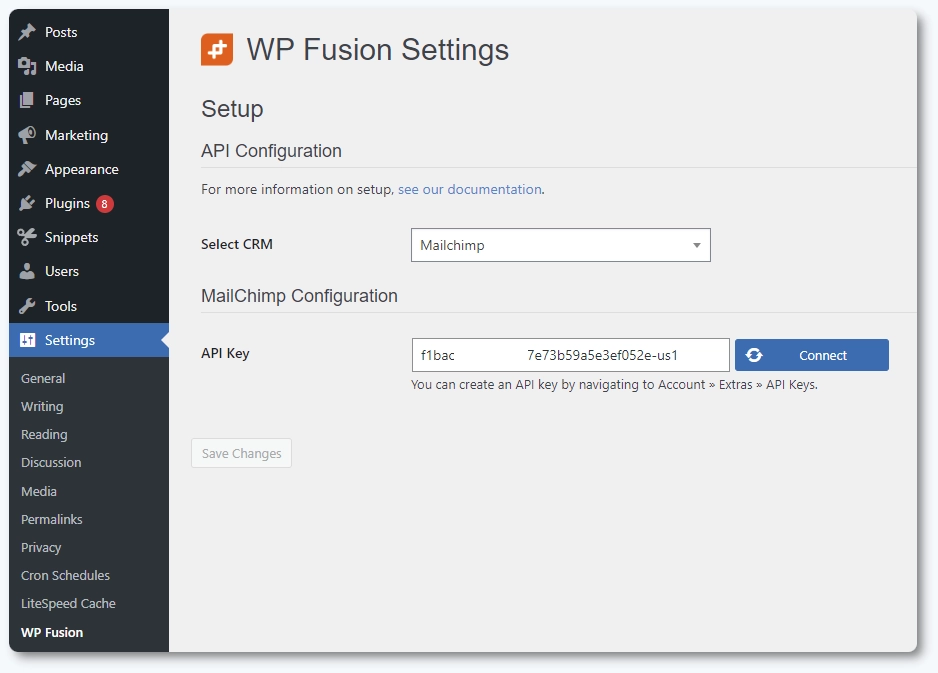
Install and activate both the Amelia plugin and WP Fusion. Then open Settings → WP Fusion and connect your CRM through the built-in WP Fusion connection wizard. Once authenticated, save your changes to complete the connection. The linked CRM will then be available for field mapping and tag automation.
Which Amelia fields can be synced with WP Fusion?
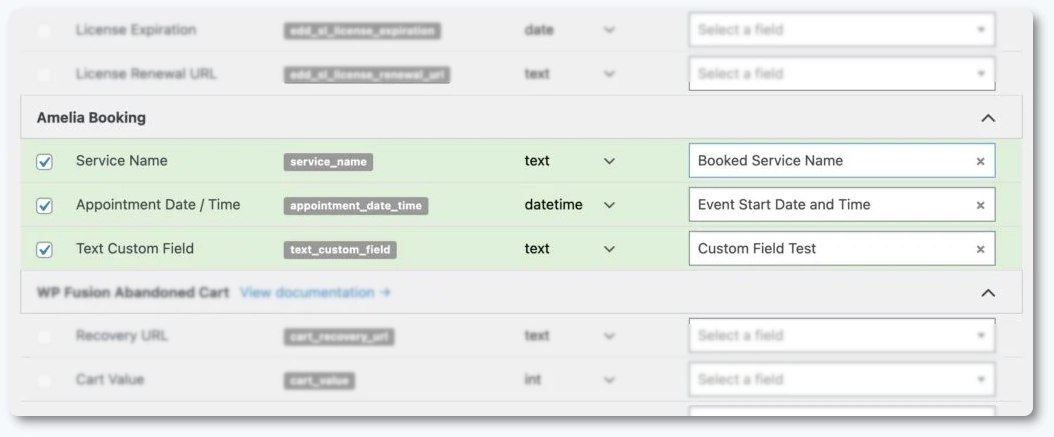
Open WordPress Settings → WP Fusion → Contact Fields to see which fields are available for syncing. WP Fusion displays core Amelia fields and any custom fields you have added. You can map each one to a matching CRM field so new bookings send updated customer information to your CRM automatically.
- Service name, updated with each new booking.
- Appointment date and time for the booked session.
- Custom fields created in Amelia, if present.
Enable the fields you want to sync, map them to CRM fields, and WP Fusion will update the customer record whenever an appointment is created.
How do tags work with WP Fusion and Amelia?
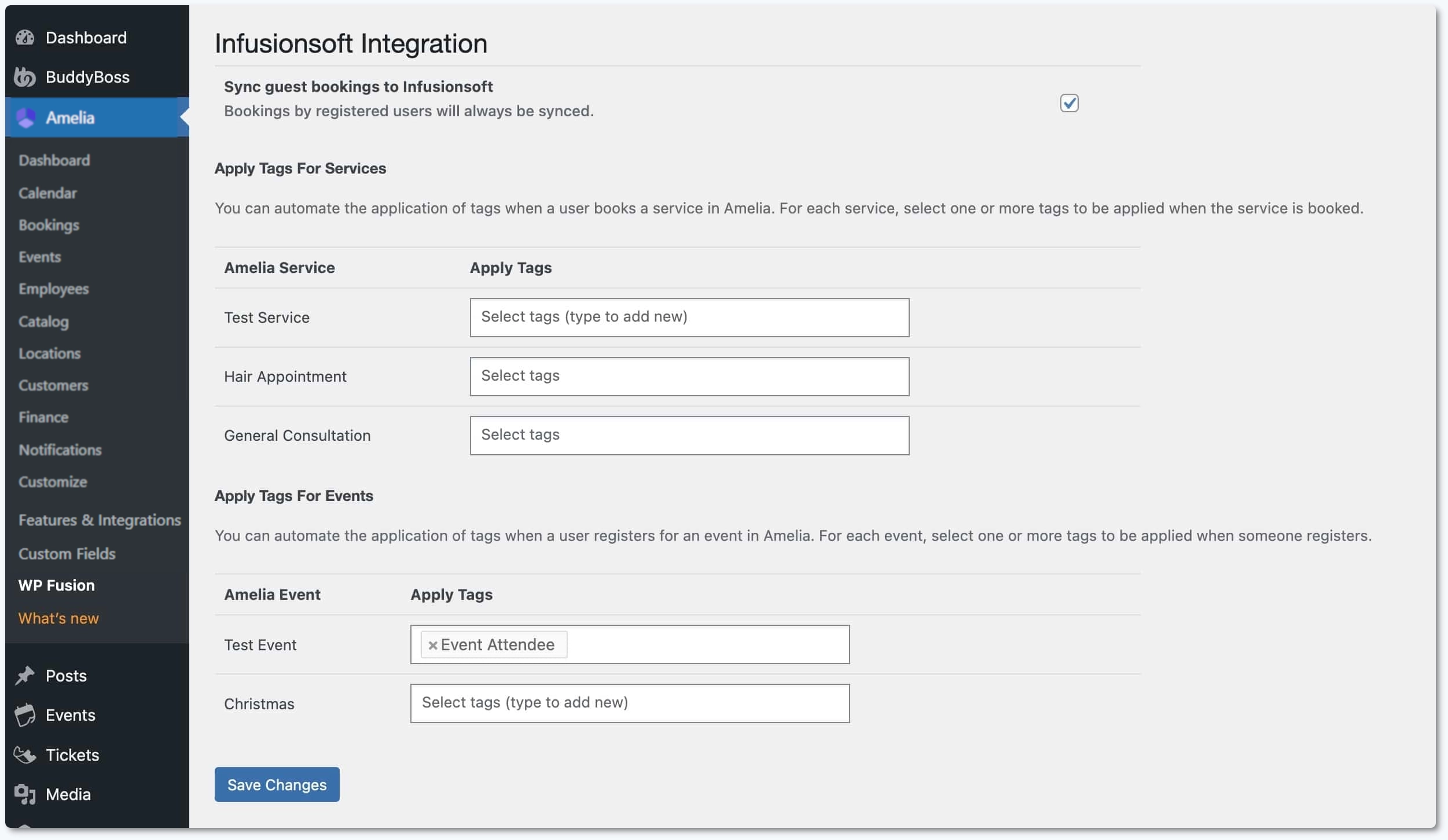
Open Amelia → WP Fusion to see the tagging options. WP Fusion can create or update CRM contacts for customers who book through Amelia, and it can automatically apply tags based on which services customers select. Each service can have its own tag or multiple tags.
- Sync guests: Enabled by default to create CRM contacts for any user who books. Disable it if you only want to sync registered WordPress users.
- Apply tags for services: Assign one or more CRM tags to each Amelia service so bookings trigger CRM automations.
Tag-based automations can then be used for reminders, onboarding sequences, upsells, or follow-up flows inside your CRM.
What should I keep in mind when using WP Fusion with Amelia?
- The full version of WP Fusion is required for booking sync and tag automations.
- Only fields mapped in WP Fusion will sync to your CRM.
- Custom fields from Amelia appear only if they exist in your setup.
- Tags allow you to build automation paths for each booked service.
- Booking data syncing depends on WP Fusion’s processing, not on Amelia’s internal logic.