How does WhatsApp work in Amelia
If you want your customers to receive WhatsApp confirmations or reminders instead of SMS or email, Amelia can send automated WhatsApp messages through your connected WhatsApp Business account.
You can enable WhatsApp in Features & integrations → Integrations, and once it is active you will see a Set up button that opens the WhatsApp settings section. WhatsApp is used only for sending notifications, so customers cannot reply directly or continue a conversation, which is why it is recommended to enable the auto-reply option once the setup is completed.
This page provides an overview of how WhatsApp behaves in Amelia before you dive into the full setup steps.
WhatsApp integration is available in Pro and Elite license plans.
What can WhatsApp notifications do in Amelia?
WhatsApp notifications allow Amelia to send appointment and event messages through your WhatsApp Business account by using the Meta WhatsApp Cloud API.
Messages can be sent for confirmations, reschedules, reminders, cancellations, and follow-ups, and each notification uses a template that you create and approve in the Meta Business Manager. WhatsApp messages behave the same way as email and SMS, but the templates created in the Meta Business manager need to be linked with corresponding placeholders in Amelia.
What are the limitations of WhatsApp notifications?
WhatsApp notifications are template-based, which means all message content must come from an approved template in your Meta Business Manager account. Amelia cannot send custom text or freeform replies. Only one auto-reply can be configured in Amelia, and it is sent when a customer responds to any WhatsApp message.
WhatsApp also requires the template language to match the language defined in your Amelia notifications, so switching languages without matching templates will prevent messages from being sent.
WhatsApp messages do not support two-way communication. If a customer replies to the message, the reply will not appear in Amelia.
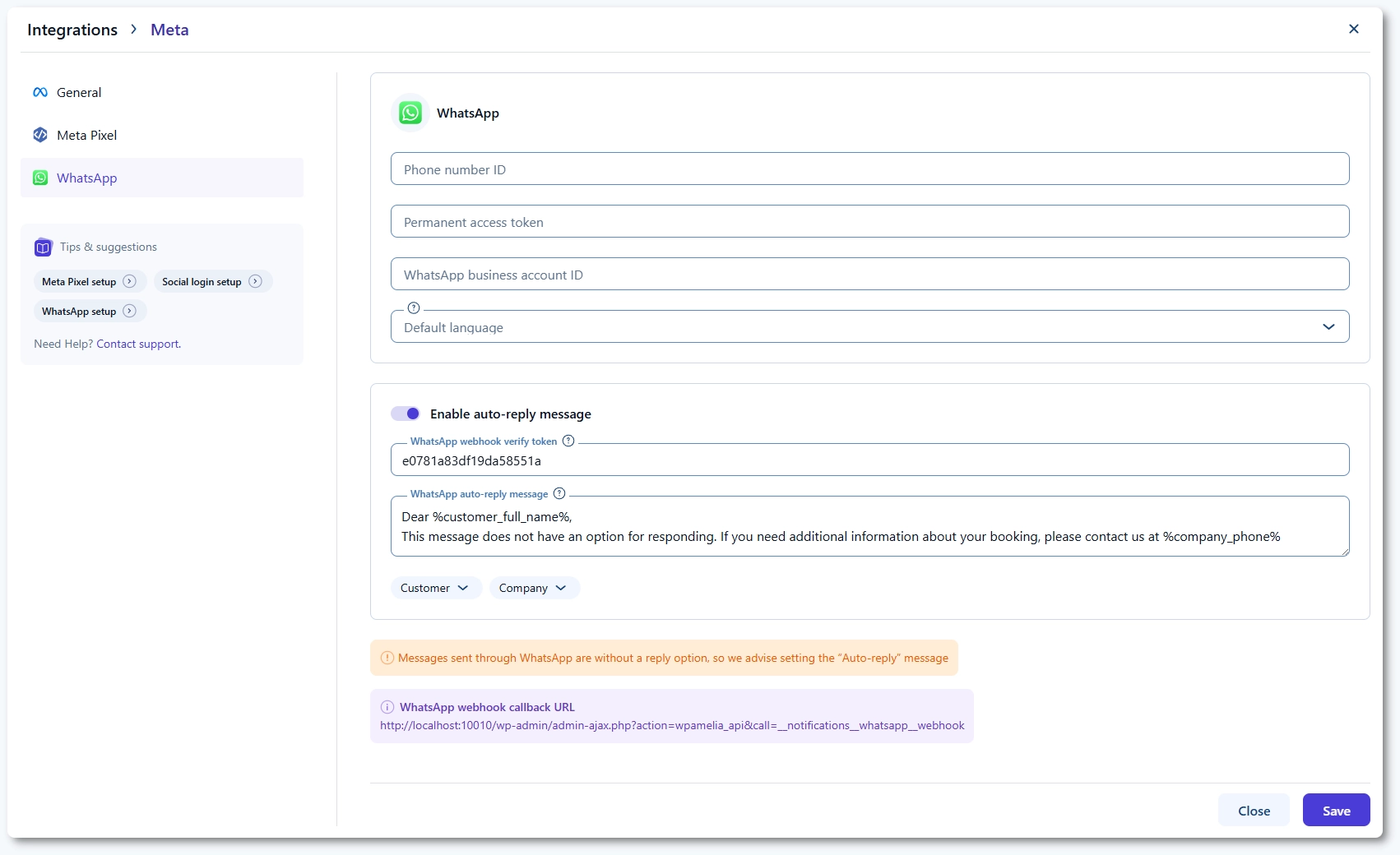
How do I enable WhatsApp notifications in Amelia?
Open Amelia → Features & integrations → Integrations and enable the WhatsApp integration.
When enabled, a Set up button appears and takes you directly to the WhatsApp configuration page. This page contains fields for your Phone number ID, Permanent access token, WhatsApp Business account ID, and the Default language, all of which will be created during the Meta setup process.
Until these fields are populated, Amelia cannot send WhatsApp notifications.
What should I do next?
Continue to the Meta setup guide where you will create the Phone number ID, Business account ID, and Permanent access token needed to complete the WhatsApp configuration in Amelia.
After that, you will set up your WhatsApp templates and link them with the notifications in Amelia.
