How do scheduled notifications work in Amelia
Scheduled notifications let Amelia send reminders and follow ups at a specific time instead of immediately after a booking action. These notifications rely on your server’s cron system to regularly call Amelia’s scheduler so the plugin can check upcoming or past appointments and events and send messages at the right moment.
For example, if you enable the “Next day reminder” for appointments and set it to run at 18:00, your cron job will trigger Amelia every 15 minutes, and the system will send the reminder exactly at the configured time without any manual input.
Scheduled notifications depend on your hosting environment because the cron process runs outside Amelia. The plugin only provides the command. The execution, timing, and reliability depend entirely on your server or hosting provider.
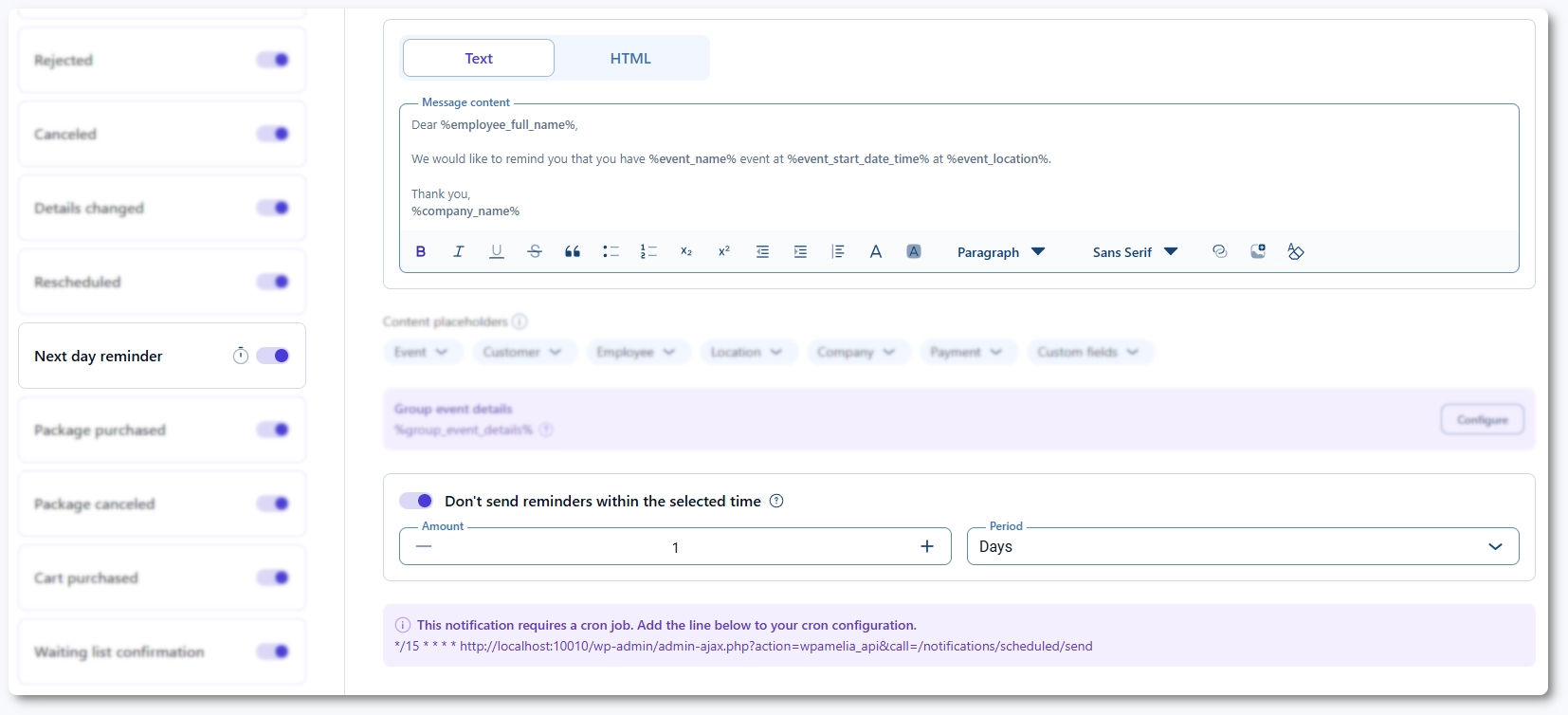
Each scheduled notification includes a Don’t send reminders within the selected time slider. When enabled, you can define a period in minutes, hours, or days. If a booking is made inside that time window before the appointment or event starts, Amelia will skip sending the reminder.
How do you configure scheduled notifications with a server cron job?
To run scheduled notifications reliably, you need a server side cron job that calls Amelia’s scheduler endpoint at the interval you’ve configured. The command you must use is displayed inside each scheduled notification template in the Notifications section. A typical command looks like:
*/15 * * * * https://yourwebsite.com/wp-admin/admin-ajax.php?action=wpamelia_api&call=/notifications/scheduled/send
Depending on the hosting environment, other formats may be required:
*/15 * * * * wget -q -O - "https://yourwebsite.com/wp-admin/admin-ajax.php?action=wpamelia_api&call=/notifications/scheduled/send"
*/15 * * * * /usr/local/bin/php ~/public_html/wp-cron.php --action='wpamelia_api' --call='/notifications/scheduled/send'GET "https://yourwebsite.com/wp-admin/admin-ajax.php?action=wpamelia_api&call=/notifications/scheduled/send" > /dev/null
Copy the command from your Amelia settings and replace yourwebsite.com with your actual domain. Once added to your server’s cron scheduler, Amelia will process all scheduled reminders and follow ups without requiring any action from the back end interface.
How can you configure scheduled notifications using WP Crontrol?
If you cannot modify server level cron jobs, you can use the WP Crontrol plugin to create a recurring cron event in WordPress. Start by opening Amelia → Notifications and selecting a scheduled template, then copy only the URL from the cron command (exclude the */15 * * * * portion).
Next, once WP Crontrol is installed, go to Tools → Cron Events → Cron Schedules and add a 15 minute interval. After that, return to the Cron Events tab and click Add New. Choose the PHP Cron event option and paste the following into the code field, replacing the URL with your own:
file_get_contents("https://yourwebsite.com/wp-admin/admin-ajax.php?action=wpamelia_api&call=/notifications/scheduled/send");
Set the event name, choose the next run time a few minutes in the future, and select the 15 minute schedule you created. Once saved, WordPress will call Amelia’s scheduler every 15 minutes.
What should you avoid when setting up scheduled notifications?
Cron reliability depends on your server, so several common hosting or configuration issues can interrupt scheduled notifications. Make sure that:
- Your hosting provider allows external cron jobs or scheduled tasks.
- Your server’s firewall does not block internal HTTP calls to your own domain.
- WordPress cron is not disabled if you rely on plugins like WP Crontrol.
- Your domain uses HTTPS correctly so the scheduler can be accessed.
Some control panel configurations can also block email delivery. For example, on WHM/cPanel servers, the Restrict outgoing SMTP (FKA SMTP Tweak) option prevents WordPress and Amelia from sending emails. If you are using WHM, navigate to Home → Server Configuration → Tweak Settings, locate the SMTP restriction setting, and turn it off to allow scheduled email notifications to send correctly.
If scheduled notifications do not send, the issue is almost always related to the cron setup or hosting limitations rather than Amelia. Confirm that your cron job is firing based on the interval you defined and that your server can access the scheduler URL without redirects or blocks.
What should you keep in mind when working with scheduled notifications?
- Test scheduled notifications by setting a reminder a few minutes ahead and confirming that the cron job triggers it.
- Verify that your scheduler URL loads without errors by opening it in a private browser window.
- Use clear and concise text for reminders and follow ups since these messages are often time sensitive.
- Check hosting documentation or support articles if your provider uses a custom cron system or security filters.
- Do not set scheduled templates without configuring a cron job first, because reminders will not send.
- Do not rely on WP Crontrol on high traffic sites where a real server cron provides better reliability.
- Do not ignore SMTP restrictions or security rules that block WordPress from sending scheduled emails.
- Do not leave outdated reminder times in place if your business hours change.
