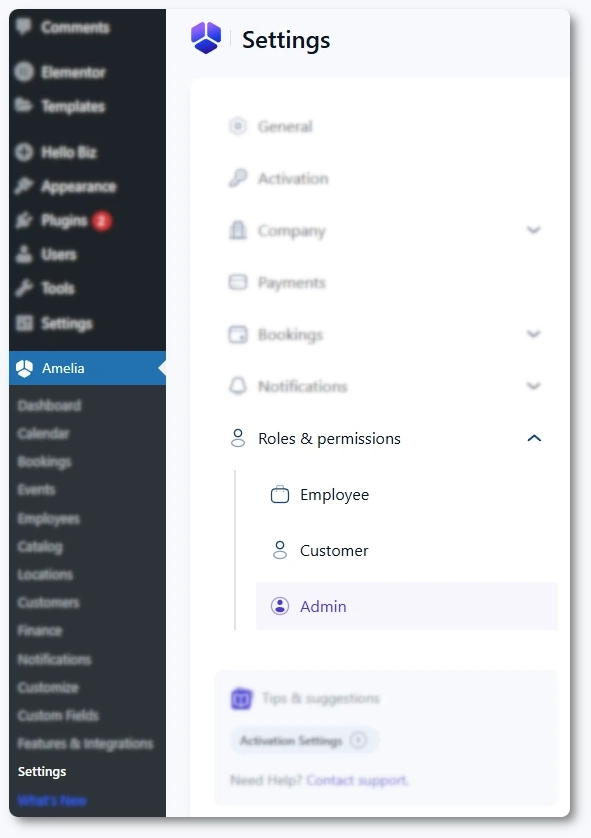
What are roles & permissions in Amelia
Roles and permissions let you control who can manage bookings in Amelia and how they access their panels. You can decide what employees and customers are allowed to do, and whether admins can override existing bookings.
To open these settings, go to Amelia → Settings → Roles & permissions. You will see three sections in the left sidebar: Employee, Customer, and Admin. Each section has its own page with booking rules and panel access options.
What can I configure under roles and permissions?
Each roles and permissions page focuses on two things:
- Manage bookings – controls what this role can do with appointments, events, packages, and customer data.
- Panel and access permissions – controls how this role accesses their panel and how many bookings they can make or receive.
These options apply to both the Amelia back end and the front end panels, depending on how you configure your site. For example, employees can manage their schedule from the Employee Panel, while customers can use the Customer Panel.
For roles and permissions to work correctly, make sure you have created and published your Employee Panel and Customer Panel pages first.
What are employee permissions used for?
Employee permissions control how much control your staff have over their own bookings and customers.
With these settings you can:
- Allow employees to manage only their own appointments and events.
- Let employees view and edit customer information, if you want them to handle client details directly.
- Enable access to the Employee Panel and limit how many appointments each employee can have.
For a detailed breakdown of all options, see the Employee permissions article.
What are customer permissions used for?
Customer permissions define how much control customers have over their own bookings and profiles.
Here you can:
- Allow customers to reschedule their own appointments.
- Let customers cancel their packages if you want to offer more flexibility.
- Allow customers to delete their profile and personal data.
- Configure the Customer Panel URL and set limits on how many appointments, packages, or events a single customer can book in a time frame.
You can learn more in the Customer permissions article.
Booking limits are a great way to prevent abuse of free sessions, trial classes, or discounted packages.
What can I change for admins?
The Admin permissions page has one setting that affects how bookings are created in the back end. You can allow admins to create new appointments even when there is already a booking in the same time slot.
This is useful if you sometimes need to overbook a time slot intentionally, or if you manage group sessions manually and do not rely on capacity limits.
Where should I go next?
Once you understand the basics of roles and permissions, you can continue with:
- Employee permissions – configure what staff can do and how they access their panel.
- Customer permissions – define what customers can manage themselves and how often they can book.
- Admin permissions – adjust whether admins can book over existing appointments.