Limited time discount Make This Winter Your Most Organized Yet
Up to 50%Off

What are resources in Amelia

Resources in Amelia allow you to manage limited assets that are required for appointments, such as rooms, equipment, vehicles, tools, or courts. By assigning resources to services, employees, and locations, you can control availability based on real-world capacity instead of relying only on employee schedules.

Info Note
Resources are available only in the Pro and Elite license plans.

How do I enable the resources feature?

To enable Resources, go to Amelia → Features & Integrations → Features and activate the Resources feature by clicking the Enable button.

Once enabled, the Set up and Disable buttons will appear. Clicking Set up will take you directly to the Catalog → Resources page.

You can also access Resources manually at any time by navigating to Amelia → Catalog → Resources from your WordPress dashboard.

Resources feature in Amelia showing Enable, Set up, and Disable buttons

How do I create my first resource?

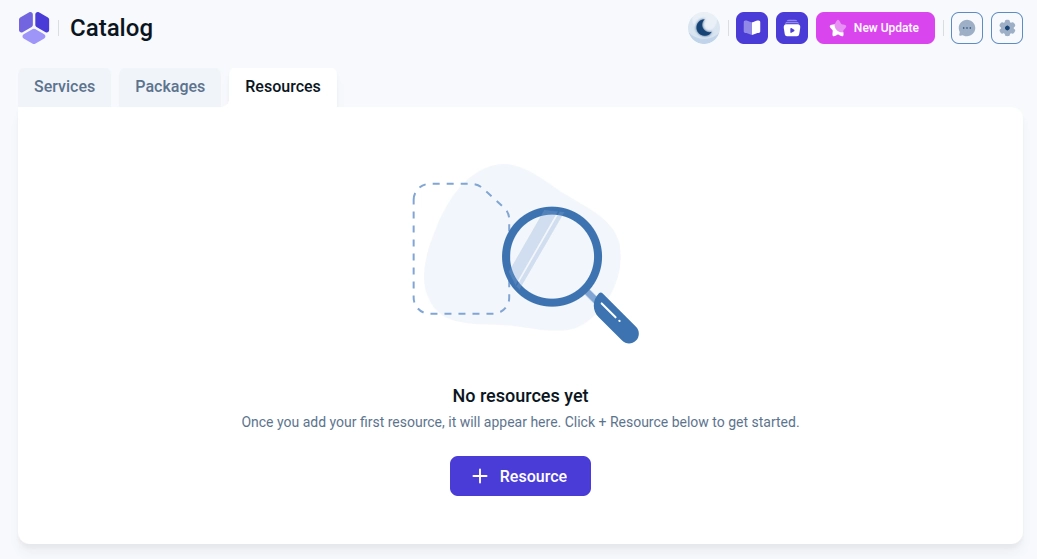
If no resources exist yet, a + Resource button will appear in the center of the page. Once at least one resource is created, the + Resource button will move to the top right corner.

Clicking this button opens the resource creation panel, where you can define all basic resource settings such as name, quantity, type, and visibility.

Add Resource button on empty Resources page

How do I create a Resource?

When creating a resource, the Name field is mandatory and is used to identify the resource across the system. The Quantity is defined next to the resource name and represents how many bookings can use the resource at the same time.

The Enable resource usage for a group booking option controls how the resource behaves when group services are booked.

By default, Quantity is shared is selected, meaning the defined quantity is shared across all selected services, locations, and employees. The dropdowns below are set to All services, All locations, and All employees unless manually adjusted.

Resource creation settings with shared, per service, and per location quantity modes in Amelia

How do shared and unique resource quantities work?

Shared and unique resource quantities determine whether the same pool of resources is used across multiple entities or isolated per service or location.

Choosing the correct option ensures that bookings are blocked only when real capacity is reached, not when employees are still technically available.

When should I use shared resource quantity?

Shared resource quantity should be used when multiple services or employees rely on the same limited physical asset.

For example, a barbershop with five barbers but only three chairs should use a shared resource with quantity set to 3 and assigned to all employees and services. Once three bookings exist for the same time slot, no additional bookings can be made, even if employee work hours are still available.

This approach is also suitable for scenarios like consulting firms with multiple consultants but a limited number of meeting rooms.

When should I use quantity per service?

Quantity per service should be used when each service has its own dedicated resources that should not be shared with other services.

For example, if you offer several specialized services that require specific equipment operated only by trained staff, each service can have its own independent resource pool. If you have six services and twelve game console controllers, setting the resource quantity to 2 with quantity per service allows each service to be booked twice per time slot, regardless of other services.

When should I use quantity per location?

Quantity per location is designed for scenarios where the same number of resources exists independently at each location.

For example, if you have six locations and each one has two tanning beds, setting the resource quantity to 2 with quantity per location ensures that each location can accept two bookings per time slot. Once two bookings are made at a specific location, additional bookings for that location are blocked, while other locations remain available.

This setup is ideal when employees are shared across locations, but physical capacity is limited per location.

How do resources behave with group services?

Resource behavior becomes more complex when group services are involved, especially when shared resources are used.

If a shared resource has a quantity of 1, group usage is disabled, so booking a group service applies the resource only to that service. Multiple customers can still join the same group service until its maximum capacity is reached, but all other services are blocked for that time slot.

If group usage is enabled and the quantity is greater than 1, booking a single service consumes one unit of the resource while blocking group services. Booking a group service blocks single services but allows additional customers to join the same group service until its capacity is reached.

Because resources apply to all selected services, employees, and locations, it is important to review assignments carefully to avoid unintended availability blocks.

How do resources work with packages?

Resources are applied at the appointment level and affect all appointment bookings, regardless of whether they are booked directly or through a package.

If a service included in a package has a resource assigned, the resource will be evaluated in the same way as for standalone bookings, ensuring consistent availability control.

Do resources apply to events in Amelia?

Resources apply only to services (appointments) and do not affect events.

Event availability is controlled by event capacity and event-specific settings, even if services and events share employees or locations.

How do I manage existing resources?

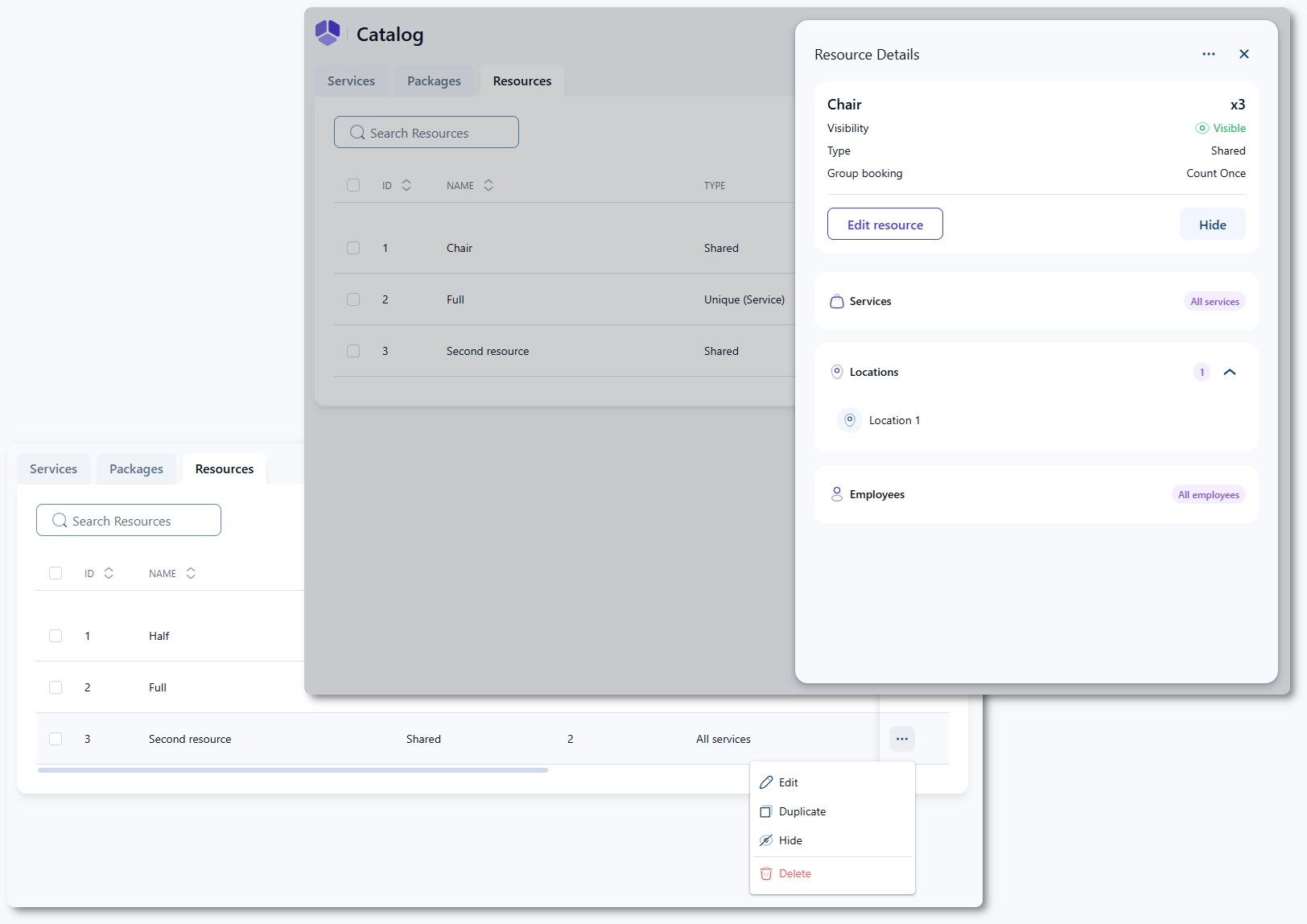
Clicking on a resource opens the right-side panel, where you can view its details and use the Edit resource or Hide buttons.

Each resource also has a three-dots menu on the right side of the list, allowing you to edit, hide, or delete the resource without opening its card. This makes it easier to manage multiple resources quickly.

Editing, hiding, and deleting resources from the resource list in Amelia
Alert Please note

Resources in Amelia are not selectable by customers during booking. Customers cannot choose a specific room, chair, or piece of equipment on the front end.

Resources are managed entirely in the back end and are used only to control time slot availability based on real-world capacity.

Do’s and don’ts when working with resources

  • Use shared resources for truly shared physical capacity like rooms or chairs
  • Use quantity per service when equipment belongs to a specific service
  • Use quantity per location when capacity is identical but isolated per location
  • Always double-check which services, employees, and locations the resource is assigned to
  • Avoid mixing shared resources with group services unless the behavior is fully understood