When does the Recurring events tab appear in Amelia
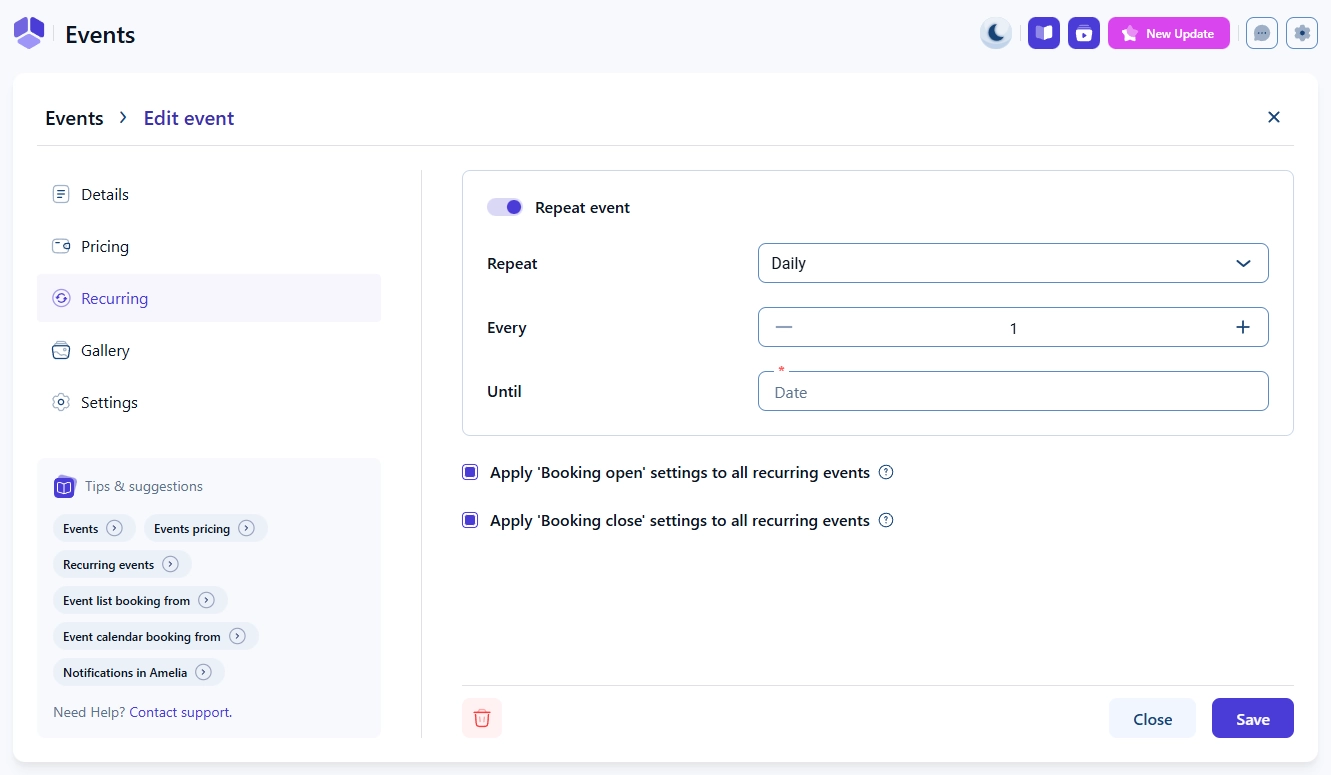
The Recurring tab appears only if the Recurring events feature is enabled in Amelia. When enabled, you can configure how the event repeats over time and when the recurring sequence ends.
How do recurring event options work?
The Recurring tab includes five main controls:
Repeat – choose how the event repeats: Daily, Weekly, Monthly, or Yearly.
Every – define the interval, such as “Every 2 days” or “Every 3 weeks”.
Until – select the end date for the recurring sequence.
Apply ‘Booking open’ settings to all recurring events – if enabled, the booking-open time defined in the Details tab applies to every occurrence.
Apply ‘Booking close’ settings to all recurring events – if enabled, the booking-closes time defined in the Details tab applies to every occurrence.
If you disable the booking-open setting, Amelia calculates the booking-open time individually for each recurring occurrence based on the rules defined for the first event. The same logic applies to the Apply ‘Booking close’ settings to all recurring events option.
Each generated occurrence of a recurring event is treated as a separate event inside Amelia, with its own ID, attendee list, and management options.
What happens when an event includes a gallery?
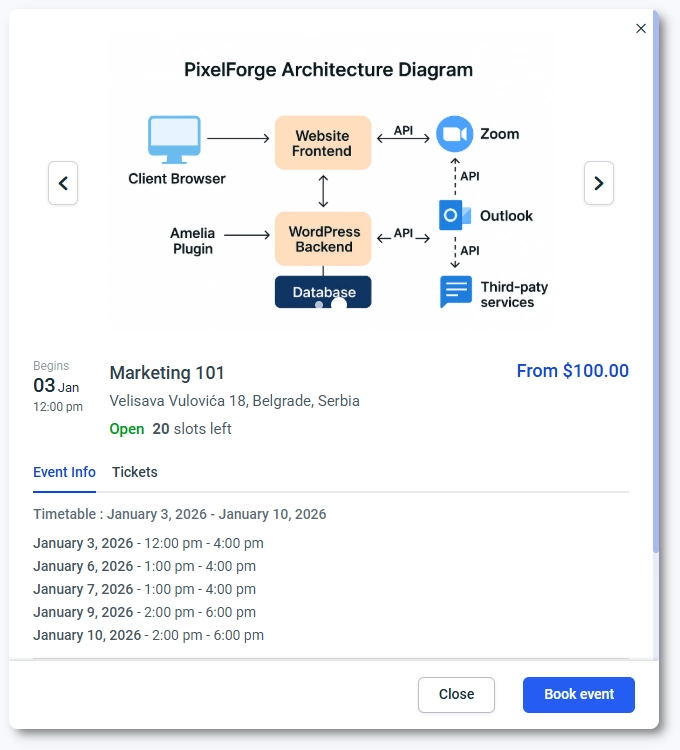
If you add images to the Gallery tab, they will be shown on the front end when customers click Read more in the events list or open the event in the calendar view.
The gallery is optional and can contain as many images as needed to showcase the event.
Images appear in a fullscreen popup, with left and right arrows that allow customers to browse through all uploaded gallery images.
What should I keep in mind when using recurring events and galleries?
The Recurring tab is visible only when the Recurring events feature is enabled.
Each recurring occurrence becomes its own event with a unique ID.
Booking open and close rules can apply to all occurrences or be calculated individually.
Gallery images appear only on the front end when customers expand event details.
Customers can navigate gallery images using on-screen arrows.
 Make This Winter Your Most Organized Yet