Limited time discount Book Smarter This Christmas
Up to 50%Off

How do I set pricing and duration for a service in Amelia

The Pricing & duration tab defines how long a service lasts, how many people can attend a single appointment, and how its price is calculated. These settings directly affect your available time slots, employee schedules, and the booking flow customers see on your website.

Alert Please note

Service duration depends on the Default time slot step configured in General settings. If the step is set to 30 minutes, the duration and buffer fields will increase in increments of 30 minutes. For more flexibility, reduce the Default time slot step.
How do I set a service duration and buffers?

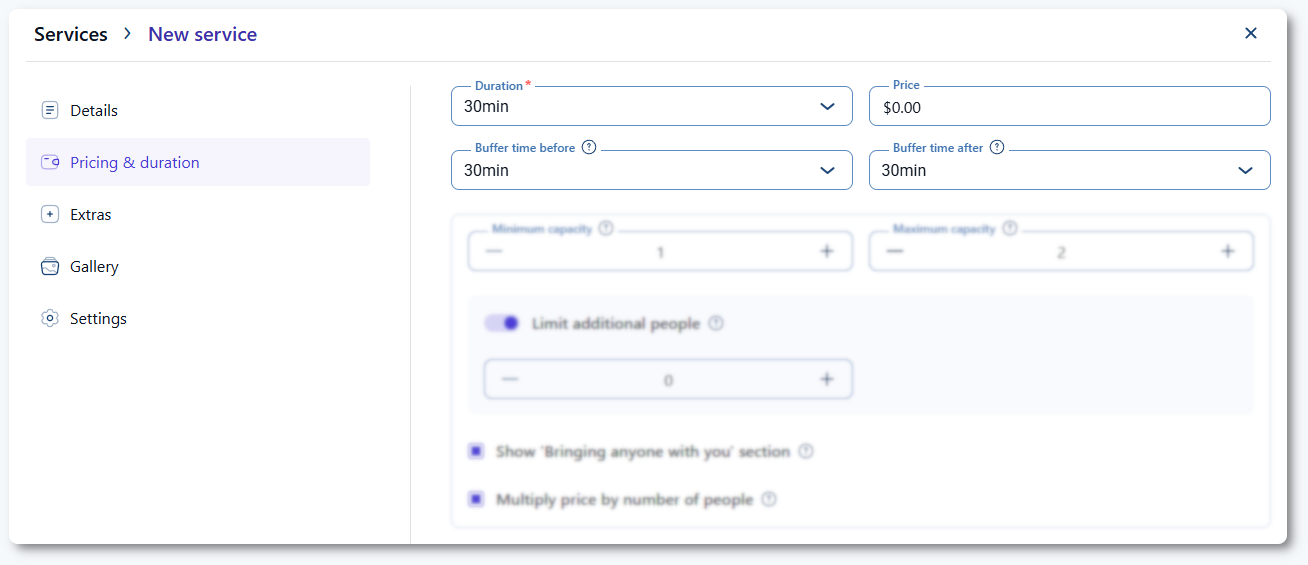
Duration is required for every service and determines the length of the appointment.

If you do not want to charge for a service, set the price to 0. This removes the price display and payment options from the booking form.

Buffer time before adds a fixed block of time before the appointment, while Buffer time after adds time following the appointment. Buffers always apply when configured and cannot be enabled or disabled per booking.

If both buffers are used, they merge together. For example, a 30-minute service with 30 minutes before and 30 minutes after becomes a 90-minute occupied slot. Employees must have enough working hours available to accommodate the full combined duration. Using only one buffer is recommended to avoid long blocked periods.

Duration and buffer time settings in the service pricing tab

How do minimum and maximum capacity work?

Minimum and maximum capacity define how many people can attend a single appointment. A minimum and maximum of 1 creates a single appointment. Increasing the maximum capacity enables group appointments.

When group booking is allowed, additional options appear:

  • Limit additional people sets how many extra participants a single customer can add.
  • Show Bringing anyone with you displays or hides the option for adding more people during booking.
  • Multiply price by number of people determines whether pricing is per booking or per person.

Whether the appointment becomes an open or closed group depends on the Allow booking below minimum capacity option found in Settings → Bookings → Appointments.

Capacity, group options, and number of people settings
Info Info

The Limit additional people value depends on the Maximum capacity value, and it will always be limited to one person below the maximum capacity, so the booking customer can fill the appointment slot and not overbook it.
Which custom pricing options are available?

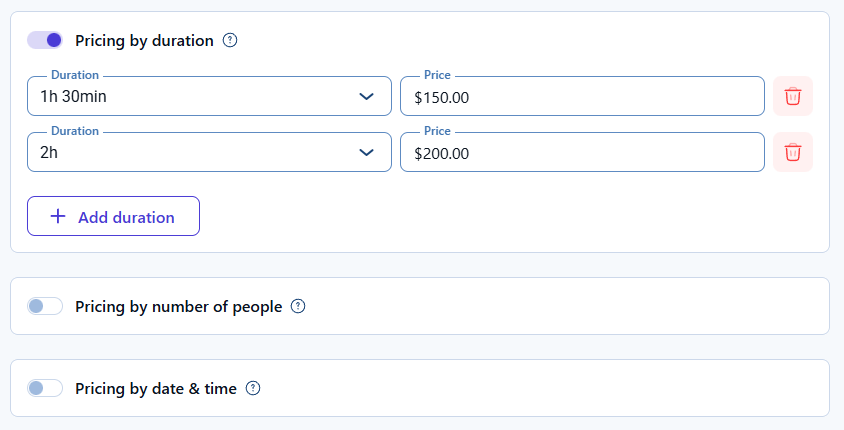
Pricing by duration, Pricing by number of people, and Pricing by date and time appear only if the Custom pricing feature is enabled in Features & integrations. Only one of these pricing models can be used at a time.

For detailed instructions, see the Custom pricing article.

Custom pricing options enabled in the Pricing and duration tab

Can I adjust prices and capacity per employee?

Yes, each employee can have different capacities and prices defined in their profiles. To manage them, access Employees → edit an employee and access the Services tab. After expanding the category and the service, you’ll see the Price and Capacity columns.

More details about this can be found in the Assigning services article.

How does the waiting list option work?

Show waiting list after booking is full appears only when the Appointments waiting list feature is enabled in Features & integrations. When activated, customers can join a waiting list if the appointment reaches its maximum capacity.

More details are available in the Appointments waiting list article.

Waiting list capacity field in the service settings

What should I keep in mind when configuring pricing and duration?

  • Duration and buffers must align with the Default time slot step.
  • Setting price to 0 removes payments from the booking form.
  • Buffers always apply and can significantly extend the occupied time slot.
  • Increasing capacity enables group appointments and pricing options.
  • Custom pricing modes require enabling the Custom pricing feature first.
  • Waiting list availability depends on the Appointments waiting list feature.
