Limited time discount Book Smarter This Christmas
Up to 50%Off

How to enable and configure PayPal payments in Amelia

PayPal integration in Amelia lets your customers pay for appointments, events, packages, or cart bookings using their PayPal balance or debit and credit cards. Once enabled, PayPal appears as a payment option on the front end and processes payments securely through your PayPal account.

For example, if you offer online consultations, customers can book a time slot and complete the payment instantly via PayPal without leaving the booking form.

Info Note

The PayPal integration is available on the Standard, Pro, and Elite license plans.
How do I enable PayPal integration in Amelia?

You can enable PayPal by turning it on in Amelia’s integrations and then configuring it in the Payments settings.

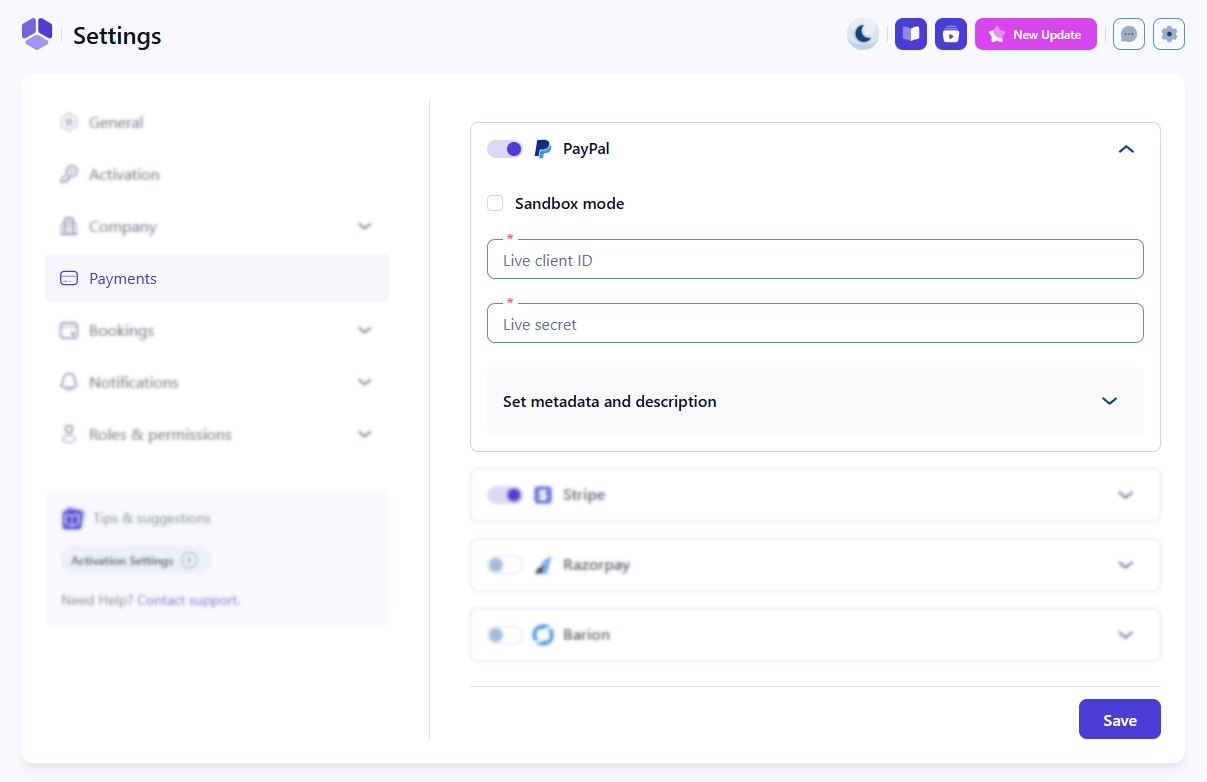
Start by navigating to Features & integrations → Integrations and enabling PayPal. After enabling it, click Set up and you will be redirected to Amelia → Settings → Payments. Scroll down to find the PayPal section and enable it using the toggle.

PayPal payment settings section in Amelia Payments settings

How do I configure PayPal live mode in Amelia?

To accept real payments, you need to connect Amelia with your PayPal Live credentials.

In the PayPal section under Amelia → Settings → Payments, keep Sandbox mode disabled. Enter your Live client ID and Live secret, which you generate in your PayPal developer account.

You can obtain these credentials by logging into the PayPal Developer Dashboard, switching to Live mode, and creating or selecting an existing REST API app. Copy the Client ID and Secret values and paste them into the corresponding fields in Amelia.

Alert Please note
PayPal Live mode requires a verified PayPal Business account. Personal accounts cannot be used for live payments.

Can I test PayPal payments using sandbox mode?

Yes, Amelia supports PayPal Sandbox mode, which allows you to test payments without processing real transactions.

Enable Sandbox mode in the PayPal settings and enter the Sandbox client ID and Sandbox secret from your PayPal developer account. These credentials are generated by creating a REST API app while the PayPal dashboard is set to sandbox mode.

For testing purposes, you can use sandbox buyer and business accounts available under Sandbox → Accounts in the PayPal Developer Dashboard. These accounts provide test email addresses and passwords you can use during checkout on the front end.

PayPal sandbox account with credentials, used for testing PayPal payments in Amelia

What is the “Set metadata and description” option in PayPal?

The Set metadata and description option controls what information is sent to PayPal for each payment.

If this field is left empty, PayPal will display the default checkout information defined by PayPal. If you want to show specific booking details, you can add a custom description using placeholders.

You can define different descriptions for:

  • Appointments
  • Events
  • Packages
  • Cart

The description supports placeholders such as customer details, appointment information, services, locations, payments, extras, and custom fields. This allows each PayPal transaction to include meaningful booking data, making it easier to identify payments inside your PayPal account.

Set metadata and description section for PayPal payments in Amelia

Should PayPal be enabled for services, packages, and events?

Once it’s enabled and configured, PayPal should be automatically enabled for all your existing services, packages, and events, but we strongly suggest to verify.

Access Catalog → Services; Catalog → Packages; or Events, edit all you want to enable PayPal for, and access the Settings tab. Scroll down a bit and make sure that PayPal slider is enabled.

What should I keep in mind when using PayPal in Amelia?

  • Make sure PayPal is enabled only after entering valid credentials, otherwise payments will fail.
  • Use Sandbox mode for testing and switch to Live mode before accepting real payments.
  • Customize the payment description to easily recognize bookings in your PayPal transaction history.
  • Ensure PayPal is enabled for services, packages, or events under settings so customers can see it during checkout.
