How do packages work in Amelia
Packages let you group multiple services into a single offer and sell them at a bundled price. A web design agency can combine several services into one discounted package, or a gym can offer a set number of appointments that customers can use across different activities.
To create a package, you need at least one service already added to Amelia → Catalog and the Packages feature enabled in the Features & Integrations page. Once enabled, you can click Set up or go to Amelia → Catalog → Packages.
Packages are available in the Pro and Elite license plans and they work only with services, not events.
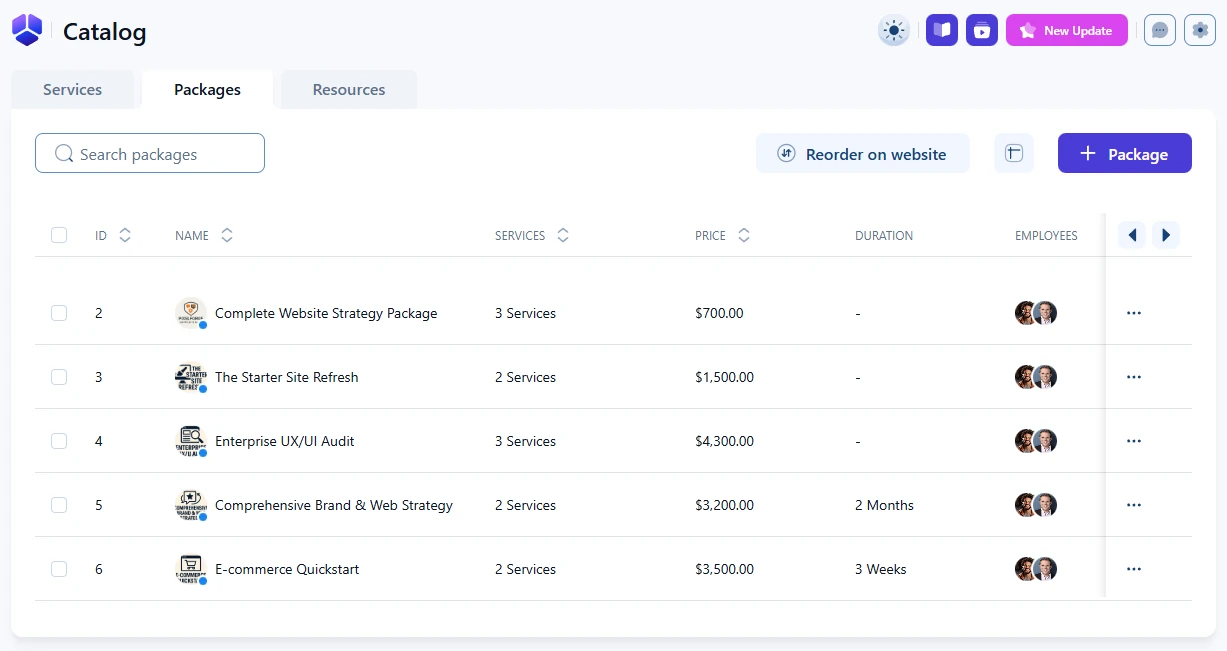
How do I create a new package?
Clicking + Package opens the Details tab. The package name is required. You can upload an image, choose a color, set how long the package is valid (package duration), write a description, and enable Limit package purchases per customer if you want to restrict how often a customer can buy it. Amelia uses the customer’s email address to identify unique buyers.
The duration field defines how long customers have to use the appointments inside the package. It works together with the global or service-level Period available for booking in advance. For example, if the package lasts 30 days, customers can book any appointments from that package during those 30 days. If your booking window is 365 days, they can schedule those appointments up to one year in the future, even on the final day of the package’s validity.
How do I choose which services belong to the package?
The Services tab is where you add the services included in the package. You can select an entire category or add services individually. After selecting them, they appear with appointment counters.
If Shared capacity across services is disabled, each service keeps its own number of appointments. If you enable shared capacity, Amelia converts all of those counts into one combined pool that customers can use however they like.
You can also set how many appointments must be booked during checkout. Minimum bookings required defines the smallest number of appointments a customer must select. Maximum bookings allowed sets the upper limit they can choose. If both numbers match, the customer must book exactly that number when purchasing the package. Any unused appointments remain available in the Customer Panel.
Shared capacity disabled
Shared capacity enabled
How do I set the price of a package?
The Pricing tab either calculates the price automatically or lets you enter it manually. If each service has its own appointment count, Amelia calculates the package price based on those values. If shared capacity is enabled, the price is always set manually since there is no per-service quantity to multiply.
If the Deposit payment feature is enabled, you can define a fixed or percentage deposit. Customers can also be allowed to pay the full amount instead of the deposit. If you want full upfront payment, simply do not enable the deposit option.
What do the Gallery and Settings tabs do?
The Gallery tab lets you upload images that will be shown as a slideshow in the Catalog booking form.
The Settings tab allows you to define a custom Redirect URL, choose which payment methods are available for this specific package, and enable or disable Pay with payment link. Any active payment gateway in Features & Integrations → Integrations and configured in Settings → Payments is automatically available.
Important notes about packages
Extras defined in services do not appear during package booking. Only appointments can be included.
Custom fields from included services appear together on the Your information step when the customer enters their details.
If a service uses custom duration, only the default duration is available when booking appointments through a package.
Custom pricing rules under Pricing by date and time or Specific date and time do not affect package pricing. Amelia always uses the base service price unless you manually set a custom package price.
