Limited time discount Book Smarter This Christmas
Up to 50%Off

How do notification placeholders work in Amelia

Notification placeholders allow Amelia to insert real booking data into email, SMS, and WhatsApp messages so your customers and employees receive personalized and accurate information about their appointments or events. When you add a placeholder like %customer_full_name% or %appointment_date% to a template, Amelia replaces it with the actual values from the booking, which lets you create clear and informative messages without manual editing.

For example, a confirmation message saying “Dear %customer_full_name%” will be sent as “Dear John Doe” once the customer completes the booking on the front end.

Info Note

Some placeholders are available only with specific license tiers, especially package, cart, and advanced event placeholders. Verify feature availability before using them in production emails.
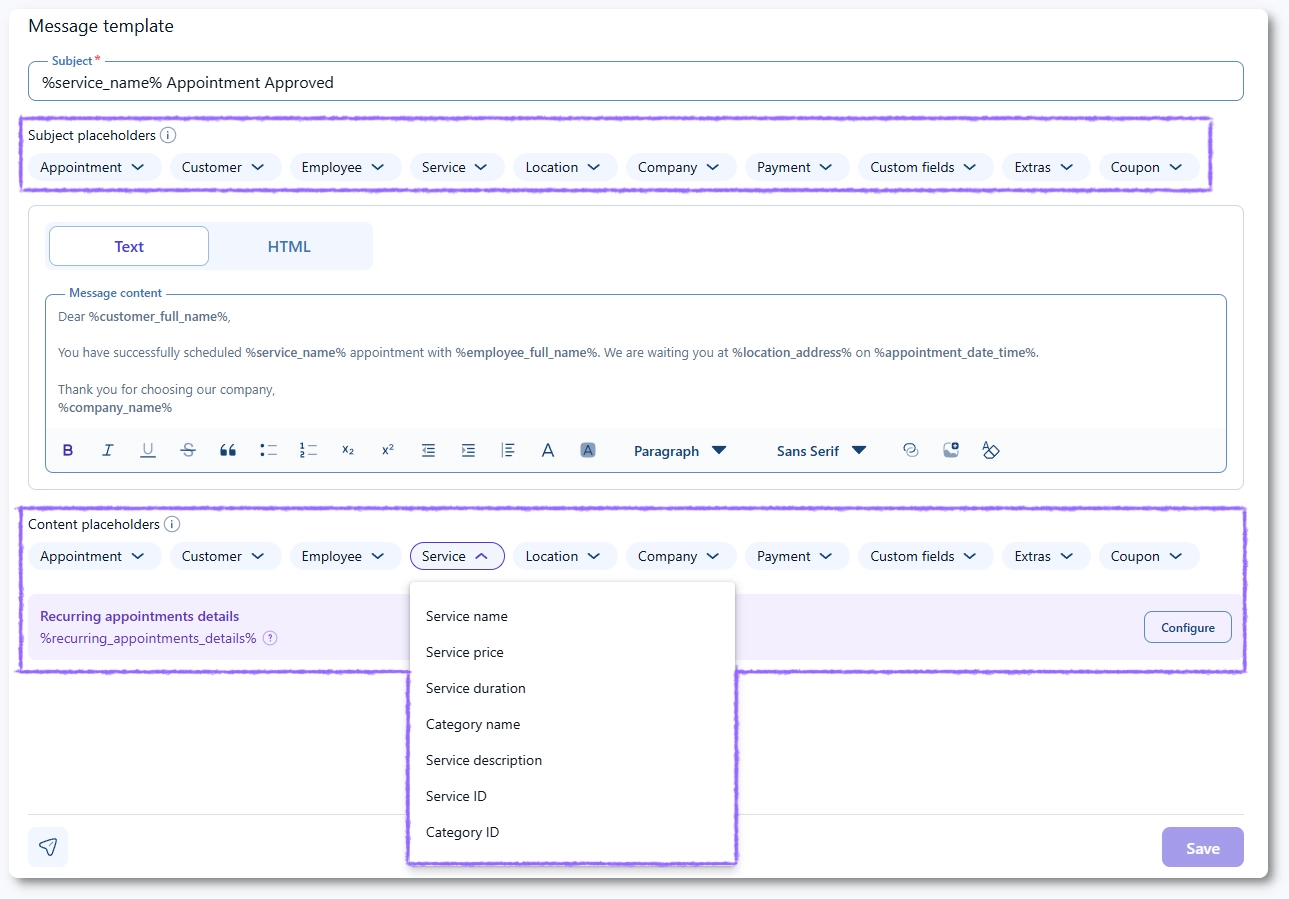
Where do you find and add notification placeholders?

All placeholders are available inside the notification editor under Notifications, directly below each message subject and message content field. Click a placeholder from the drop down list and it will be inserted where your cursor is placed.

Placeholders are grouped by context, so customer, employee, appointment, and event placeholders appear in separate sections. These tags work across all notification channels, and most appointment placeholders differ from event placeholders, so always check the group before inserting a tag into your message.

Placeholder dropdown below notification editor in Amelia

What should you know about URL based placeholders?

Alert Please note

URL placeholders like %customer_panel_url%, %employee_panel_url%, %appointment_cancel_url%, %event_cancel_url%, and Zoom or video meeting links must always be added as placeholders, not as URLs.

Amelia generates secure URLs with tokens and parameters that cannot be recreated manually.
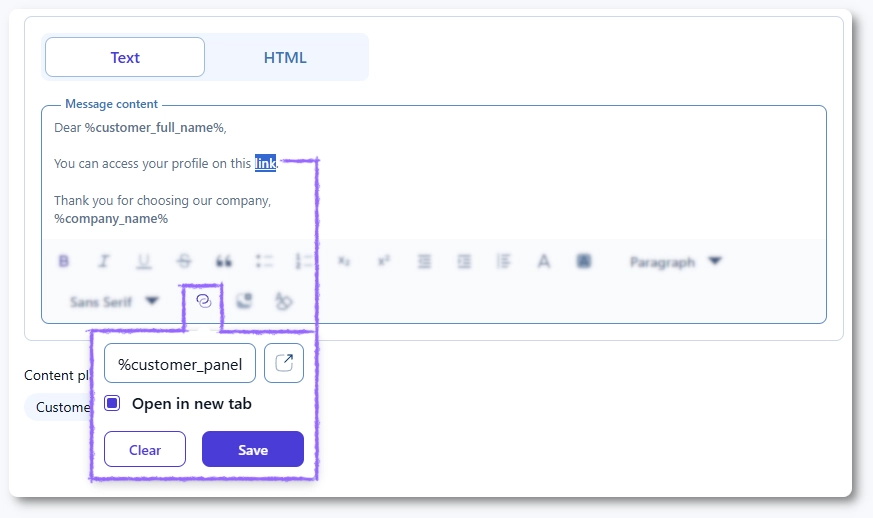
URL placeholders are dynamically generated so customers and employees always receive secure, personalized access links. If you want to create a hyperlink such as “Click here to access your Customer panel”, the anchor must contain the placeholder itself. For example:

<a href="%customer_panel_url%">Click here</a>

This ensures that Amelia appends the token required for login or password creation flows and that the link always leads the recipient to the correct panel.

Example of a hyperlink using the customer_panel_url placeholder in Amelia

Which placeholders are available for notifications?

Placeholders are grouped by recipient and booking type so each template contains only tags that are relevant for its context. Appointment placeholders differ from event placeholders, and some employee specific placeholders do not exist for customers.

Below is the complete placeholder list, excluding simple tags such as names or basic customer details which are already self explanatory.

Which placeholders are available for customers (appointments)?

  • %appointment_cancel_url% – automatically generated appointment cancellation link.
  • %appointment_deposit_payment% – the deposit amount paid for the appointment.
  • %appointment_duration% – full appointment duration combining service, extras, and buffer times.
  • %appointment_notes% – notes added by an employee, manager, or administrator.
  • %appointment_price% – total appointment price including service, extras, and additional persons.
  • %appointment_status% – the appointment status shown to the customer.
  • %category_name% – category of the booked service.
  • %coupon_1% to %coupon_n% – coupon details; hover in the editor to see the coupon code and deduction.
  • %custom_field_1% to %custom_field_n% – values of customer custom fields used for the appointment.
  • %customer_note% – note saved in the customer’s profile.
  • %customer_panel_url% – programmatically generated Customer panel link.
  • %employee_note% – note saved in the employee’s profile.
  • %google_meet_url% – meeting link for Google Meet.
  • %lesson_space_url% – meeting link for Lessonspace.
  • %recurring_appointments_details% – configured block that lists all booked recurring appointments.
  • %service_duration% – duration of the main service only.
  • %service_extra_1_name% to %service_extra_n_name% – names of included extras.
  • %service_extra_1_price% – price of an added extra.
  • %service_extra_1_quantity% – quantity of an added extra.
  • %service_extras% – combined list of selected extras.
  • %time_zone% – time zone used in the appointment display.
  • %zoom_join_url% – Zoom join URL for the customer.
  • %payment_link_stripe% – payment link for Stripe.
  • %payment_link_paypal% – payment link for PayPal.
  • %payment_link_mollie% – payment link for Mollie.
  • %payment_link_razorpay% – payment link for Razorpay.
  • %payment_link_woocommerce% – payment link for WooCommerce.

Which placeholders are available for customers (events)?

  • %attendee_code% – attendee code assigned to the customer.
  • %event_cancel_url% – cancellation link for the event registration.
  • %event_period_date% – event date range if the event spans multiple days.
  • %event_period_date_time% – full date and time range for multi day events.
  • %event_tickets% – number of tickets booked.
  • %lesson_space_url_date% – Lessonspace link showing only the date.
  • %lesson_space_url_date_time% – Lessonspace link showing date and time.
  • %zoom_join_url_date% – Zoom join link showing only the date.
  • %zoom_join_url_date_time% – Zoom join link showing date and time.
  • %google_meet_url% – Google Meet link generated for the attendee.
  • %payment_link_stripe% – Stripe payment link.
  • %payment_link_paypal% – PayPal payment link.
  • %payment_link_mollie% – Mollie payment link.
  • %payment_link_razorpay% – Razorpay payment link.
  • %payment_link_woocommerce% – WooCommerce payment link.

Which placeholders are available for employees (appointments)?

  • %booked_customer% – shows only the most recently booked customer’s name, email, and phone; ideal for group appointments.
  • %coupon_used% – shows customer name, coupon code used, and the discount applied.
  • %employee_panel_url% – secure link to the Employee panel.
  • %group_appointment_details% – configured block showing all group appointment attendees.
  • %zoom_host_url% – Zoom link for the employee hosting the meeting.

Which placeholders are available for employees (events)?

  • %zoom_host_url_date% – Zoom host link showing only the event date.
  • %zoom_host_url_date_time% – Zoom host link showing date and time.

What should I keep in mind when using notification placeholders?

  • Confirm that the placeholder belongs to the correct group before adding it to a template.
  • Use URL placeholders instead of manually typing links so tokens and access parameters are generated correctly.
  • Configure complex placeholders such as recurring appointment details and group appointment details before adding them to templates.
  • Test templates by creating sample bookings to ensure placeholders resolve properly.
  • Do not reuse event placeholders inside appointment templates, or vice versa.
  • Do not hard code customer or employee details; rely on placeholders for accuracy.
  • Do not remove required placeholders if your workflow depends on correct user panel access or cancellation options.
  • Do not paste a full URL in place of a video meeting placeholder, because it will not generate the correct link.
