How does the myCred integration work with Amelia
The myCred integration allows customers to pay for Amelia appointments and events using their myCred points instead of standard payment methods. Once both plugins and the myCred–Amelia add-on are installed, appointments can be purchased with points, and myCred will automatically deduct the required amount from the customer’s balance.
To use this integration, you need to have both the Amelia plugin and the myCred plugin installed. myCred can be used in either the free or premium version.
How do I install the myCred plugin?
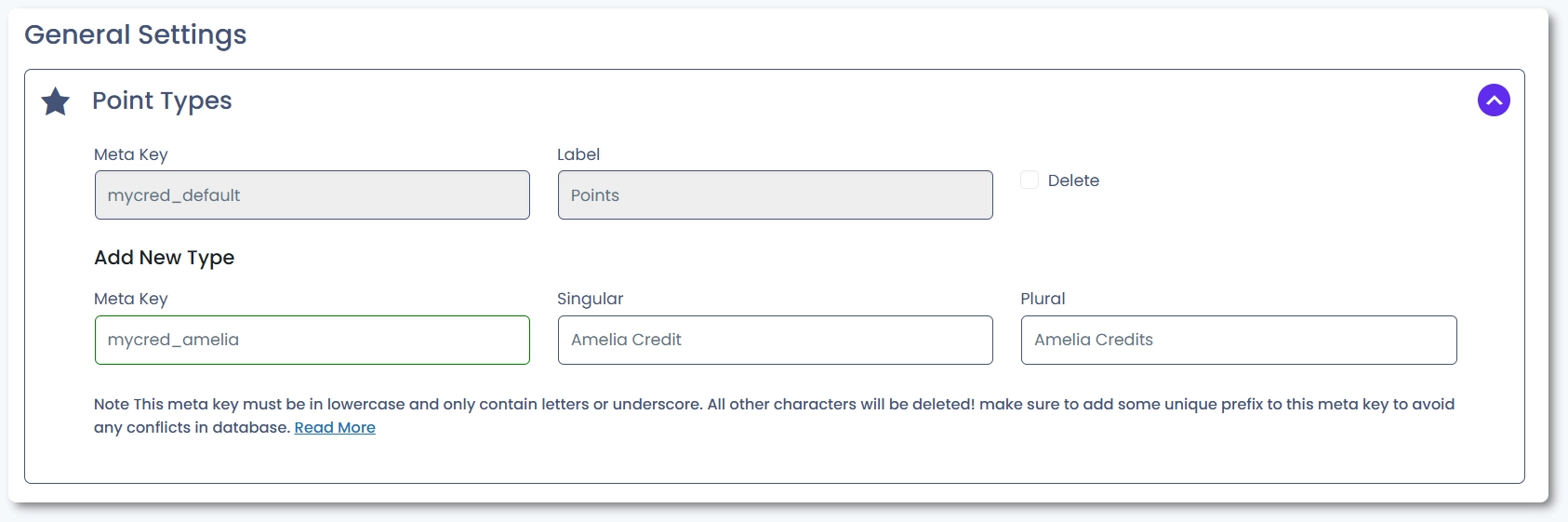
Install the myCred plugin by opening Plugins → Add New, searching for myCred, and installing and activating “myCred – Points Management System For Gamification, Ranks, Badges, and Loyalty Program”.
After activation, open the myCred setup screen and create a point type. Once the point type is created, myCred will display the settings for managing balances, logs, and point-related rules. You should already have Amelia installed, and if not, you can follow the installation steps in the Amelia installation documentation.
Don't forget to scroll down and click Update settings once you add the point type.
How do I install the myCred–Amelia add-on?
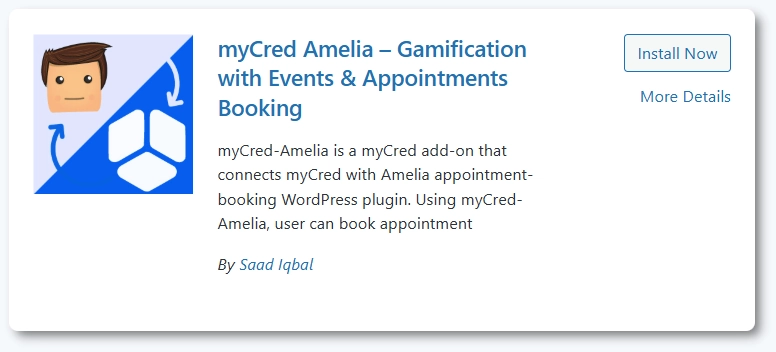
Install the integration add-on by opening Plugins → Add New and searching for myCred Amelia. You can also download it from the myCred Amelia add-on page. After installation, click Activate to enable the connection between myCred and Amelia.
How do I enable payments with myCred points in Amelia?
To accept point-based payments, first create at least one service or event in Amelia. Open Events → + Event or Catalog → Services → + Service, add the details, and save the item.
Then create or edit the front end pages where customers book appointments or events and ensure the correct Amelia shortcodes are added. In Amelia Settings → Payments, set On-site as the default payment method. When customers book, myCred will check their point balance and either deduct points or display an insufficient balance message.
How does the booking process work with myCred points?
When a customer opens the booking page and selects an appointment or event, myCred checks if the customer has enough points to complete the purchase. If the customer does not have enough points, a message will appear indicating that their balance is too low. If the balance is sufficient, the booking completes normally and the points are deducted. The deduction will appear in the myCred log for that user.
Where can I adjust the insufficient balance message?
Open the myCred General settings and access the MyCred Amelia Settings section to customize the message shown when users do not have enough points to complete a booking. This can be useful when directing customers to buy additional points or upgrade their membership.
What should I keep in mind when using myCred with Amelia?
- myCred controls all point balances and point calculations; Amelia only checks whether the customer’s balance is sufficient.
- On-site must remain the default payment method when using point-based bookings.
- The booking will fail if the customer is not logged in, since myCred cannot read their balance.
- All point deductions and logs are managed entirely by myCred.
- Shortcodes on your booking pages must be configured correctly for events and services.
