 Make This Winter Your Most Organized Yet

How do I manage events in Amelia
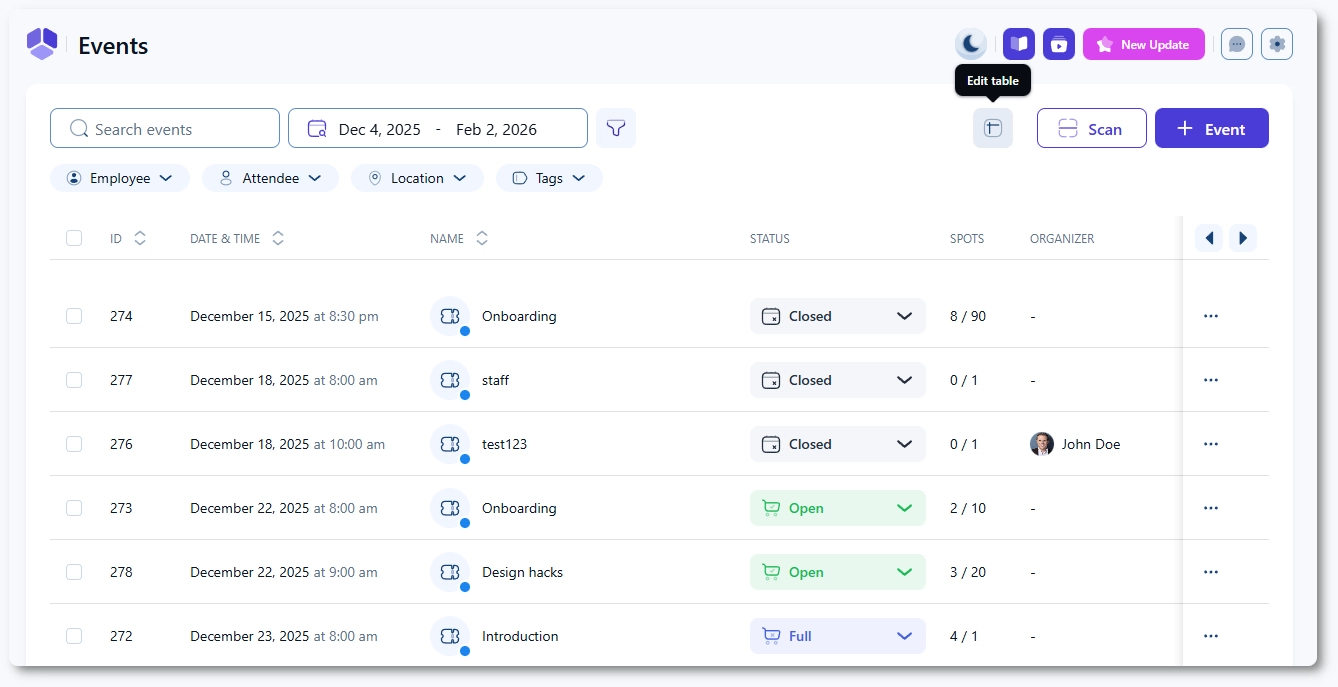
Open Amelia → Events to access the full list of created events. This page lets you search for events, filter them, adjust table columns, scan event tickets, create new events, and open detailed event information.
How do search and filters work on the Events page?
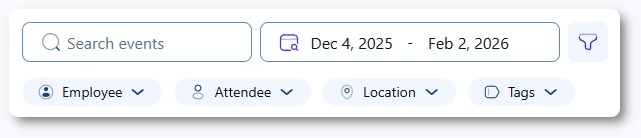
The top left corner contains several tools for finding specific events:
- Search – searches only by event name.
- Date range selector – shows events that start within the selected date range.
- Filter – allows filtering by employee, attendee, location, or event tags.
What options are available in the table settings?
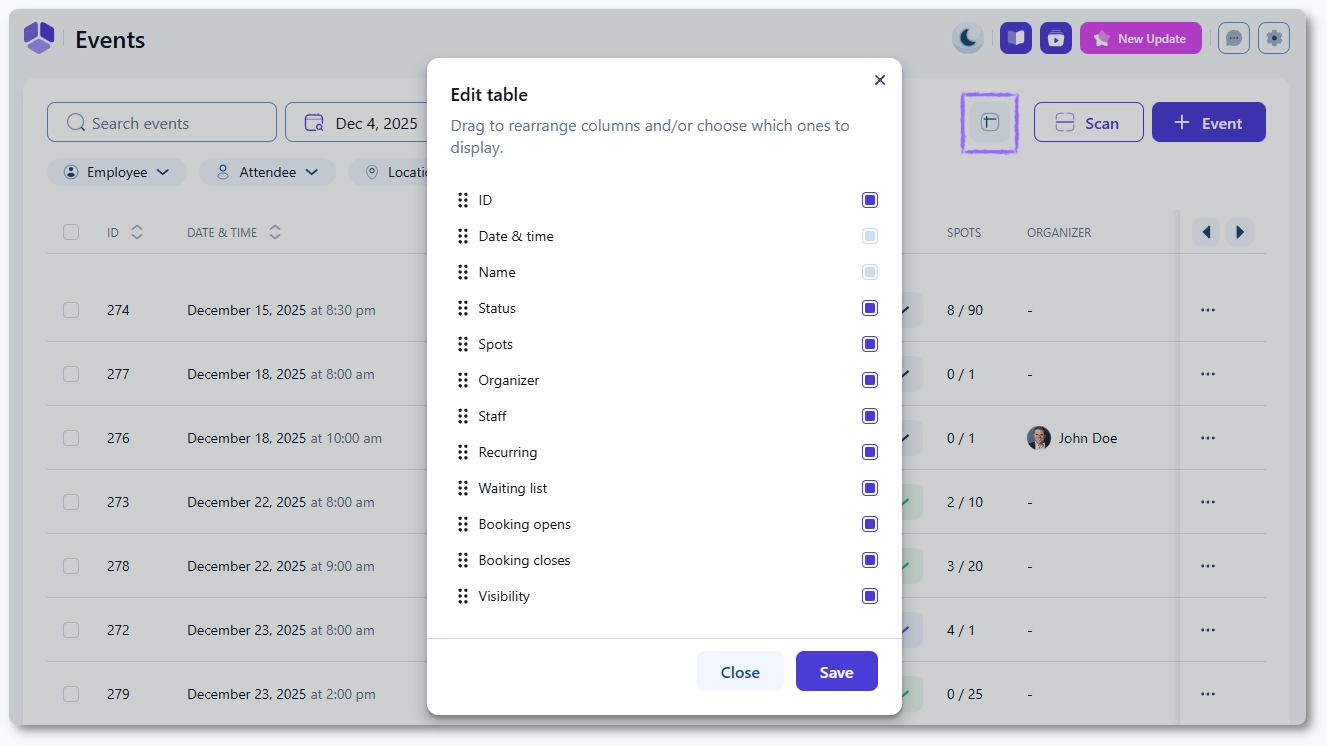
In the top right corner, the Edit table button allows you to show or hide data columns. The Date & time and Name columns cannot be hidden, but the others can be toggled on or off as needed.
Available columns include:
- ID
- Date & time (can’t be hidden)
- Name (can’t be hidden)
- Status
- Spots (booked/total)
- Organizer
- Staff
- Recurring
- Waiting list
- Booking opens
- Booking closes
- Visibility
How does ticket scanning work on the Events page?
If the E-ticket QR code feature is enabled, a Scan button appears next to the table settings. This allows you to scan attendee tickets directly from the back end.
Learn more here in the E-ticket QR Code documentation.
How do I create a new event from the Events page?
Click the + Event button in the top right corner to open the event creation modal. This action allows you to define the details, pricing, settings, and additional options in an event.
This process is explained in details in separate articles, starting from the Creating events page.
How do event statuses work on the Events page?
Each event row contains a status indicator. The event can be:
- Open – available for booking.
- Full – fully booked.
- Closed – booking closed based on rules from the Details or Pricing tab.
Through the status dropdown you can manually Cancel an event. This changes the event’s state but does not remove the event from the list.
What happens when I click an event in the list?
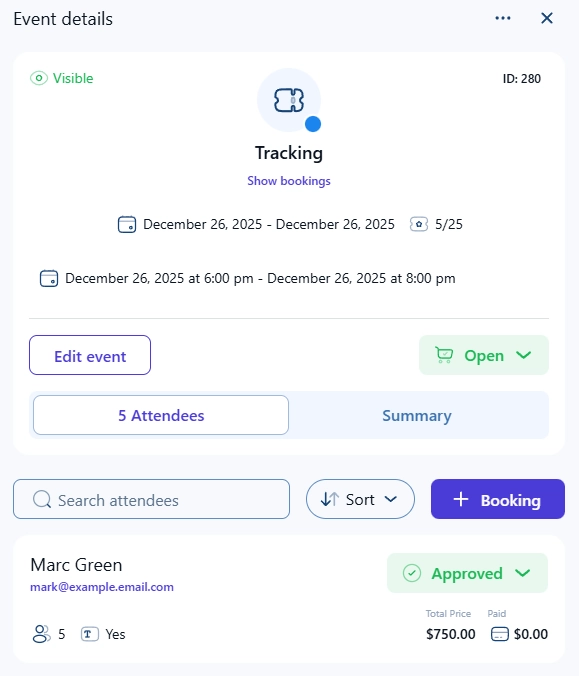
Clicking an event opens the Event details panel from the right side. This panel shows the event’s basic information, dates, visibility, capacity, and status. The Show bookings link leads directly to Amelia → Bookings → Events filtered for this specific event.
What options are available inside the event details panel?
From the top of the Event details panel, you can:
- Edit event – opens the event editing modal.
- Status control – open, close, or cancel the event.
- Show bookings – opens the bookings list for this event.
Below this are two tabs:
- Attendees – shows all attendees with search and sort tools.
- Summary – provides a numeric overview of bookings and revenue.
You can add a new booking using the + Booking button, which opens Amelia → Bookings with the New booking form prefiltered for this event.
How do attendee actions work?
Each attendee row shows their name, contact details, number of attendees in their booking, and payment information. Their booking status can be changed to Approved, Canceled, Rejected, or No-show. The No-show option becomes available only after the event has occurred.
Clicking an attendee opens their detailed booking information, where you can edit or delete the booking.

What does the three-dots menu include?
In the top right corner of the Event details panel, the three-dots menu provides additional actions:
- Edit
- Duplicate
- Hide or Show
- Show bookings
- Export bookings
- Delete
These options match the actions found in the three-dots menu of each event row in the Events list.

What should I keep in mind when managing events?
- The Events page lists events only, not individual event bookings.
- The status dropdown controls only the event status, not attendee statuses.
- The Show bookings link always redirects to the filtered bookings list.
- The QR scan option appears only when the E-ticket QR code feature is enabled.
- Table columns can be customized, but the Name and Date & time columns must remain visible.
- The Event details panel provides quick access to editing, attendee management, and reporting.